

Jira Cloud integration
The Jira Cloud integration keeps your Aerion projects in sync with Jira, so time tracking and project work line up across both tools. Link Aerion projects to Jira projects or labels, log time against Jira issues from Aerion, and see Jira estimates alongside your project data. Time entries flow back to Jira as worklogs automatically.
Required rights
Admin — to install the plugin in Jira and manage the integration settings in Aerion.
How it works
You choose which Jira projects and issue states to synchronize. Issues in those states are imported into Aerion and connected to the Aerion projects you've mapped them to — by Jira project or by Jira label. When time is logged against those issues in Aerion, entries sync back to Jira as worklogs, optionally including the Aerion task name, project info, and a link to the original entry. New Jira issues can be imported manually, or automatically as they appear.
Install in Jira
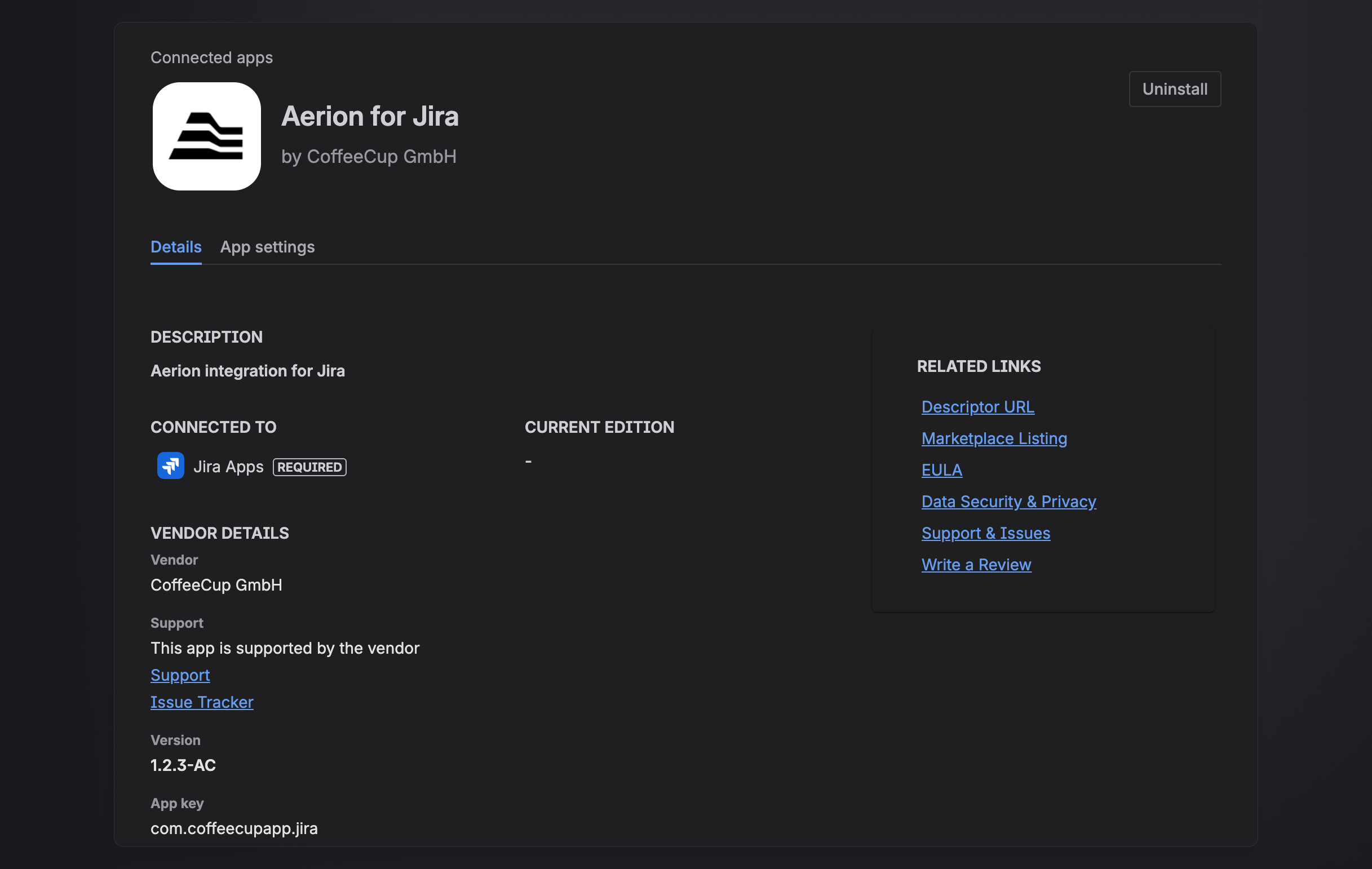
- Install the Aerion for Jira app in your Jira Cloud instance.
- Log in with your Aerion account.
You need Jira Admin rights to install the app.
Configure in Aerion
Open Settings → Integrations → Jira. The page header shows who connected it, support and docs links, and the option to install the Jira app.
Sync settings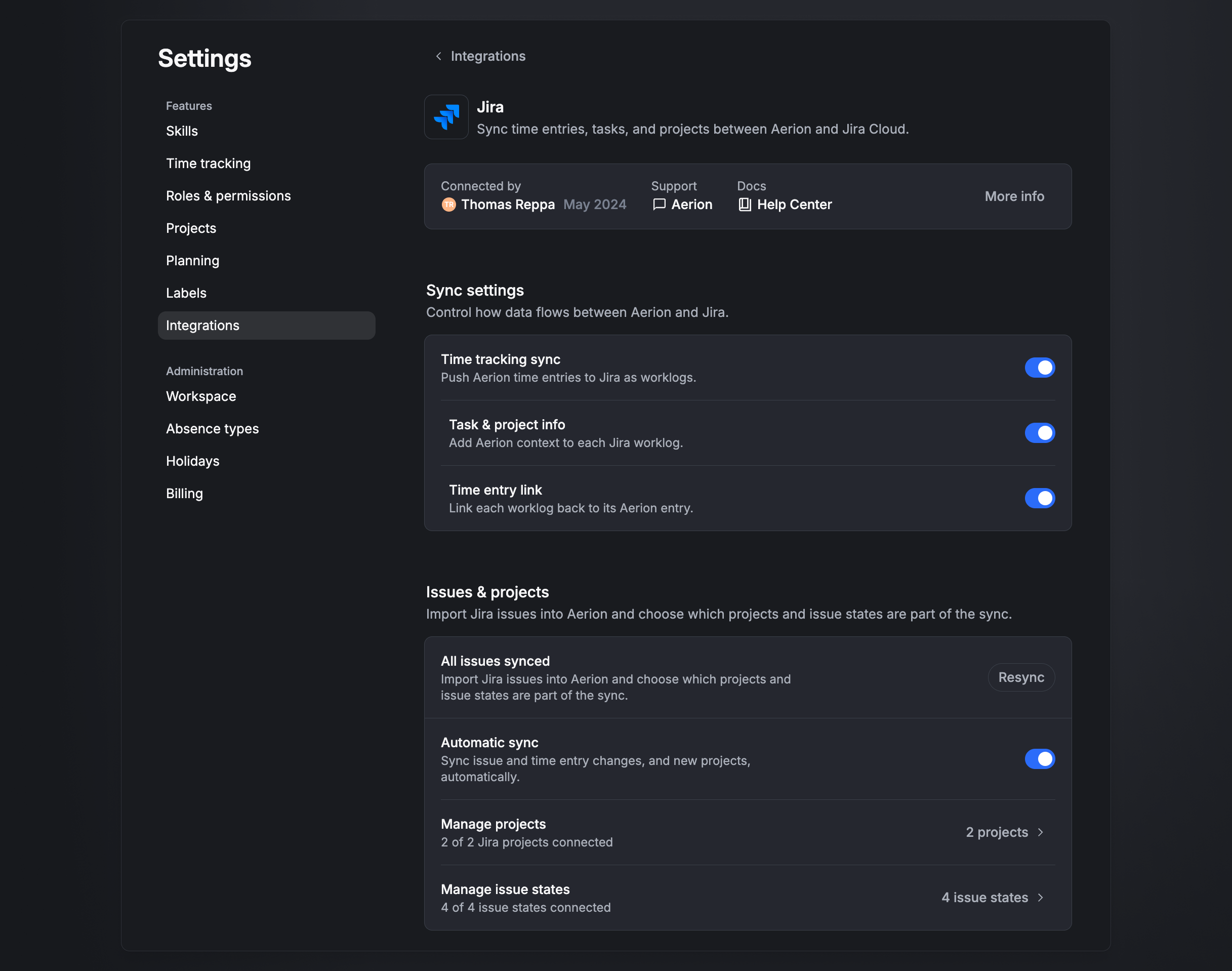
Control how data flows between Aerion and Jira:
- Time tracking sync — push Aerion time entries to Jira as worklogs. Only the actually recorded time is transferred, not the total billable time.
- Task & project info — add Aerion context (task and project) to each Jira worklog.
- Time entry link — link each worklog back to its Aerion entry, so you can jump from Jira to the original entry.
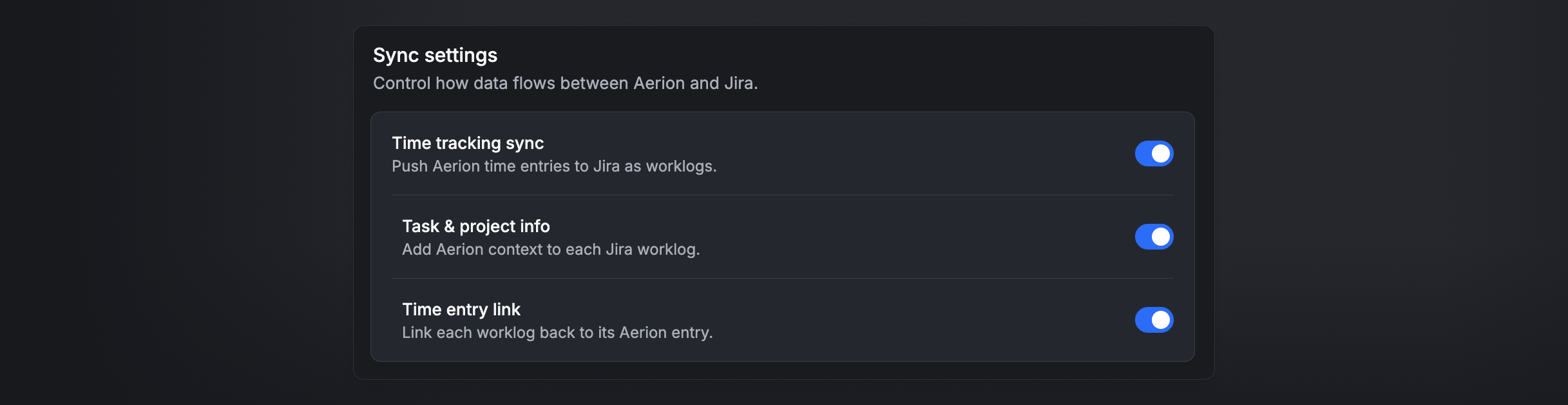
Issues & projects
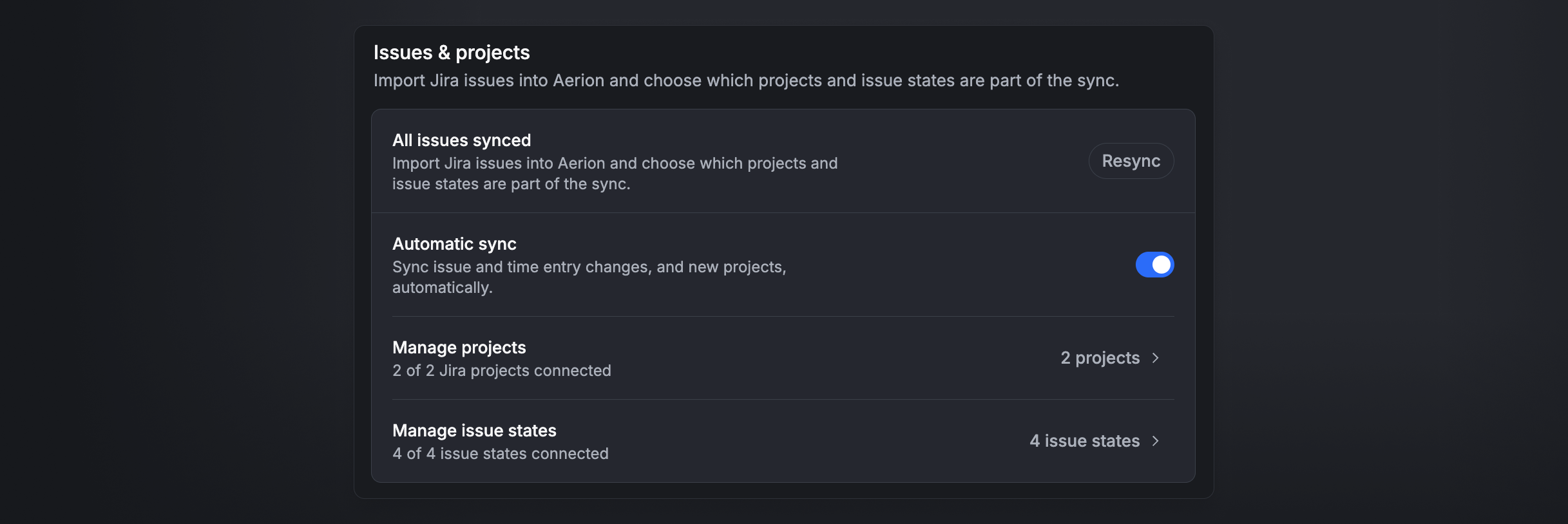
Import Jira issues into Aerion and choose which projects and issue states are part of the sync:
- Automatic sync — sync issue and time-entry changes, and new projects, automatically. When it's on, the section shows Auto-sync active; use Resync to import existing issues on demand.
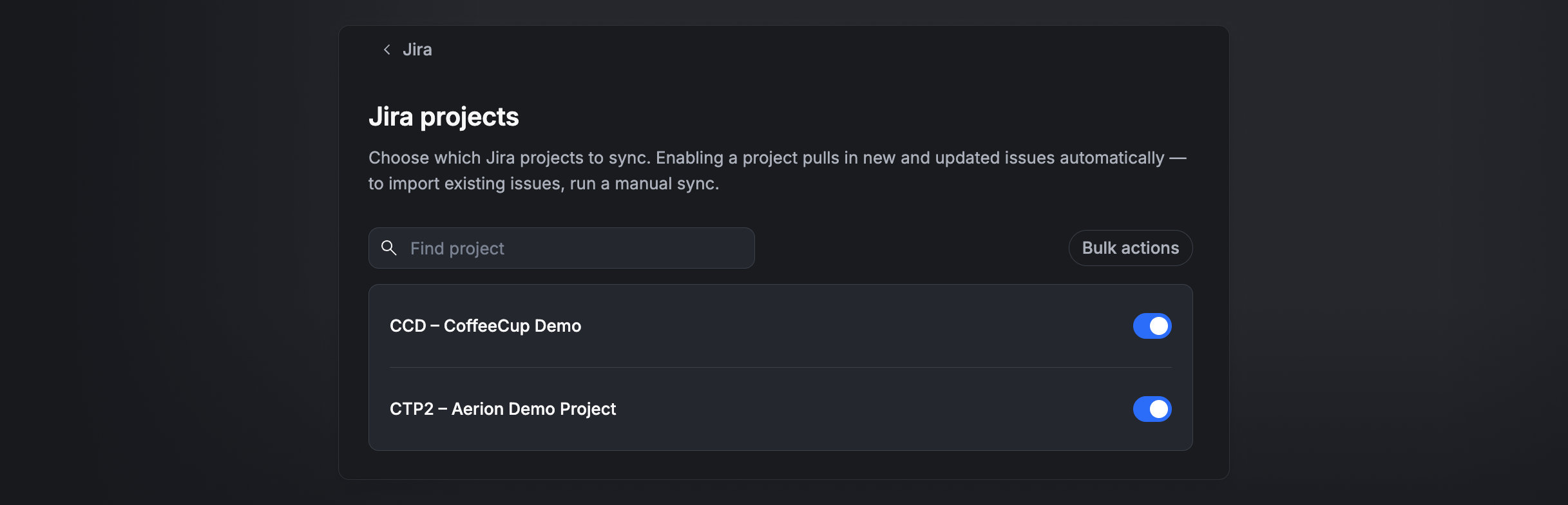
- Manage projects — choose which Jira projects to sync. Enabling a project pulls in new and updated issues automatically; to import existing issues, run a manual sync. Use Find project to search and Bulk actions to toggle several at once.
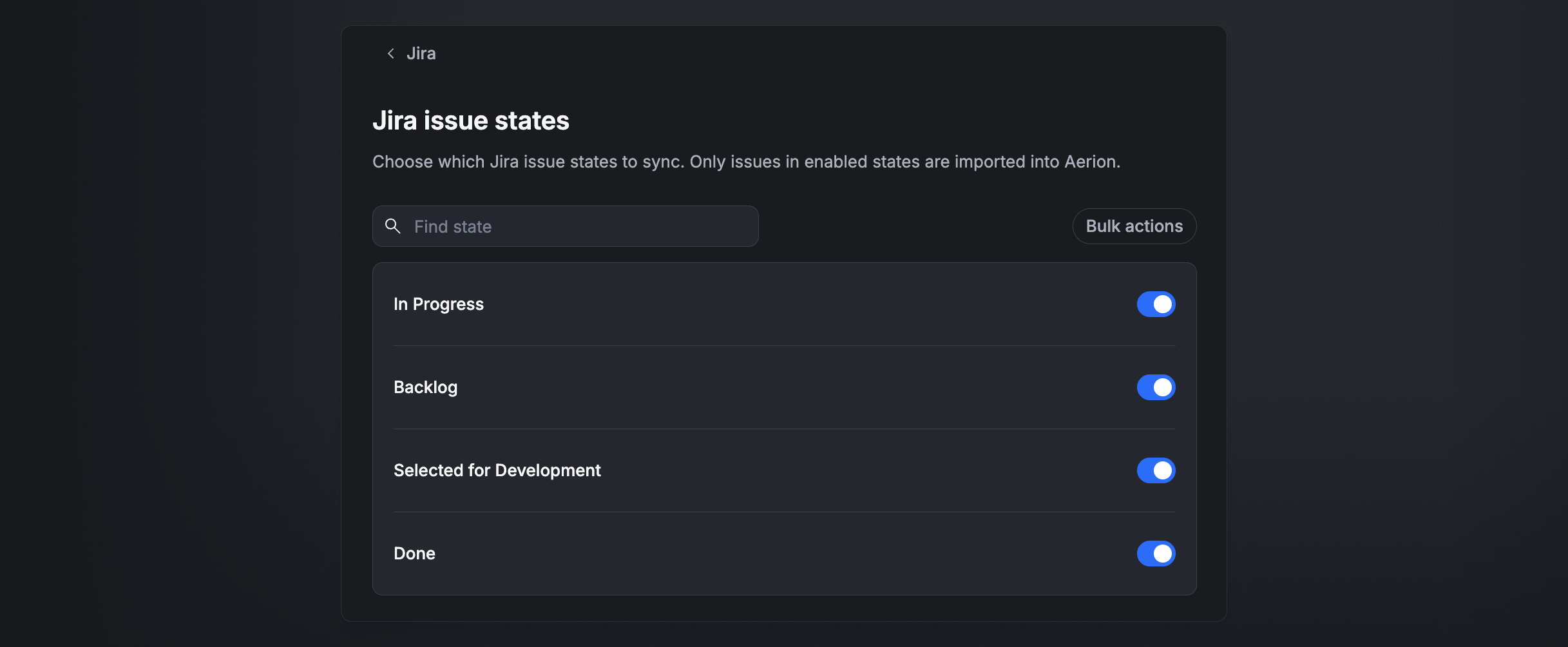
- Manage issue states — choose which Jira issue states to sync (e.g. In Progress, Backlog, Selected for Development, Done). Only issues in enabled states are imported into Aerion. Use Find state and Bulk actions.
Map Jira to Aerion projects
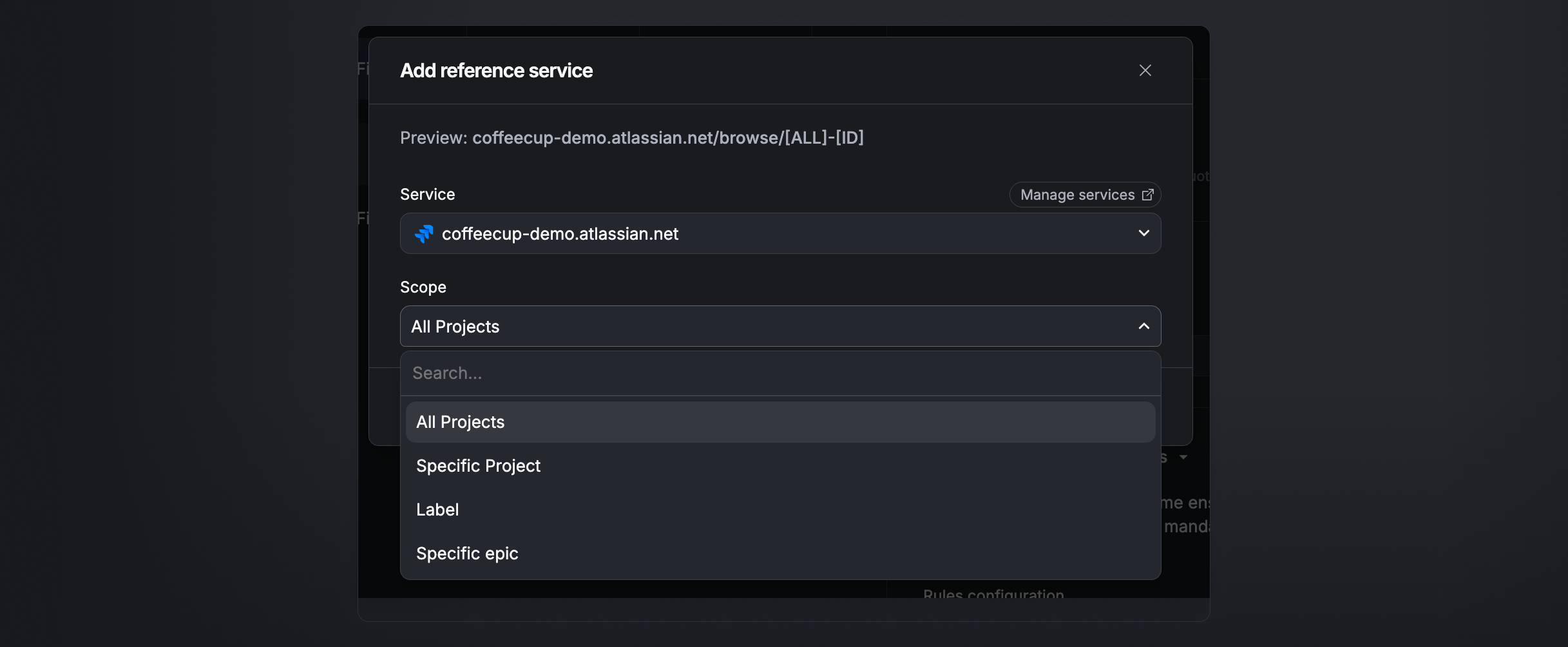
Connect an Aerion project to Jira by adding a reference service. In the project, add a reference to open the Add reference service dialog and set:
- Service — your Jira instance (e.g.
coffeecup-demo.atlassian.net). Manage connected instances via Manage services. - Scope — what to pull in: All Projects, a Specific Project, a Label, or a Specific epic.
A Preview shows the resulting issue-link pattern (e.g. coffeecup-demo.atlassian.net/browse/[ALL]-[ID]). All existing and newly synced issues within the scope become available for time tracking and analysis in that Aerion project.
Track time against Jira issues
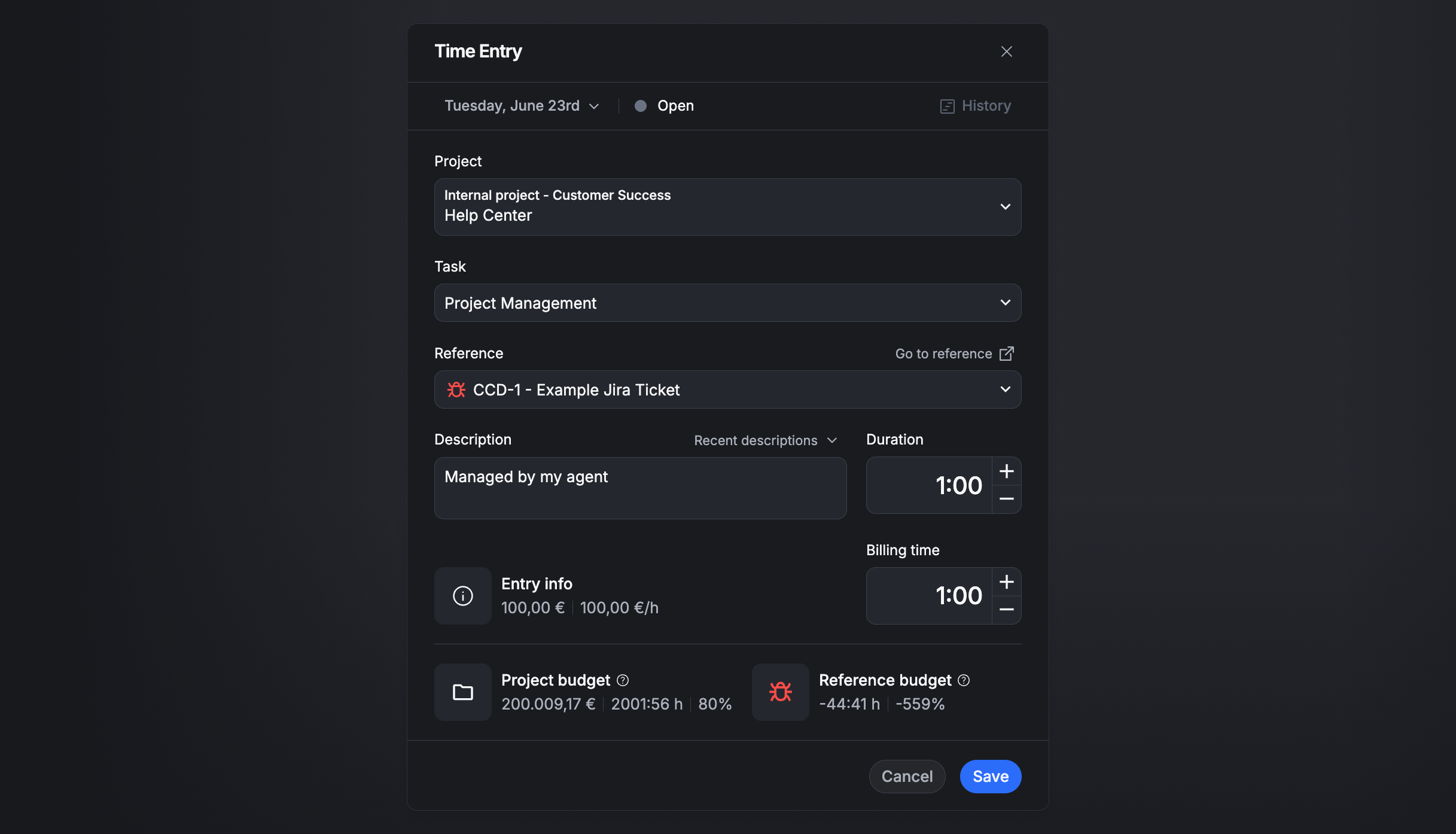
When recording time in Aerion, select the Jira issue you worked on. The entry is logged in Jira as a worklog (with the optional task/project info and back-link from your sync settings). The time entry form also shows the remaining budget and hourly rate, so you keep cost and effort in view.
Benefits
- Transparency — project time in Aerion and Jira issues stay consistently in sync.
- Efficiency — less double entry thanks to direct linking and worklog sync.
- Control — keep budget, state, and progress in view across both systems.
Turn on Automatic sync so changes in Jira and Aerion stay up to date without manual resyncs.