

Plan invoices
Plan upcoming invoices in advance and turn them into invoices when the time comes.
Required rights
Project management
The planned-invoices overview sits at the top of the Invoices tab on both projects and sub-projects.
Overview
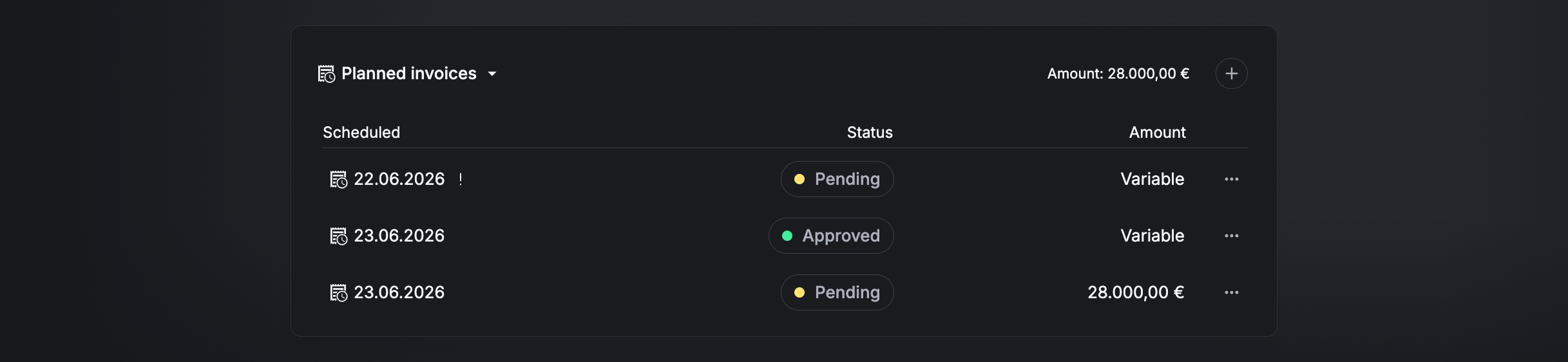
The planned-invoices overview shows, per planned invoice, the planned invoice date, invoice notes, approval status, and amount.
Approval status
Once a planned invoice is created, it can have one of the following approval statuses:
- Pending (yellow) — not yet approved (the initial status).
- Approved (green) — released for invoicing.
Planned invoice options
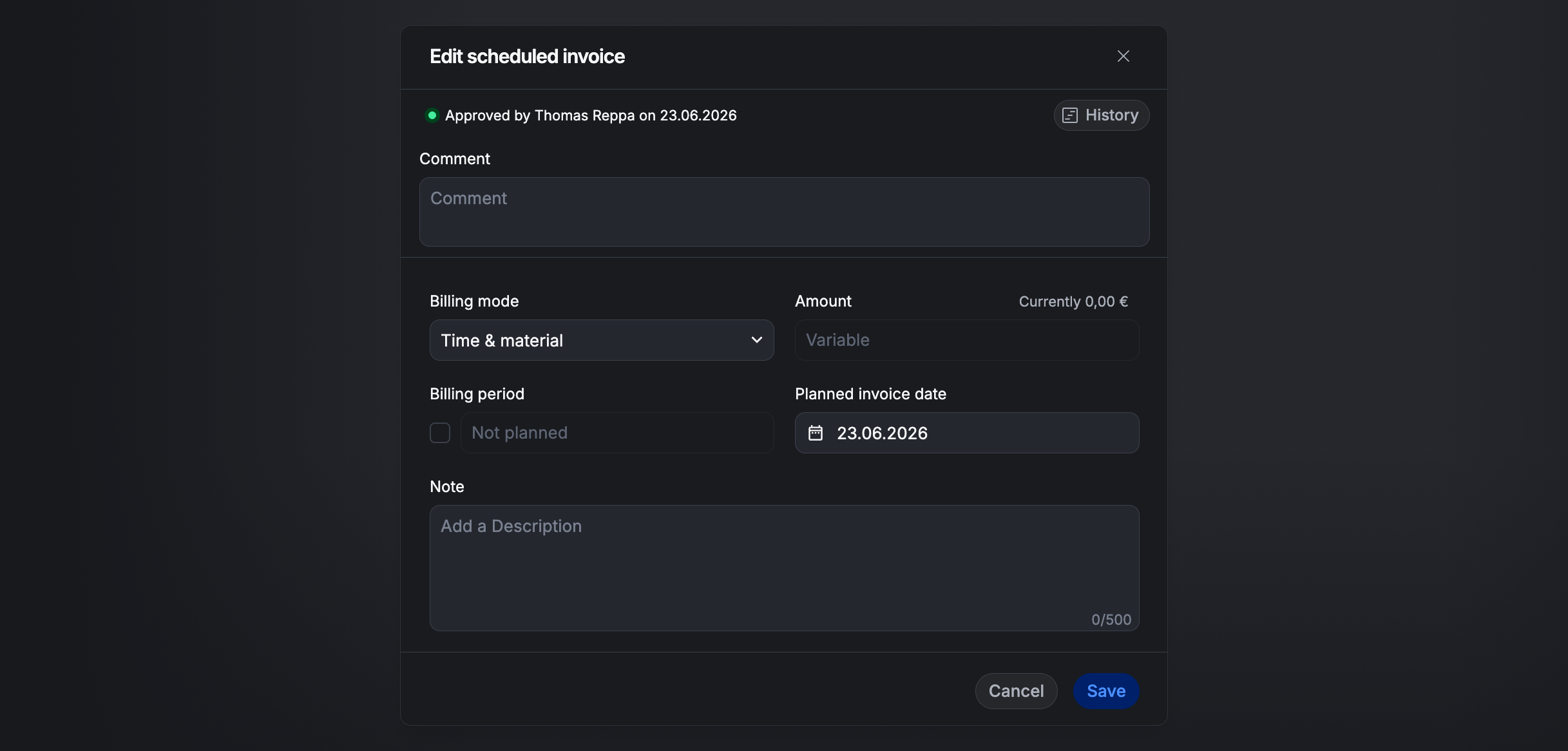
Each planned invoice offers these options in its context menu:
- Create invoice — converts the planned invoice into an invoice.
- Edit — opens the planned invoice's edit dialog.
- Delete — deletes the planned invoice.
Create a planned invoice
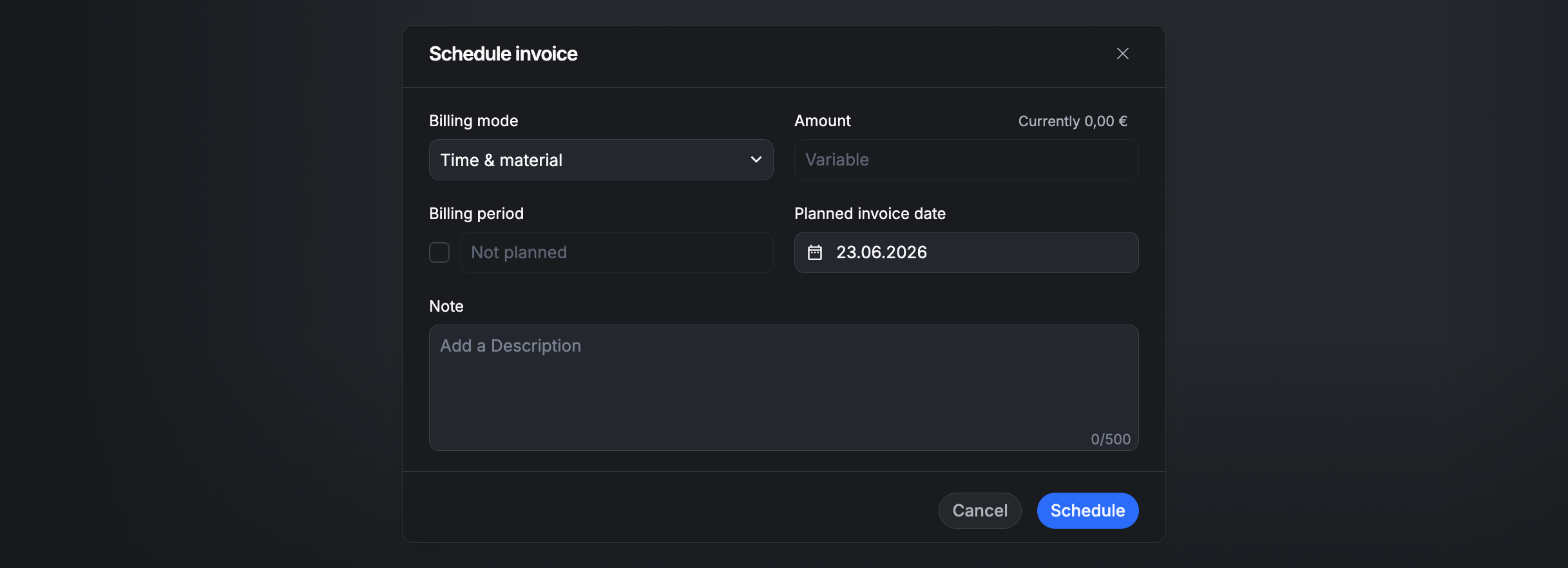
Click the + icon to create a new planned invoice with these options:
- Planned invoice date — the date the invoice is scheduled to be issued.
- Billing mode — choose Fixed price to set the future amount manually, or Time & material to have the amount determined by the actual effort on the invoicing date.
- Billing period — optionally set in advance. If you don't set it, the default billing period is applied at invoicing.
- Amount — can be set in advance when the billing mode is Fixed price. Otherwise it's variable and determined by the actual effort on the invoicing date.
- Note — an optional note to document changes to the planned invoice, or as a note for the invoicing step.
Edit a planned invoice
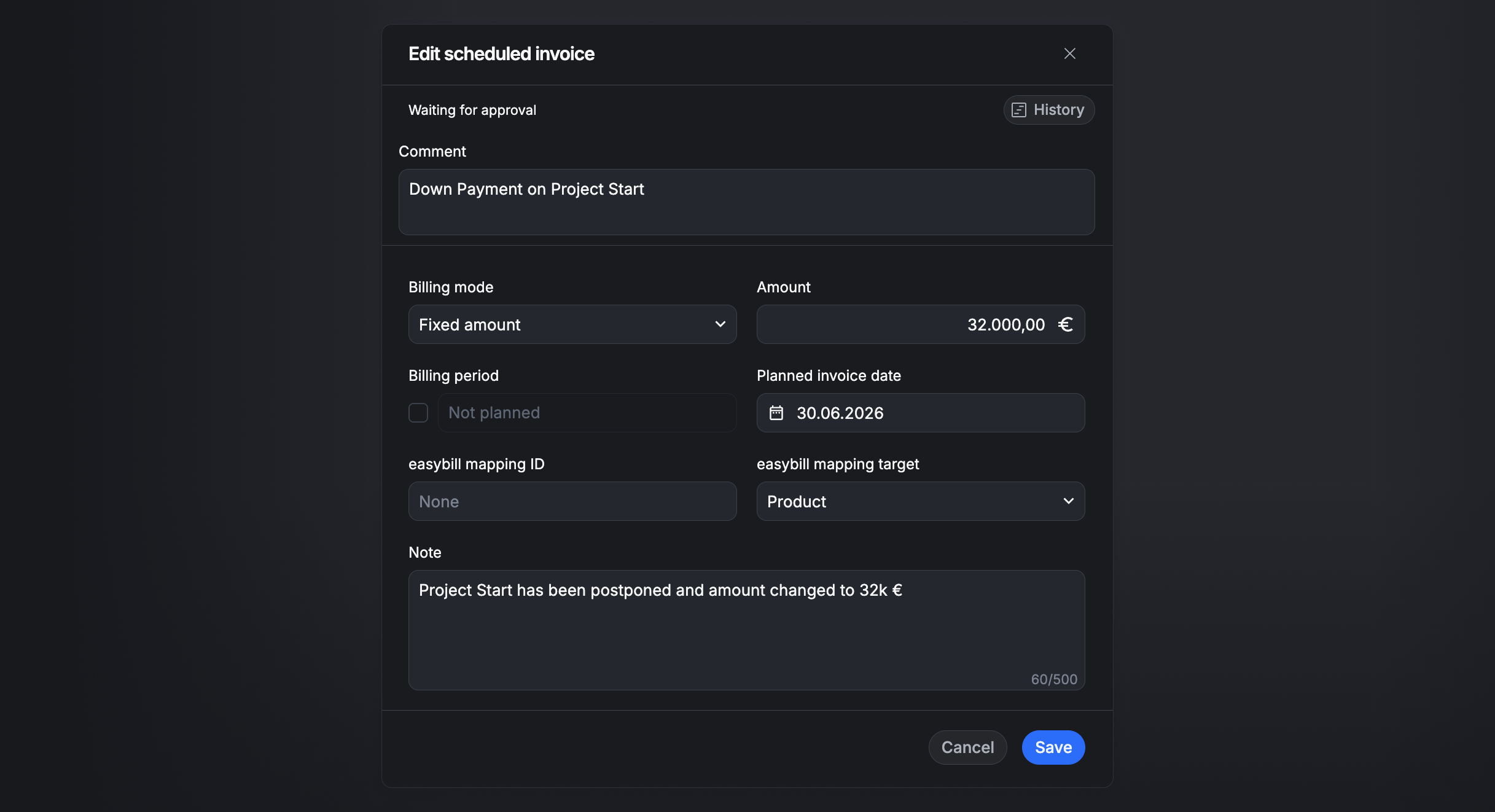
Click an entry in the list, or choose Edit, to open the planned invoice's edit dialog. To keep changes traceable, you must comment the change before saving. All changes are also logged and can be viewed in the change history.
See also: Invoice projects.