

Project planner
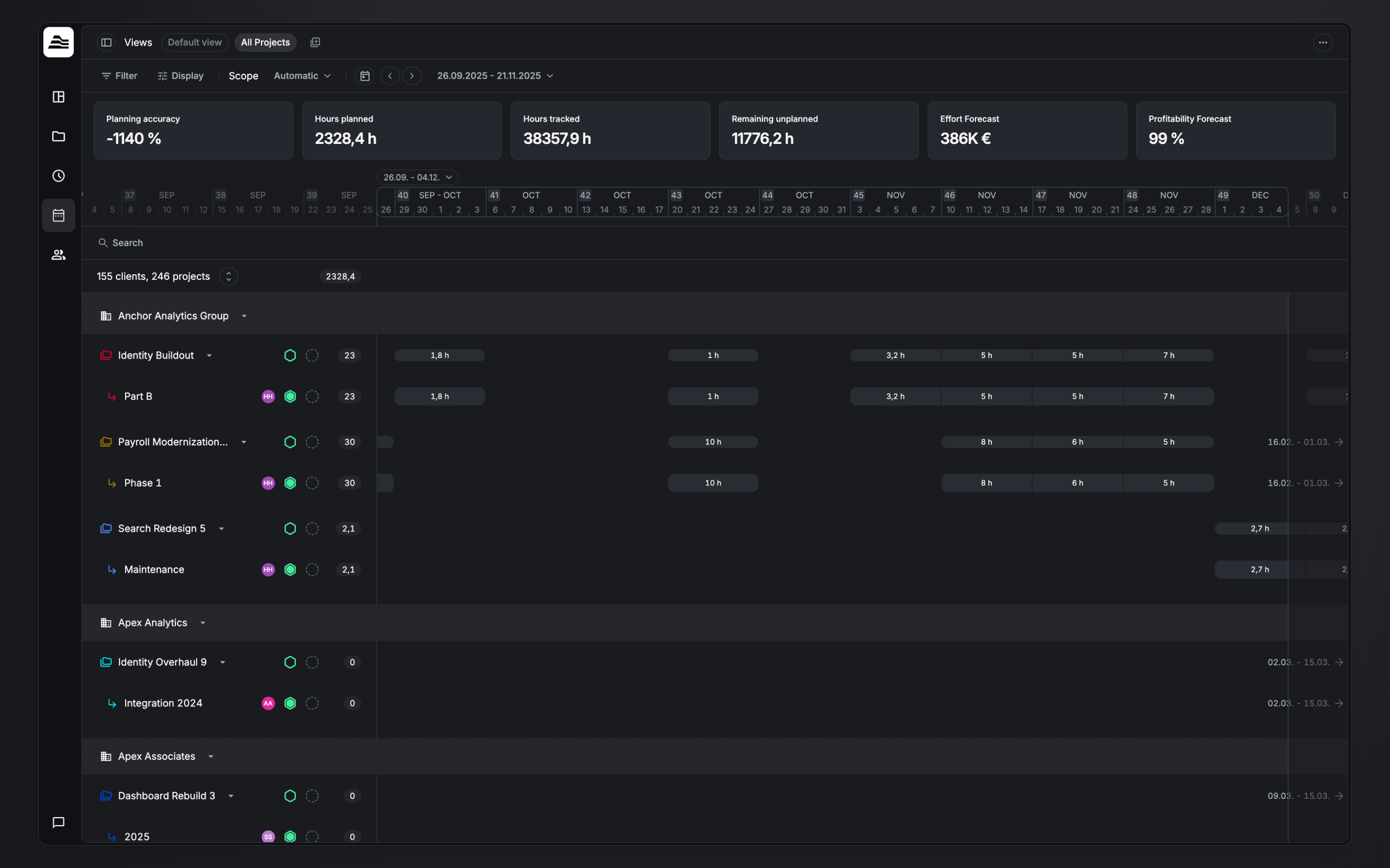
The project planner is the projects perspective of the planner. It shows your projects on a timeline — grouped by client — with the planned hours per project and period, so you can see what's planned where, open a project's details, and assign people to it. It works much like the Utilization planner, but each row is a project rather than a staff member.
Required rights
View own planner assignments
Reading the planner
- Rows. Clients (and client groups) contain projects, which contain sub-projects. The count above the list (e.g. "165 clients, 273 projects") reflects what's currently in view.
- Planned hours. The number next to a project is its planned hours in the current scope — the sum of its bars on the timeline.
- Row info. Each project row shows its project lead, status, and health (toggle these in Display).
- Timeline bars. Each bar shows the planned hours for that period. When a project's planning falls outside the current scope, its date range is shown with an arrow pointing to where it sits.
Project details
Select a project — or hover its row and click the details icon — to open the detail panel on the right. It shows:
- General — Budget type, State, Health, Duration, and Lead.
- Planning — Planning budget, Future planned, Planned (in scope), Tracked, and Unplanned.
- Future planned — the staff members planned on the project and their hours.
- Milestones — create milestones with the + button.
Assign staff to a project
To assign staff members to a project, hover over the project row, open its options menu (⋯), and open the project details — a modal with the find UI where you add staff members to the project.
To quickly see who's already assigned, hover the row and click the details icon: the detail panel's Future planned section lists the staff planned on the project.
KPI cards
The default set for the projects view:
- Planning accuracy — how closely planned hours match tracked hours.
- Hours planned — total planned hours in the scope.
- Hours tracked — total tracked hours in the scope.
- Remaining unplanned — the planning budget that hasn't been planned yet.
- Effort Forecast — billable time and expenses plus the value of future planned billable hours (amount).
- Profitability Forecast — that effort compared with staff and expense costs (percentage).
Use Show KPIs and Customize KPIs to choose and reorder the cards, the same way as in the Utilization planner.
Scope
Automatic (browser viewport), Custom (a date range you choose), or All time — identical to the Utilization planner. It sets the timeframe the planned-hours figures and KPIs are based on.
Display options
Open Display to control what the planner shows:
- Show hidden employees — include staff that have been hidden.
- Show KPIs — show or hide the KPI cards; Customize KPIs… picks and reorders them.
- Row options:
- Show project lead — show the project lead on each row.
- Show status — show each project's status.
- Show health — show each project's health.
- Always show weekly planned hours — keep the per-period planned hours visible on the bars at all times, instead of only on hover.
The projects view has no Availability Display setting — that one is specific to the utilization view.
Filtering
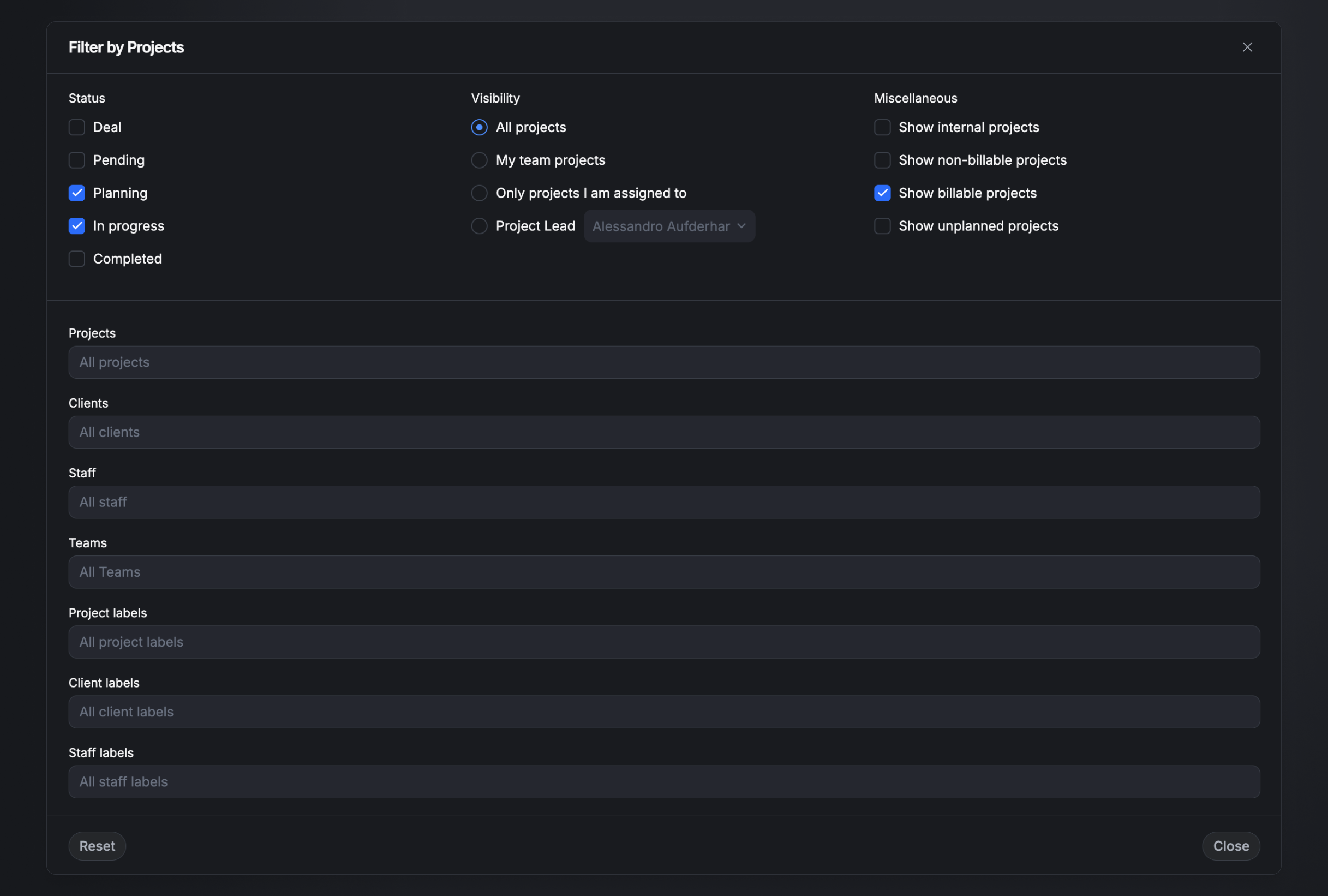
Open Filter to choose which projects are included:
- Status — Deal, Pending, Planning, In progress, Completed.
- Visibility — All projects, My team projects, Only projects I am assigned to, or Project Lead (pick a person).
- Miscellaneous — Show internal projects, Show non-billable projects, Show billable projects, Show unplanned projects.
- Narrow by — Projects, Clients, Staff, Teams, Project labels, Client labels, Staff labels.
- Reset clears all filters.
Search and views
The search bar narrows the list to specific clients, projects, teams, and labels. Save a configured planner — its filters, display options, and scope — as a named view, and switch between your views and the Default view with one click (same as the Utilization planner).