
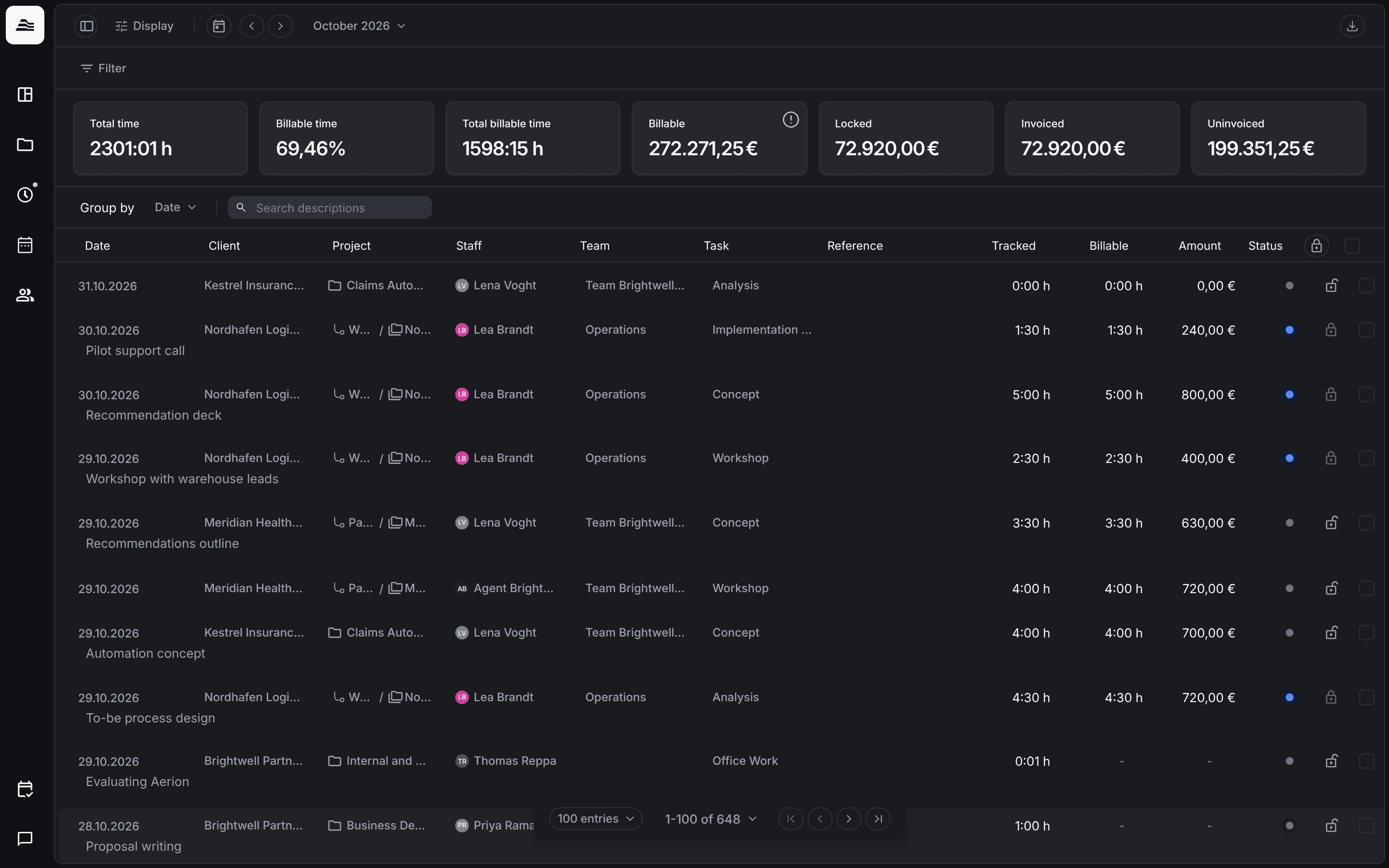
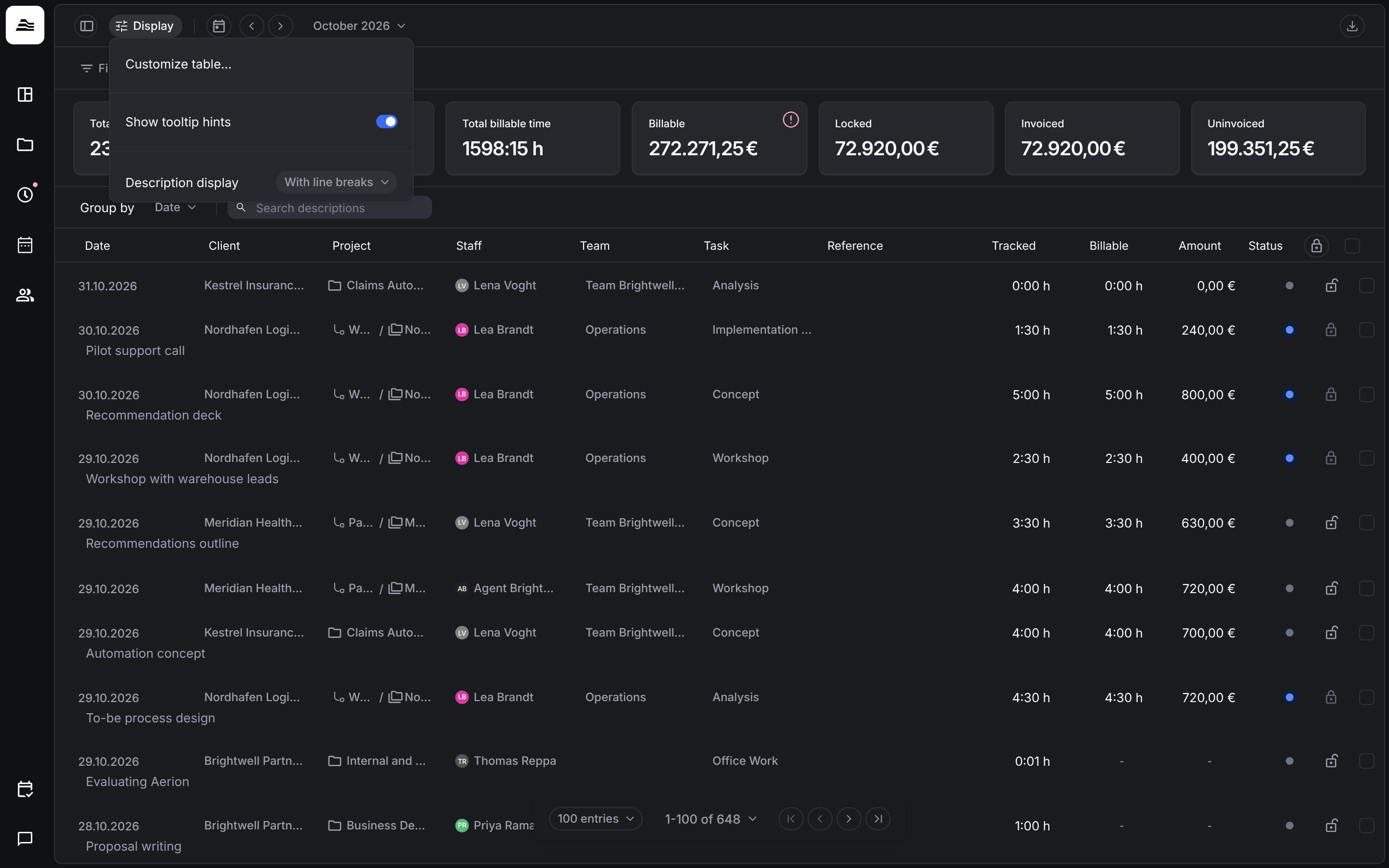
Under Times → Analytics you analyze all time entries of a period: how much was tracked, how much of it is billable and what has been invoiced. Filters and grouping let you answer questions such as "How much billable time did the Operations team track last month?".
Required rights: Admin or a role with Extended staff management
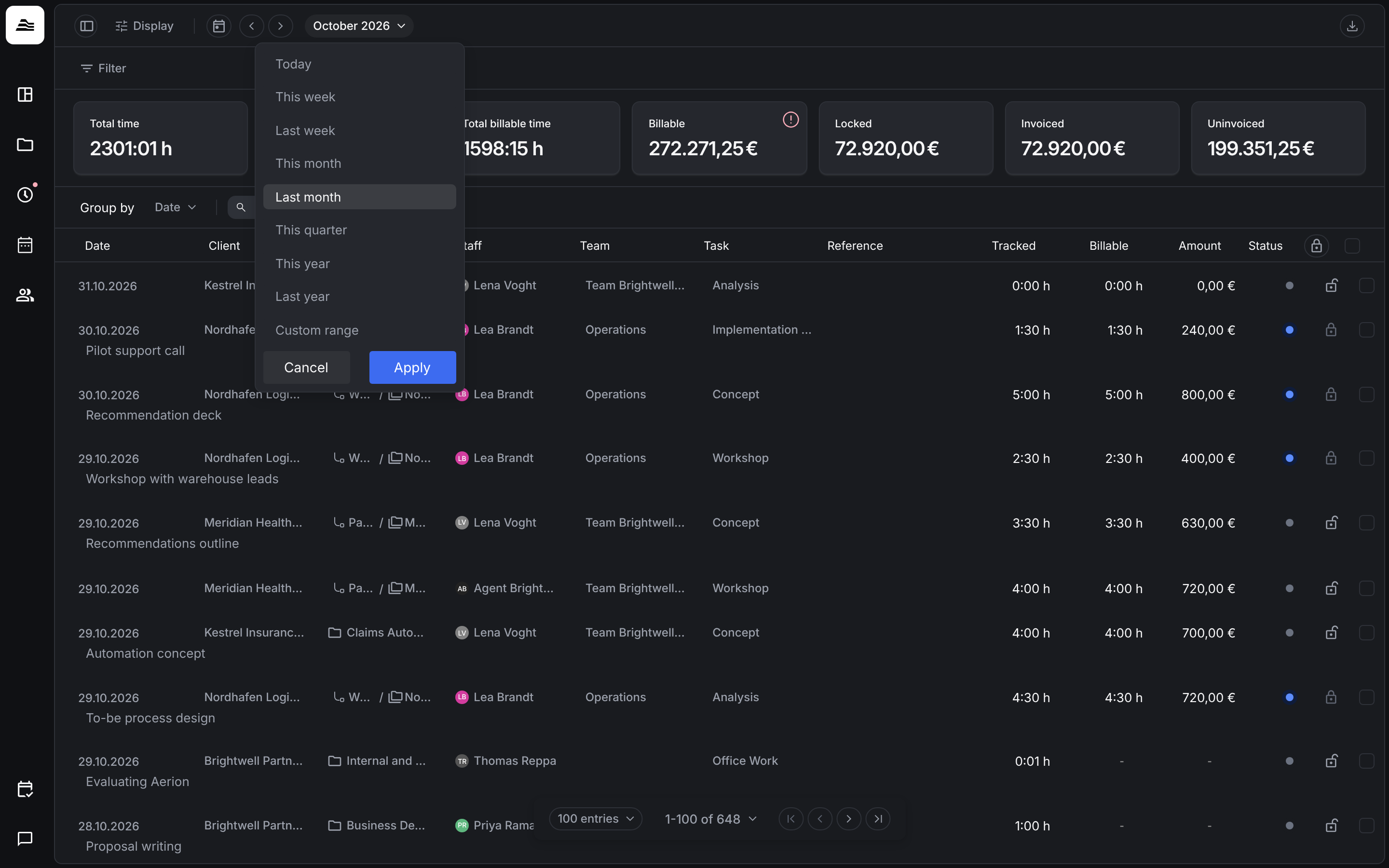
Choose the period
Click the period at the top, for example October 2026, and choose Today, This week, Last week, This month, Last month, This quarter, This year, Last year or a Custom range. The arrows move the period back and forward, the calendar icon jumps to the current month.
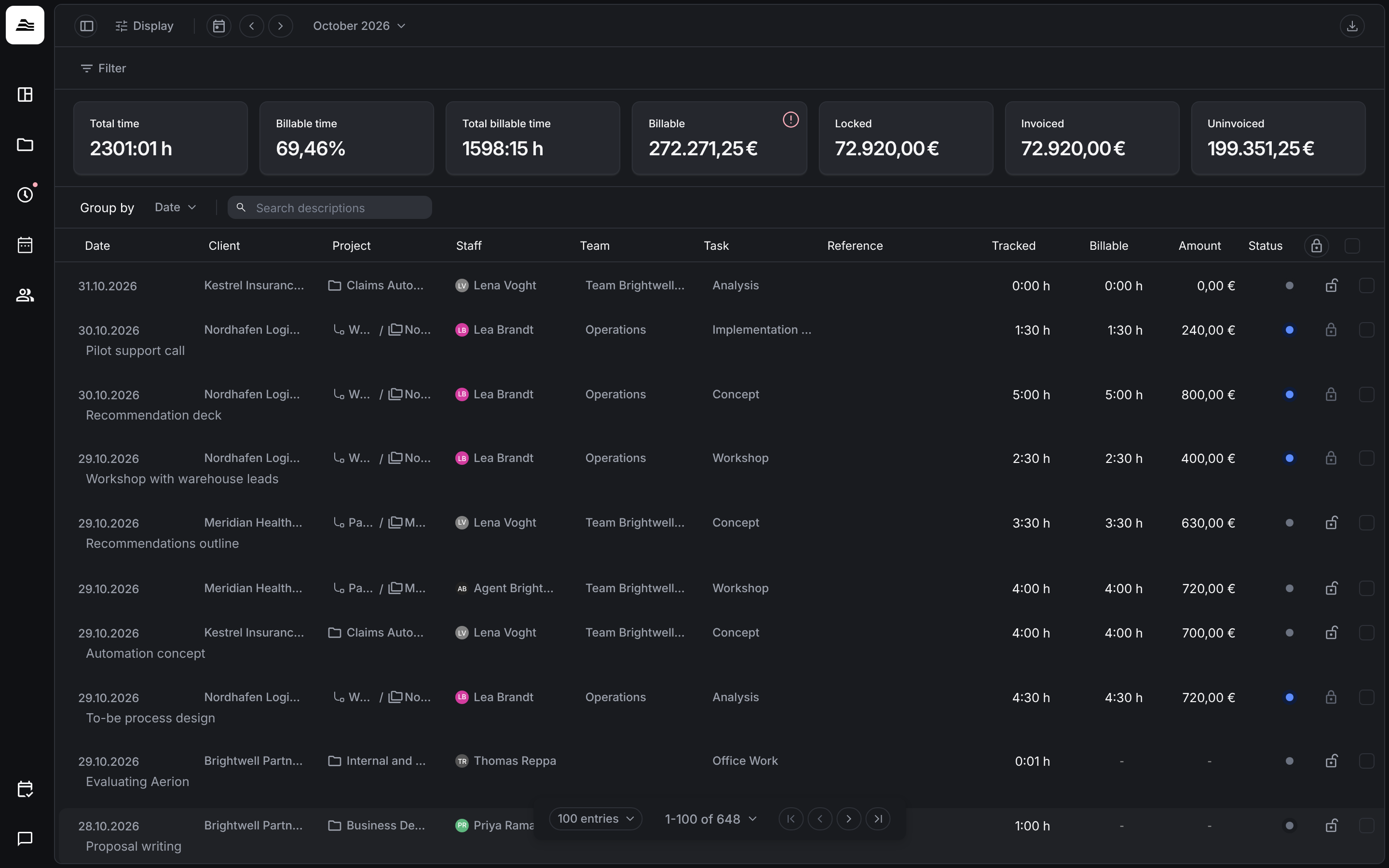
Read the tiles
| Tile | Meaning |
|---|---|
| Total time | All tracked time in the period. |
| Billable time | Share of billable time in the total time. |
| Total billable time | Billable time after rounding. Hover over the tile to see the non-billable project time. |
| Billable | Billable amount of the entries. On fixed-price projects, Aerion also calculates the entries above the budget limit. This is only available when the list is grouped by date. |
| Locked, Invoiced, Uninvoiced | Amounts of locked, invoiced and not yet invoiced entries. |
Filter and group
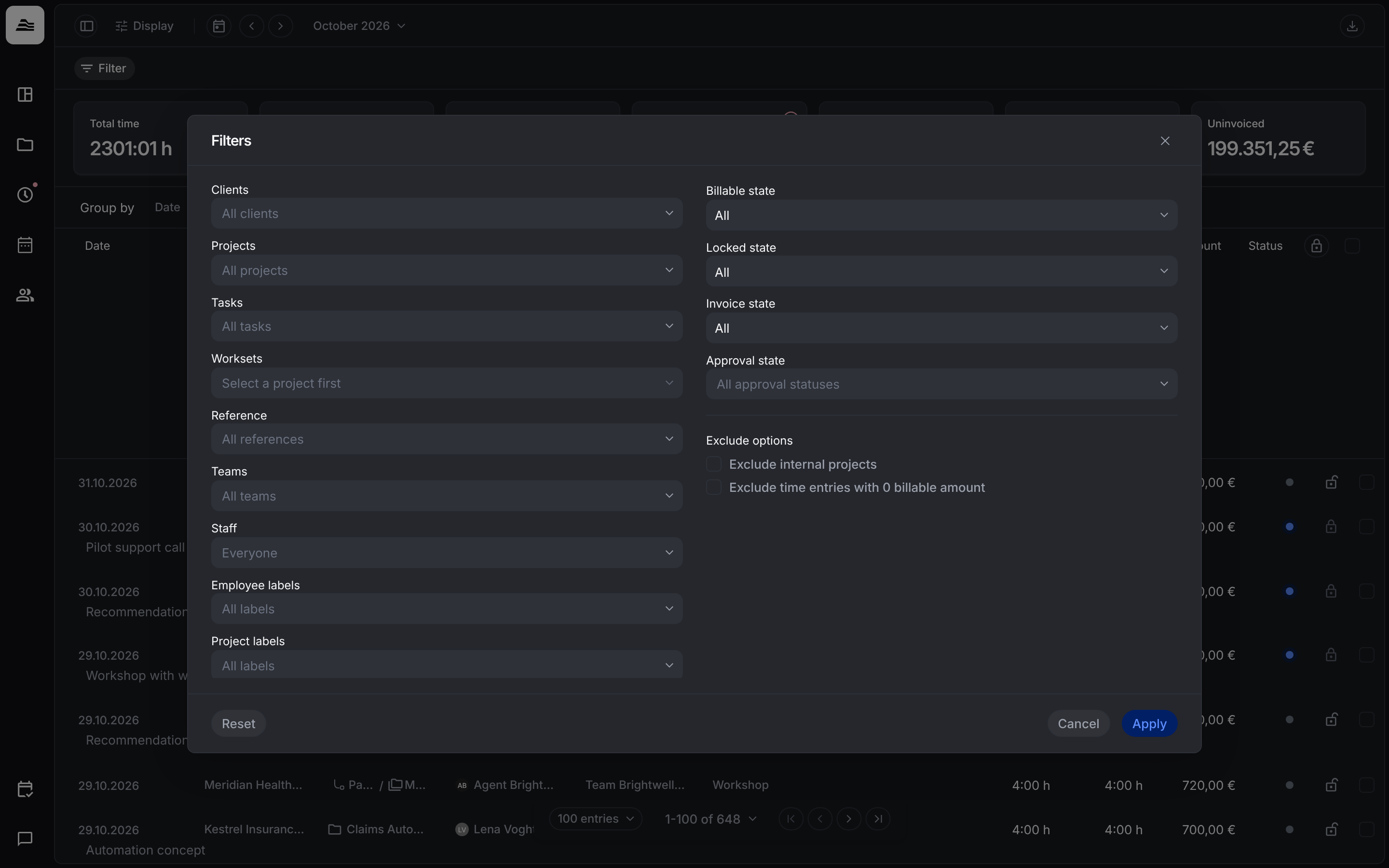
Filter narrows the list by clients, tasks, worksets, teams, employee labels and project labels, and by Billable state, Locked state, Invoice state and Approval state. Under Exclude options you can leave out internal projects and entries with a billable amount of 0. Click Apply.
With Group by you group the list by date, client, project, staff member, team, task, reference or workset. The search field finds entries by their description.
Under Display you customize the table columns, show tooltip hints and choose how descriptions are displayed, for example with line breaks.
Related
- Lock and export time entries: lock entries and export time sheets.
- Approval and billing states: what the status column shows.
- KPIs explained: the figures on the project board.