
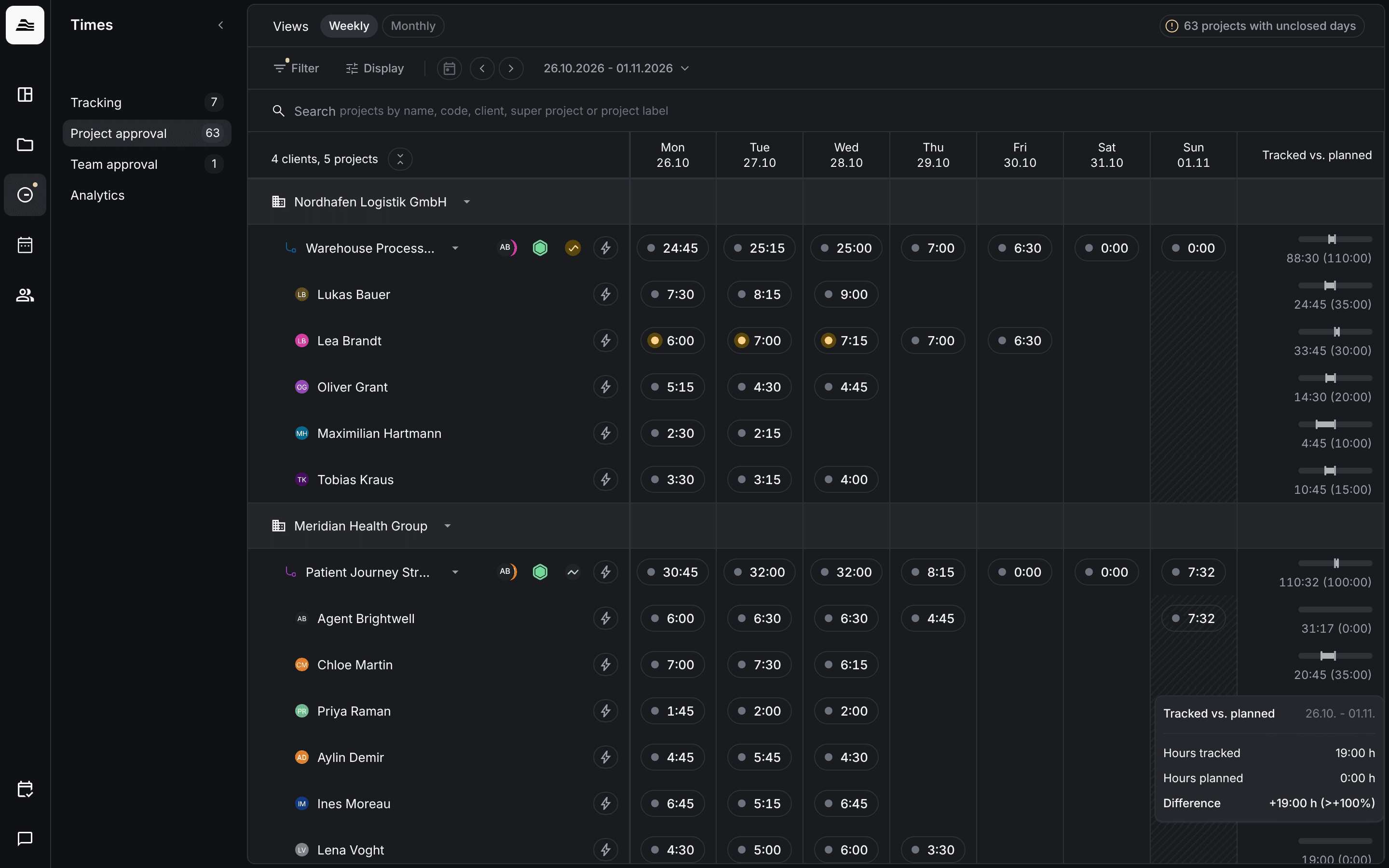
In project approval you review the time your team tracked on your projects.
Required rights: PM rights on the project. Admins see all projects.
Open Times → Project approval. You see one row per project and below it one row per staff member, with their time for each day of the week. Tracked vs. planned compares tracked and planned hours. Use Weekly and Monthly to switch views.
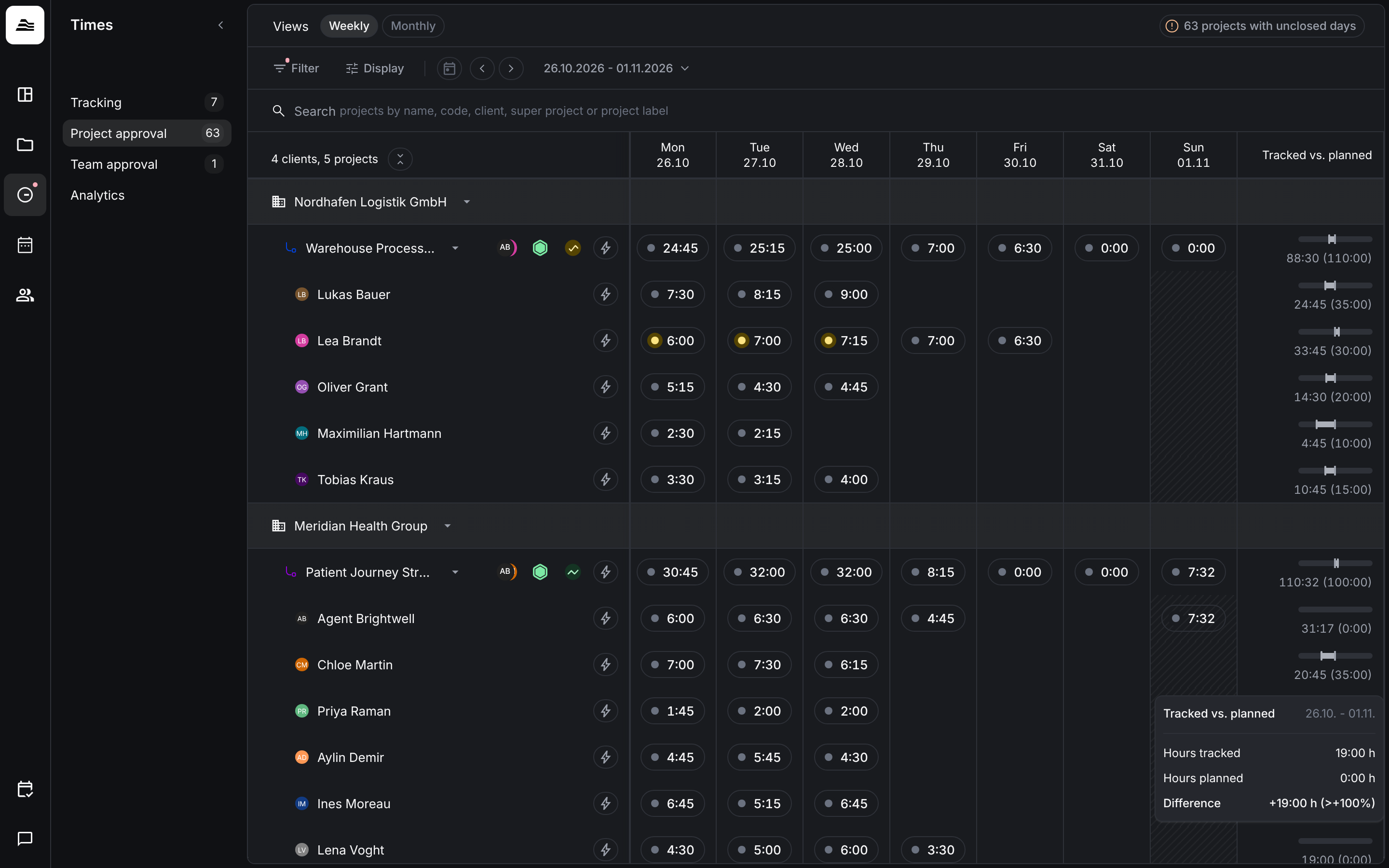
Hover over a day to see its Approval status: how many entries are approved, submitted, rejected or still open.
Review entries
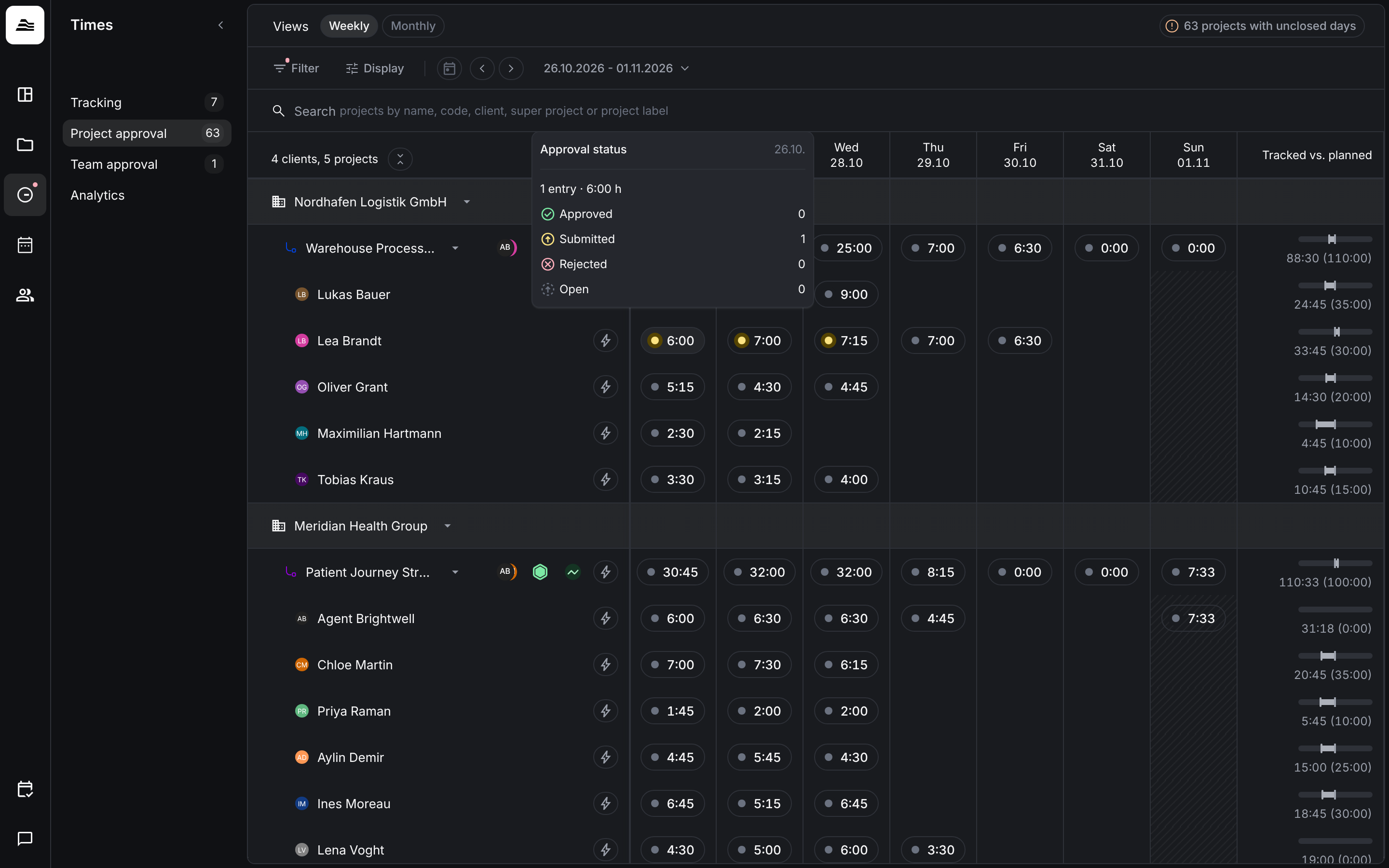
- Click a day in the row of a project or staff member.
- The dialog shows the entries of that day. Switch days at the top, or click Week to see the whole week.
- Select an entry. You can change task, reference, description and time.
- Click Save & approve, or Reject entry.
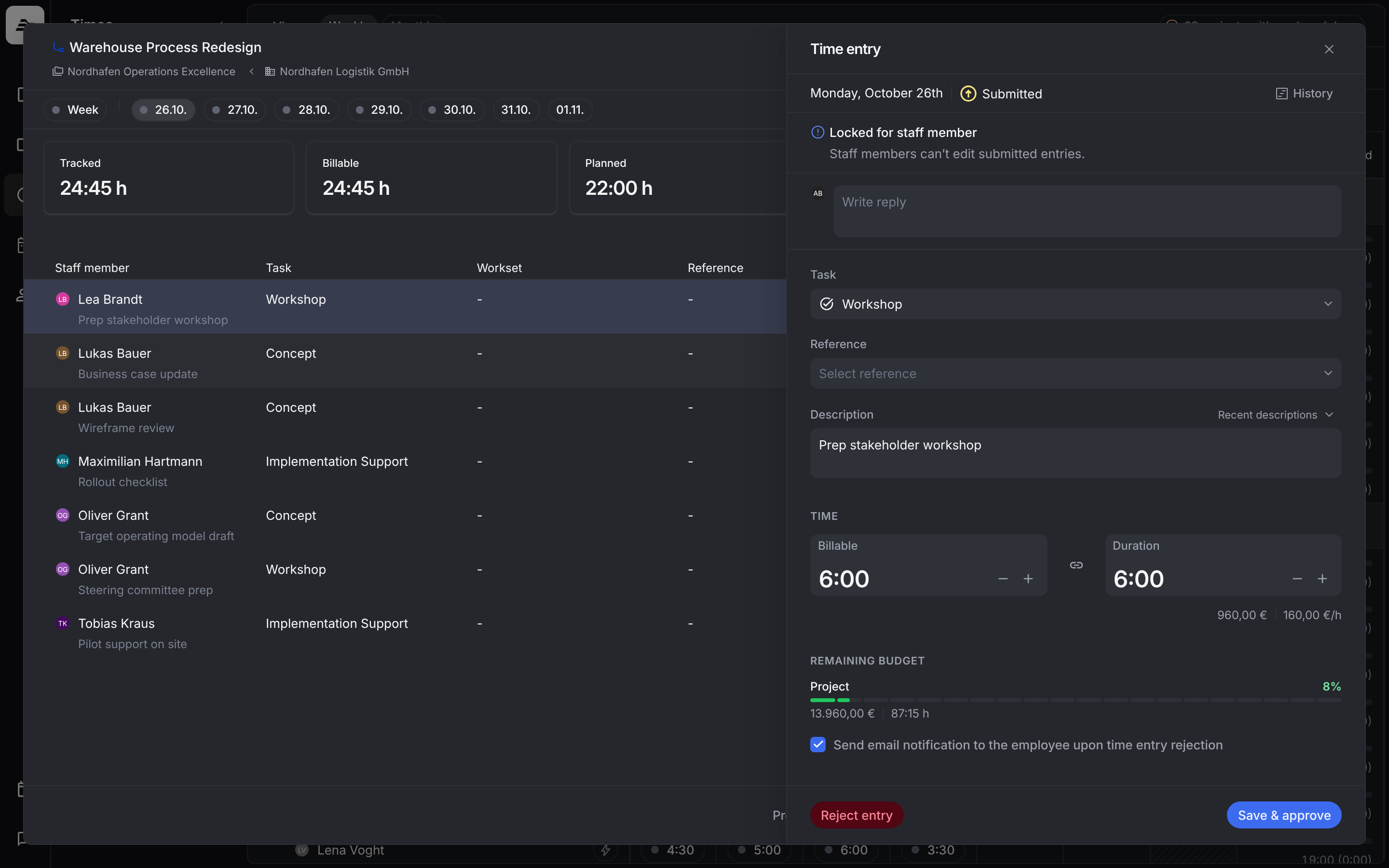
You can also approve entries that the staff member hasn't submitted yet.
When you reject an entry, write a reason in the reply field. This is required. With Send email notification to the employee upon time entry rejection, the staff member also gets an email. Once they correct the entry, it goes back to Submitted automatically.
Billable time and duration
Next to Duration you see the Billable time. They can differ, for example when the project rounds billable time automatically: a duration of 1:02 can become 1:15 billable.
The chain icon links both values. Unlink them to set the billable time separately. It then no longer follows the duration. Staff members without PM rights don't see the billable time.
Approve in bulk
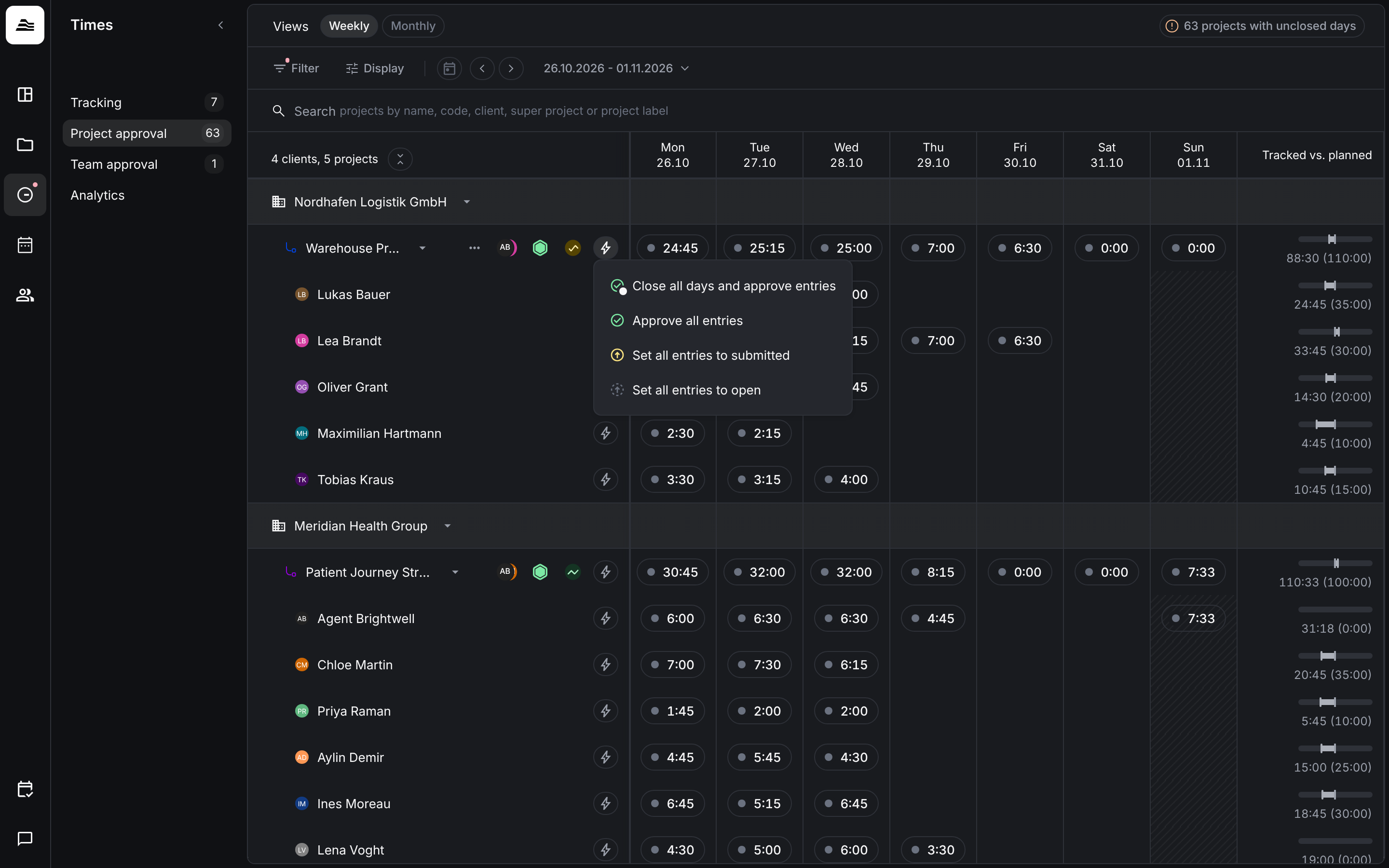
The lightning icon next to a staff member opens Approve all entries, Set all entries to submitted and Set all entries to open.
Next to a project, you also find Close all days and approve entries.
Close project days
Close project days once all entries are reviewed. On a closed day, nobody can create new time on the project. Existing and rejected entries can still be submitted. Project managers can still book time on the project, also for other staff members if the account allows it.
Closing has no direct effect on billing. Approved entries can usually be invoiced.
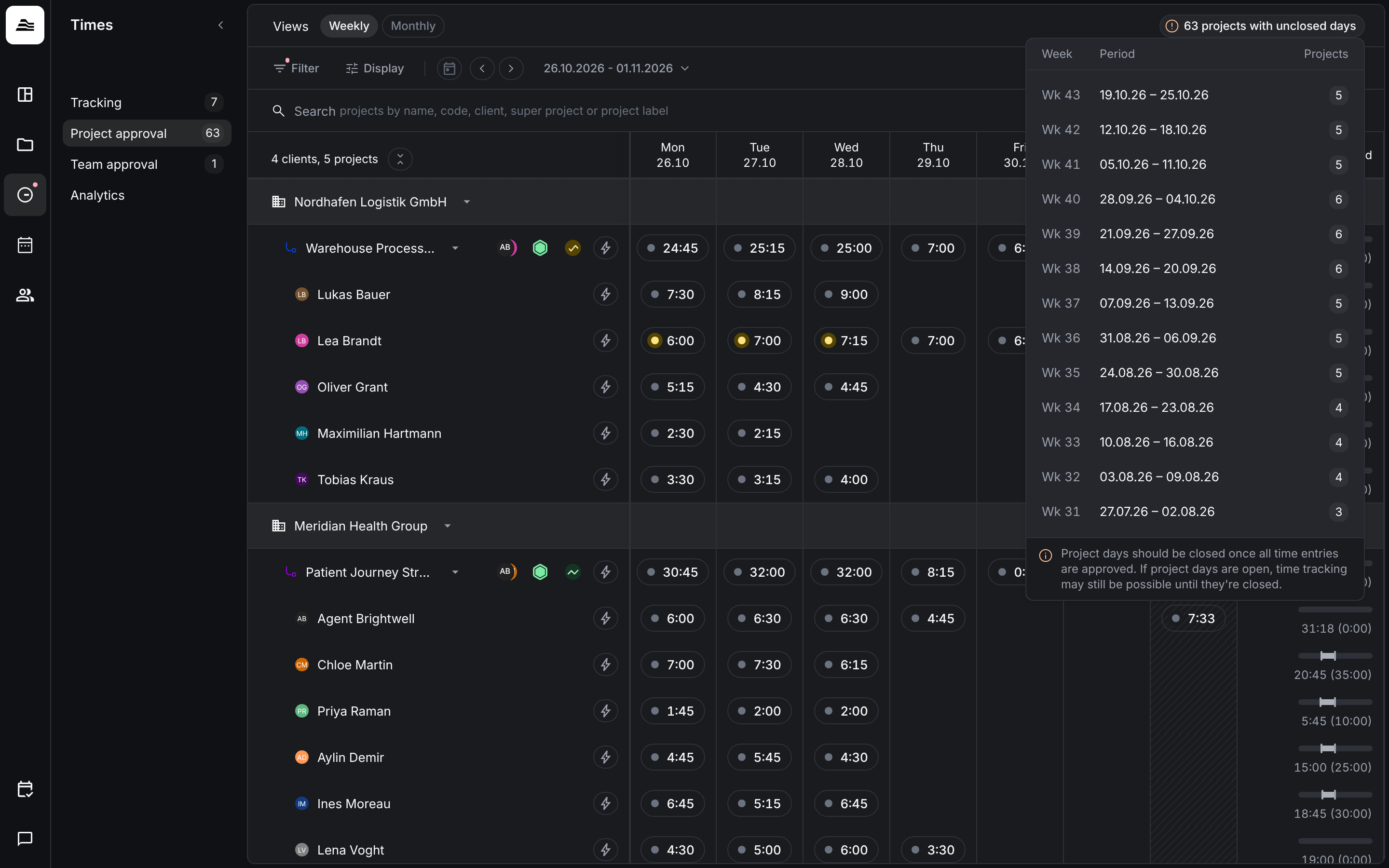
At the top right, Aerion shows how many projects still have unclosed days. Click it to see the affected weeks.
Filter and monthly view
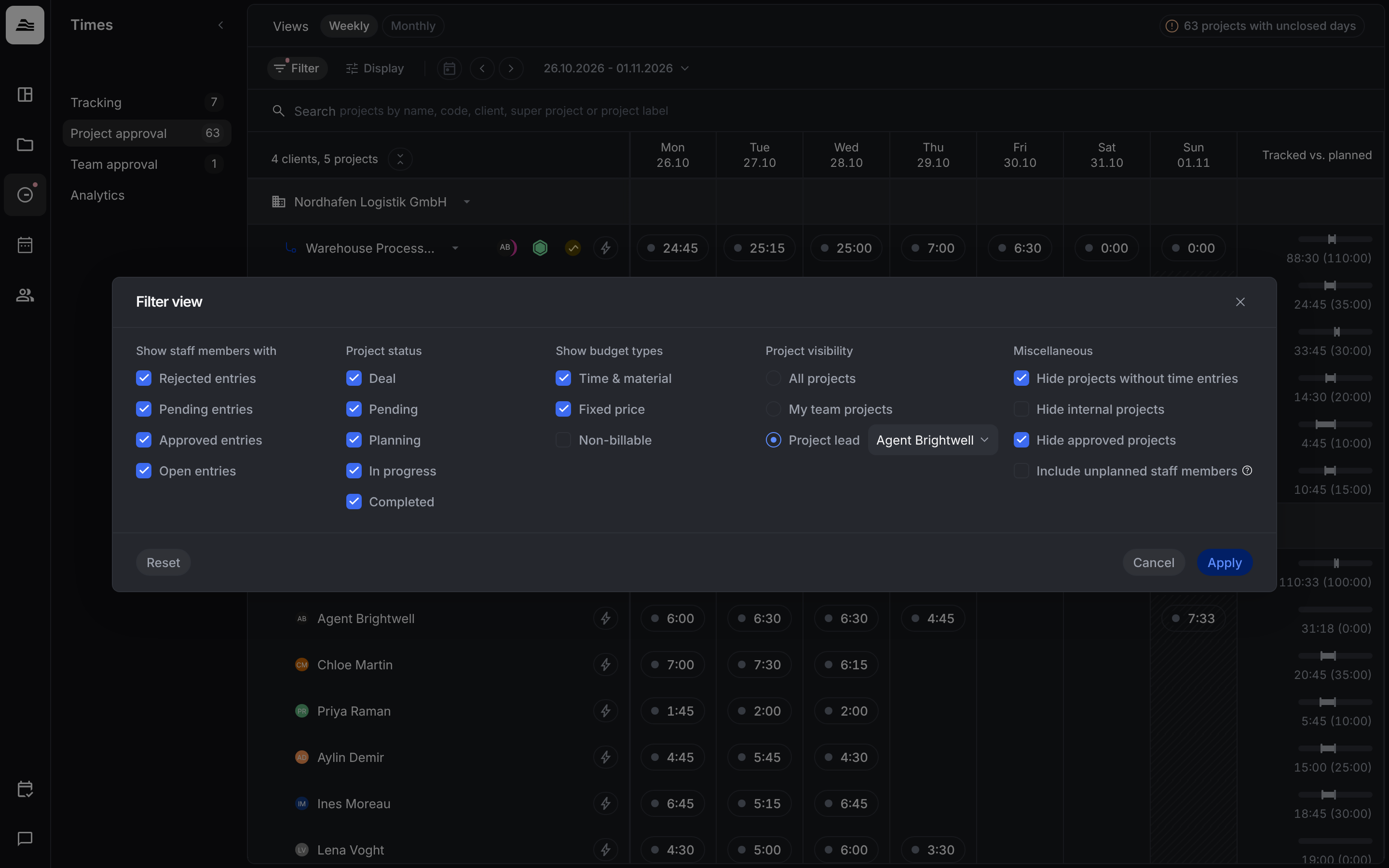
With Filter you narrow the list, for example to entries with a certain status, to certain project statuses or budget types, or to the projects of your team or of a specific project lead.
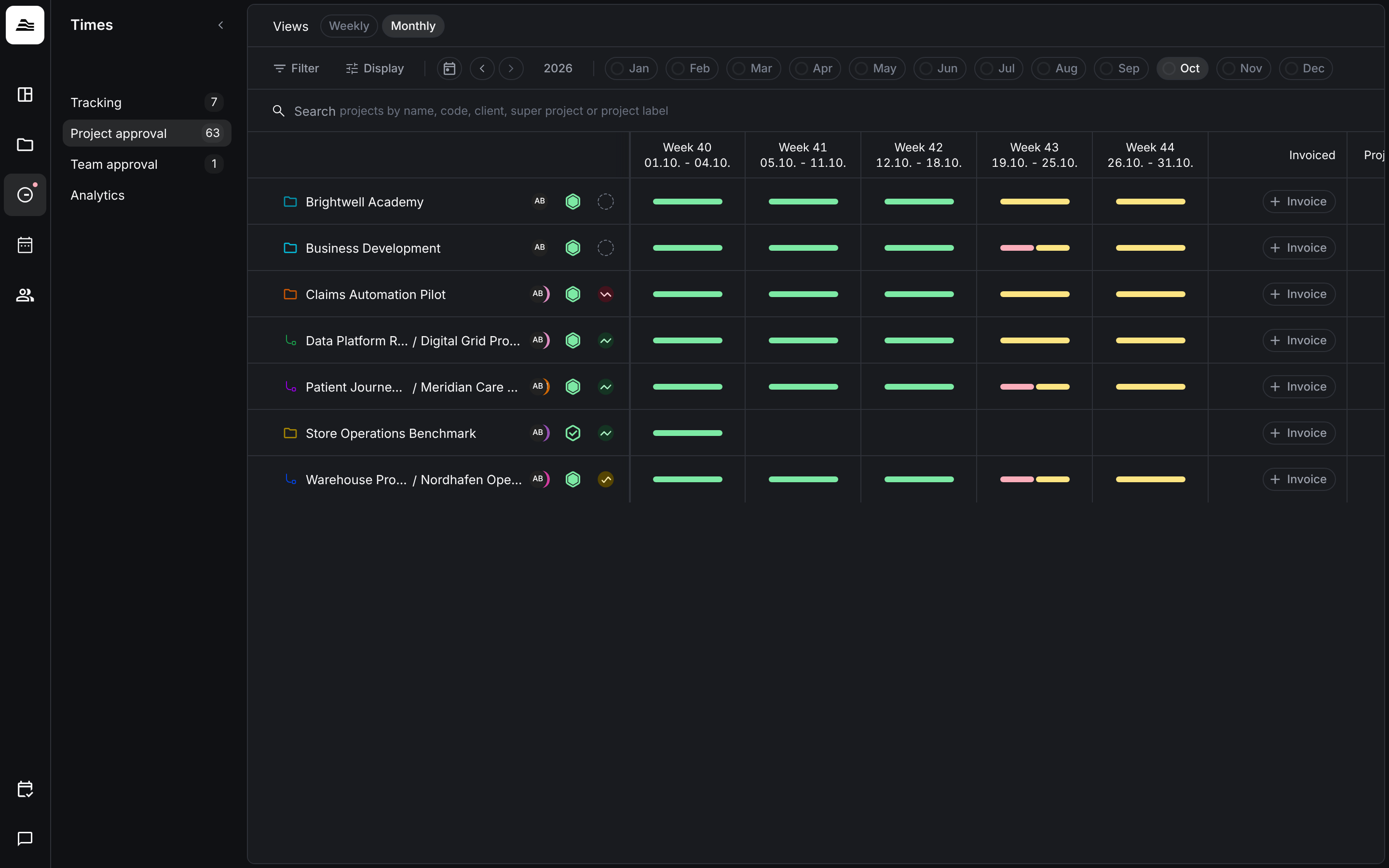
Monthly shows the approval status of each project per week as colored bars.
Related
- Team approval: review time per staff member.
- Approval and billing states: what each status means.
- Submit time: how staff members submit their workday.