
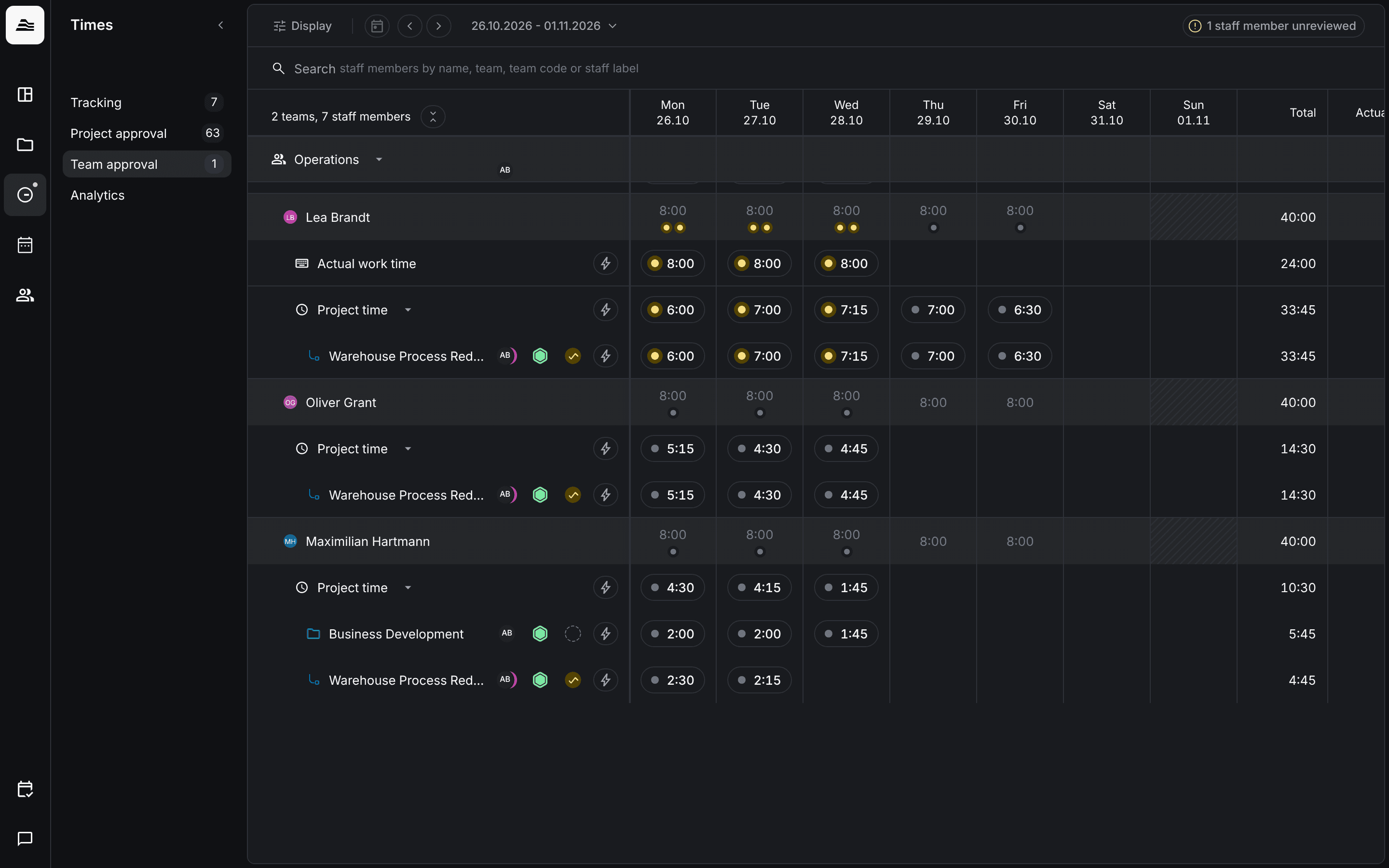
In team approval you review the time of your team members, across all their projects.
Required rights: team permissions for time entries, for example as team lead. They are set in the team's settings.
Open Times → Team approval. For each staff member you see their Actual work time, their Project time and below it their projects, for each day of the week.
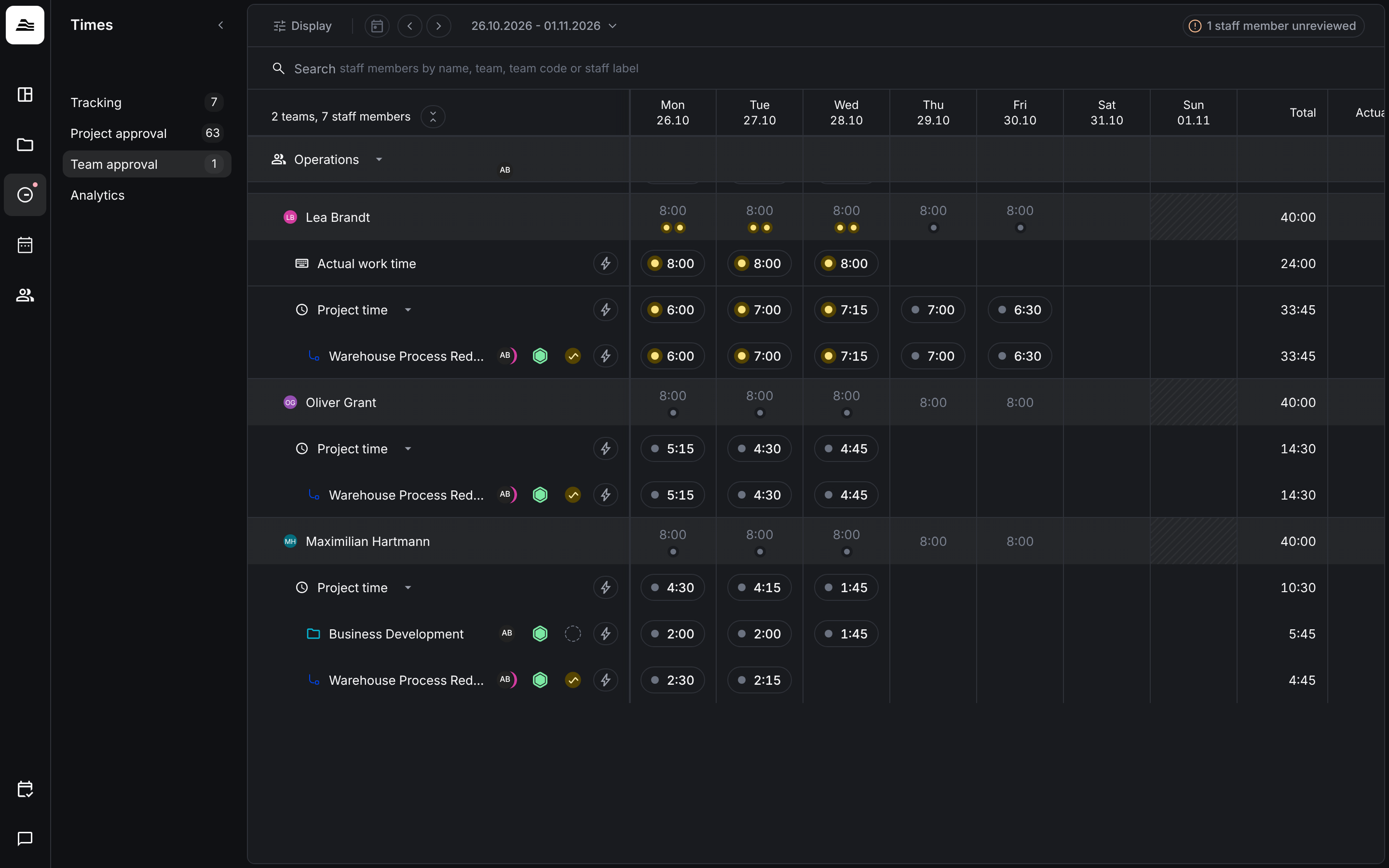
Hover over a day of a staff member to see the Approval status of their project time and the Work time compliance: tracked work time against the target, and whether the breaks comply.
Approve work time
If your team tracks work time, you approve it here.
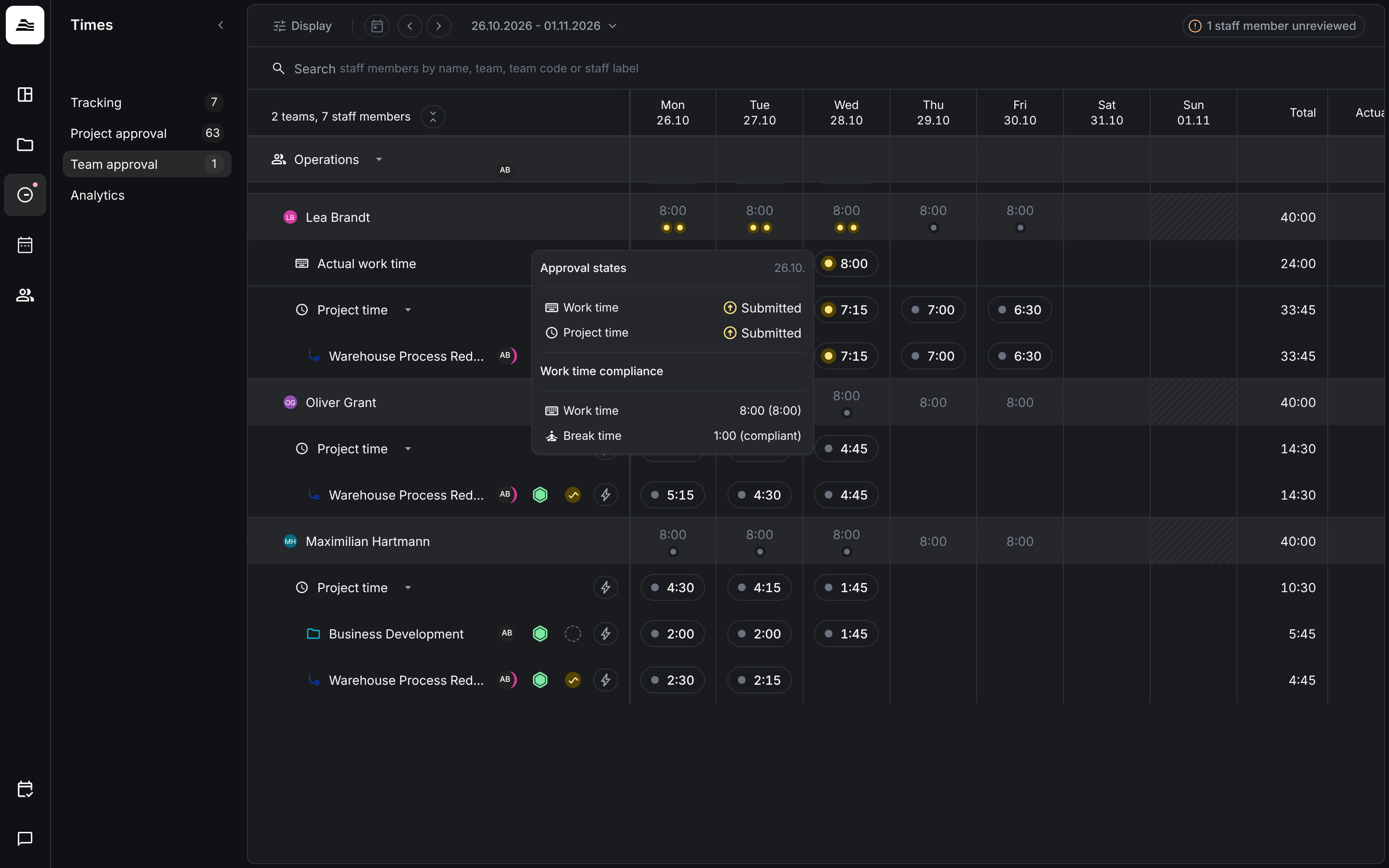
- Approve or reject a day: hover over the status of the work time in the Actual work time row. Two buttons appear: the check mark approves, the cross rejects. Hovering over a button shows the status change, for example from Submitted to Rejected, together with the work time and break time.
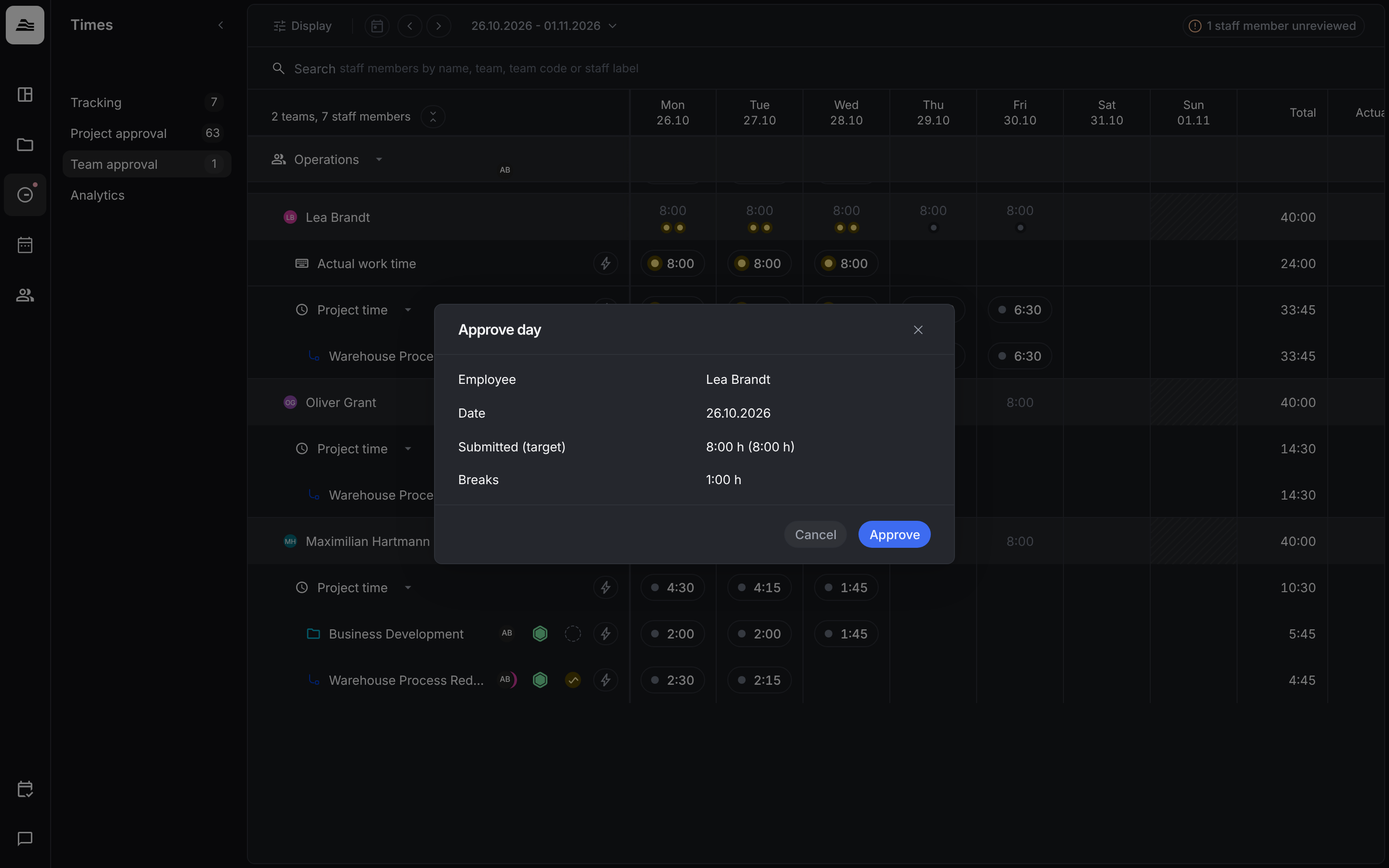
- Check before approving: click the work time of the day. Approve day shows the staff member, the date, the submitted work time with the target and the breaks. Click Approve.
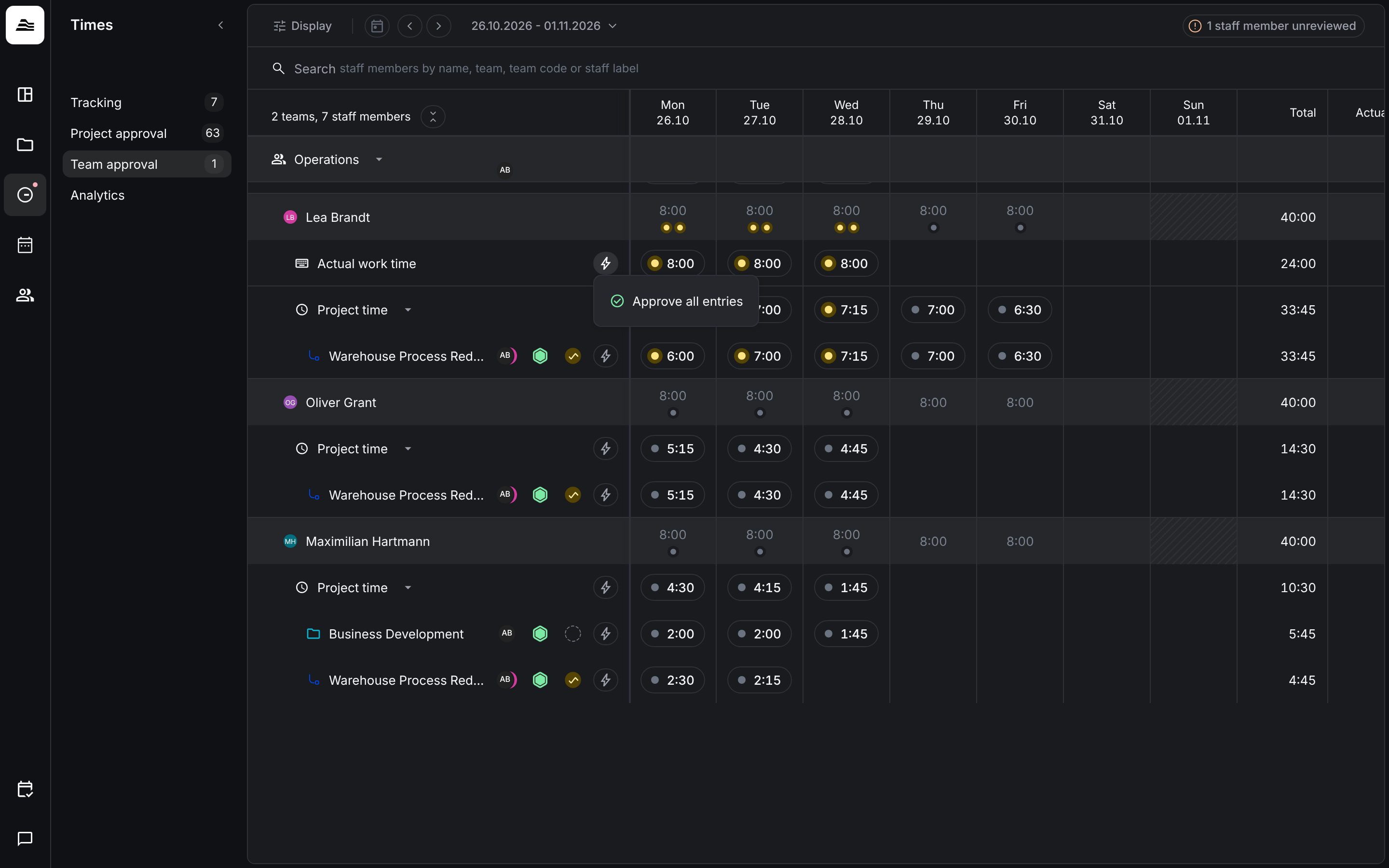
- The whole week: click the lightning icon next to Actual work time and choose Approve all entries.
Review project time
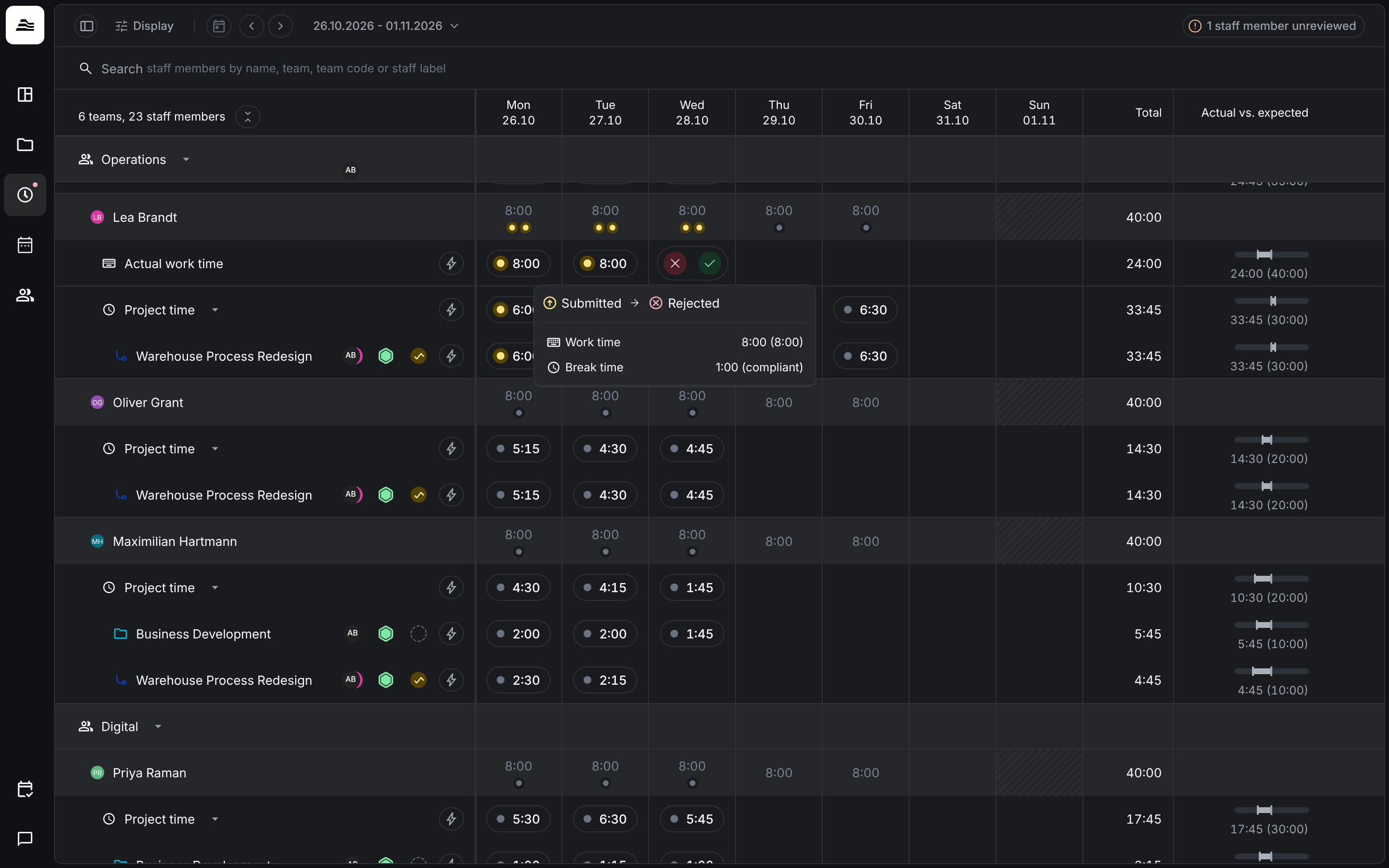
Click a day in a project row to open the same review dialog as in project approval. Here you approve or reject single entries. Closing project days is only possible in project approval.
HR systems
If an HR system is connected, work time can be sent to it once it has been submitted or reviewed.
Related
- Project approval: review time per project.
- Work time and breaks: how staff members track work time.