
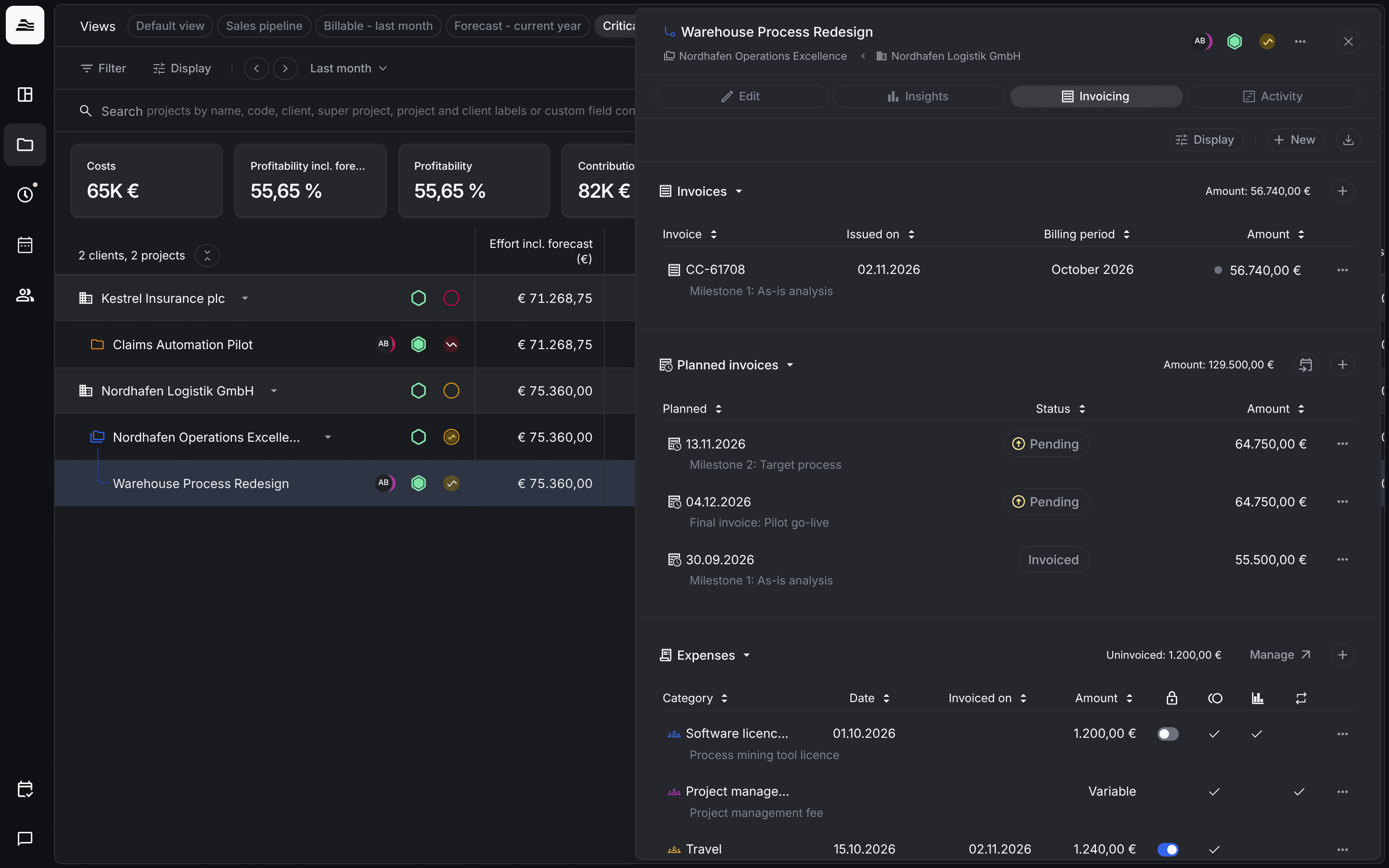
In Aerion, an invoice is a billing record. It fixes what you bill for a period and marks the time entries and expenses it covers as invoiced. The invoice document itself is created in your billing tool, for example easybill or sevDesk.
Required rights: Admin or individual project rights with the right to invoice the project
Open the invoicing tab
Open the project and switch to Invoicing. The tab has three sections: Invoices, Planned invoices and Expenses.
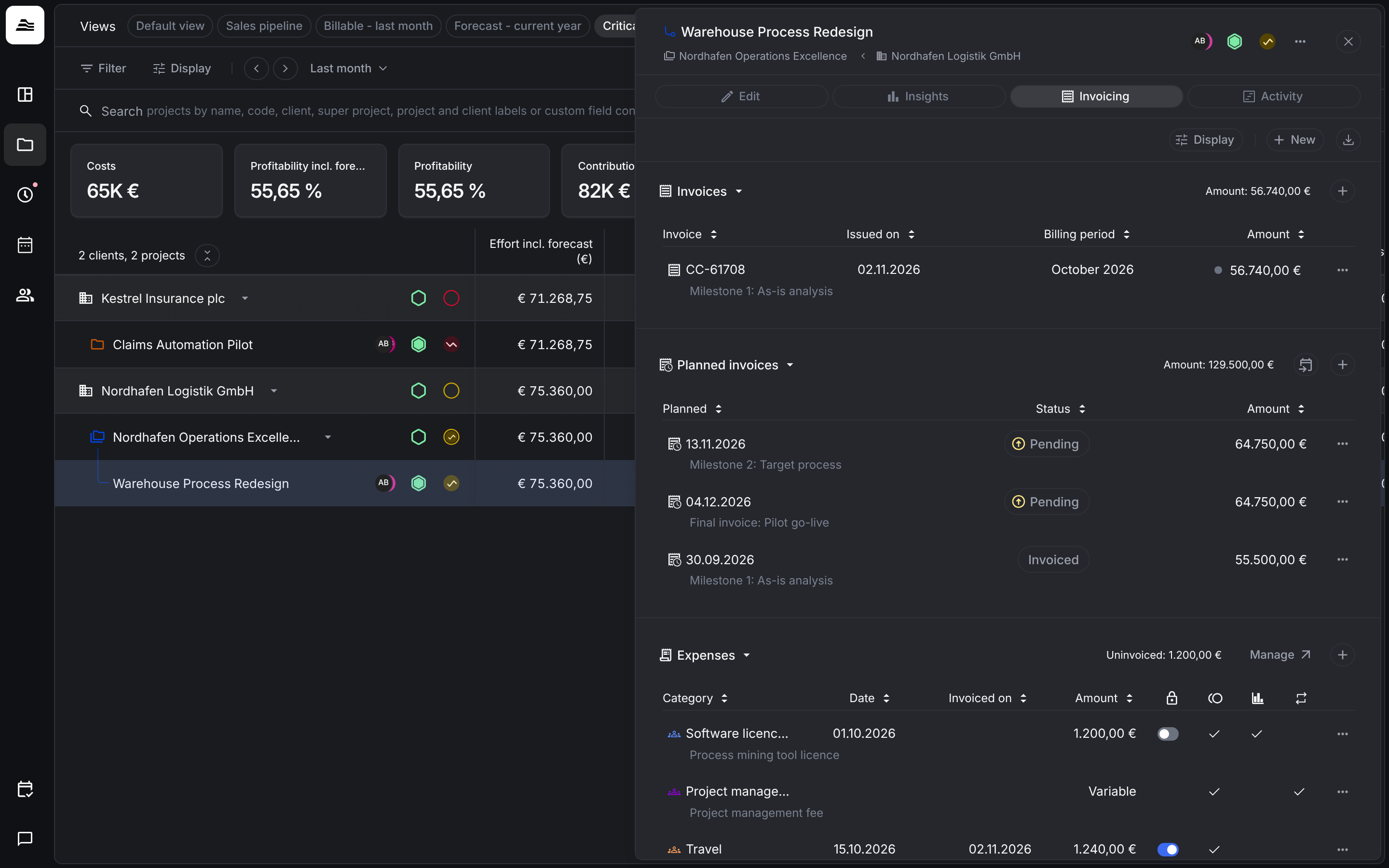
Under Display you choose whether notes, invoiced planned invoices and locked expenses are shown.
Create an invoice
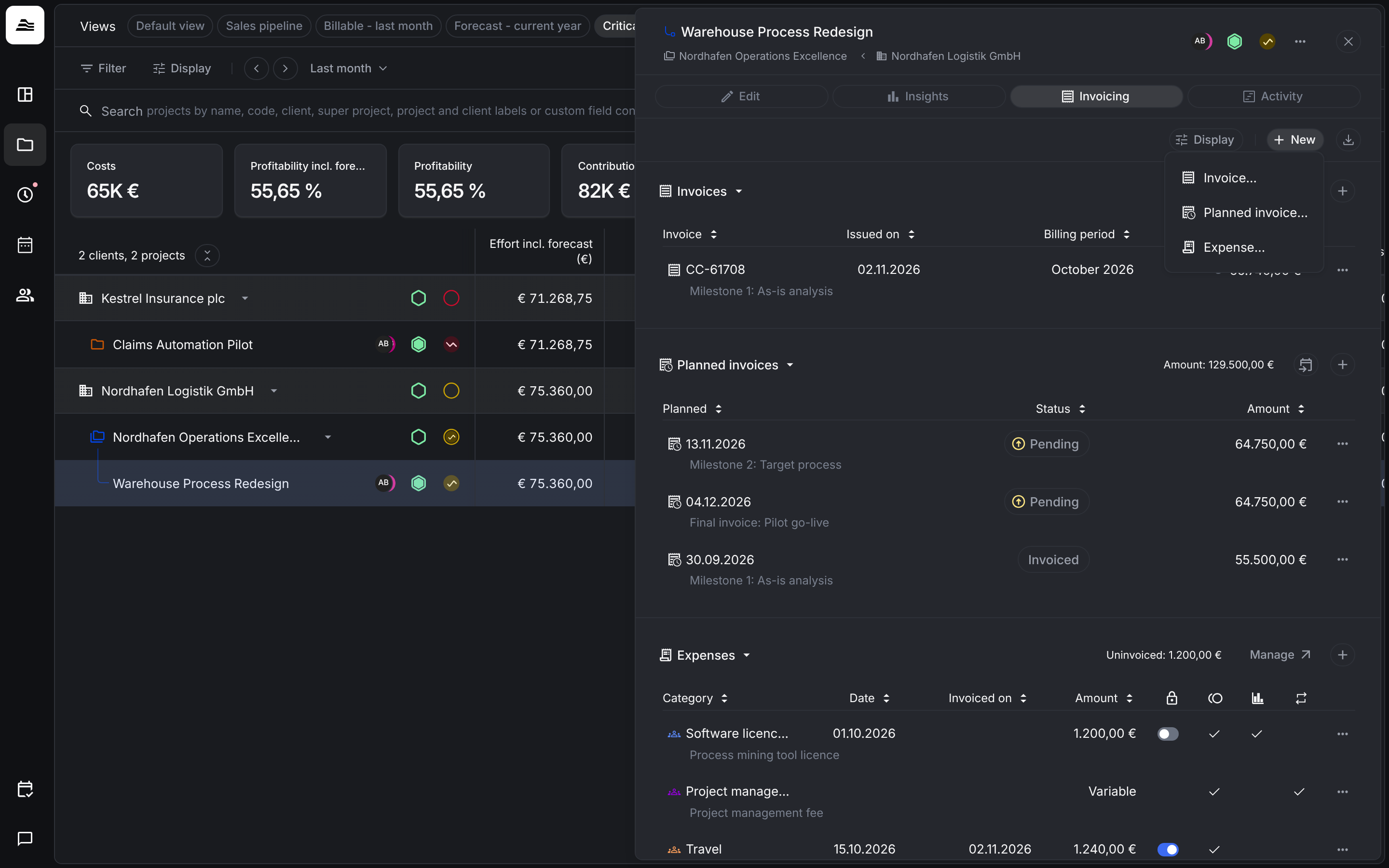
Click + next to Invoices, or New → Invoice…. To bill a planned invoice, open its … menu and choose Create invoice. Aerion then fills in the amount and the note for you.
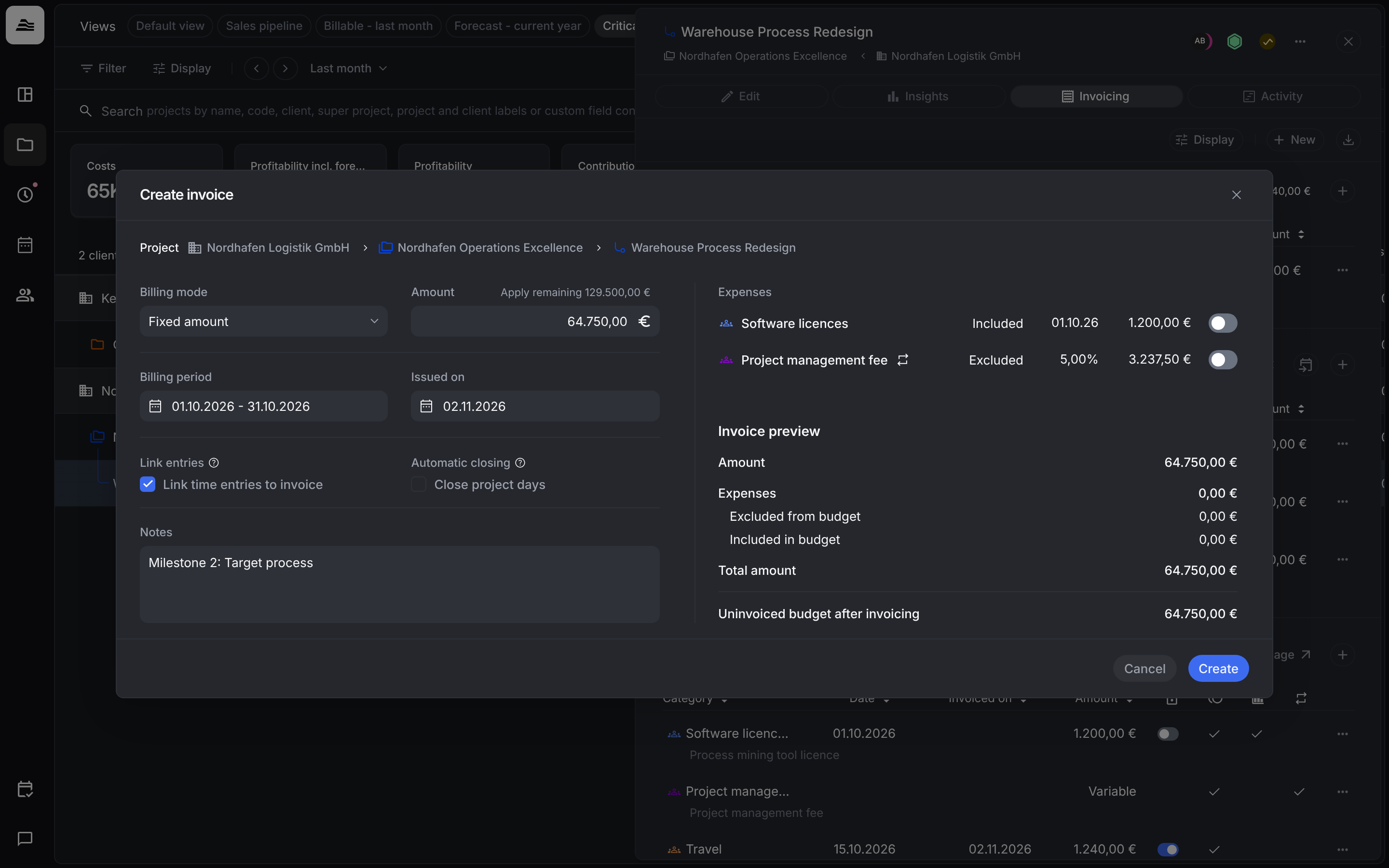
In Create invoice you set:
- Billing mode: Time & material bills the uninvoiced effort in the billing period. Fixed amount bills an amount you enter. Apply remaining fills in the rest of the budget.
- Billing period and Issued on.
- Link entries: keep Link time entries to invoice on. Uninvoiced and open time entries in the billing period are linked to the invoice and set to approved and invoiced. Without the link, the entries still count as uninvoiced and could be billed twice.
- Automatic closing: Close project days closes the project days in the billing period. Existing entries are set to approved, and no new entries can be created or submitted for those days.
- Notes.
On the right, switch on the expenses you want to bill with this invoice. The Invoice preview shows the amount, the expenses excluded from and included in the budget, the Total amount and the Uninvoiced budget after invoicing. Click Create.
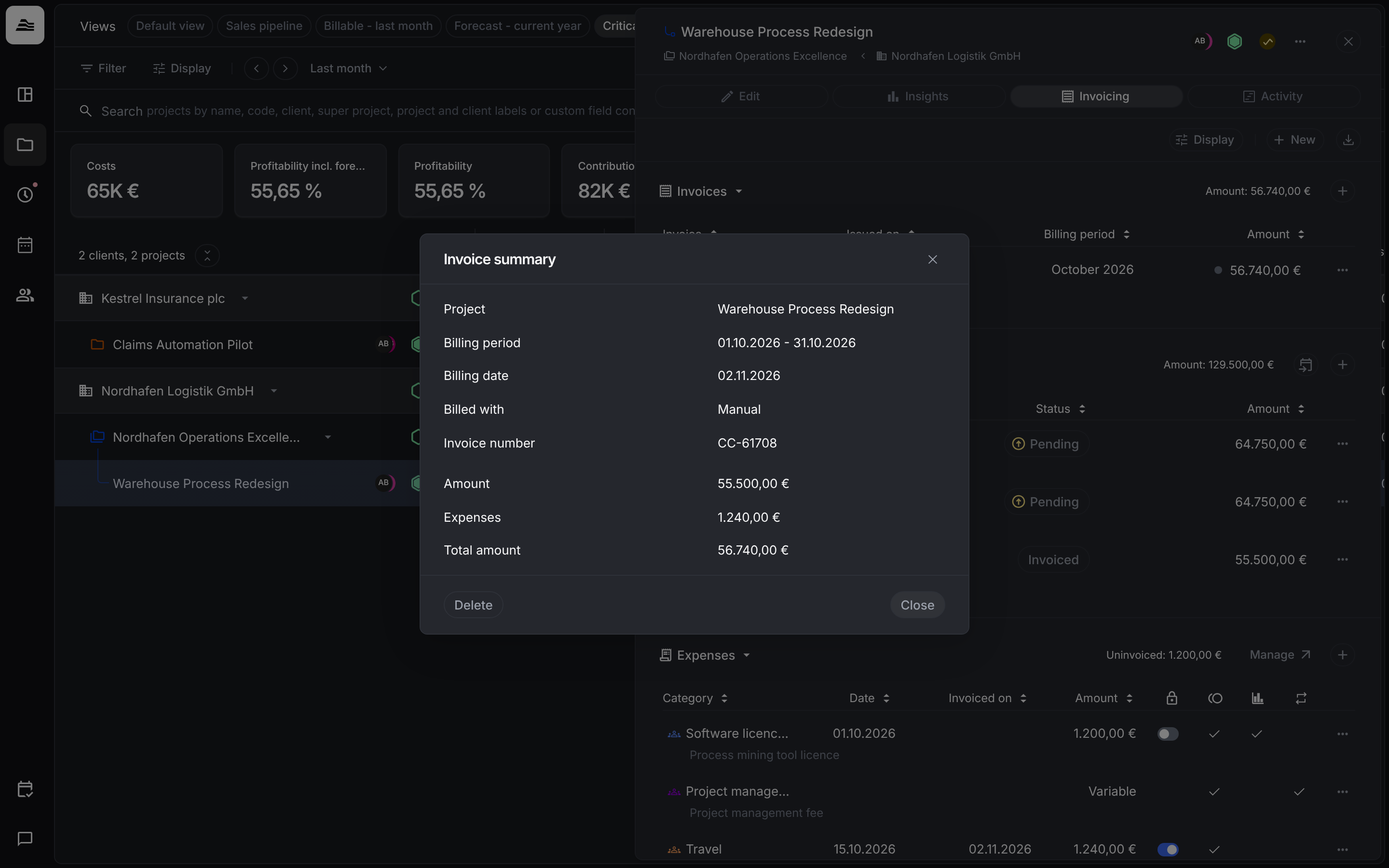
Aerion shows the Invoice summary. From there you can export the invoice for your billing tool.
Work with invoices
Click an invoice to edit its Payment status (Due, Paid or Overdue) and its notes. When the invoice comes from easybill, choose Automatic to take the status from there. The … menu offers:
- Show billing report: the invoice summary with billing date, invoice number and total amount.
- Show time entries: the time entries linked to the invoice.
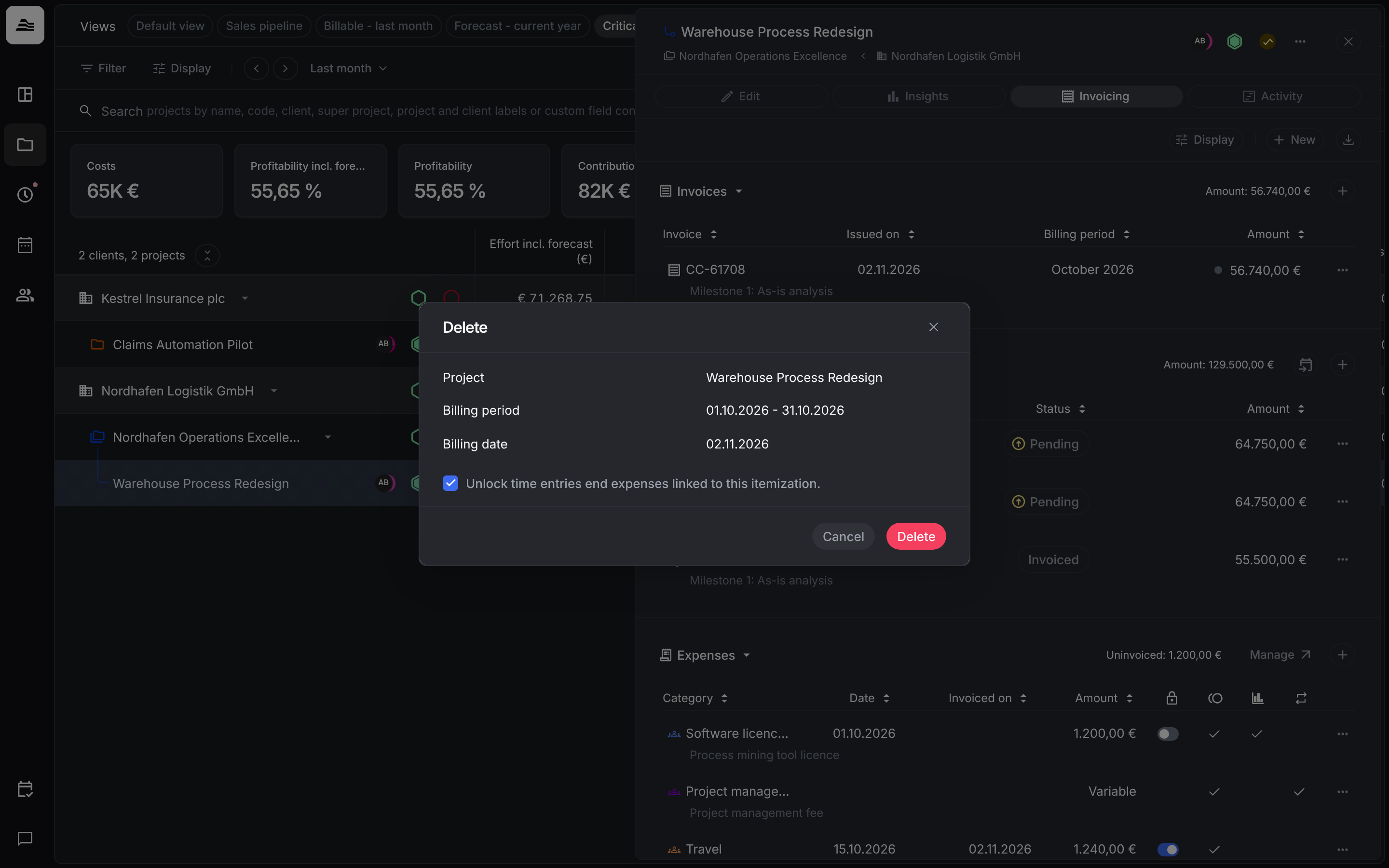
- Delete: removes the invoice.
When you delete an invoice, keep Unlock time entries and expenses linked to this itemization on, so they can be invoiced again.
Export invoices
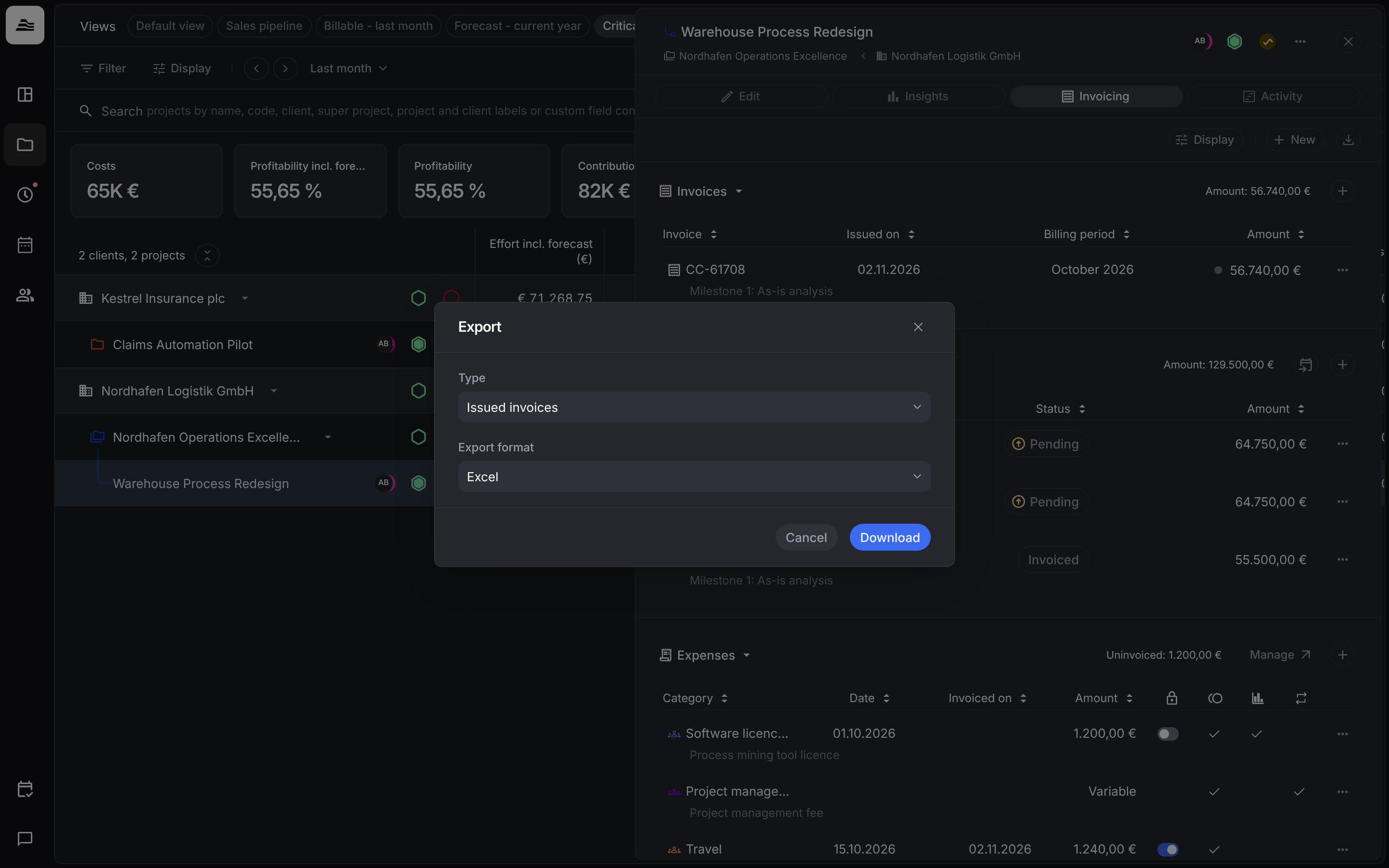
Click the download icon in the invoicing tab. Choose the Type, Issued invoices or Planned invoices, and the Export format, Excel or CSV, then click Download.
Related
- Plan invoices: schedule down payments and milestones.
- Expenses and expense types: bill costs on top of time.
- Approval and billing states: what invoiced and locked mean for time entries.