

Custom fields store extra information on every project, for example a PO number or a deal ID from your CRM. Labels group and filter projects, clients and more.
Required rights: Admin
Set up custom fields
Open Settings → Projects and scroll to Custom fields. Your account has ten fields. They apply to all projects. Until you rename them, they are called Custom field 1 to Custom field 10.
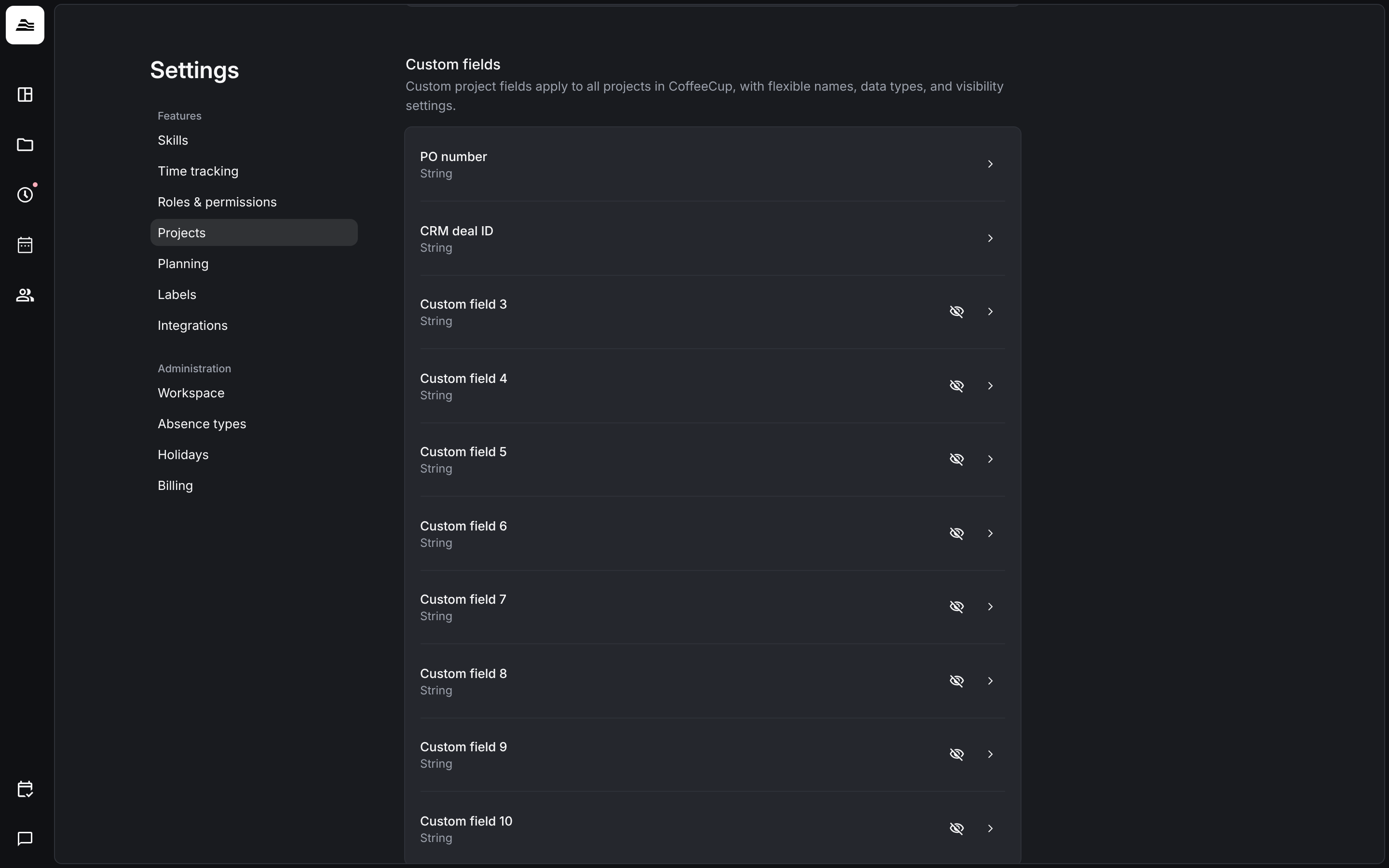
Click a field to set it up:
- Name: the label shown in the project.
- Type: String for text or Number.
- Visibility: shows or hides the field within the project settings.
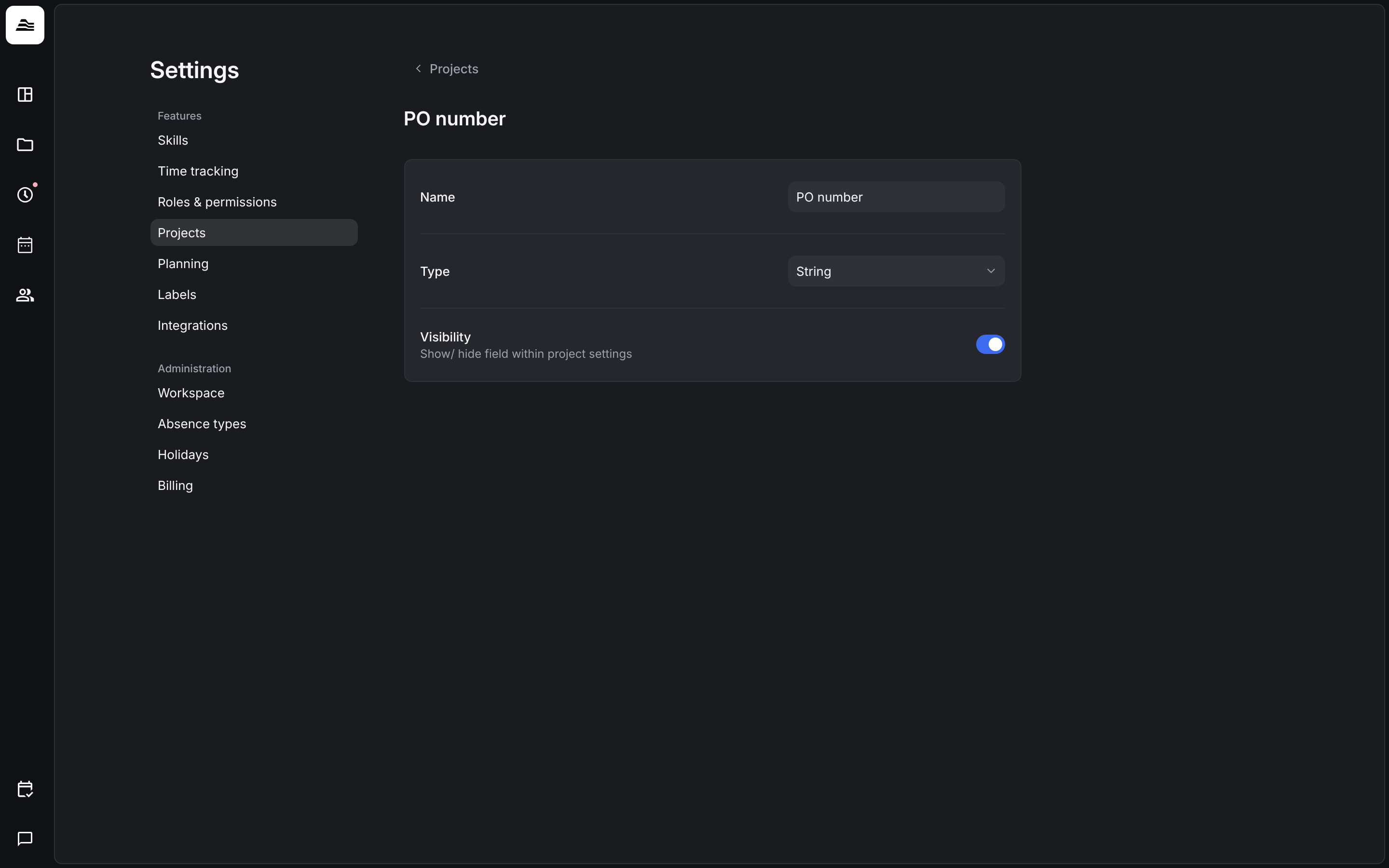
Visibility only affects the Aerion interface. Through the API and MCP, the values of all fields are always available.
Fill in custom fields
Open a project and scroll to Custom fields. Enter the values by hand, or let another system fill them in through the API. Manage takes you to the field settings.
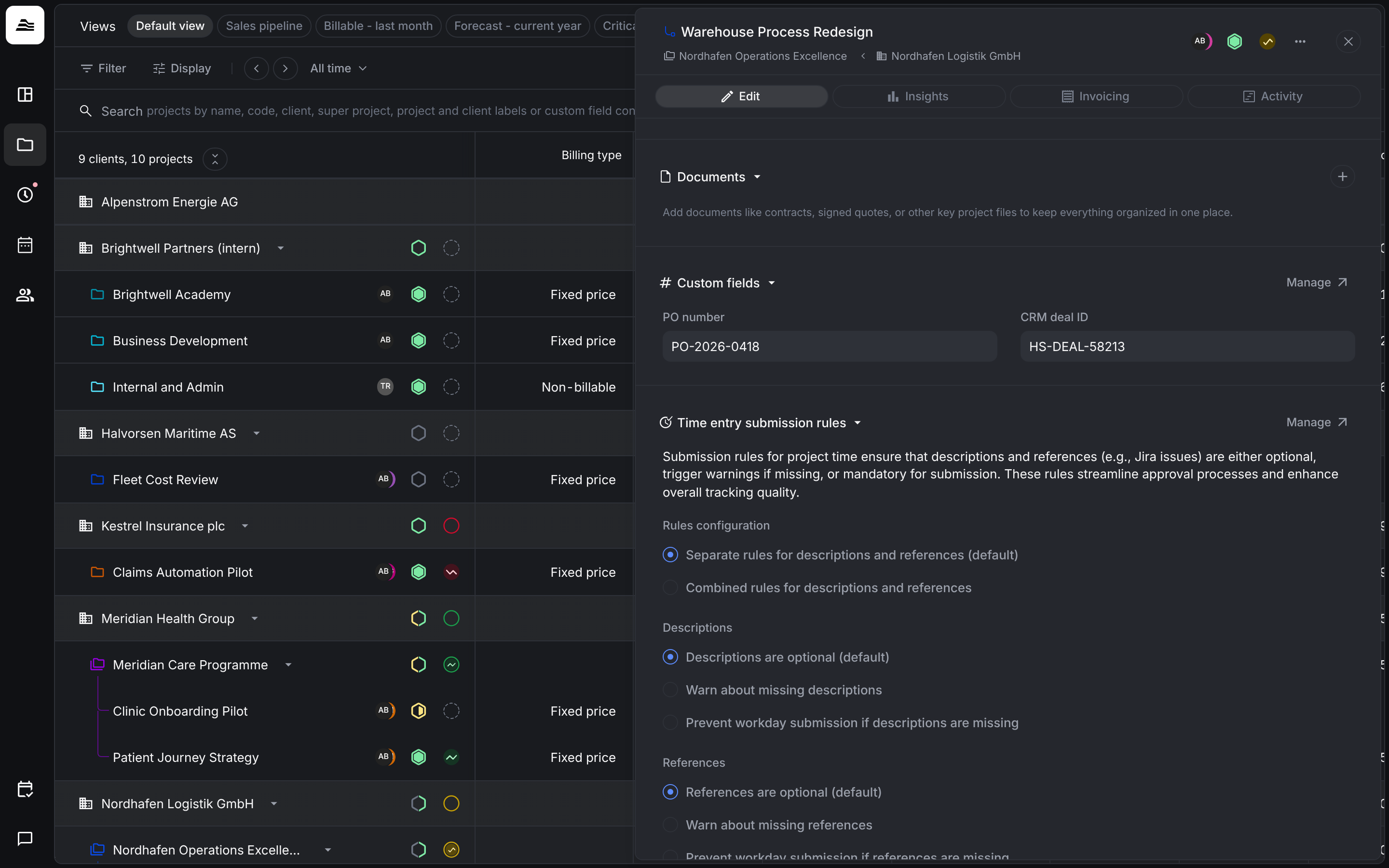
The search on the Clients & projects board also finds projects by the content of their custom fields.
Example: A deal is won in your CRM. An integration creates the project in Aerion and writes the CRM deal ID and the PO number into custom fields. When you invoice, your billing tool reads both values through the API, so the invoice carries the right references.
Labels
Open Settings → Labels to manage your labels. Labels organize and filter team members, projects, clients, tasks and expenses. You can rename labels or remove the ones you no longer need. Removing a label also unassigns it from every record that uses it.
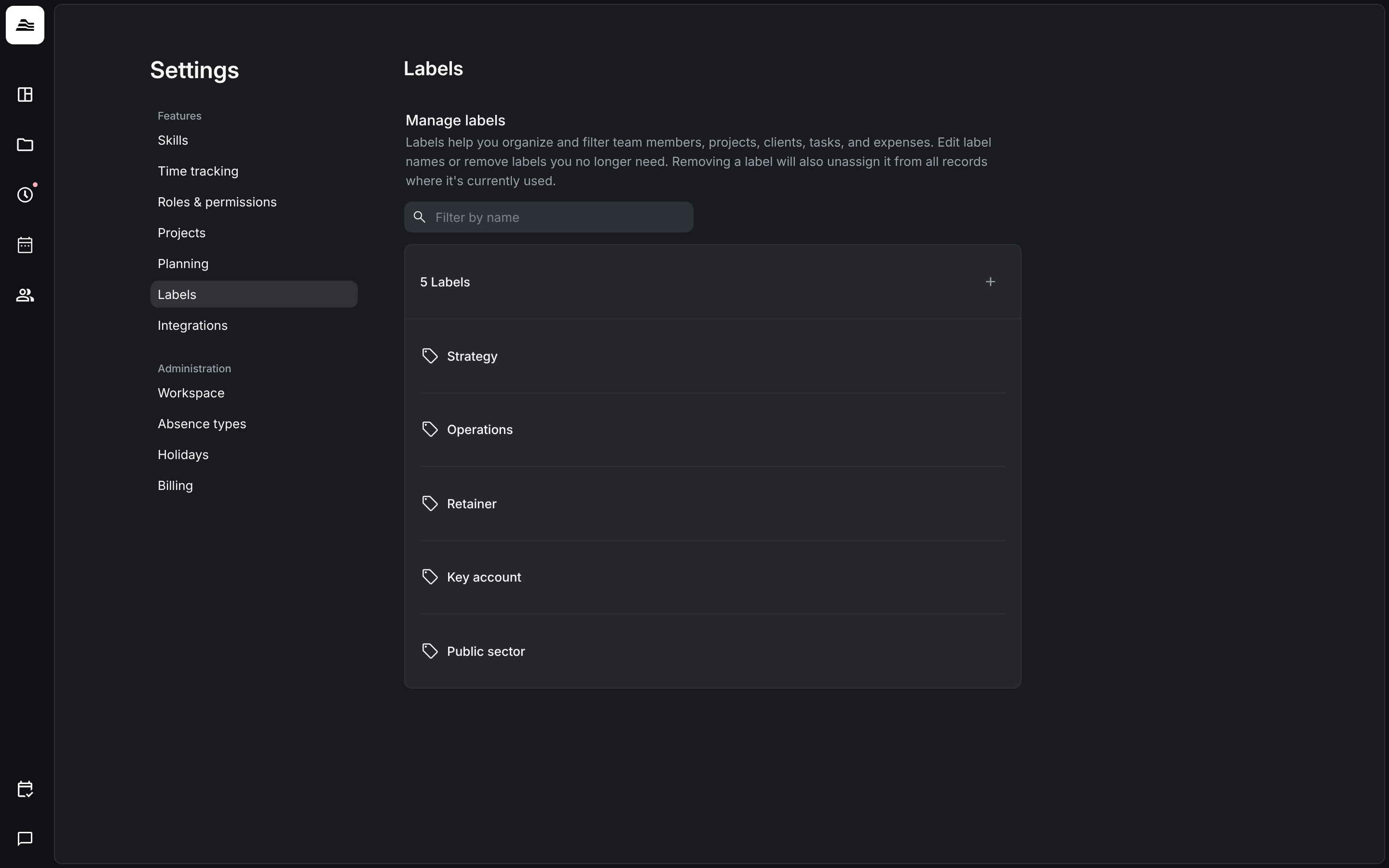
Click + to create a label, enter a Name and click Save. To assign labels, open a project or client and click + in the Labels section.
Related
- Create and set up a project: all sections of a project.
- Clients and projects: search and filter the board.