

A project holds everything your team tracks time on: the client, the budget, the team, the tasks and the rules for time entries.
Required rights: Admin or individual project rights
Create a project
On the Clients & projects board, click New and choose Project. Aerion creates the project right away and opens it. Click a project row to open an existing project.
The project panel has four tabs: Edit, Insights, Invoicing and Activity.
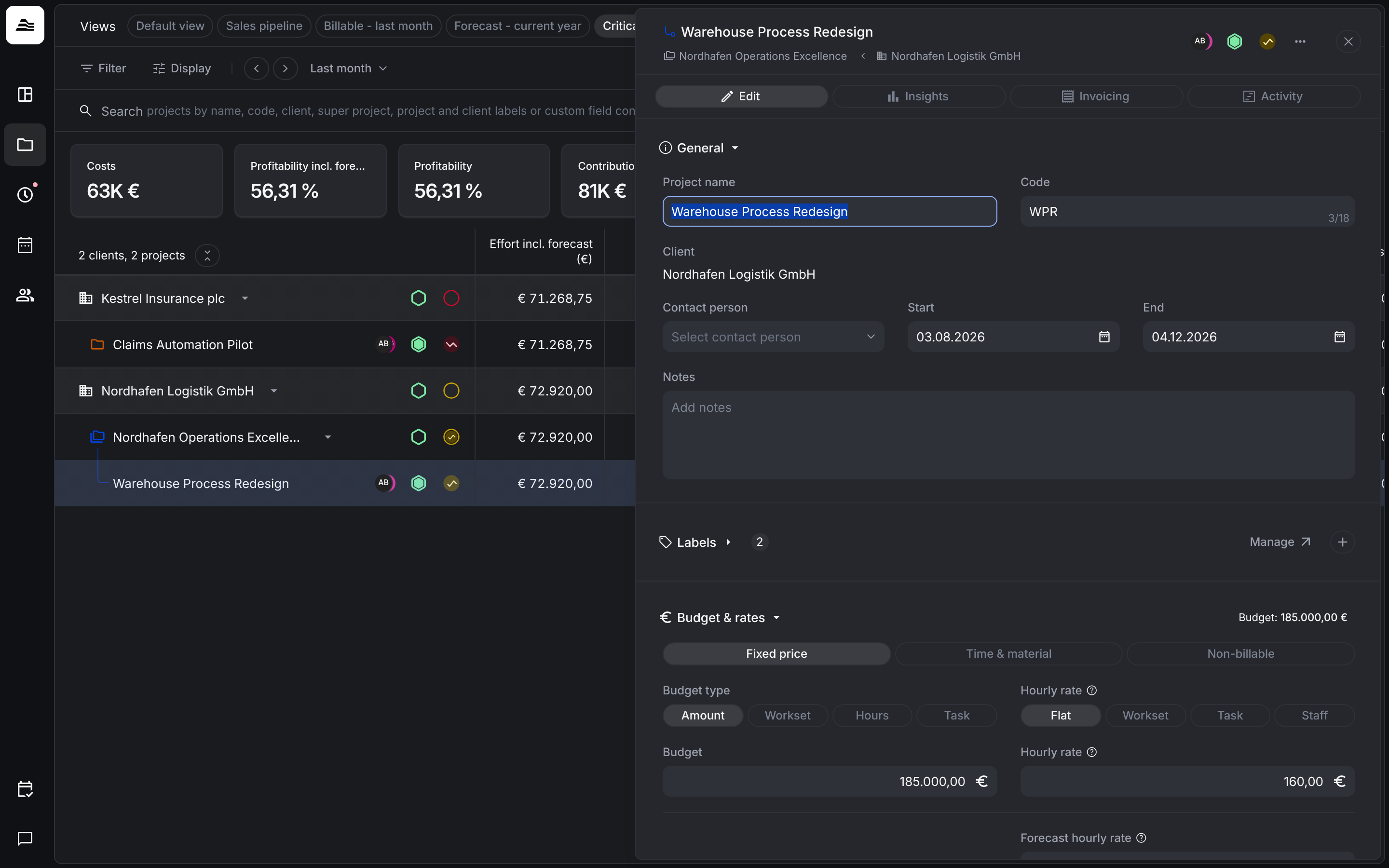
General and labels
Under General you set Project name, Code (up to 18 characters), Client, Contact person, Start, End and Notes. The contact person comes from the client's contacts.
Labels group and filter projects. Click + to assign them. Manage opens the label settings.
Further sections
Scroll down in the Edit tab to set up the rest of the project:
| Section | What you set |
|---|---|
| Budget & rates | Billing type, budget, hourly rates and rounding. See Budget and hourly rates. |
| Team | Who can track time on the project and who manages it. See Project team and permissions. |
| Tasks | The tasks staff can choose when they track time. Manage opens the task settings. |
| Reference systems | Ticket systems such as Jira that entries can link to. |
| Documents | Contracts, signed quotes and other files. Any file type, up to 20 MB per file. |
| Custom fields | Extra project information, for example a PO number. See Custom fields and labels. |
| Time entry submission rules | What happens when a description or reference is missing. See Rules for submitting time entries. |
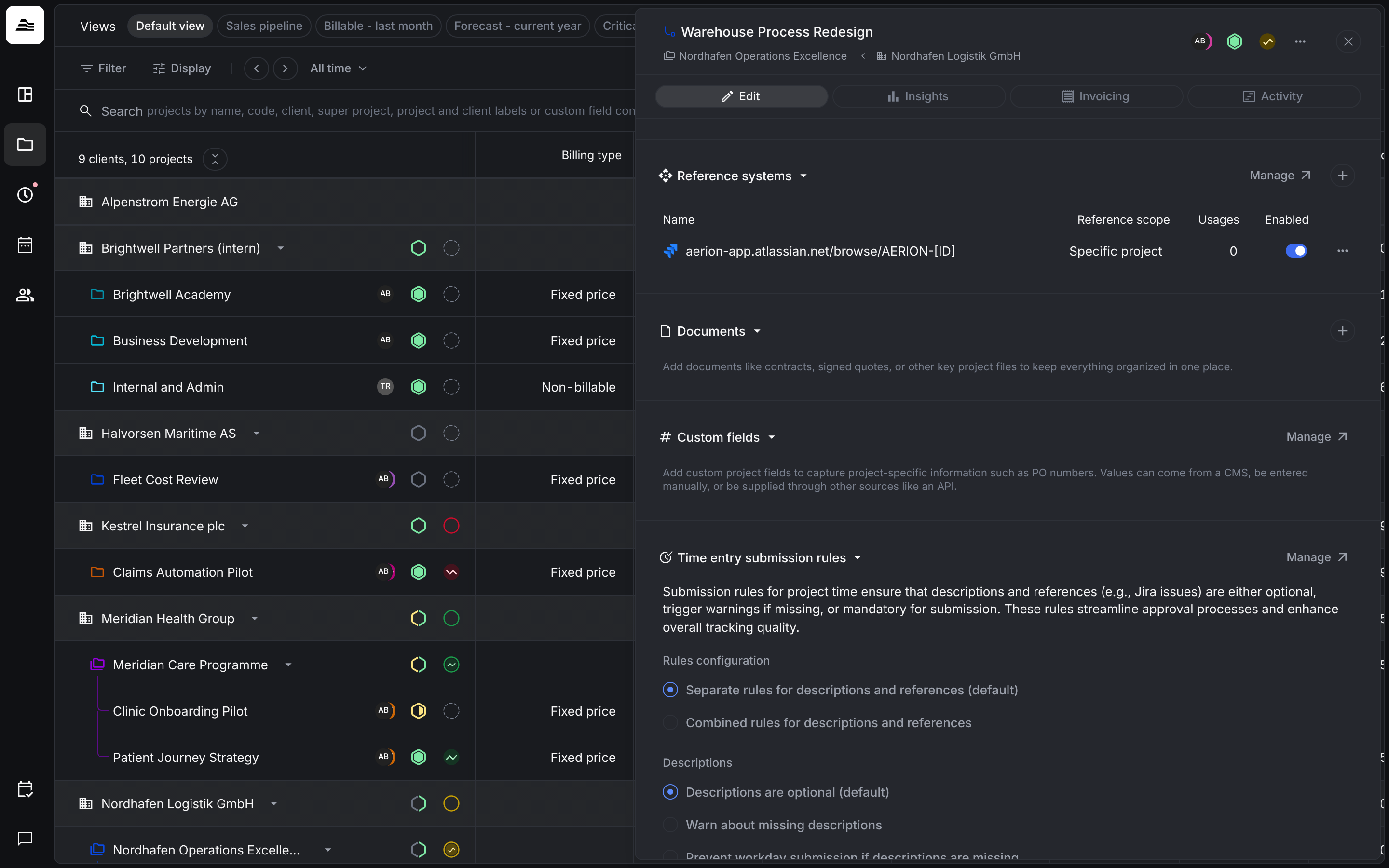
Reference systems
Under Reference systems you see which reference systems the project uses, with their Reference scope, Usages and whether they are Enabled. Click Manage to add or change them.
Related
- Tracking references: link time entries to tickets.
- Project status and health: set status and health in the project header.