
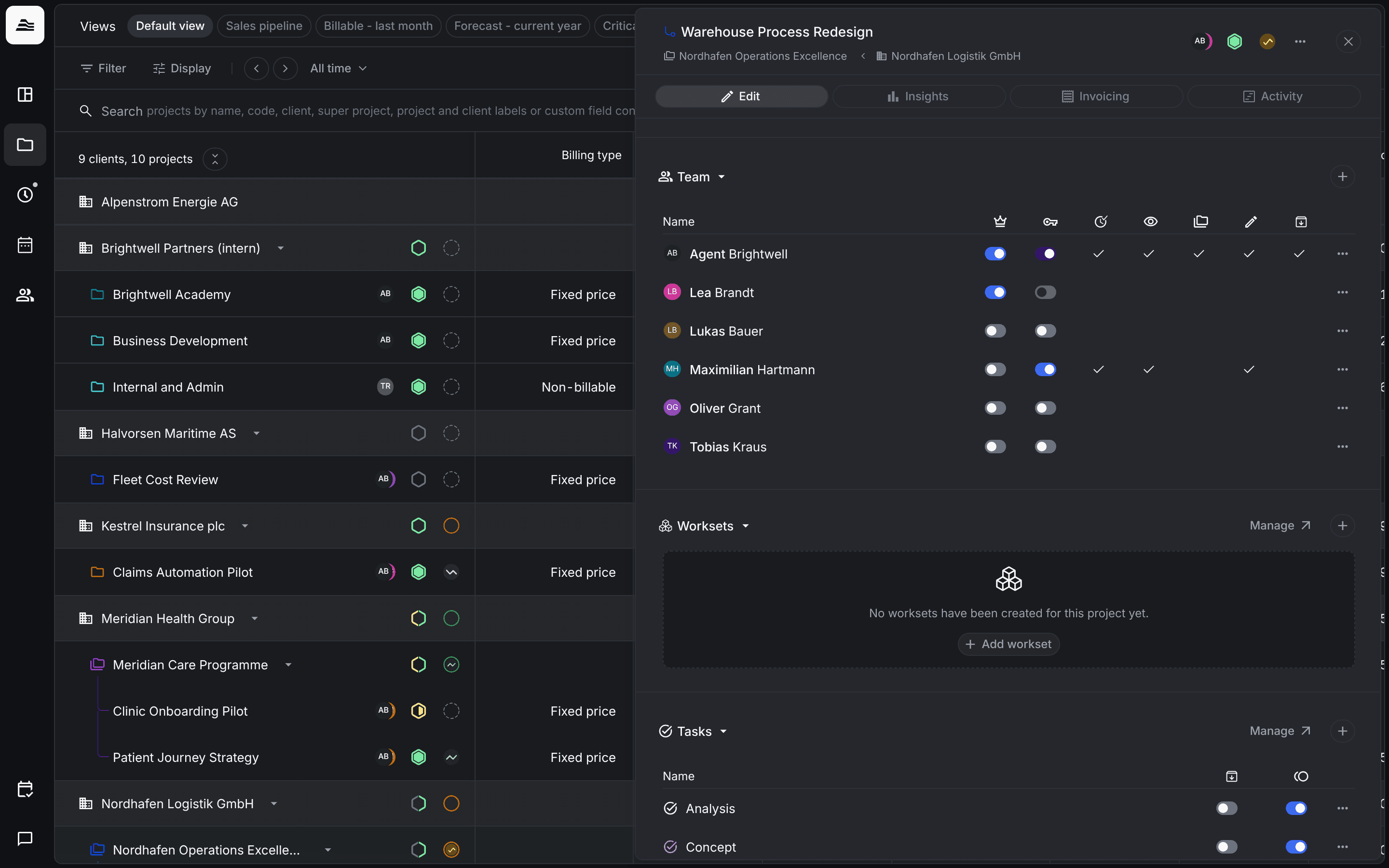
The project team decides who can track time on a project and who can manage it. Only staff members in the team can track time on the project.
Required rights: Admin or individual project rights
Add staff
Open the project and scroll to Team. Click + to add staff members. To remove someone, open the … menu in their row.
Rights in the project
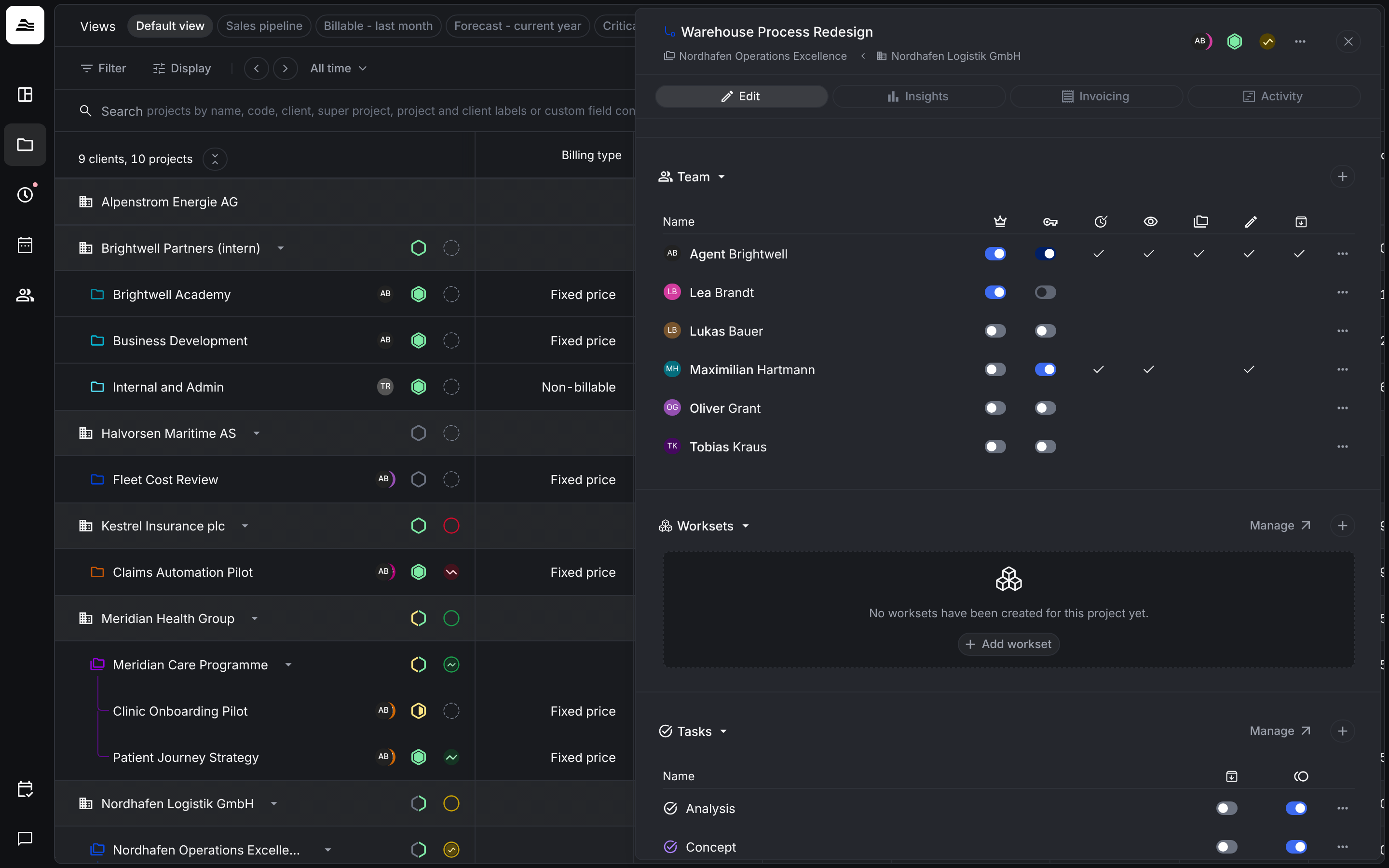
Each row has two switches and up to five columns with check marks. The switches you set per project. The check marks show which rights the staff member has in this project, from their role and the switches.
| Column | Meaning |
|---|---|
| Crown | Marks the staff member as project lead. The project lead shows on the board and can be read out in exports and the API. |
| Key | When on, the staff member can approve the project's time entries. Combined with global project permissions, it grants additional rights in this project. |
| Circle with arrow | Can approve and edit the project's time entries. |
| Eye | Read access to the project. |
| Folders | Read access to the analytics of the super project. Only shown for sub projects. |
| Pencil | Can edit, analyze and invoice the project. |
| Archive | Can archive and unarchive the project. |
Hover over a column icon to see its description.
Project rights from the role
Project management rights come either from the staff member's role or from this project. Under Settings → Roles & permissions a role can give:
- read access to assigned projects, for staff members who don't manage projects,
- or the right to edit and analyze assigned projects,
- plus read access to super projects.
Without project rights from their role, a staff member can only approve time entries, and only when the key switch is on.
Related
- Project approval: review and approve project time.
- Super projects and sub projects: read access to super projects.