
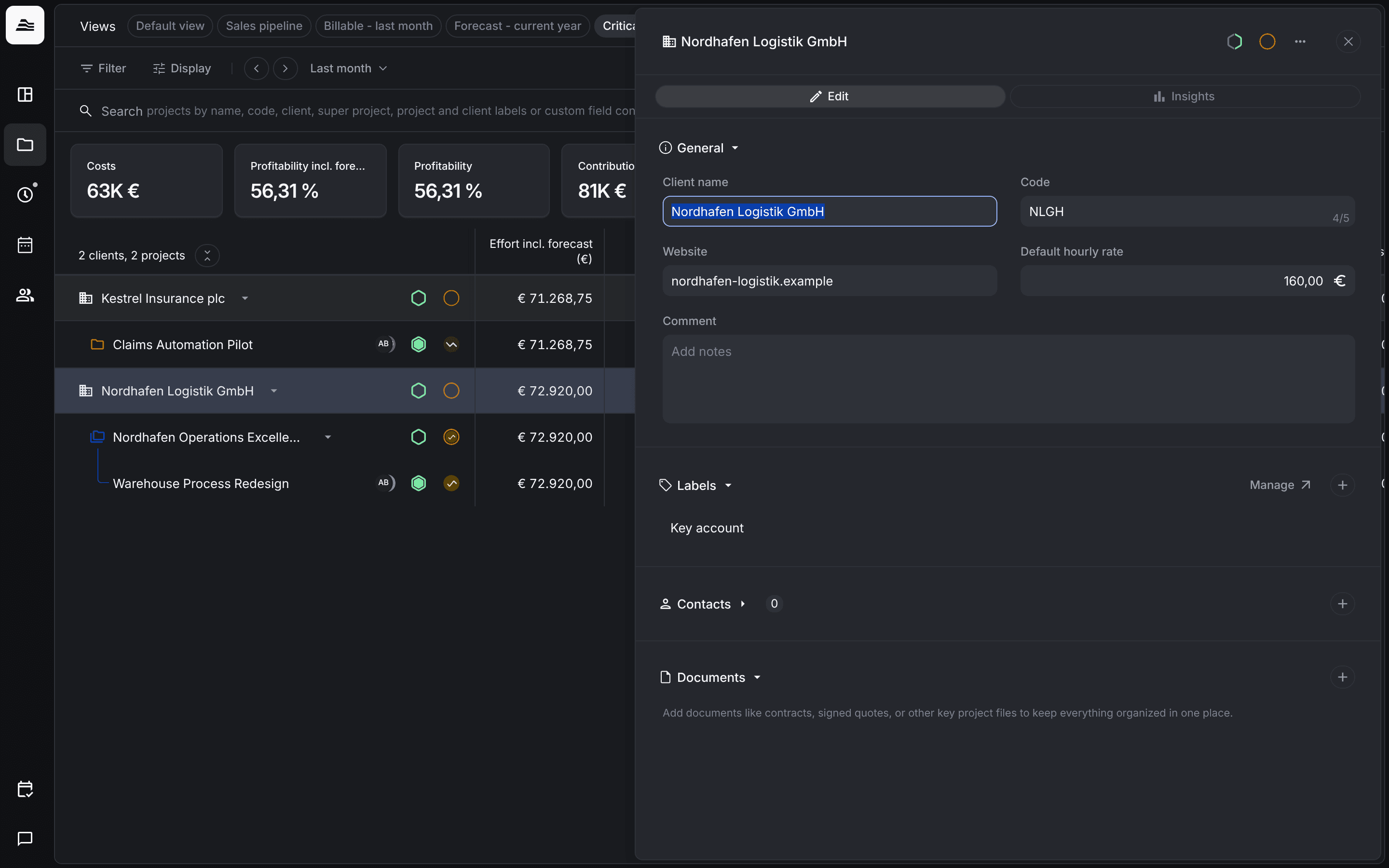
Every project belongs to a client. On the client you keep the company details, a default hourly rate, contacts and documents.
Required rights: Admin or individual project rights
Create a client
On the Clients & projects board, click New and choose Client. Aerion creates the client right away and opens it. To open an existing client, click its row on the board.
The client panel has two tabs: Edit for the details and Insights for the client's figures.
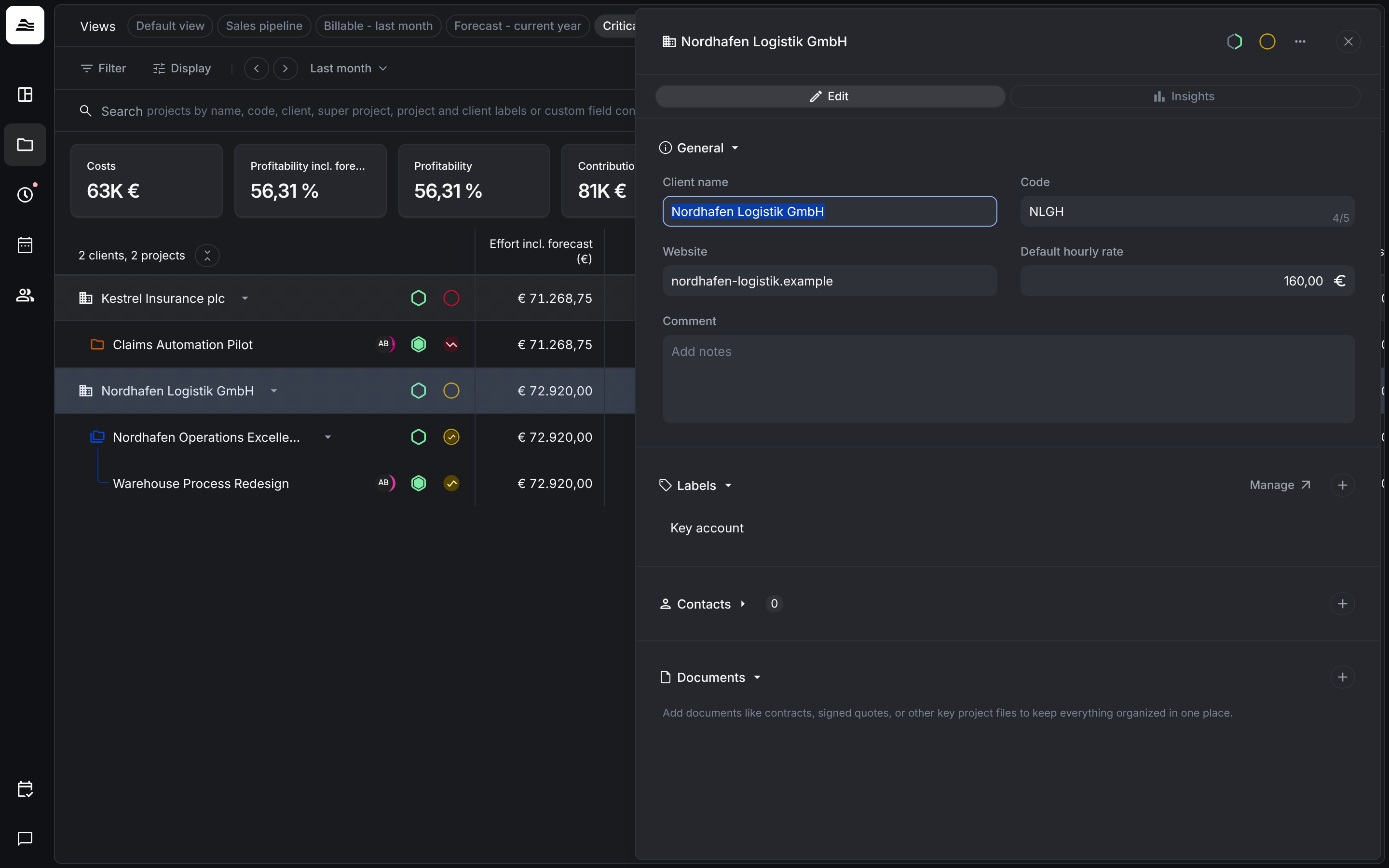
General
- Client name and Code, a short abbreviation of up to 5 characters.
- Website and Comment for your notes.
- Default hourly rate is used for the client's projects that use a flat hourly rate.
Labels, contacts and documents
- Labels group and filter clients. Click + to assign them. Manage opens the label settings.
- Contacts stores the people you work with at the client. Click + to add one. Contacts are for documentation: you can select one as Contact person in a project.
- Documents keeps contracts, signed quotes and other key files in one place. Click + to upload a file. Any file type works, up to 20 MB per file.
Add projects to a client
Hover over the client row on the board and click + to create a project or super project for this client.
Related
- Create and set up a project: the project settings step by step.
- Super projects and sub projects: group several projects of one client.