

Assign skills to staff
Assign skills and skill sets to your team members, each at the right proficiency level. This is what powers skill search, skill-based planning, and analytics.
Required rights
Permission to view and edit skills for the relevant staff — your own, your team's, or all (set in Roles & permissions)
Open the Team view, select a staff member, and switch to the Skills tab.
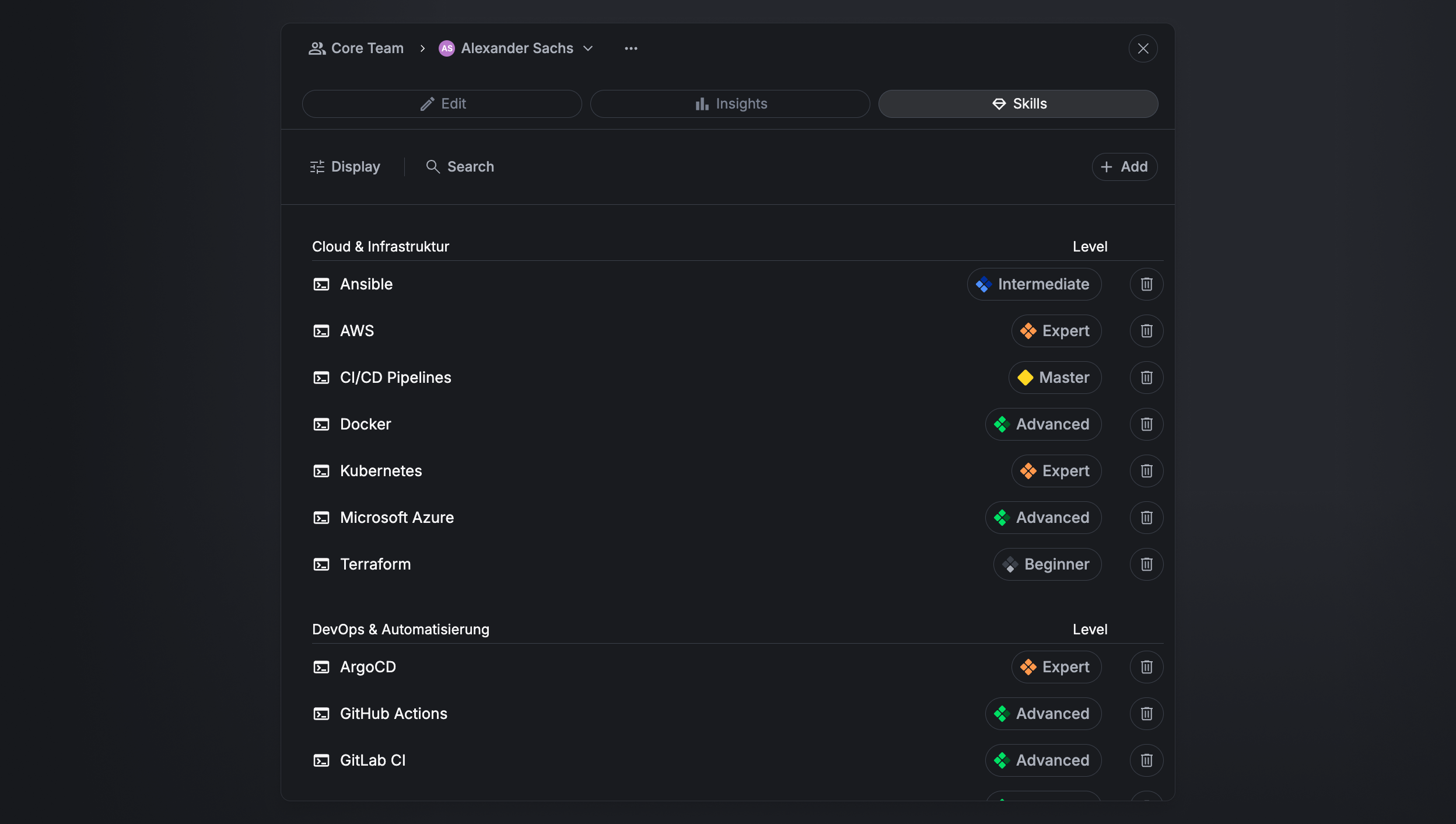
Add a single skill
In the staff member's Skills tab, click Add → Add skill.
- Search for and select the skill.
- Set the proficiency level (Beginner–Master). Certificates have no level.
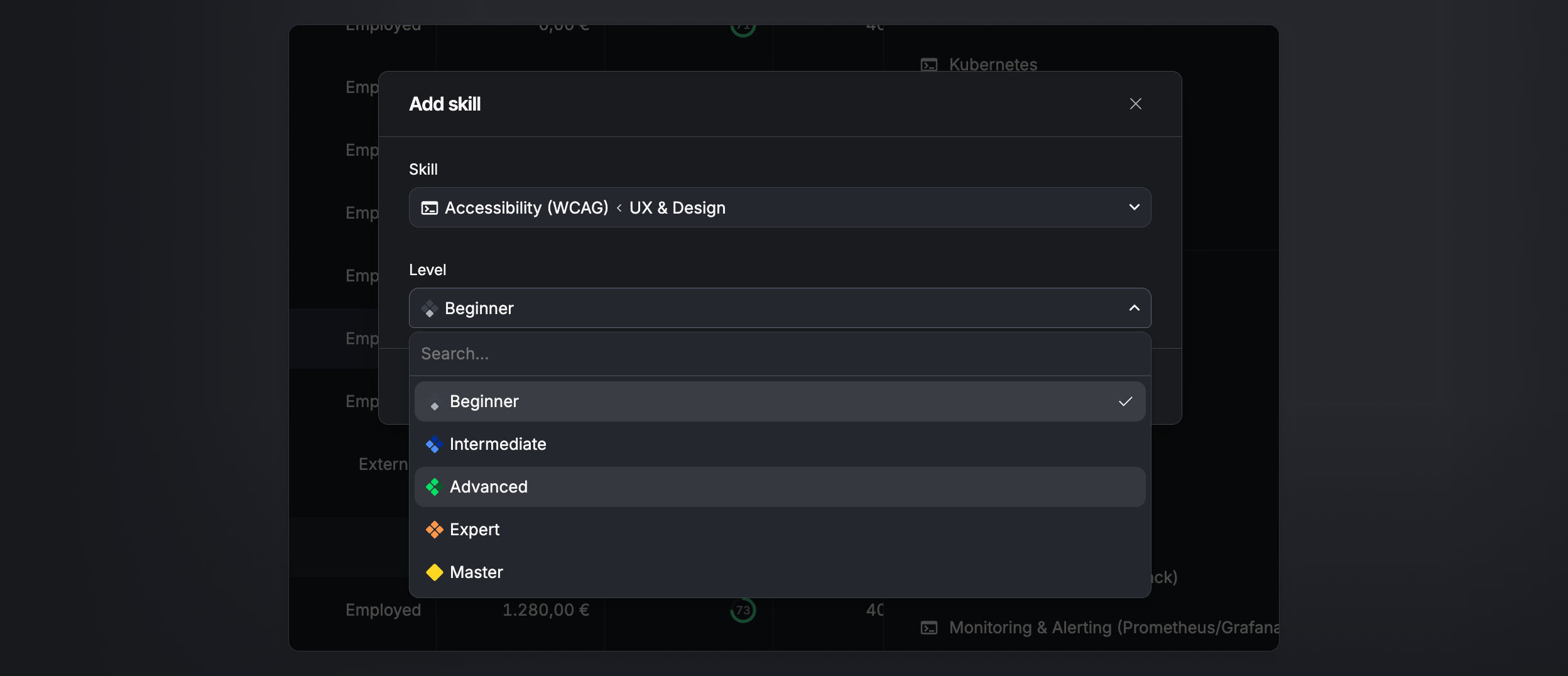
Add a whole skill set
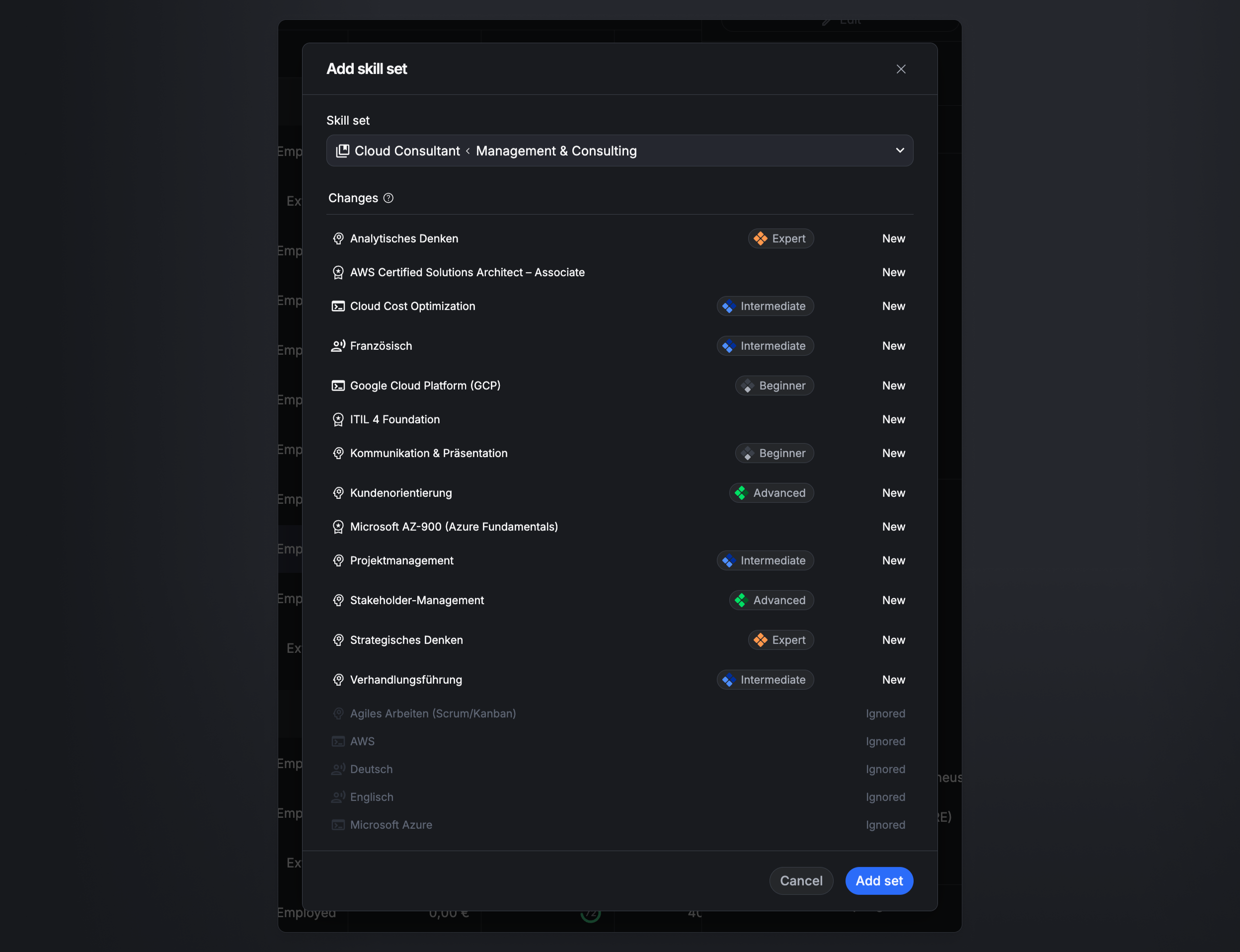
To apply a role's worth of skills at once, click Add → Add skill set and pick the set (shown with its category). The set's skills are added as New, each at a default level you can adjust per skill before saving.
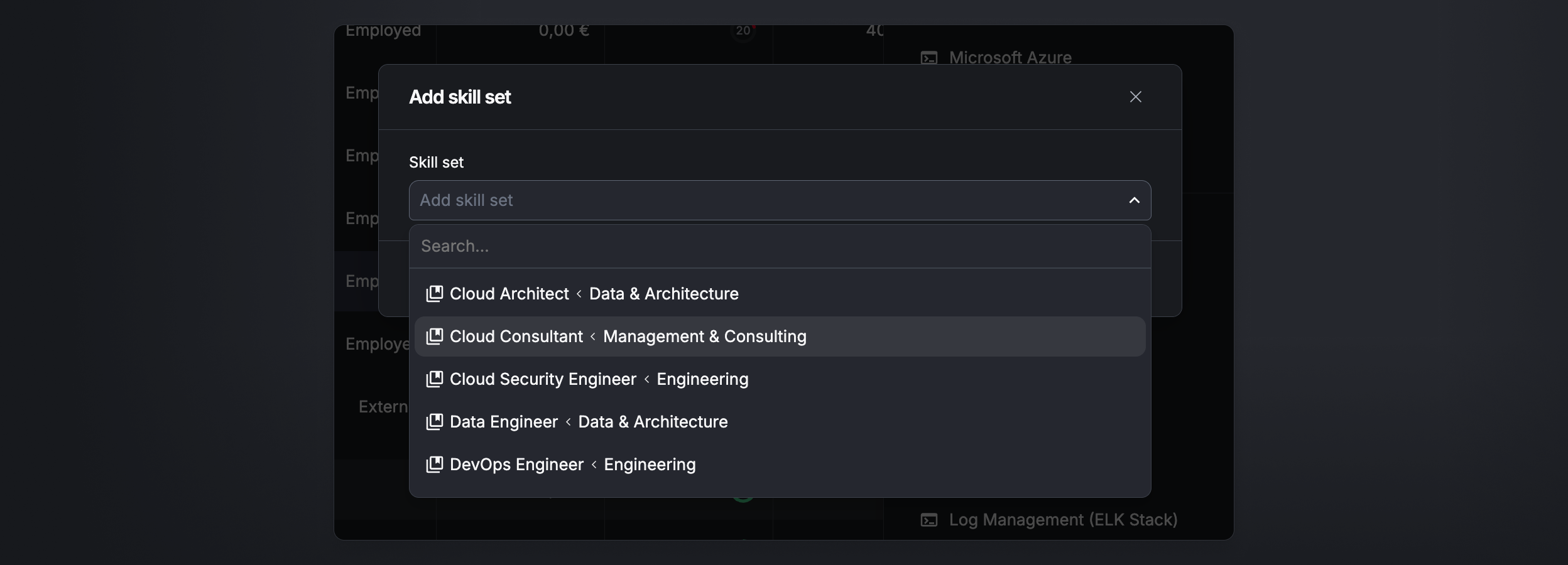
Only skills the person doesn't already have are added — existing skills are left as they are, so nothing is duplicated or overwritten.
A skill set is simply a way to add many skills in one step instead of adding each one separately. Once added, the skills are treated individually and lose their connection to the set — editing a skill set later does not update the people it was already applied to.
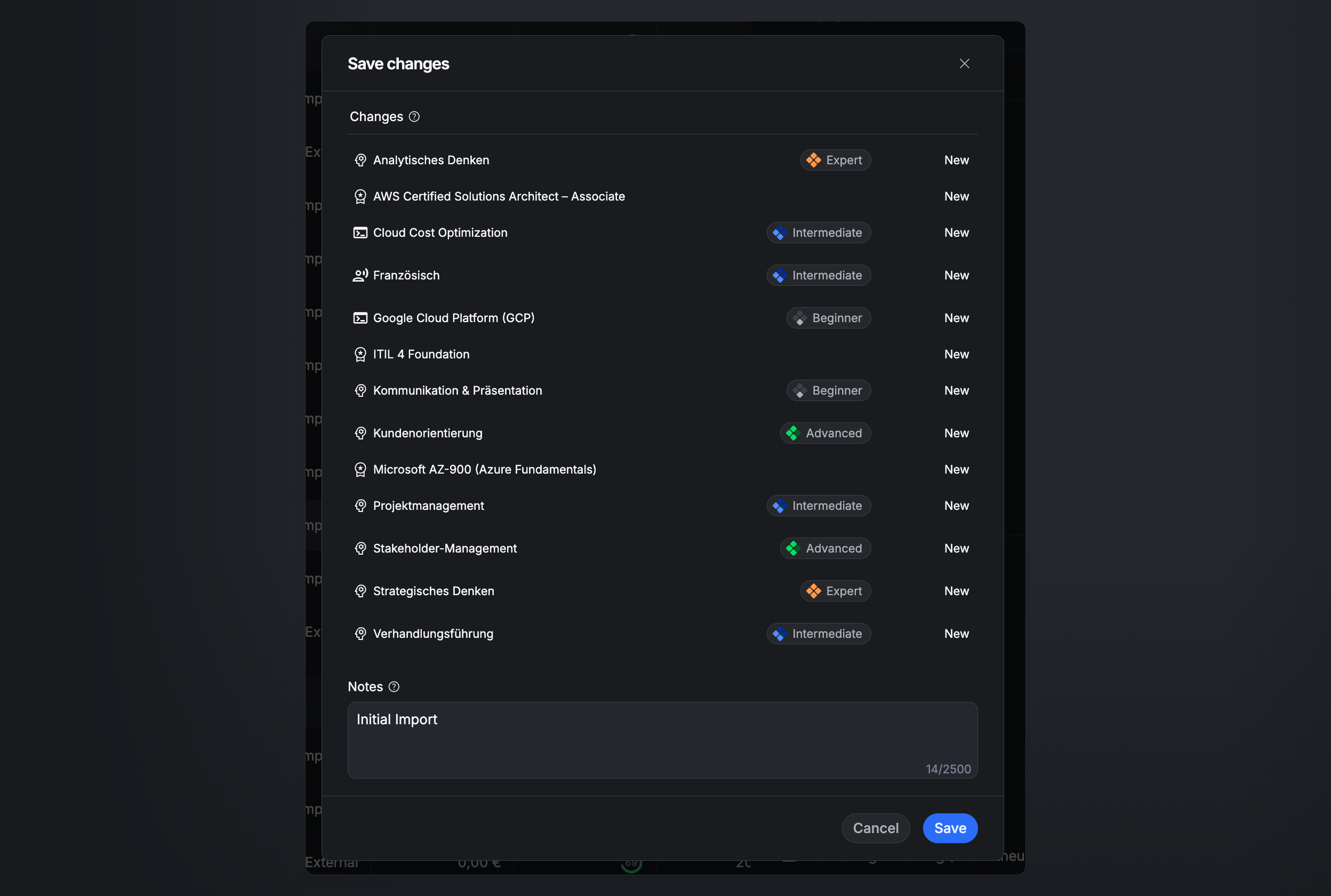
Save changes (note required)
When you save, Aerion shows a summary of the changes — newly added skills and level updates (old → new) — and requires a note describing the change. The note and the change are recorded in the history, so skill changes stay traceable.
Skill levels
The five levels — Beginner, Intermediate, Advanced, Expert, Master — are described in the Skills overview. The same skill can sit at different levels for different people, since the level is set per person. Certificates are held without a level.
Who can view and edit skills
What a person can do with skills is controlled in Roles & permissions, at the team or global level:
- View/edit your own skills.
- View/edit your team's skills.
- View/edit all staff members' skills.
Creating the skills, skill sets, and categories themselves stays admin-only — these permissions govern assigning and viewing skills on people.
FAQ
Is the change note really required? Yes — every change must be documented with a note before it can be saved.
Can I change someone's level later? Yes. Updates are shown as old → new in the save summary and recorded in the history.
Can two people have the same skill at different levels? Yes. The level is set individually per staff member.
What happens if a skill set already shares skills the person has? Only the skills they don't already have are added. Skills already on the person are left untouched.
If I change a skill set later, does it update people who already have it? No. A skill set only adds multiple skills in one step. Once added, the skills are individual on the person with no ongoing link to the set, so later changes to the set don't propagate.