

Check work and project time
Review, approve, and reject your team's project time and work time.
Required rights
Project-time / work-time approval (granted per team or globally)
Reviewing project time
You reach project-time approval via Time → Project time approval and Time → Team approval, provided you have the relevant permissions. Permissions are granted either through the team settings or as a global permission.
Project time can be approved directly, without the staff member submitting it first. Whole project days can only be approved or locked in Project time approval; in Team approval you review and approve individual or multiple project time entries.
Review project time in detail
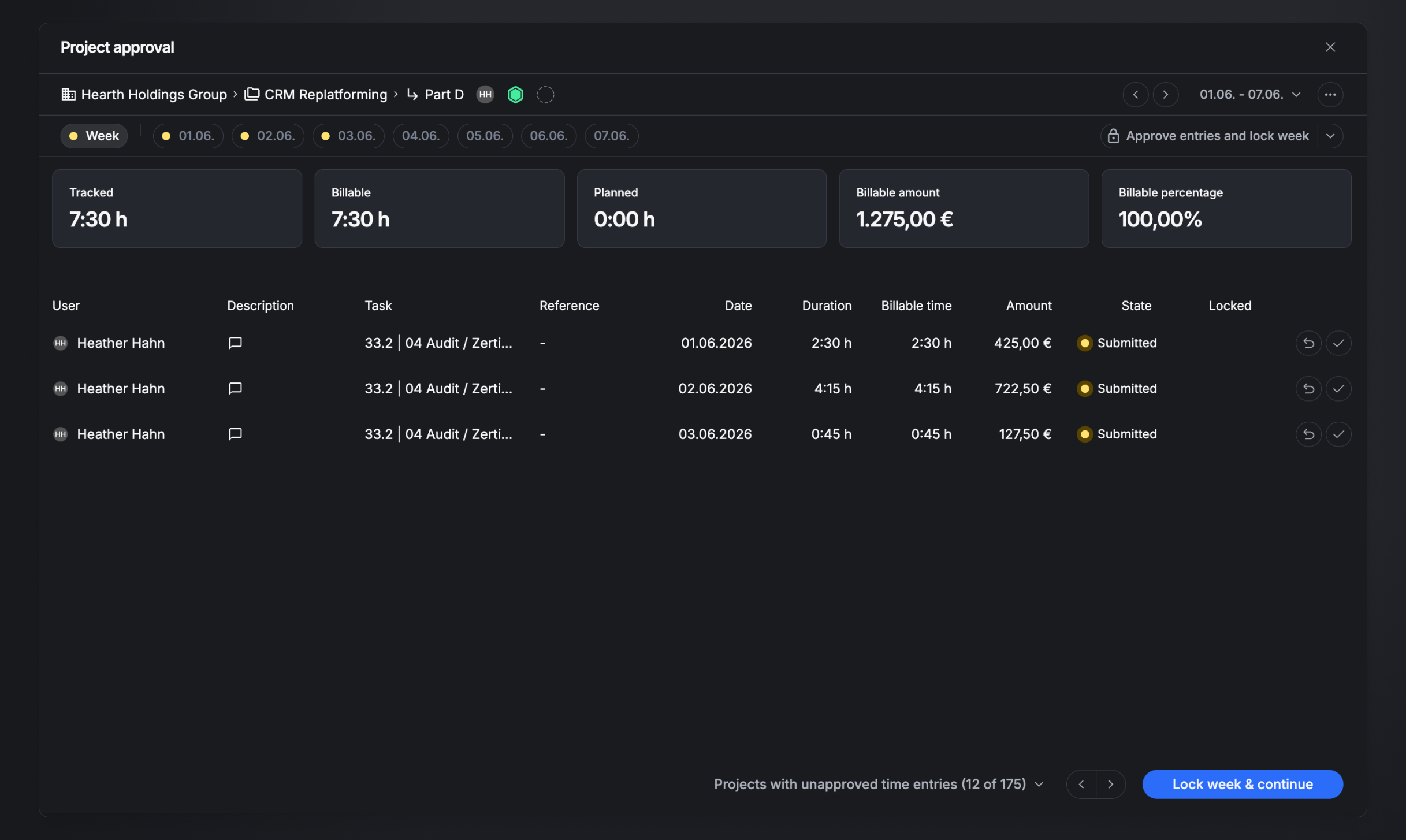
In Project time approval and Team approval you can see all recorded entries in detail and edit them individually or in bulk. Depending on context, the following actions are available:
- Approve entries and lock the day
- Approve entry / entries
- Set entry / entries to Open
- Reject entry (available only in the entry details)
Day view
In the day view you see:
- The approval status per entry (Open, Submitted, Approved) and whether it's Locked
- The task
- Recorded hours and cost
- Comments and references, if added
Time entry detail view
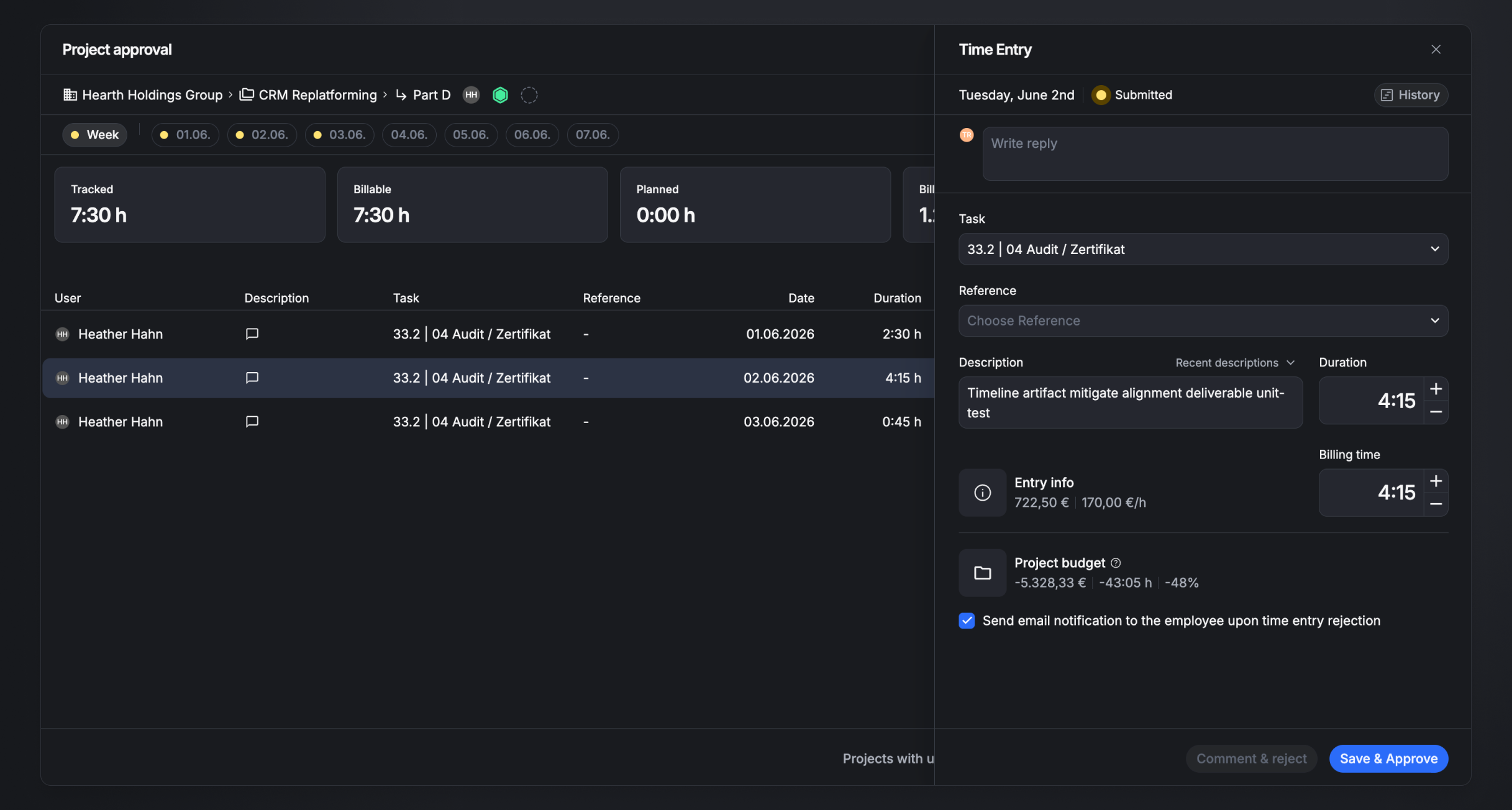
The detail panel opens on the right when you click a specific time entry. Here you can review, edit, approve, or reject (with a comment) the entry. It also shows:
- Remaining budget — how much budget (time and money) is left at the project/task level.
- Billable time — whether and to what extent the entry is billable, along with the hourly rate.
Two actions are available at the bottom:
- Save & approve — the entry is approved and, where applicable, considered for billing.
- Comment & reject — enter a comment and reject the entry. The "Send email notification to the staff member" option is on by default but can be turned off.
Approve whole project days and weeks
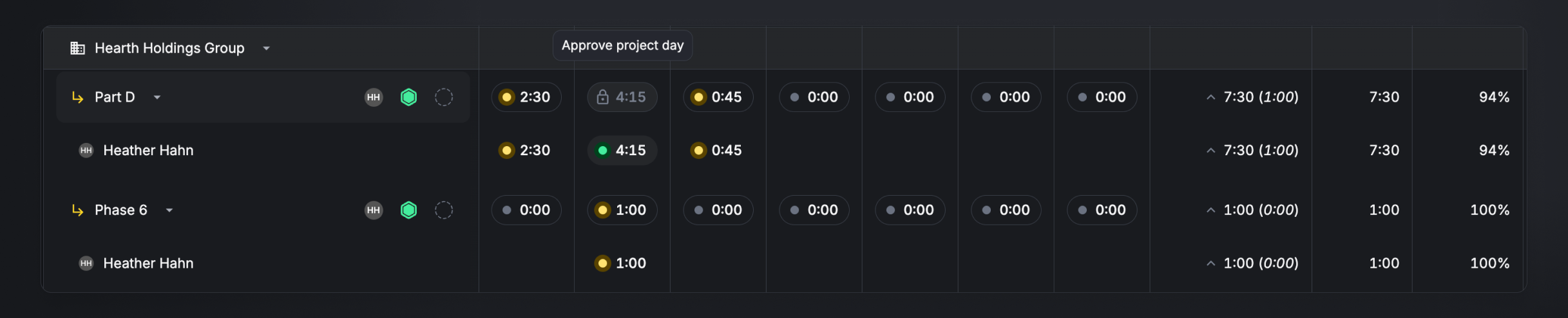
When a project day is approved, all of its entries are set to Approved and Locked, and can no longer be changed — no further entries can be added to an approved day. Project managers are exempt from these restrictions.
You can also approve or unlock entire weeks in one action, by clicking the week's recorded total.

Reviewing work time
Work-time tracking must be enabled in Account settings. You reach work-time approval via Time → Team approval, provided you have the relevant permissions (granted via team settings or as a global permission).
Unlike project time, work time must be actively submitted by the staff member before it can be approved. Work time always consists of the start and end of the workday plus the recorded breaks. In some countries, complying with break rules is a legal requirement.
Approve and reject work time
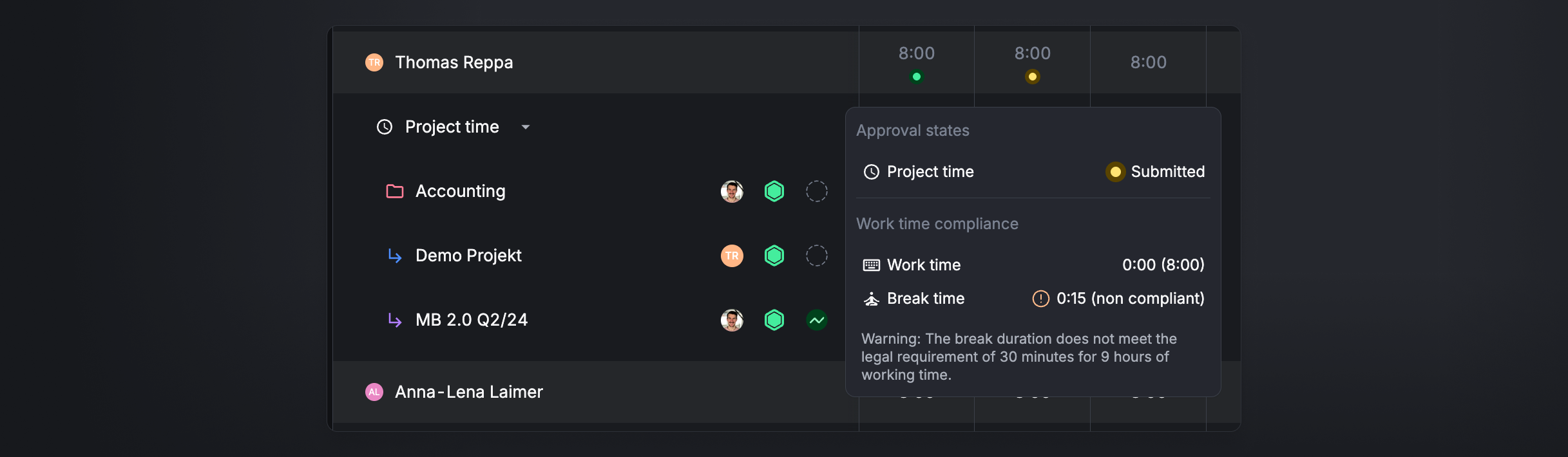
To approve a staff member's workday, hover over their highlighted day cell. If there's something to note — such as missing work time or non-compliant breaks — the tooltip will tell you. You can then approve or reject the day. Approving shows a confirmation dialog. To reject an entry, you must add a comment to enable the reject button.

Reset work time

Sometimes you need to correct already-approved or rejected work time. To reset a day, hover over the day cell and click the reset button. The workday returns to Open.
Approve or reset work time in bulk

To approve or reset a whole week at once, click the staff member's highlighted week cell. Depending on the entries' current status:
- If all entries are already approved, they're all reset to Open.
- If not all entries are approved, the action sets them all to Approved.
See also: Submit work and project time and Review and billing status of time entries.