

Submit work and project time
Submit your work and project time for review — completely, on time, and correctly — so it can be approved and billed.
Required rights
All users — no special permissions needed
Overview
Before submitting, follow three steps to make sure your time is complete and correct:
- Check your project time for completeness.
- Check your work time and breaks.
- Submit your day.
Check project time for completeness
Before you submit your day, check your project time entries for completeness. Depending on the project's settings, descriptions or ticket references (e.g. from Jira) may be required.
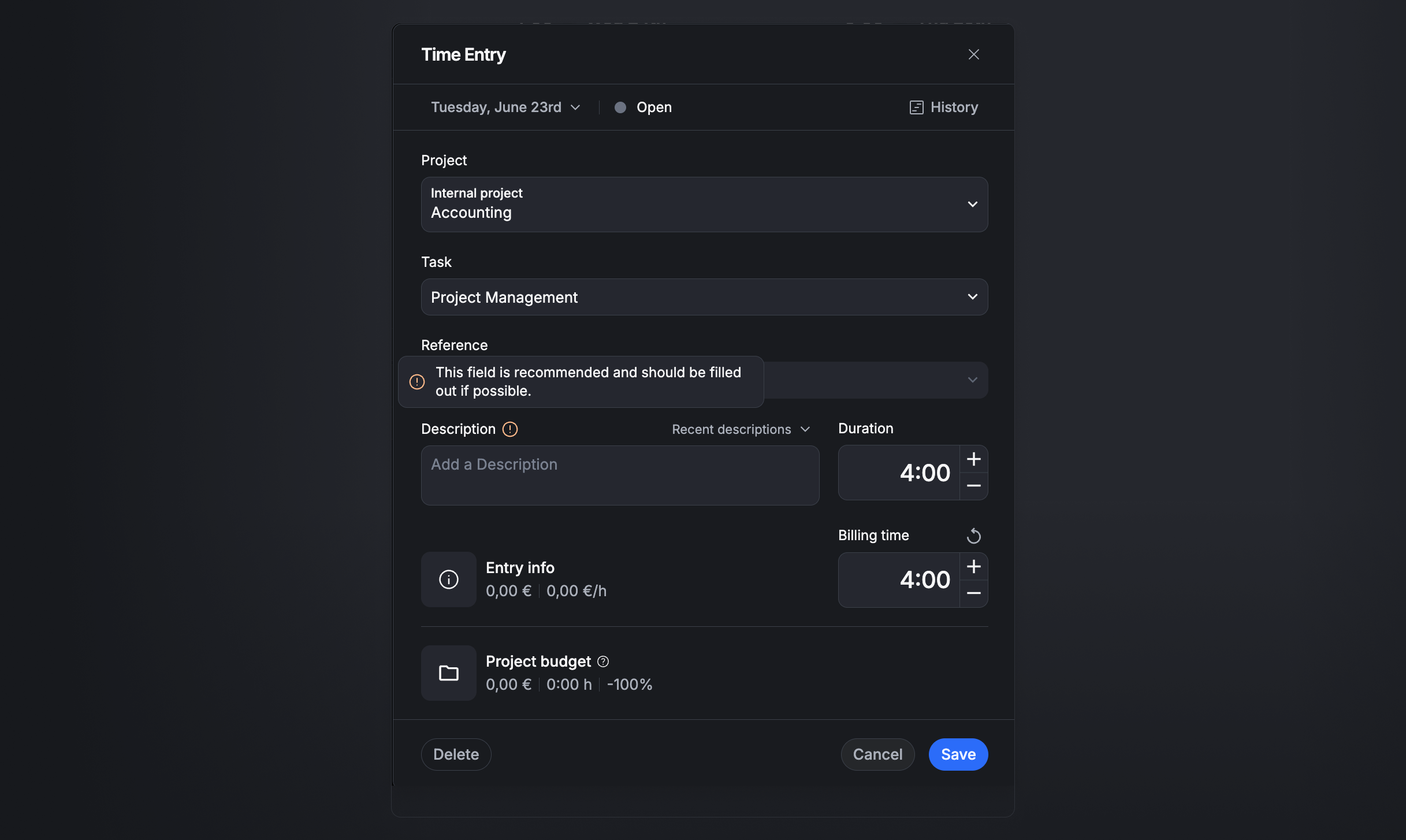
Completeness is shown in two levels — in the day or week overview, or directly in the entry details:
- Level 1 (orange icon) — the description and/or reference is optional but recommended. You can still submit the day without it.
- Level 2 (red icon) — the description and/or reference is mandatory and must be added before you can submit the day.
Check work time

This step is only available and necessary if work-time tracking is enabled for your user.
Before you submit your day, Aerion automatically runs a pre-check of your time entries, giving you:
- Net working time (after deducting recorded breaks)
- Deviation from your target working time
- A labor-law compliance check of your working and break times
Labor-law break check
Depending on your configuration, a passing break check may be a condition for submitting your day. The system distinguishes two levels:
- Level 1 — Notice (orange icon) — your breaks don't fully meet labor-law requirements. You can still submit, but should add a compliant break if possible.
- Level 2 — Block (red icon) — your breaks violate the legal minimum requirements. A correction is required before you can submit the day.
The relevant level is shown in the time entry or in the day/week overview.
Submit your day
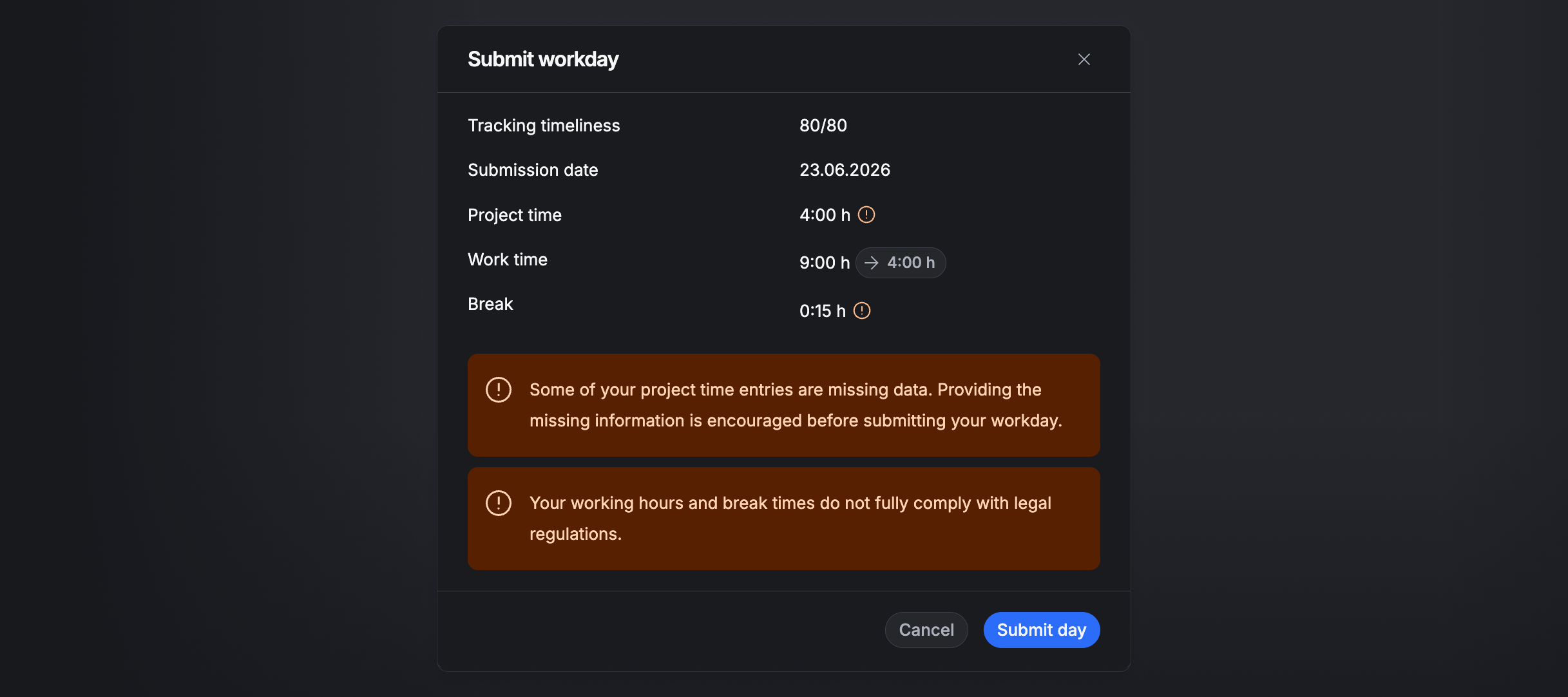
When you submit your day for review with the Submit day button, the system shows a summary with:
- Timeliness — a score for submitting your project time on time (e.g. 0/50 points).
- Submission date — the calendar day you're submitting.
- Project time — the sum of all recorded project time. A warning symbol flags missing details in one or more entries, which can block submission.
- Work time — the total recorded work time. Click the blue button to adopt your project time as work time if the two should match.
- Break time — the sum of your recorded breaks. A warning flags breaks that violate labor-law requirements, which can block submission depending on your configuration.
After you submit, all entries change to Submitted and can be reviewed by the responsible people.
Fix rejected entries
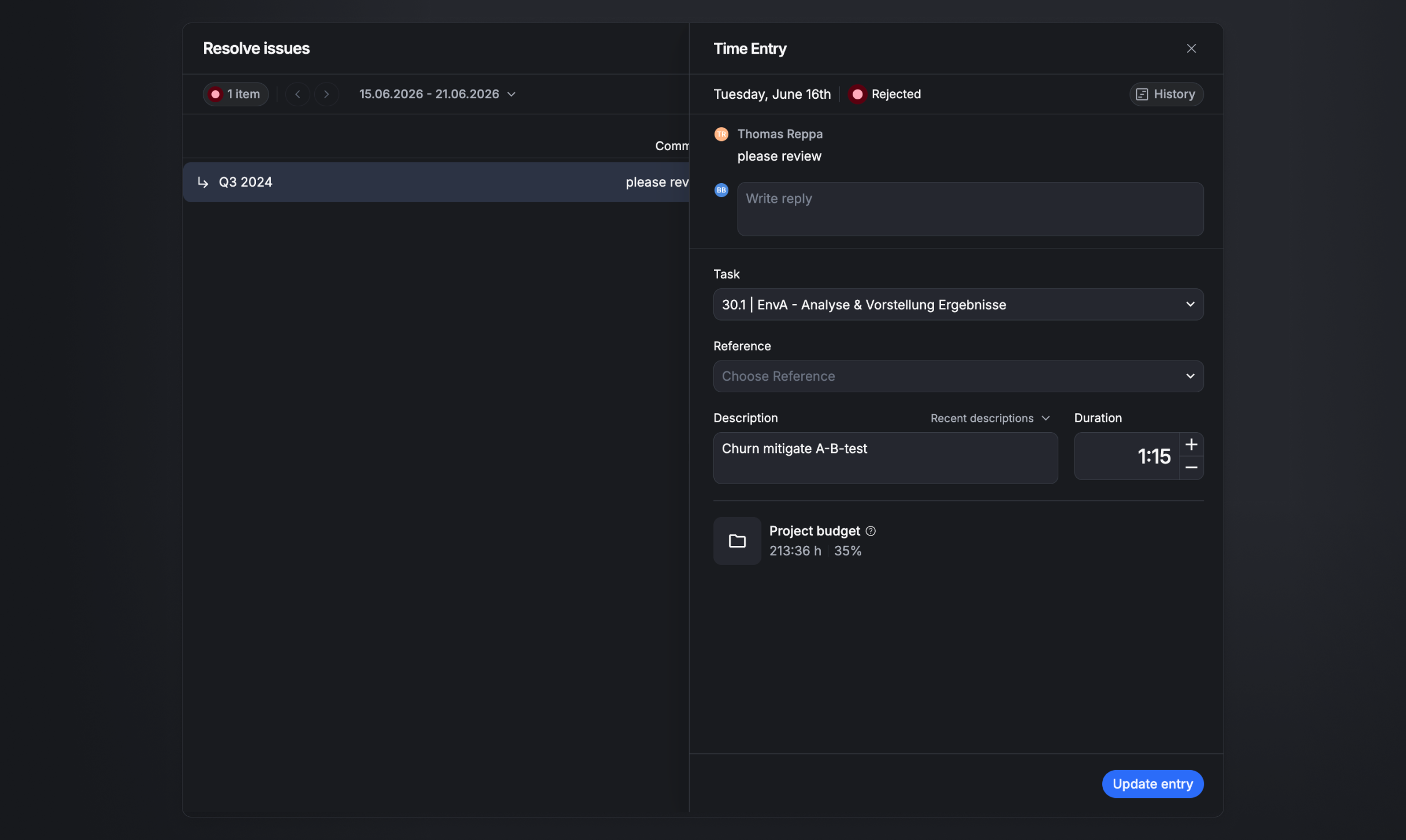
If one or more of a day's entries are rejected, you'll usually be notified by email. Open the day with the Resolve question button, correct the affected entries, and submit them for review again.
See also: Check work and project time and Tracking score.