

Project insights
The Insights tab of the project details panel is where you analyze a single project's performance — profitability, effort versus costs, planning accuracy, and how effort breaks down by task, staff, team, or reference. Open a project from the Clients & projects board (or a planner) and switch to Insights.
Required rights
Read access to the project
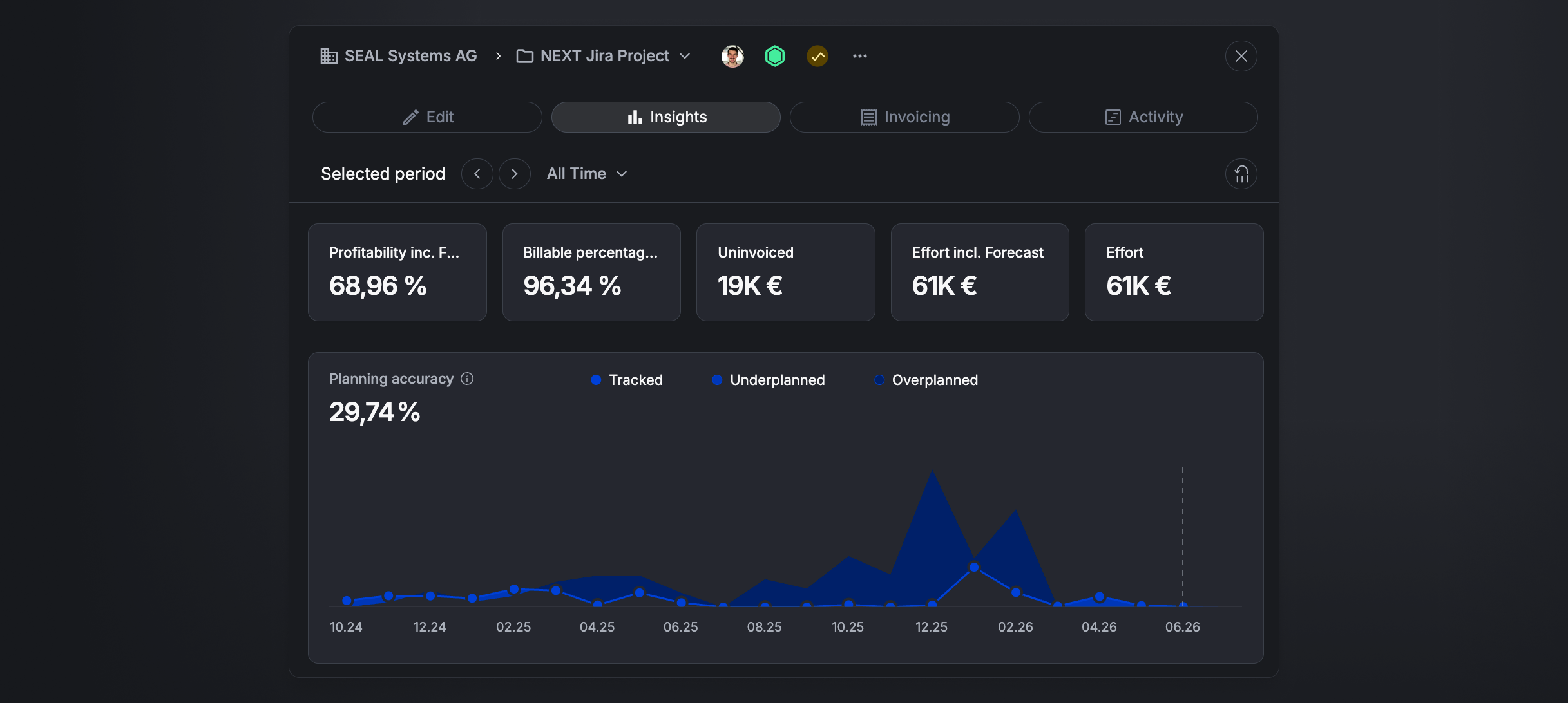
Selected period
Everything on the tab is calculated for the Selected period. Use the dropdown (e.g. All Time) to choose the timeframe, or the ‹ › arrows to step through periods.
KPI cards
A customizable strip of KPIs for the project and selected period — for example Profitability inc. Forecast, Billable percentage, Uninvoiced, Effort incl. Forecast, and Effort. Hover a card for its breakdown — for instance, Uninvoiced splits into uninvoiced time entries and uninvoiced expenses.
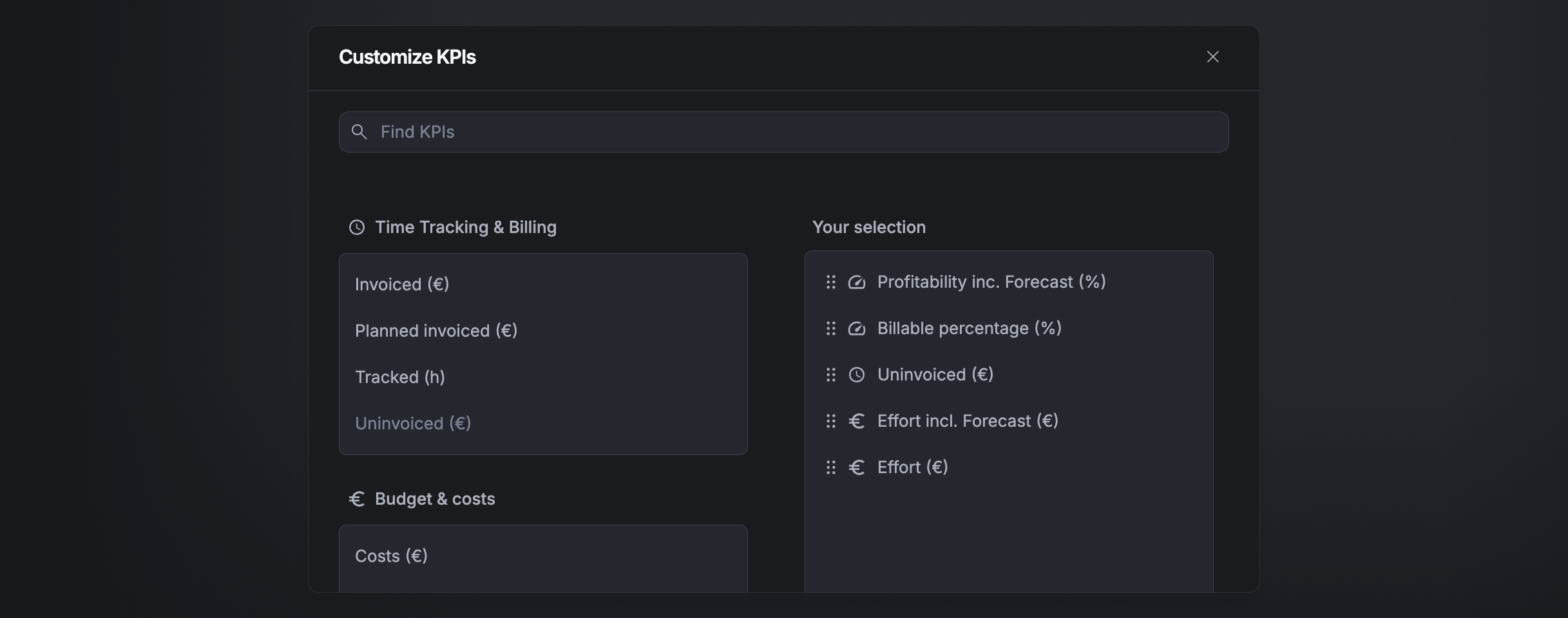
Use Customize KPIs to choose which cards appear and drag them into order. The available KPIs are grouped into Time tracking & billing, Budget & costs, and Performance.
Planning accuracy
The planning-accuracy chart plots tracked effort over time against what was planned, with shaded areas for under- and over-planned periods and the project's overall planning-accuracy %. It's the same chart as on the Clients & projects board, scoped to this project.
Effort, costs & surplus
Two charts show the project's economics over time, using three figures:
- Effort (green) — the billable value of tracked time plus expenses.
- Costs (red) — staff and expense costs.
- Surplus (green) — Effort minus Costs, i.e. the project's margin.
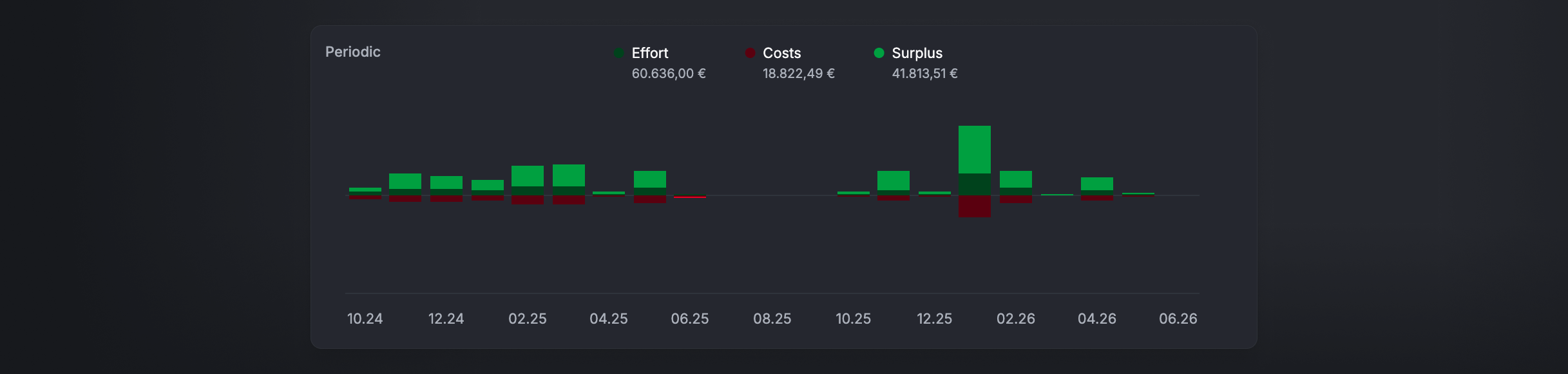
Periodic
Per-period bars showing effort and costs for each period, so you can see how each one contributed.
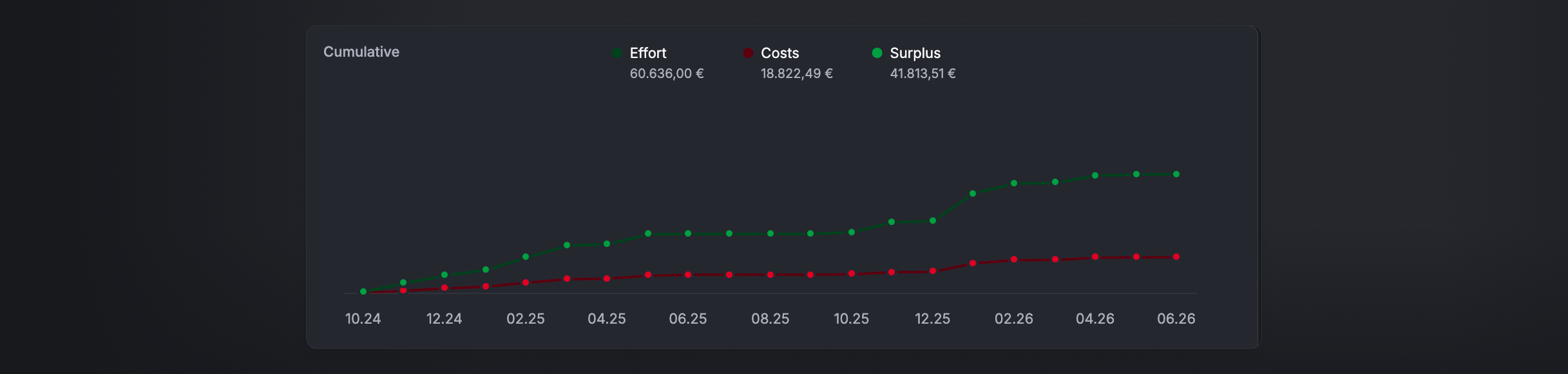
Cumulative
The same figures as running totals over time, so you can watch effort and costs accumulate and the surplus widen or narrow.
Breakdown
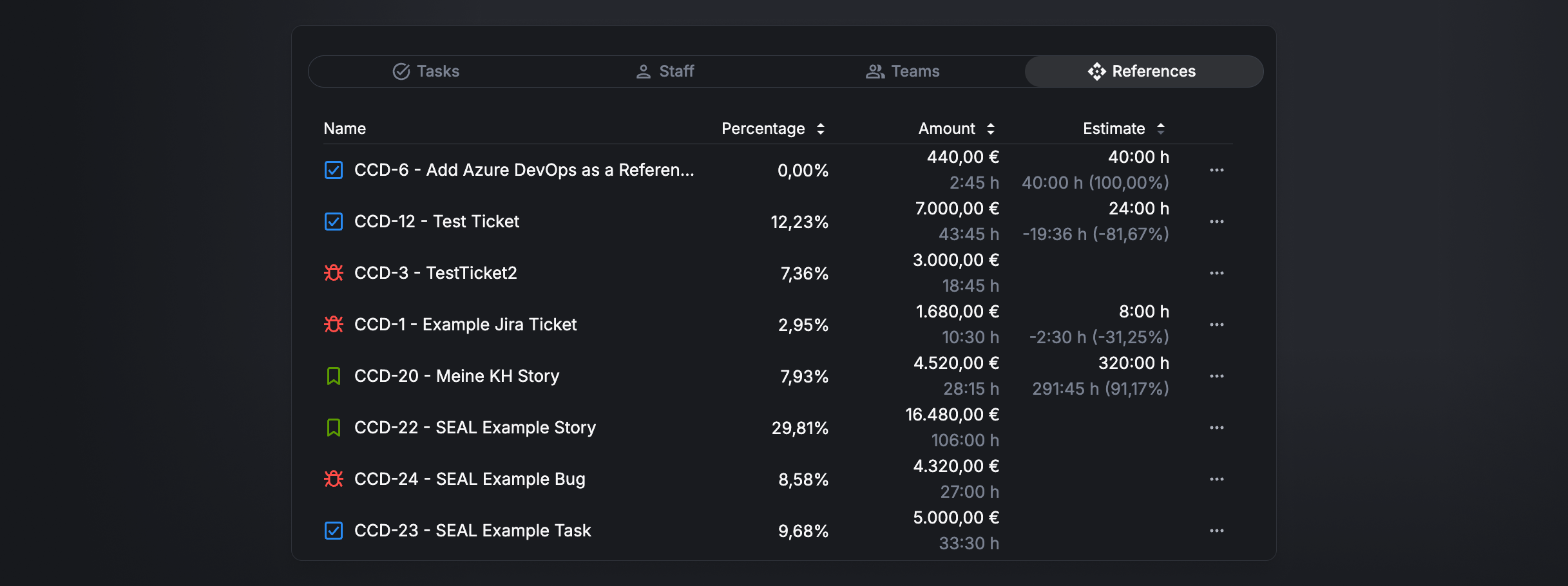
A table that splits the project's tracked effort by dimension — switch between Tasks, Staff, Teams, and References. Each row shows:
- Name — the task, staff member, team, or reference.
- Percentage — its share of the project's effort.
- Amount — the billable amount (€) and the tracked hours.
- Estimate (References only) — the linked Jira issue's estimate, with how tracked time compares to it (over/under, in hours and %).
Sort by clicking a column header.
Connect a HubSpot deal
From the breakdown area you can link the project to a HubSpot deal via HubSpot → Connect deal (requires the HubSpot integration). See Connect HubSpot.