

Edit a project
Clicking a project row on the Clients & projects board (or in a planner) opens the project's details panel. This article covers its Edit tab — where you configure everything about a project. The panel's other tabs (Insights, Invoicing, Activity) are covered separately. Every section on the Edit tab can be collapsed.
Required rights
Project edit
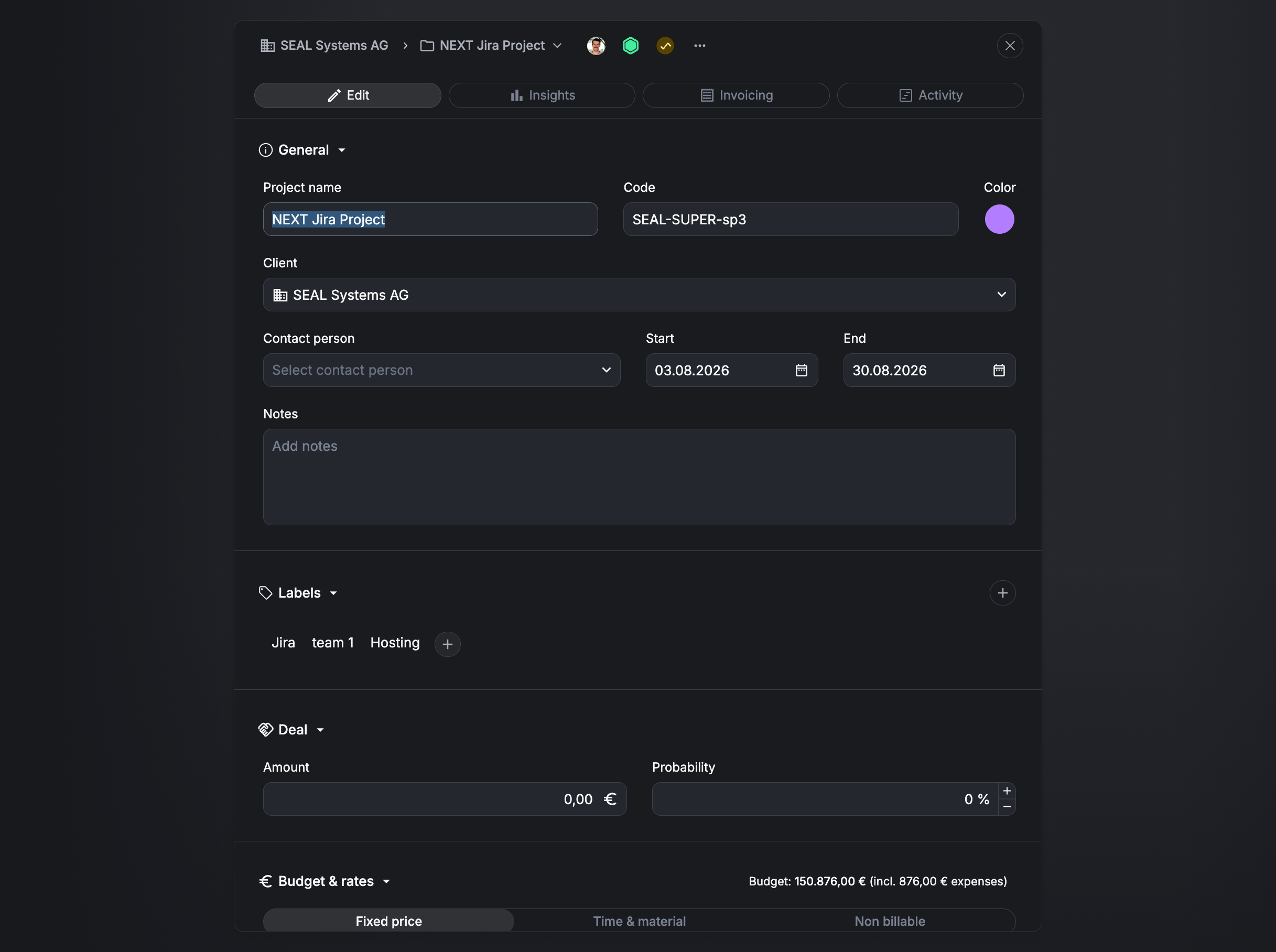
General
The core details of the project:
- Project name — the project's name.
- Code — a short project code (e.g.
SEAL-SUPER-sp3). - Color — a colour used to identify the project across Aerion.
- Client — the client the project belongs to.
- Contact person — an optional contact, chosen from the client's contacts.
- Start / End — the project's date range.
- Notes — free-text notes about the project.
Labels
Add project labels (for example Jira, team 1, Hosting) to categorize the project and filter by it across Aerion. Add a label with the + button.
Deal
For projects in your sales pipeline, capture the deal's value:
- Amount — the deal's value.
- Probability — the estimated chance (%) of winning it.
Together these feed the sales-forecast KPIs — Sales forecast (total) uses the amount, and Sales forecast (weighted) applies the probability. See the Clients & projects board.
Budget & rates
Choose the project's billing type — Fixed price, Time & material, or Non billable — each with its own budget and rate options.
Fixed price
A fixed budget that you invoice against agreed amounts.
- Budget — how the budget is defined:
- Amount — a money budget (e.g. €150,000).
- Hours — an hour budget.
- Hours per task — an hour budget set individually per task.
- Hourly rate — how billable value is calculated:
- Flat — one rate for the whole project (e.g. €160/h).
- By task — a separate rate per task.
- By staff — a separate rate per staff member.
- Forecast hourly rate — the rate used to calculate planned revenue from the planner's planning assignments. With a Flat rate it's that rate; with By task or By staff, enter an average forecast hourly rate manually.
- Project weighting — the project's rating: a project value that's independent of profitability or billability, used to calculate the Project Rating Quota in team analytics.
- Automatic rounding — how tracked time is rounded for billing: Round up or Round down.
- Rounding steps — the rounding increment: 5, 15, 30, or 60 minutes.
Time & material
Billed by effort (the section header shows By effort). Time & material projects don't require a budget — to track effort against a fixed budget while still invoicing by effort, use Fixed price instead.
- Hourly rate — Flat, By task, or By staff (as above).
- Forecast hourly rate, Project weighting, Automatic rounding, and Rounding steps work exactly as for Fixed price.
Non billable
For internal, non-billable work. Hourly rates aren't available for non-billable projects.
- Budget — Hours, Hours per task, or No hour budget.
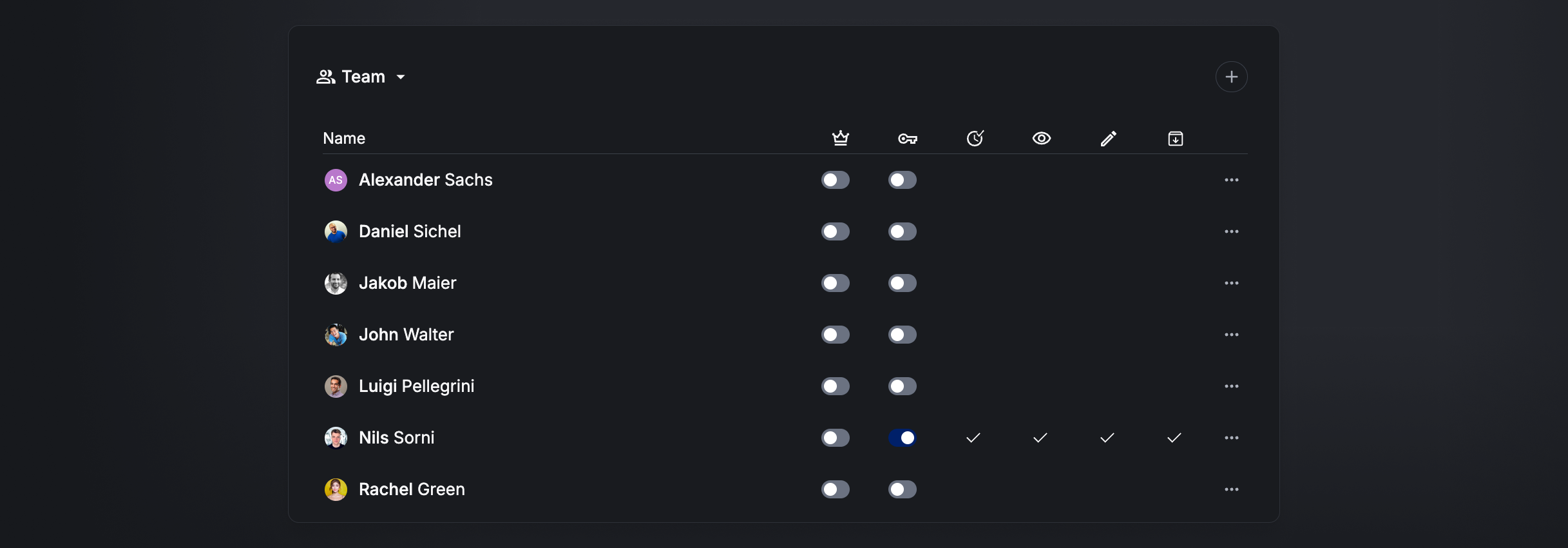
Team
The people on the project. Two toggles set a member's role, and the remaining columns show the rights they hold on this project:
- Project Lead (crown) — marks the user as a Project Lead. Project Leads can be identified in exports and accessed via the API.
- Approval + additional rights (key) — when enabled, the user can approve project time and, in combination with global project permissions, is granted additional rights for this project.
- Approve project time (clock) — the user can approve project time entries and edit them.
- Read access (eye) — the user has read access to the project.
- Edit (pencil) — the user can edit, analyze, and invoice the project.
- Archive (archive box) — the user can archive and restore the project.
Add a member with the + button.
Tasks
The tasks available for tracking time on this project (for example Back-End-Dev, Front-End-Dev, Intercom, Project Management). Each task has two toggles:
- Archived — an archived task can no longer be selected in time tracking.
- Billable — whether the task is billable.
When the project uses per-task budgeting or rates (Budget = Hours per task, or Hourly rate = By task), tasks also carry their own budget and hourly rate here. Use Manage to open full task management, or add a task with +.
Reference systems
Link external reference systems (for example a Jira instance) so their items can be referenced on time entries. Each entry shows:
- Scope — which projects the reference applies to (e.g. All Projects).
- Usages — how many items are currently linked.
- Enabled — turn the reference on or off.
Use Manage to manage reference groups. See Jira Cloud integration.
Documents
Attach key project files — contracts, signed quotes, and other documents — to keep everything organized in one place. Add a document with +.
Custom fields
Project-level custom fields, such as PO Number and AB Nummer. Fill them in per project; use Manage to configure which custom fields exist. They're also available elsewhere — for example as columns on the board and as tokens in easybill exports.
Time entry submission rules
Set per project, these rules control whether descriptions and references (e.g. Jira issues) are required when staff submit project time:
- Rules configuration — Separate rules for descriptions and references, or Combined rules for both.
- Descriptions — Optional (default), Warn about missing descriptions, or Prevent workday submission if descriptions are missing.
- References — Optional (default), Warn about missing references, or Prevent workday submission if references are missing.
These streamline approval and improve tracking quality. The completeness indicators staff see when submitting come from these rules — a Warn setting shows the orange Level 1 indicator, and a Prevent setting the red Level 2 indicator. See Submit work and project time. Use Manage to configure them.