
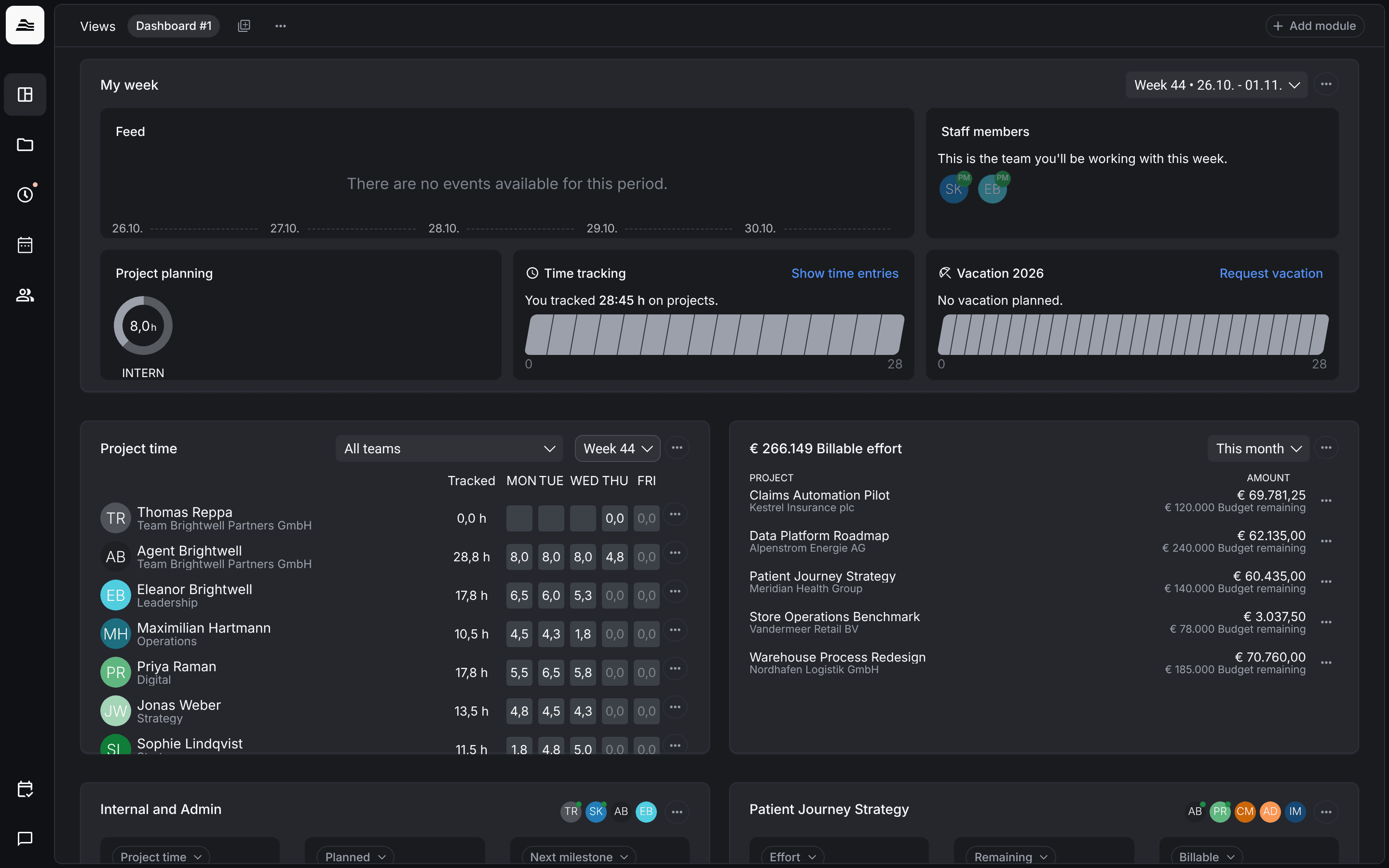
Aerion is professional services automation software for project-based teams. It simplifies and automates everyday processes and recurring tasks such as time tracking, time approval, project and resource planning, and invoicing.
How Aerion works
Aerion follows a best of breed, integration first approach instead of trying to be an all-in-one suite. It connects to the tools your team already uses, for example for tickets, HR or accounting.
Aerion is built to be controlled by AI agents. Through MCP, agents can read and write all of your data in Aerion.
Main areas
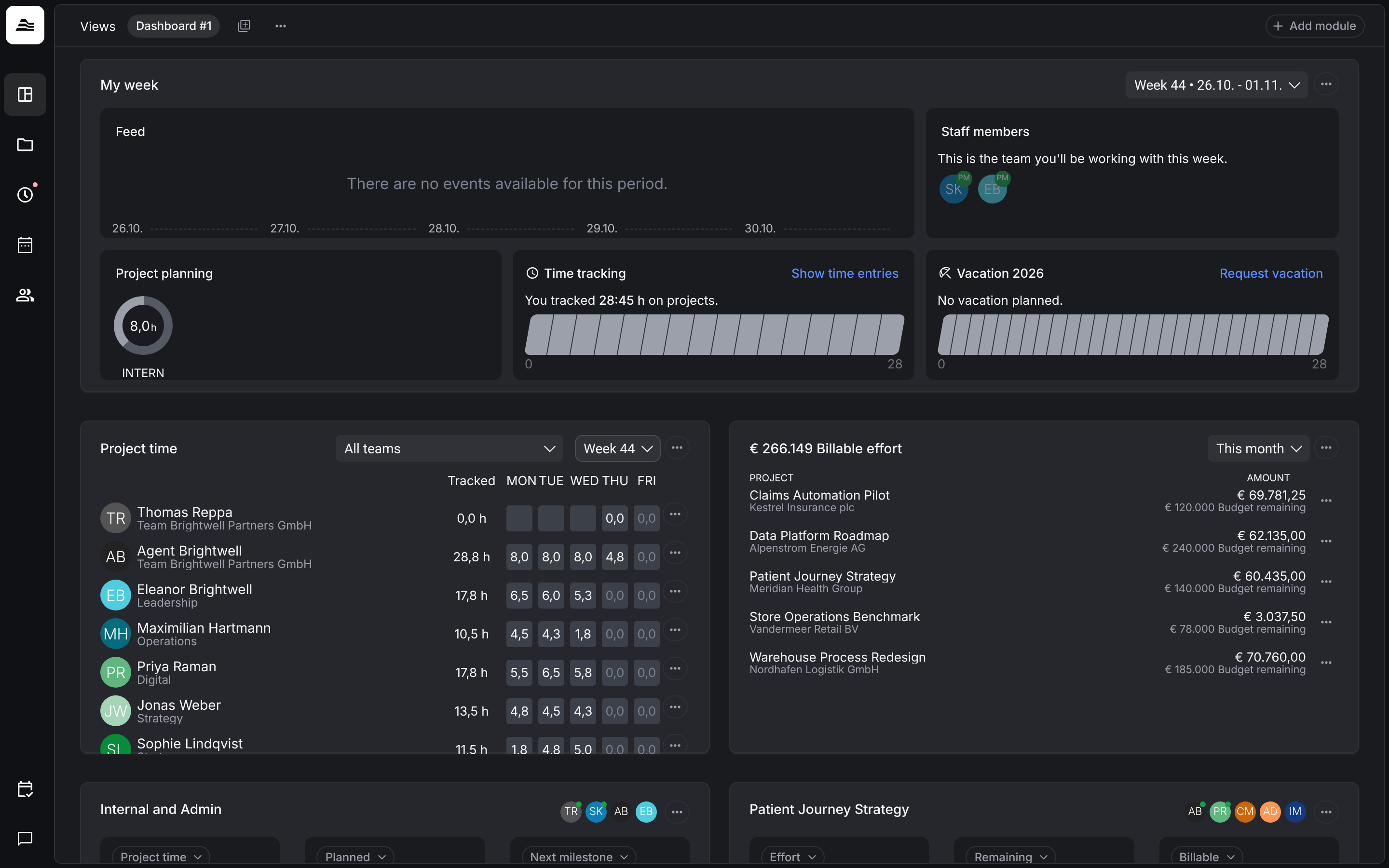
Dashboard. Your personal start page. You can create several dashboards and add and arrange modules as you like, for example your week, your tracked time, your team's project time and the billable effort of your projects.
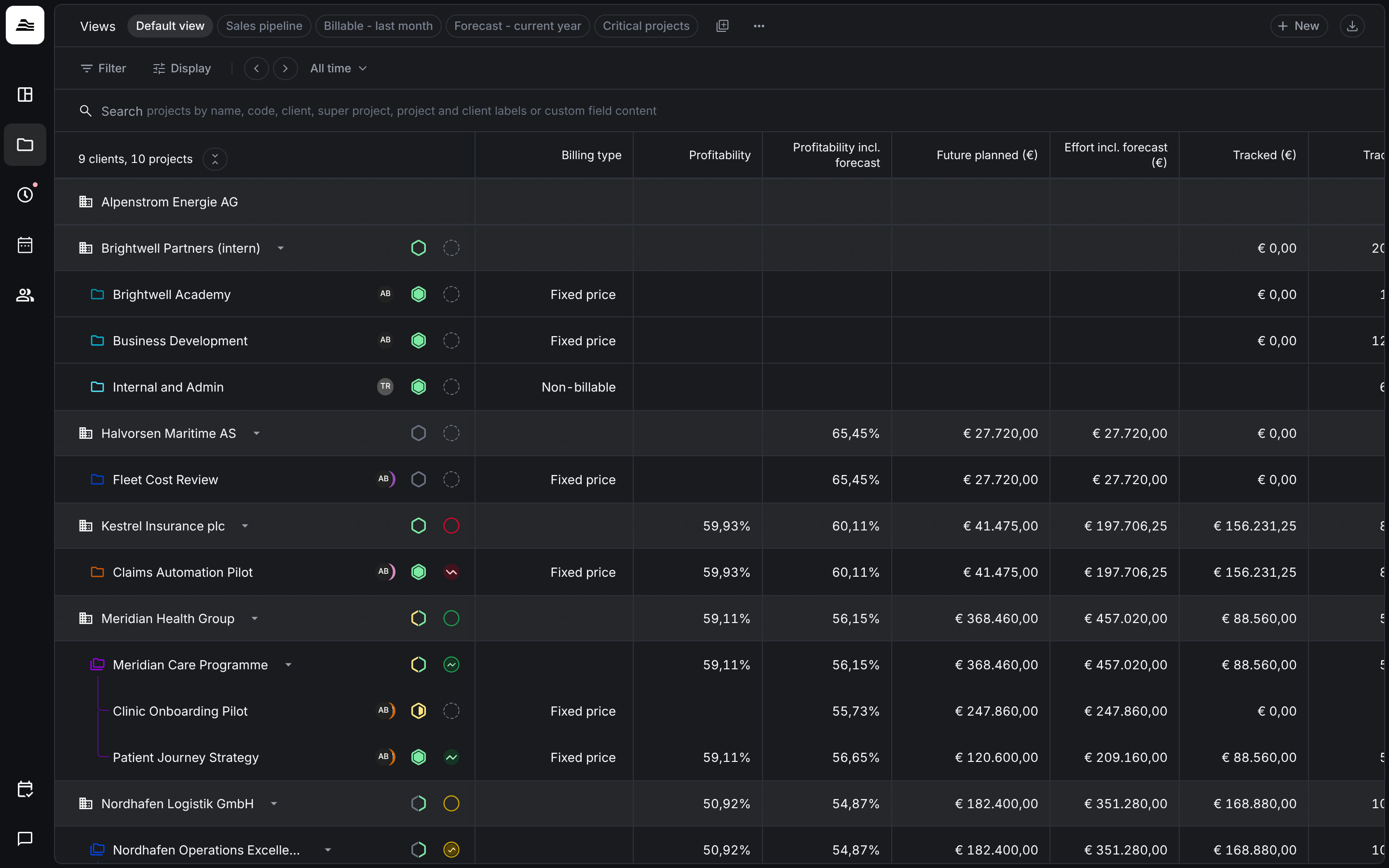
Clients & projects. All clients and projects in one table with budget, profitability and planning accuracy. This is where you create and edit projects.
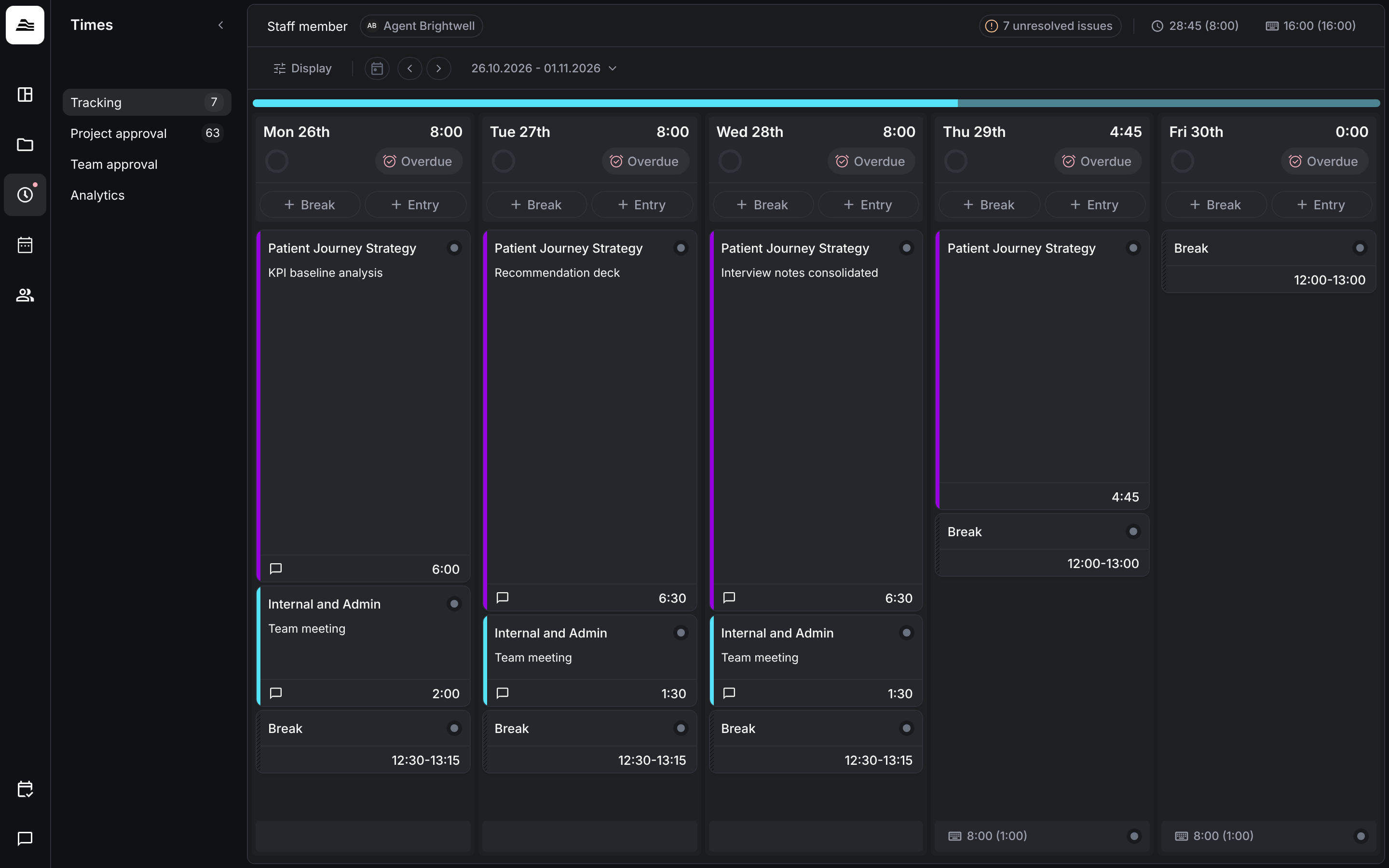
Times. Track and submit work time and project time under Tracking, review and approve them under Project approval and Team approval, and evaluate them under Analytics.
Planning. Plan the utilization of your team under Utilization, staff projects over time under Projects and manage absences under Absences.
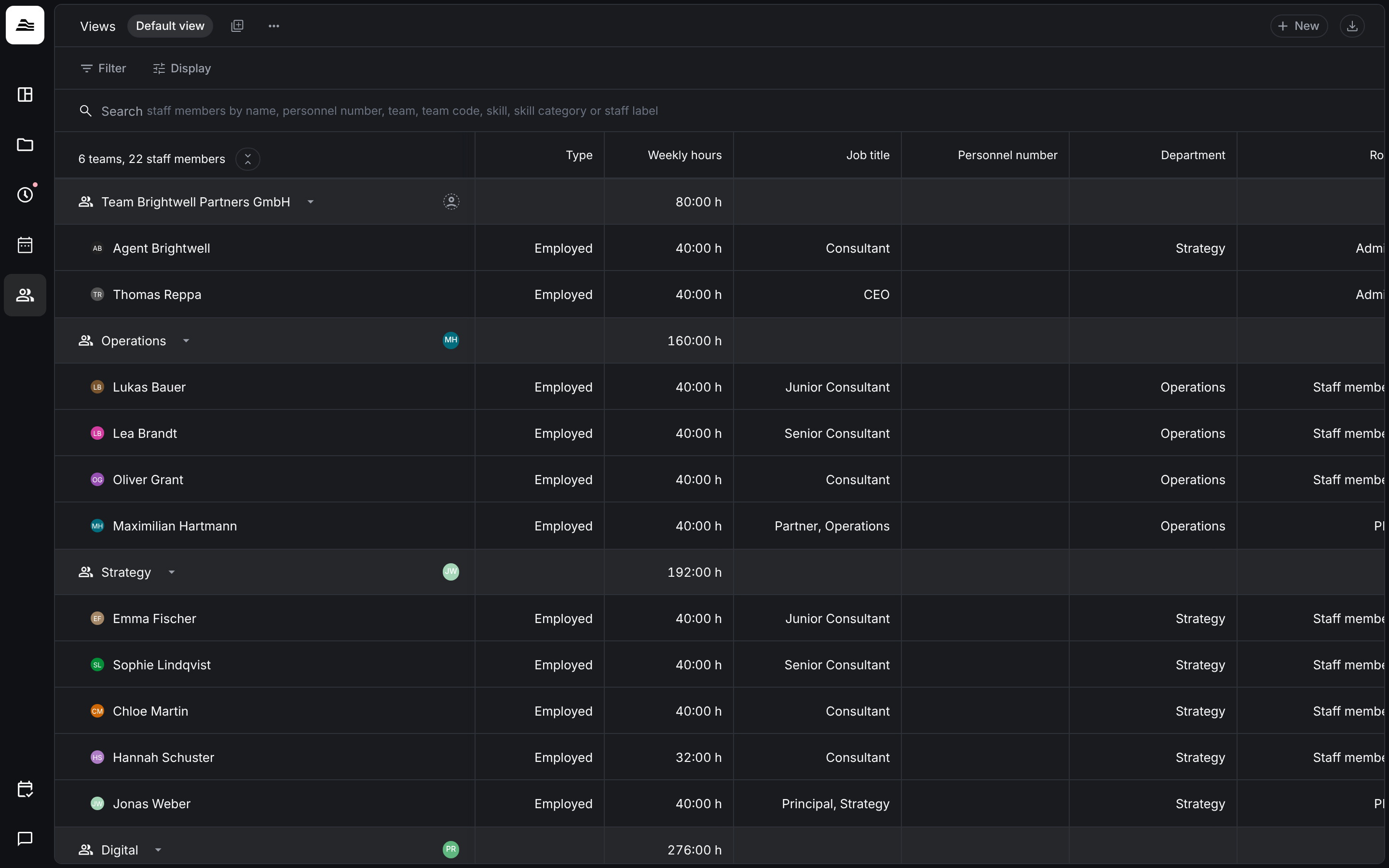
Team. All staff members with weekly hours, job title, department, role, public holidays, staff labels and tracking score. The search also finds staff members by skill.
Settings. Your personal Preferences, and the Account settings for features (skills, time tracking, roles and permissions, projects, planning, labels, integrations) and administration (workspace, absence types, holidays, billing).
Roles and permissions
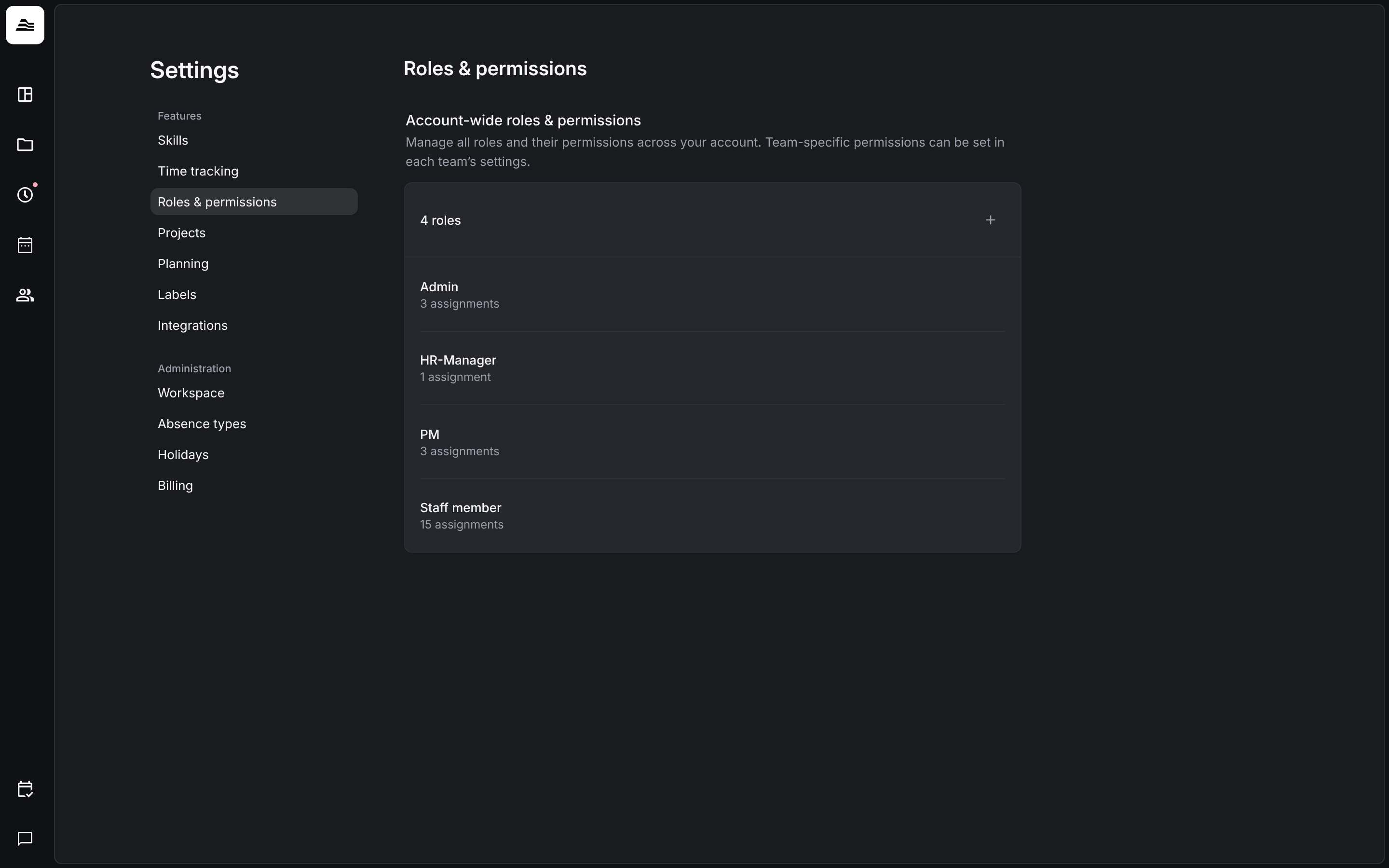
What each person can see and do in Aerion depends on their role. Every account starts with four roles: Admin, HR-Manager, PM and Staff member. They are a starting point: you can adjust them freely and create as many roles as you need under Settings → Roles & permissions. Team-specific permissions are set in each team's settings.
Skills
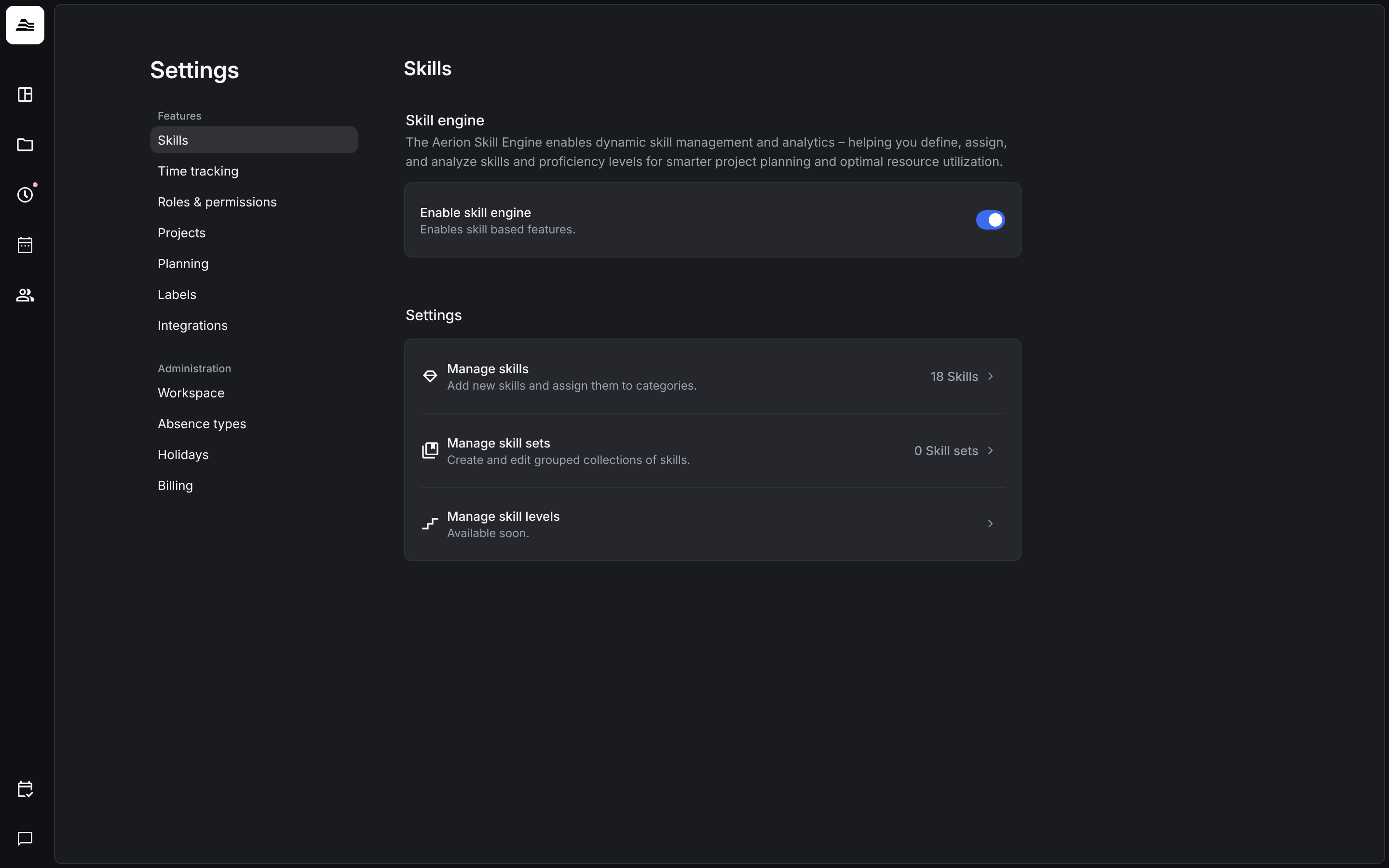
Skills are assigned to staff members. They connect what a project needs with the people on your team. Turn on skill based features under Settings → Skills with Enable skill engine, and manage your skills and skill sets there.
Related
- Super projects and sub projects: group several projects of a client.