
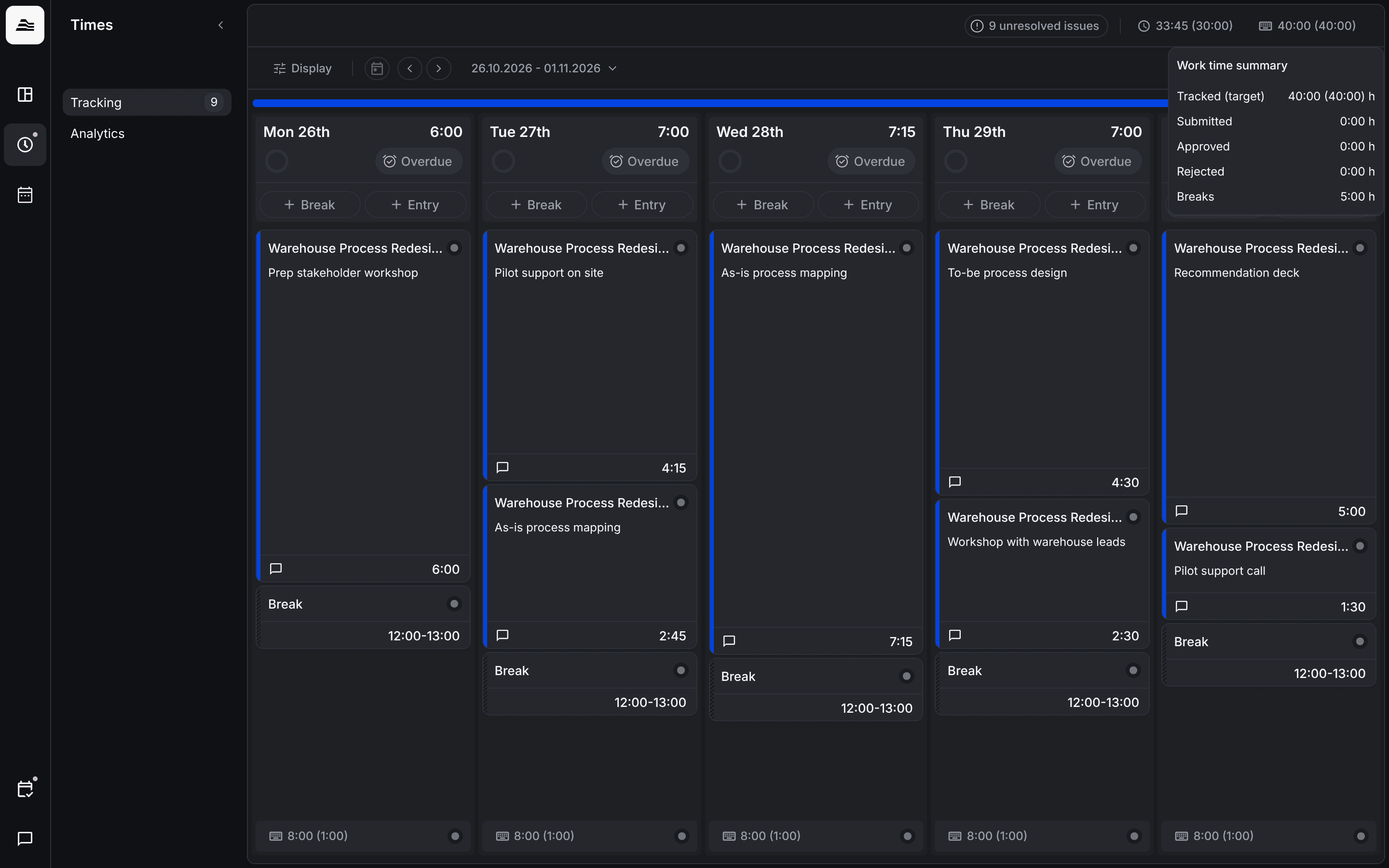
This guide takes you through your first days in Aerion: signing in, setting up your profile, tracking your time and submitting your workdays.
Setting up Aerion for your whole team? Start with Set up Aerion for your team.
1. Accept your invitation
You get an invitation email from Aerion. Open the link and either set a password or sign in directly with SSO, if your account uses it.
2. Check your profile and preferences
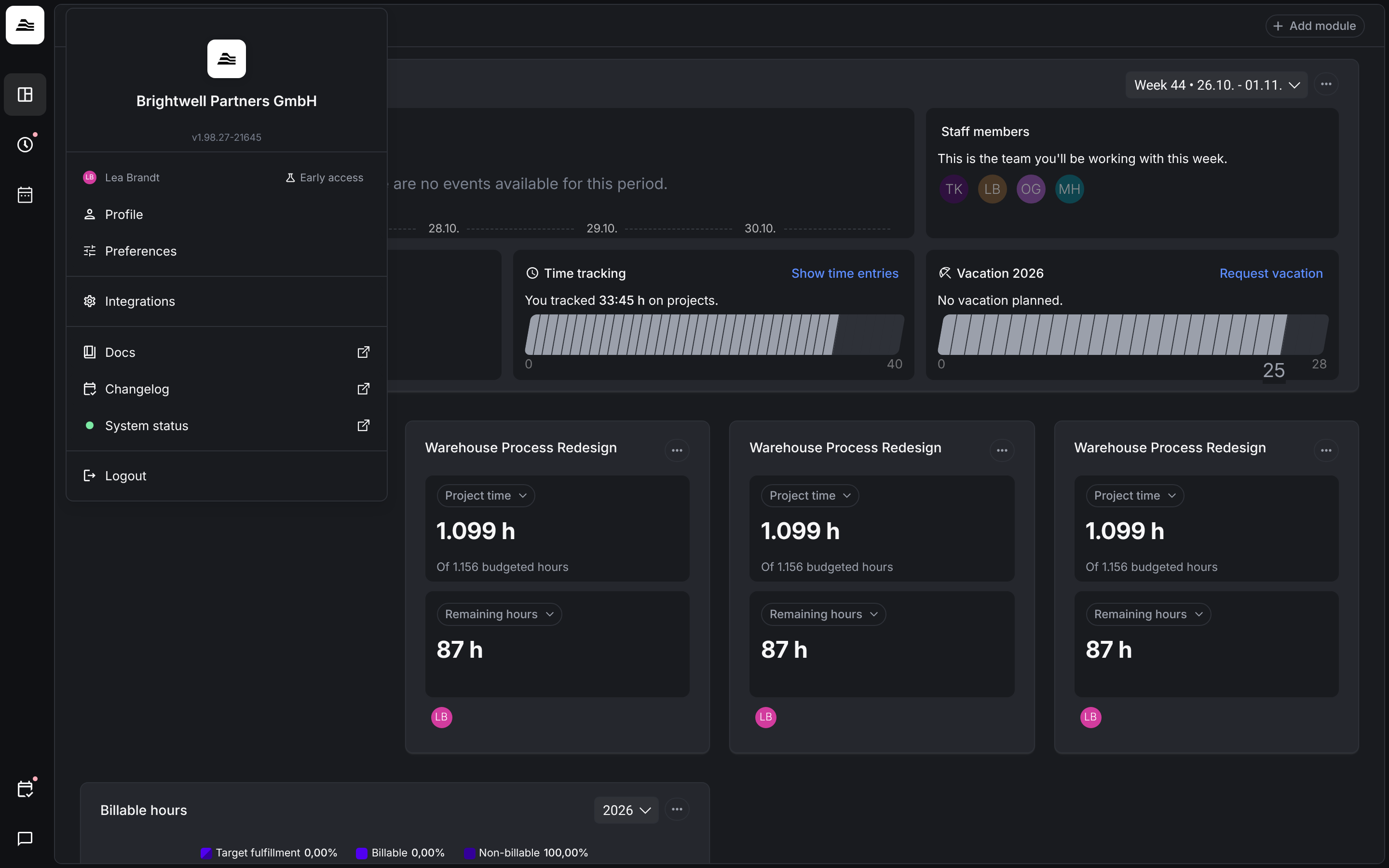
Click the Aerion logo in the top left to open your profile menu. Check your details under Profile and your settings under Preferences.
3. Your dashboard
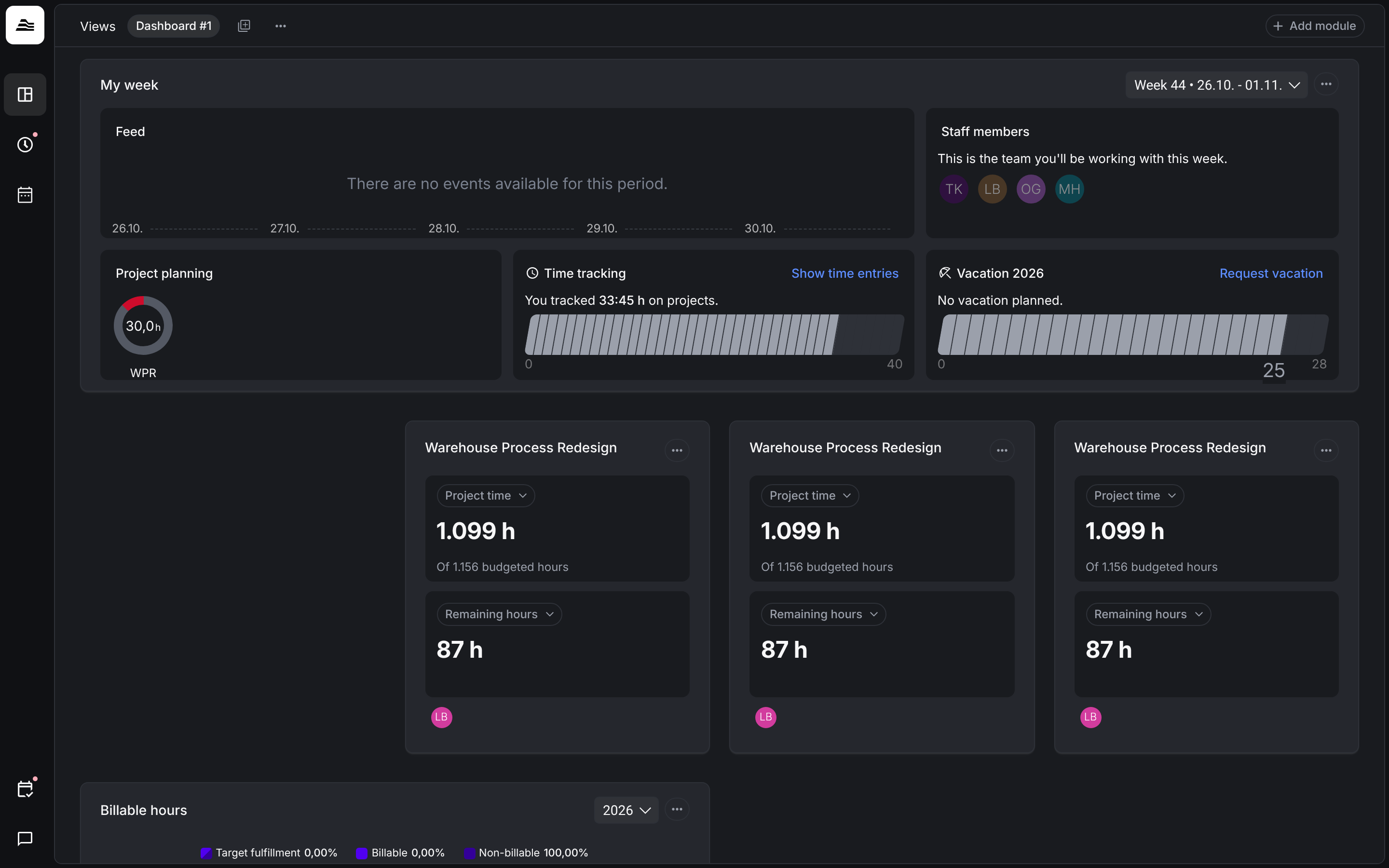
After signing in, you land on your dashboard. My week shows what is coming up this week, how much project time you tracked and how much vacation you have left. Use Show time entries to jump to your time tracking and Request vacation to plan time off.
You can create several dashboards and add and arrange modules with Add module.
4. Track your time
Open Times → Tracking. You see your week with one column per day.
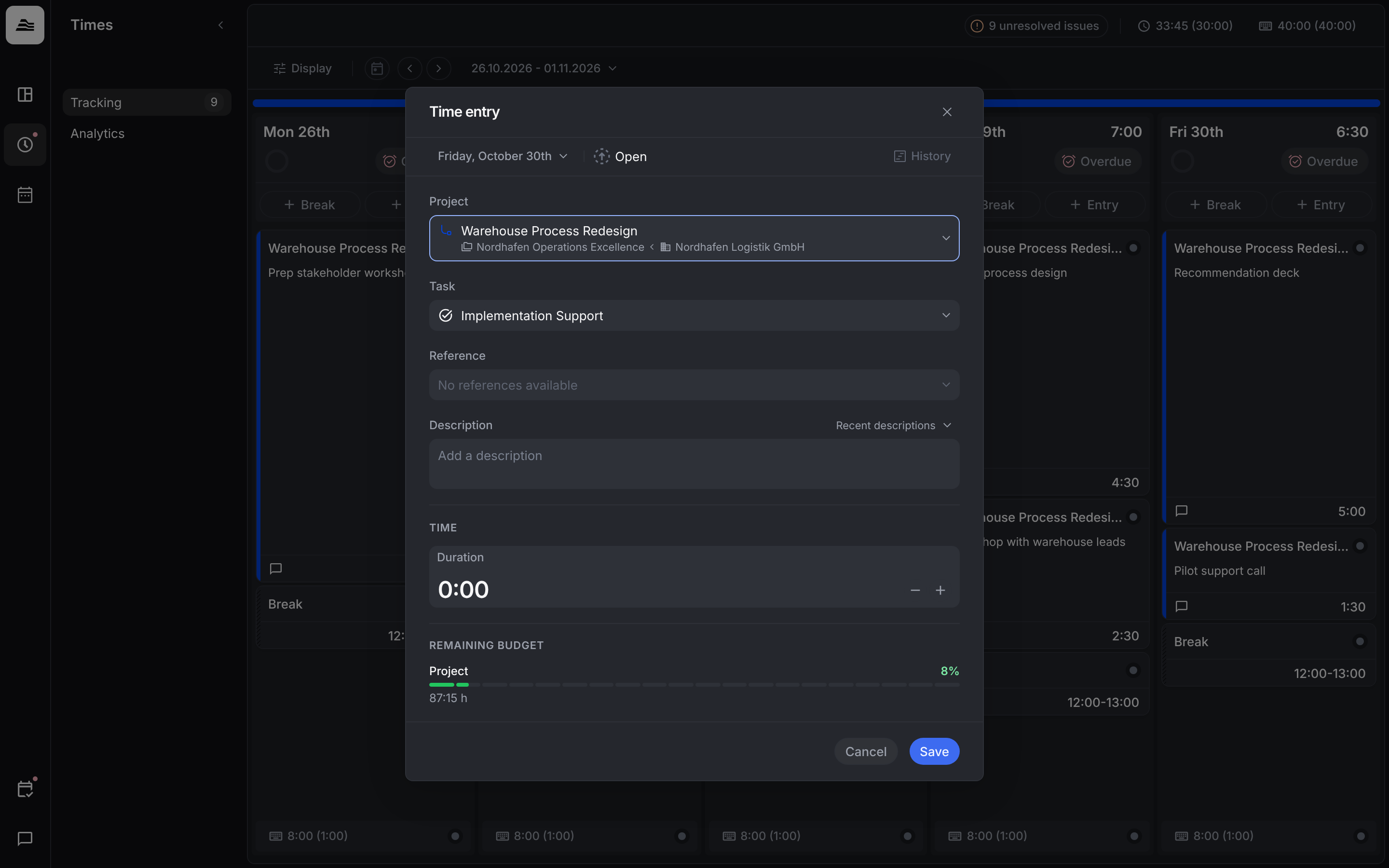
- Entry opens Time entry. Choose project and task, add a reference and a description if needed, and enter the duration. Remaining budget shows how much of the project budget is left. Click Save.
- Break adds a break to the day.
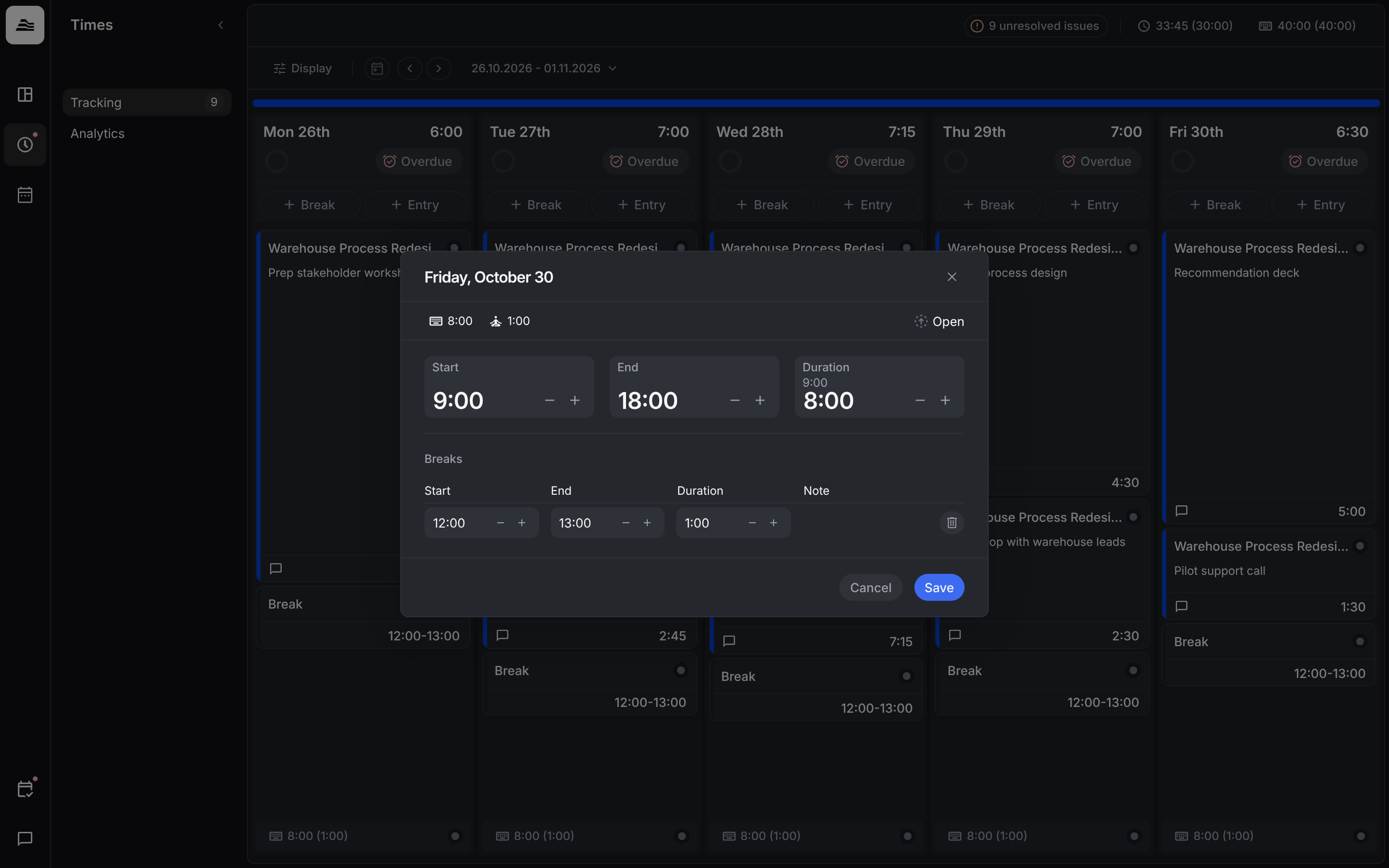
If your team tracks work time, Aerion creates a work time entry with your default start, end and breaks for every workday. The bar at the bottom of a day column shows your work time, with breaks in brackets. Click it to adjust start, end and breaks.
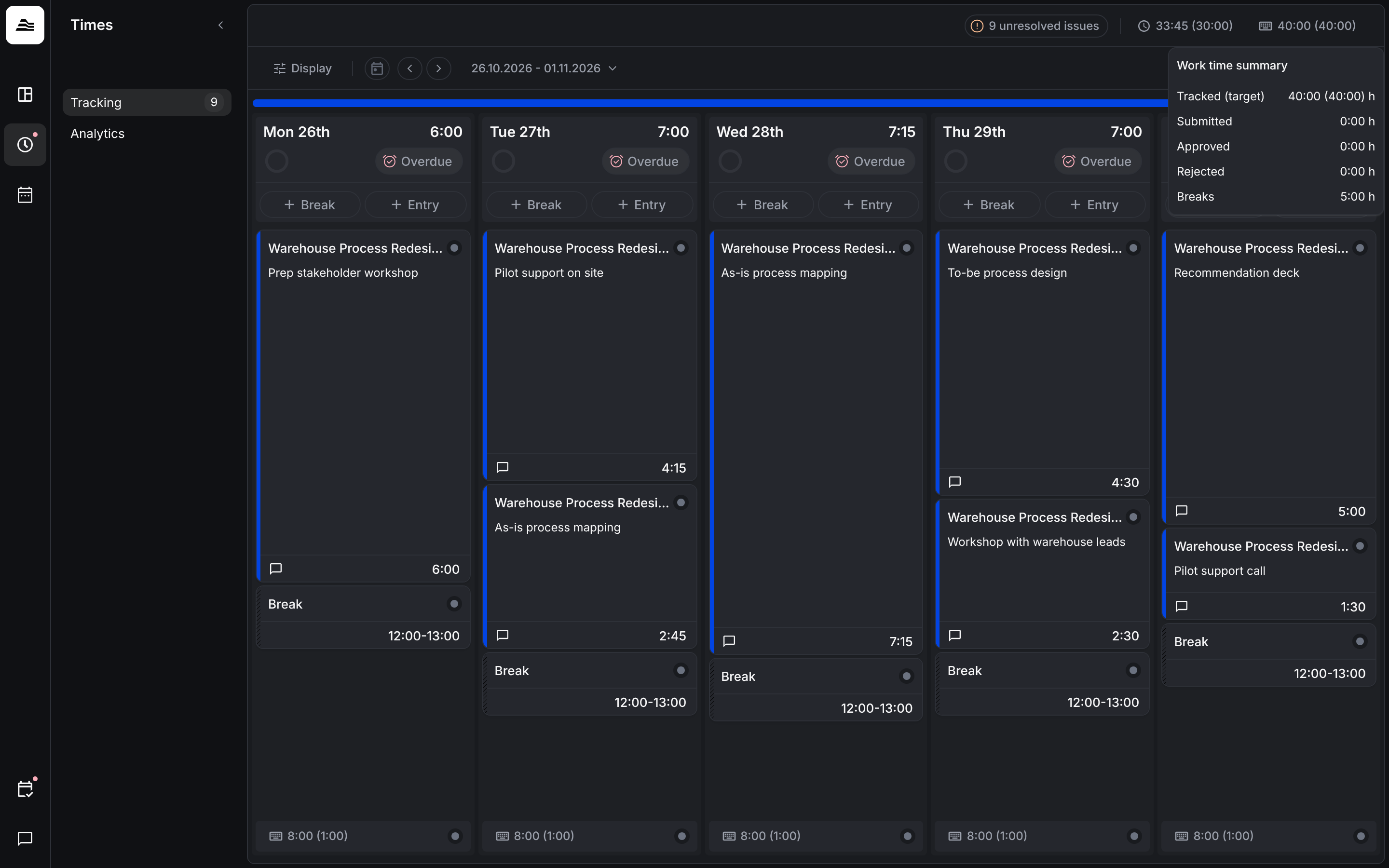
At the top of the page you see your totals for the week. Hover over them for details: the Project time summary shows tracked (planned), submitted, approved and rejected hours, the Work time summary tracked (target), submitted, approved and rejected hours and breaks.
Tip: To see Saturday and Sunday as well, turn on Show weekends under Display.
5. Submit your workday
Once a day is complete, click Submit day at the top of its column. Days in the future can't be submitted yet. If you're late, the button shows Overdue instead.
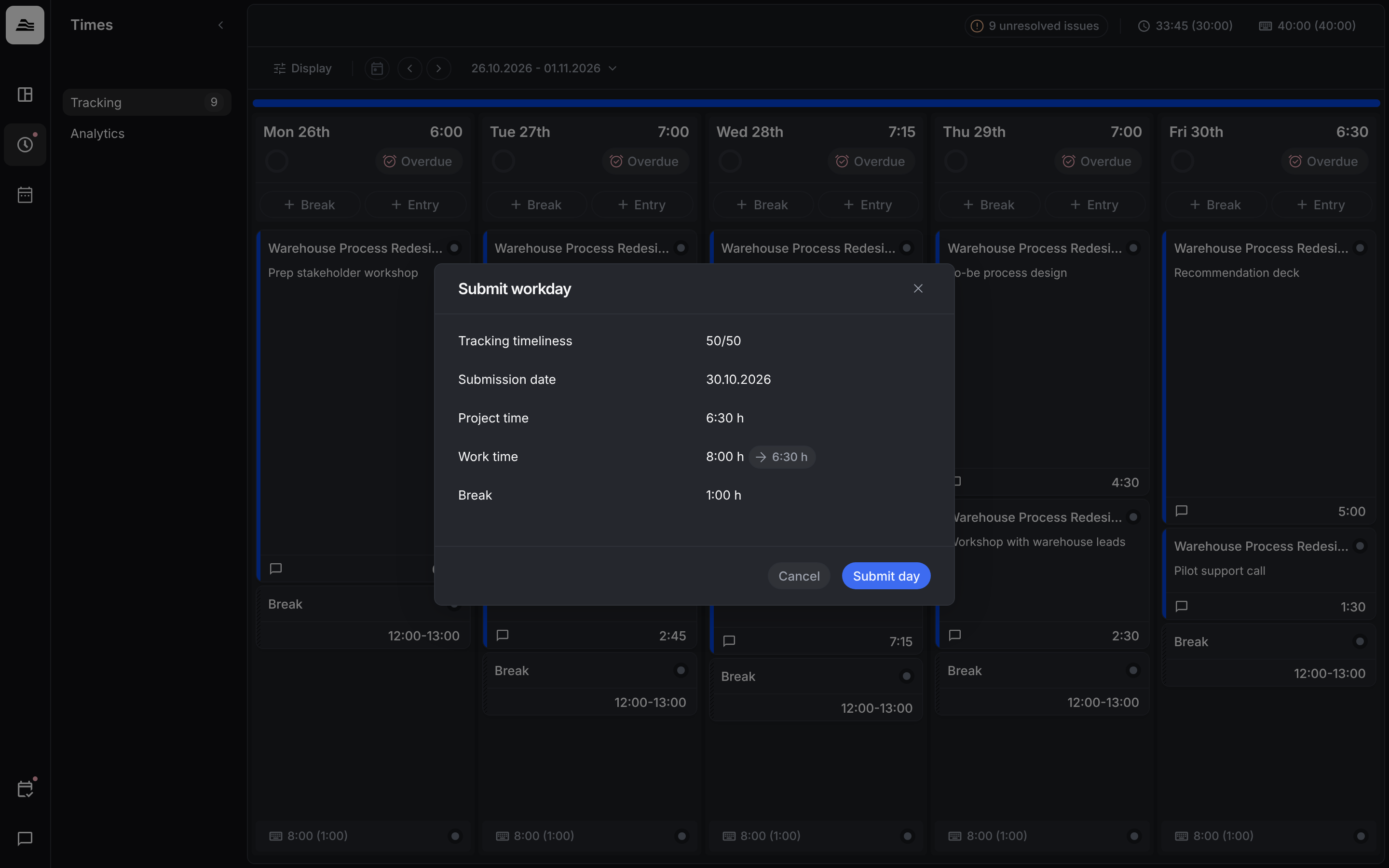
The button opens Submit workday with your tracking timeliness, the submission date, your project time, your work time and your breaks. Confirm with Submit day.
The circle next to the button shows your tracking score. At the top of the page, unresolved issues counts your overdue and rejected time entries.
6. Request vacation
In most teams, vacation is requested in the connected HR system. If your team doesn't use one, request vacation in Aerion: click Request vacation on your dashboard, or open Absences and click +.
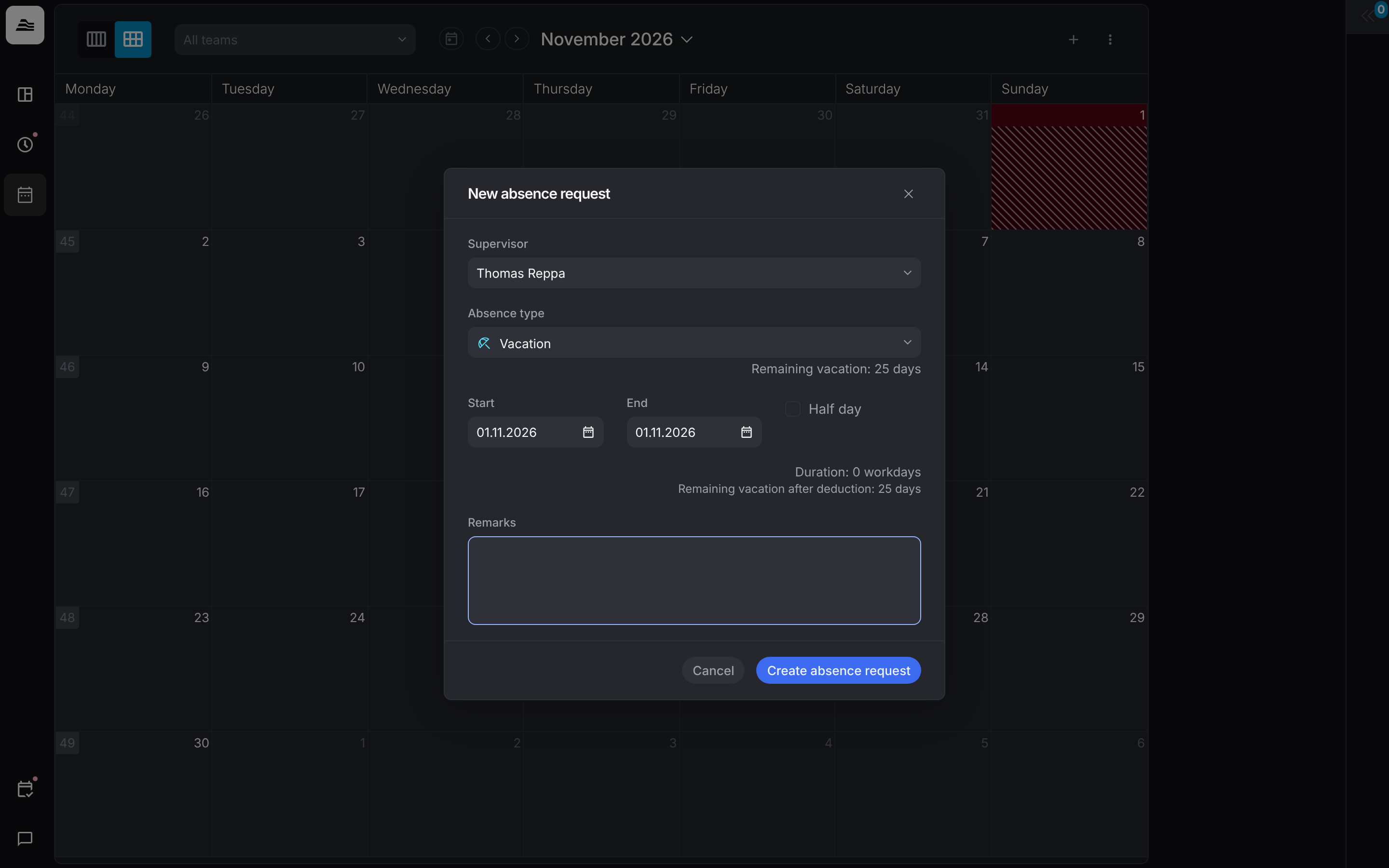
In New absence request, choose supervisor and absence type, enter start and end, and add remarks if needed. Aerion shows your remaining vacation. Click Create absence request.
7. Get the apps
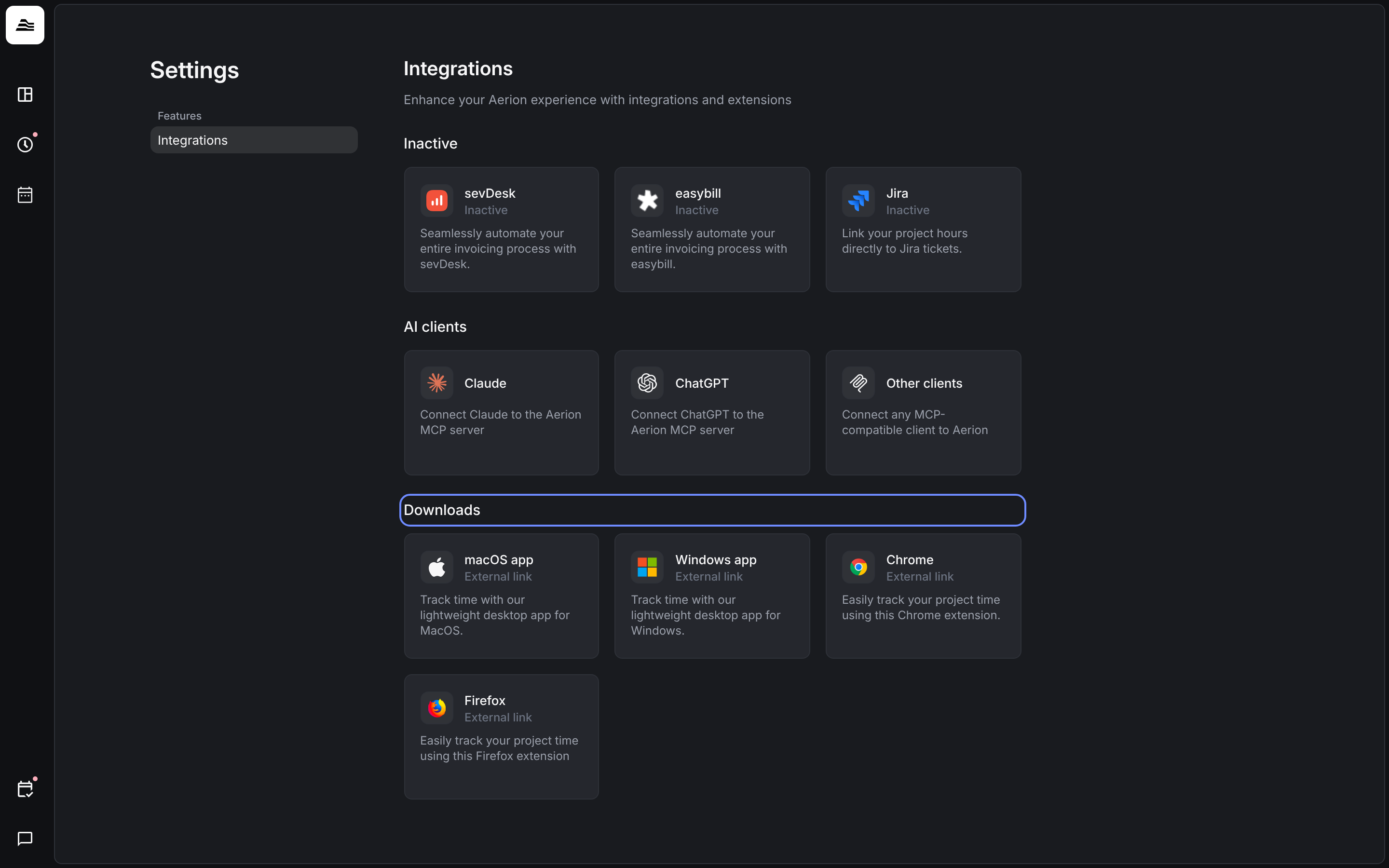
Under Settings → Integrations → Downloads you find the desktop apps for macOS and Windows and the browser extensions for Chrome and Firefox. With them, you track time right from your desktop or browser.
Related
- Aerion at a glance: what Aerion is and its main areas.
- Set up Aerion for your team: the setup checklist for admins.