
This checklist walks you through setting up Aerion for your team, in the order that works best for a new account. Each step tells you where to find the settings and what to decide.
Required rights: Admin
Not an admin? Start with First steps for staff.
You find all account settings in your profile menu under Account settings.
1. Workspace basics
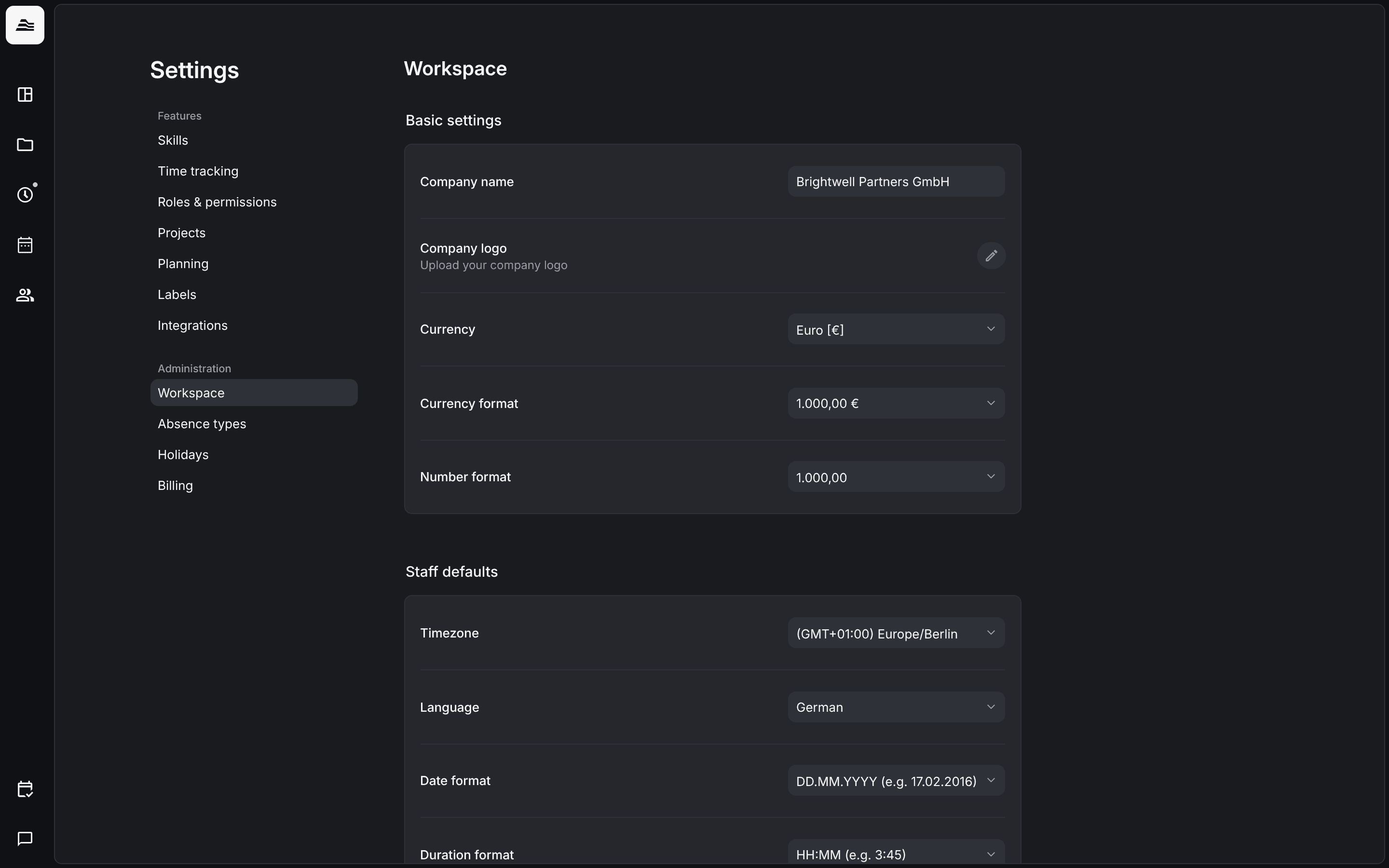
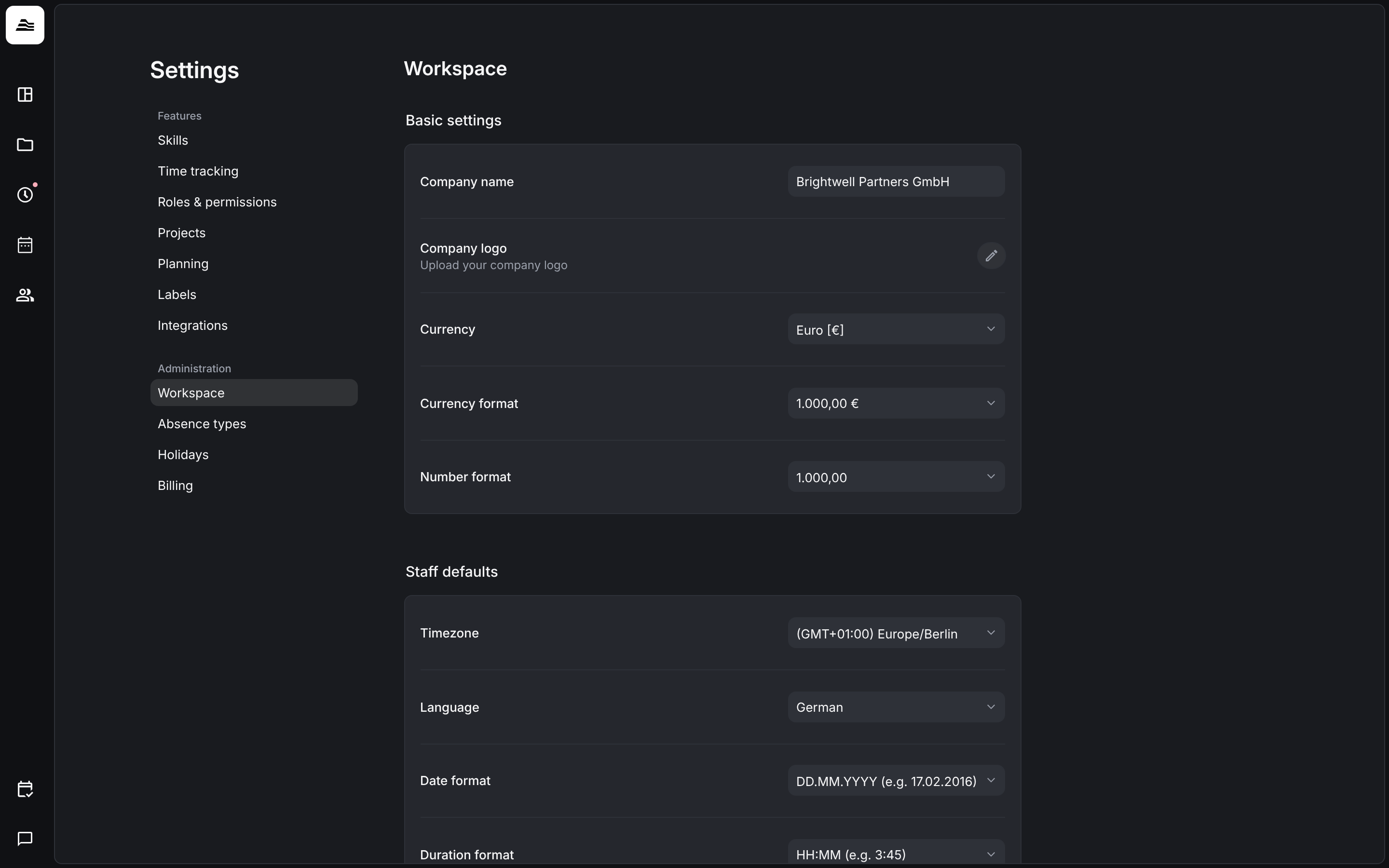
Open Settings → Workspace.
- Basic settings: company name, company logo, currency, currency format and number format.
- Staff defaults: timezone, language, date format, duration format and time format. They apply to new staff members.
- Budget info for all staff members: with Enable budget infos, staff members see the remaining project budget in hours and percent. The monetary amount stays hidden.
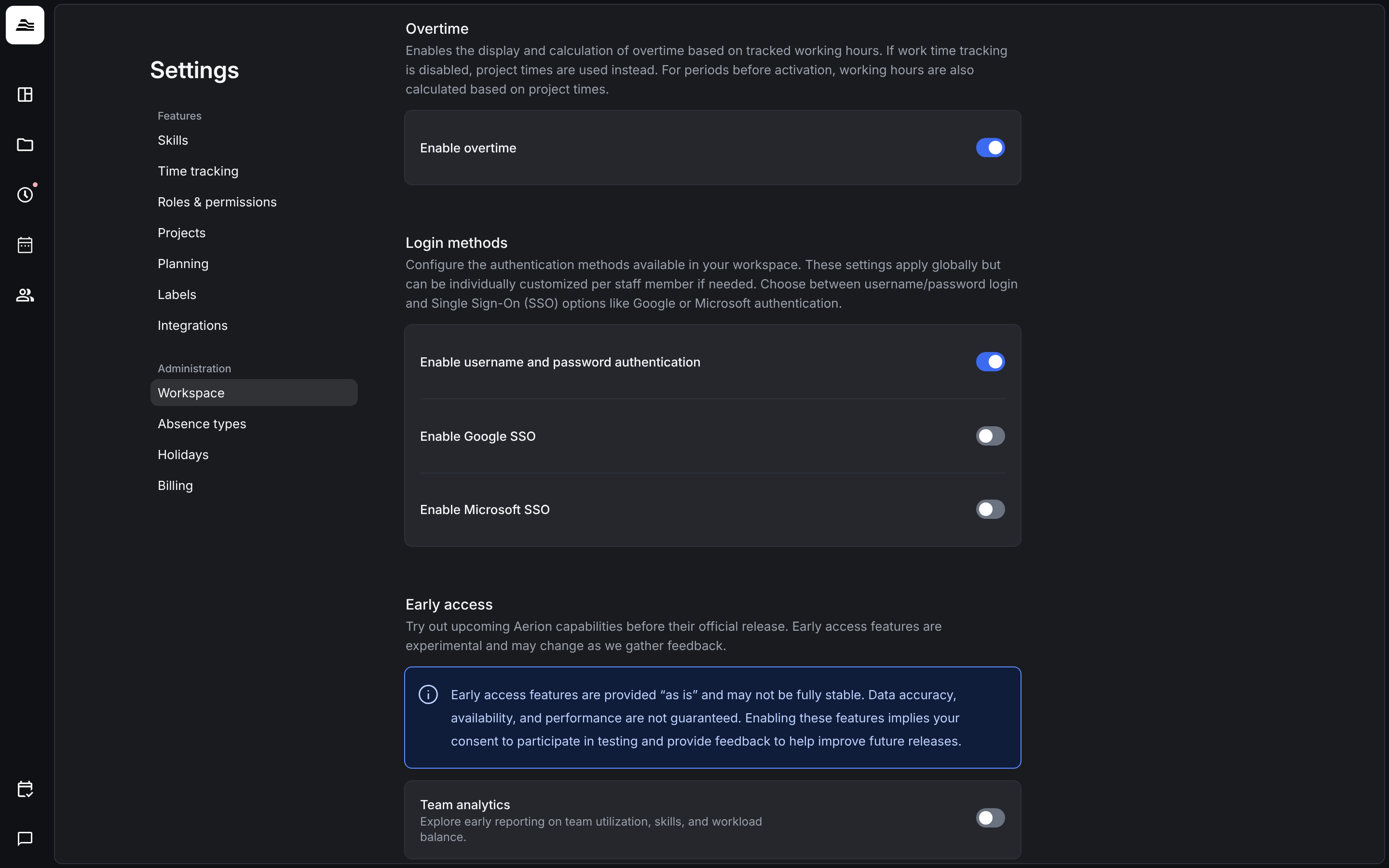
- Overtime: with Enable overtime, Aerion shows and calculates overtime based on tracked work time. If work time tracking is turned off, project time is used instead.
2. Login methods
Further down in Settings → Workspace, choose under Login methods how your team signs in: Enable username and password authentication, Enable Google SSO and Enable Microsoft SSO. These settings apply to everyone and can be changed for individual staff members if needed.
3. Holidays and absence types
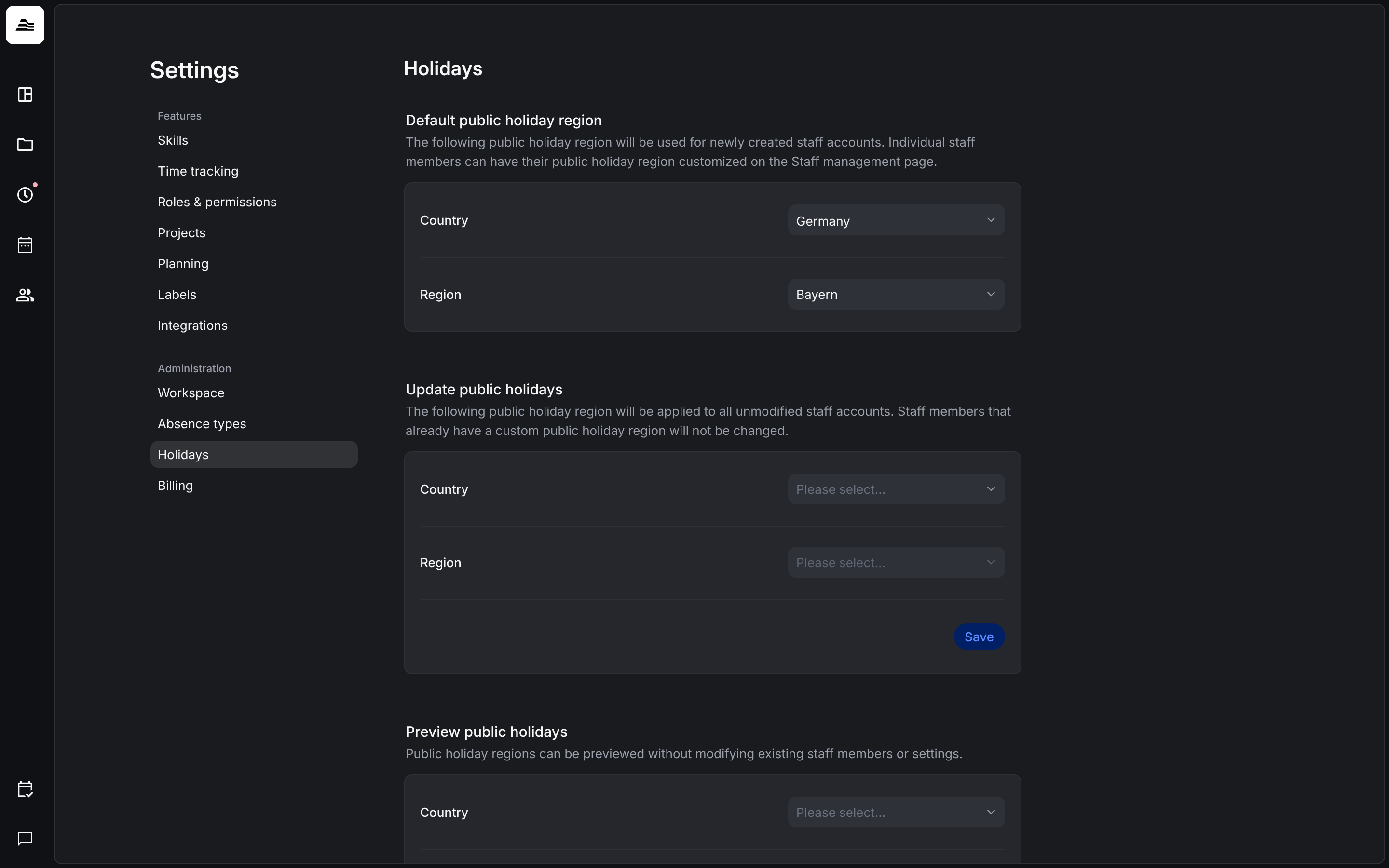
Under Settings → Holidays, set the Default public holiday region (country and region) for new staff members. With Update public holidays you apply a region to all staff members who don't have a custom region yet.
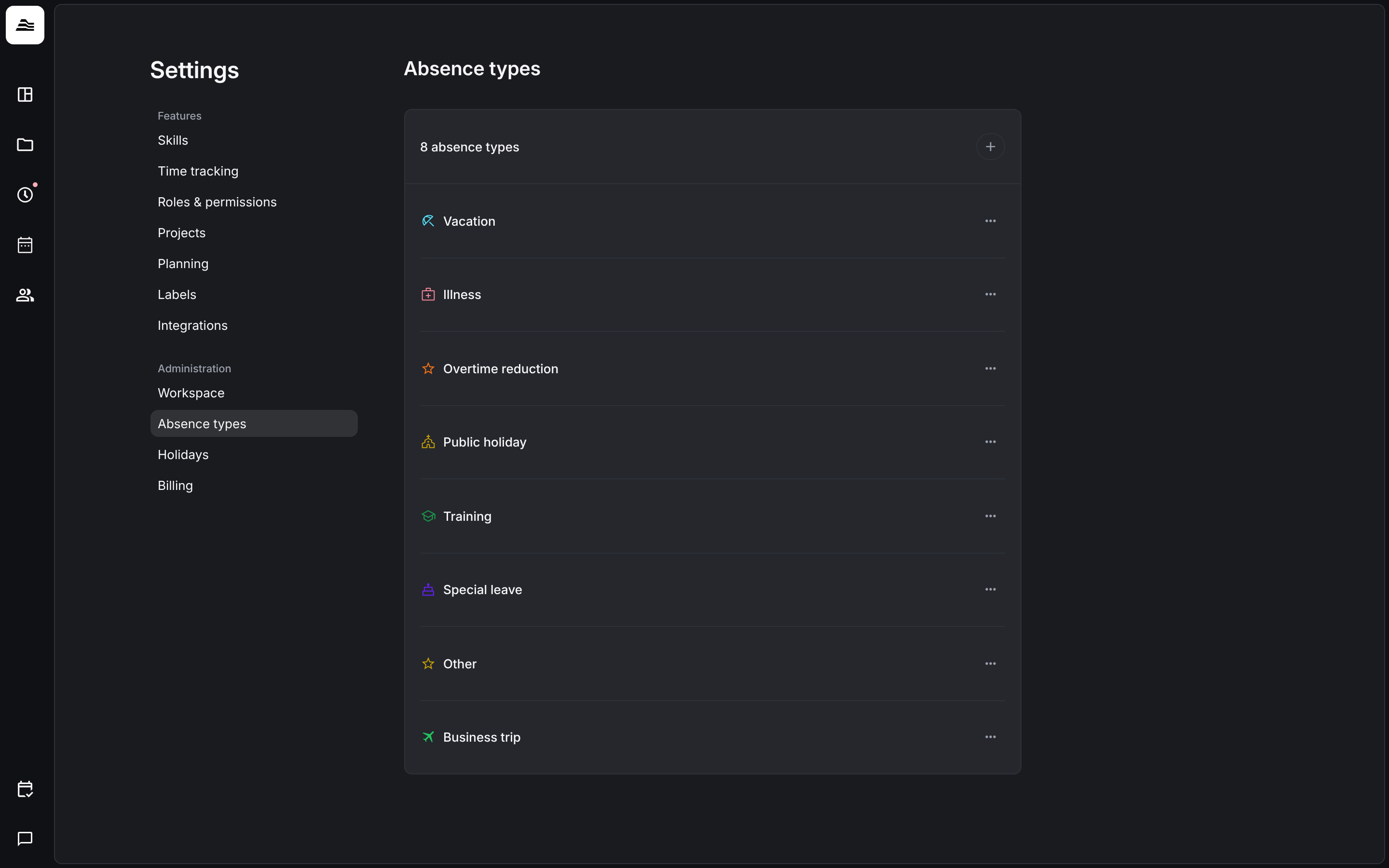
Under Settings → Absence types, review the absence types your team can use, such as vacation, illness and overtime reduction, and create more with +. If an HR system such as Personio is connected, its absence types replace the ones in Aerion.
4. Roles and permissions
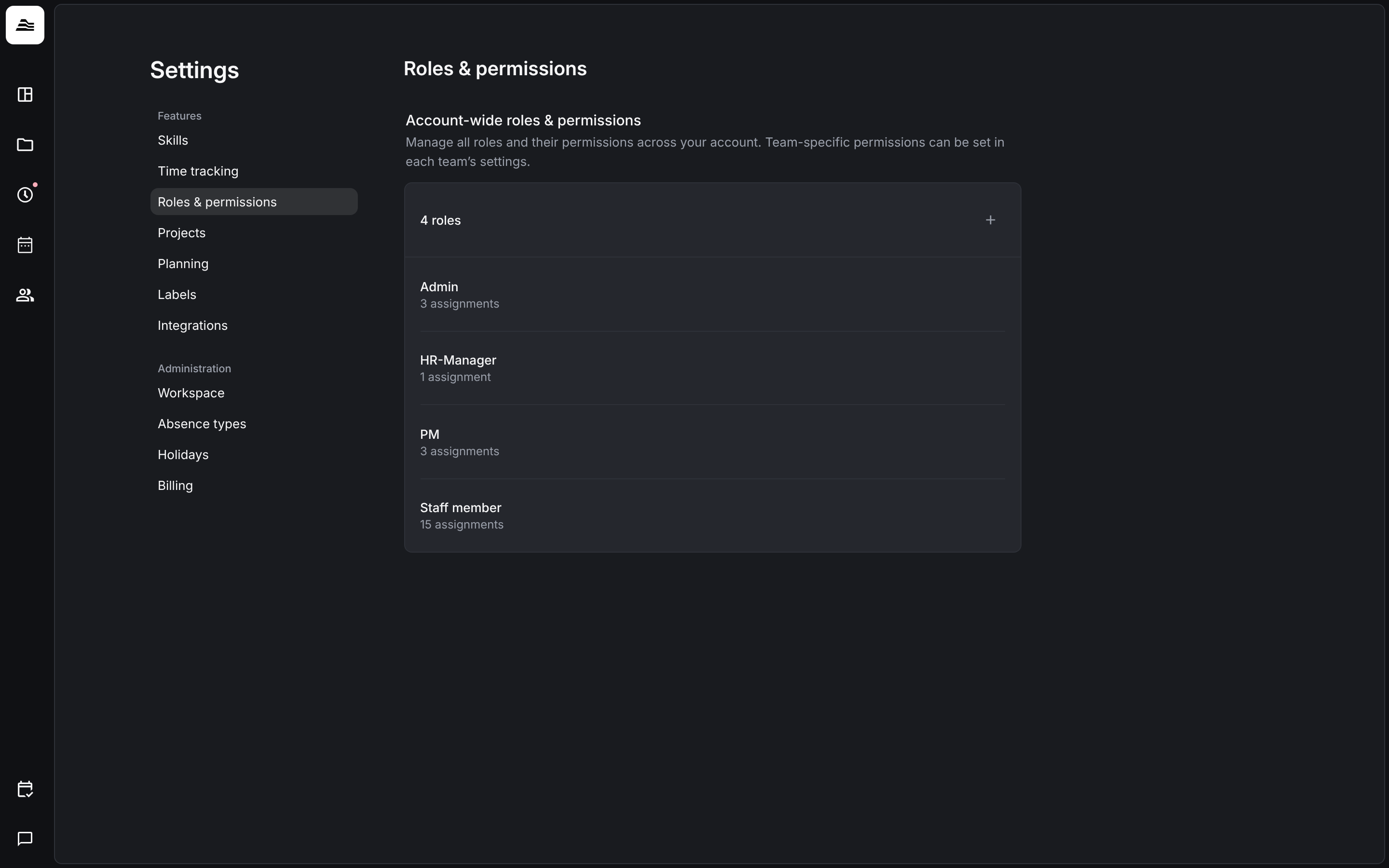
Every account starts with four roles: Admin, HR-Manager, PM and Staff member. Under Settings → Roles & permissions, adjust them to how your team works or create your own roles.
5. Teams and staff members
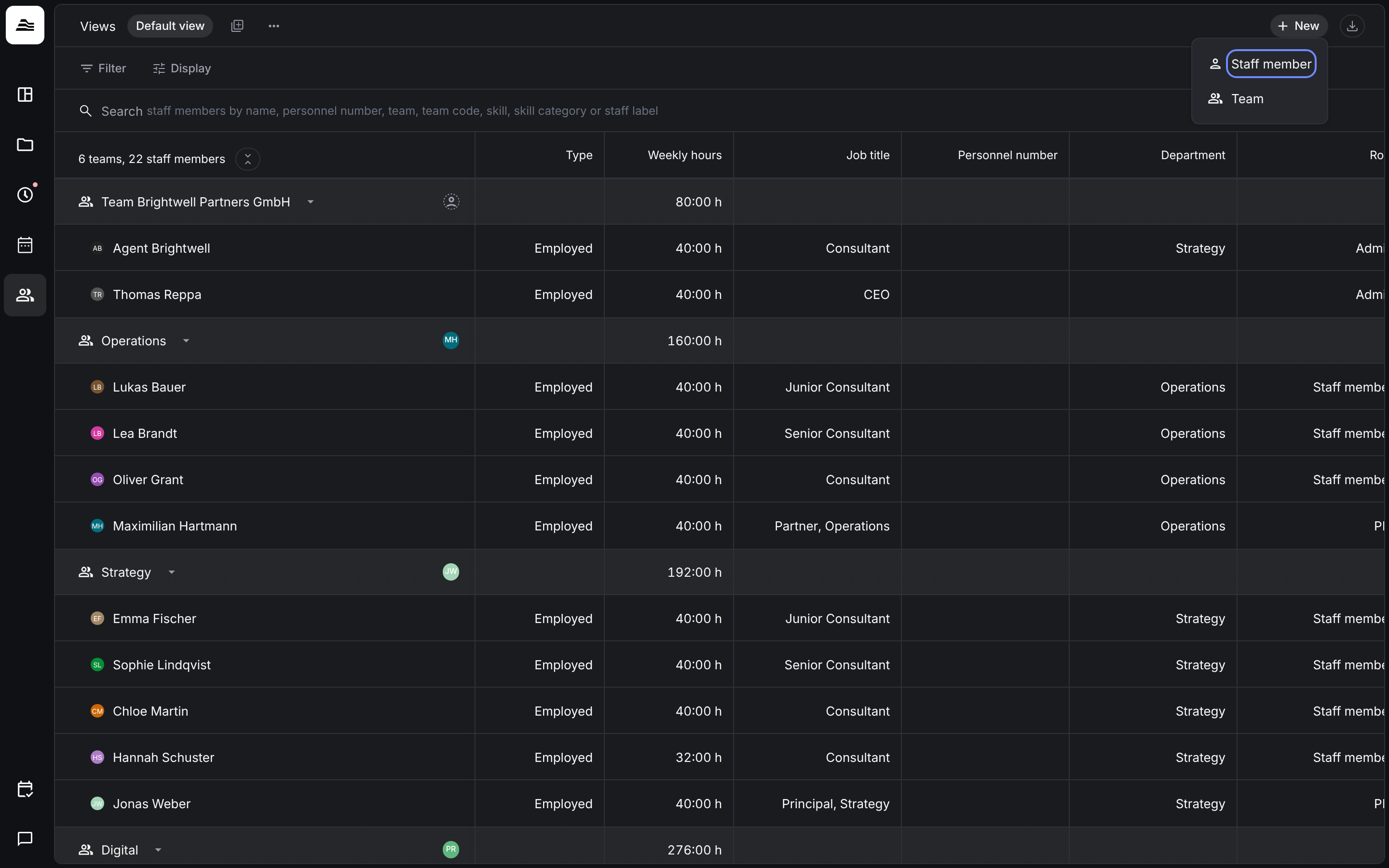
Open Team and click New.
- Team creates a new team right away.
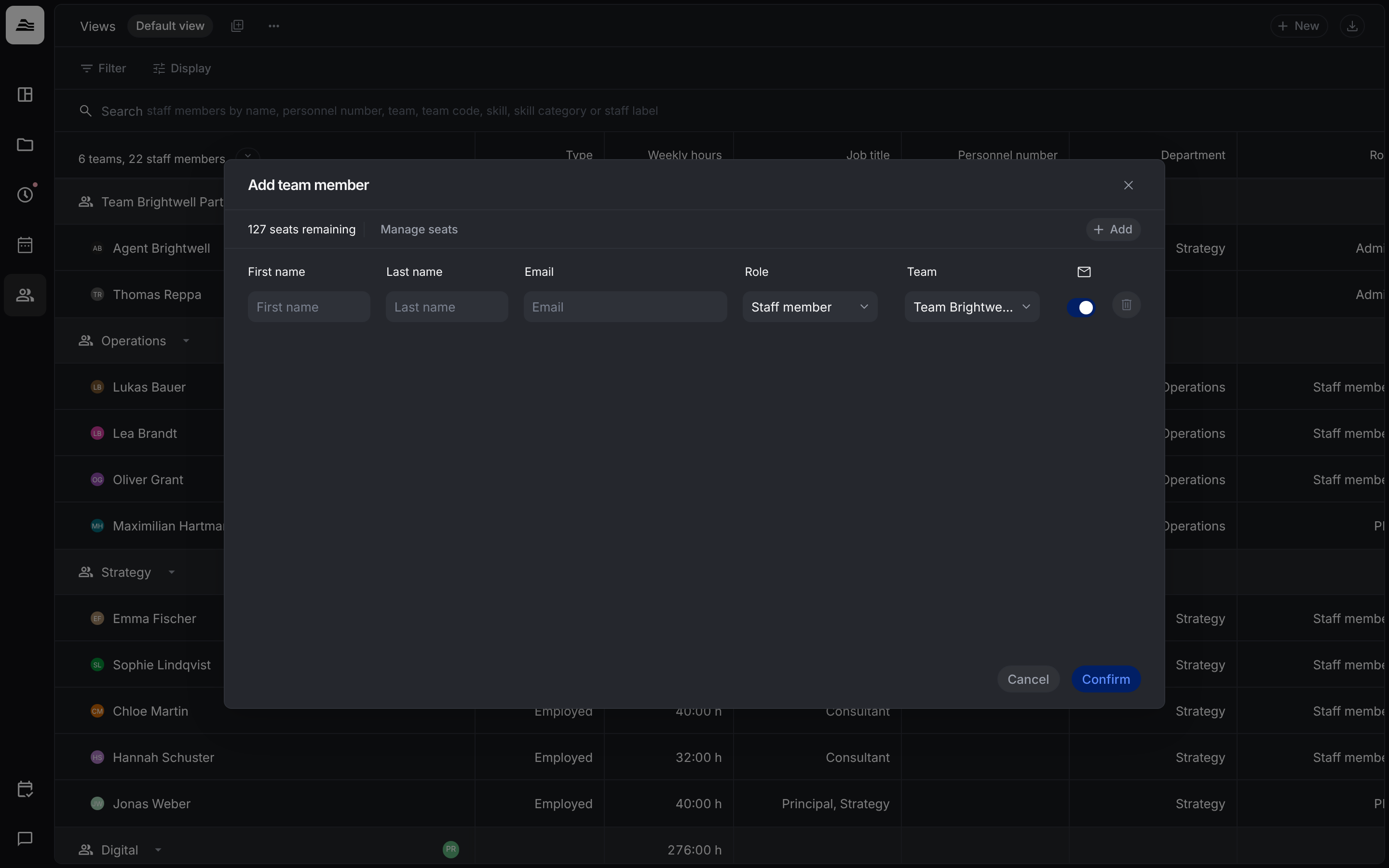
- Staff member opens Add team member. Enter first name, last name, email, role and team for each person. Use Add for more rows. Above the list you see how many seats are left. Use Manage seats if you need more.
With the envelope switch turned on, each person gets an invitation email as soon as you click Confirm. You can also send the invitation later.
6. Time tracking
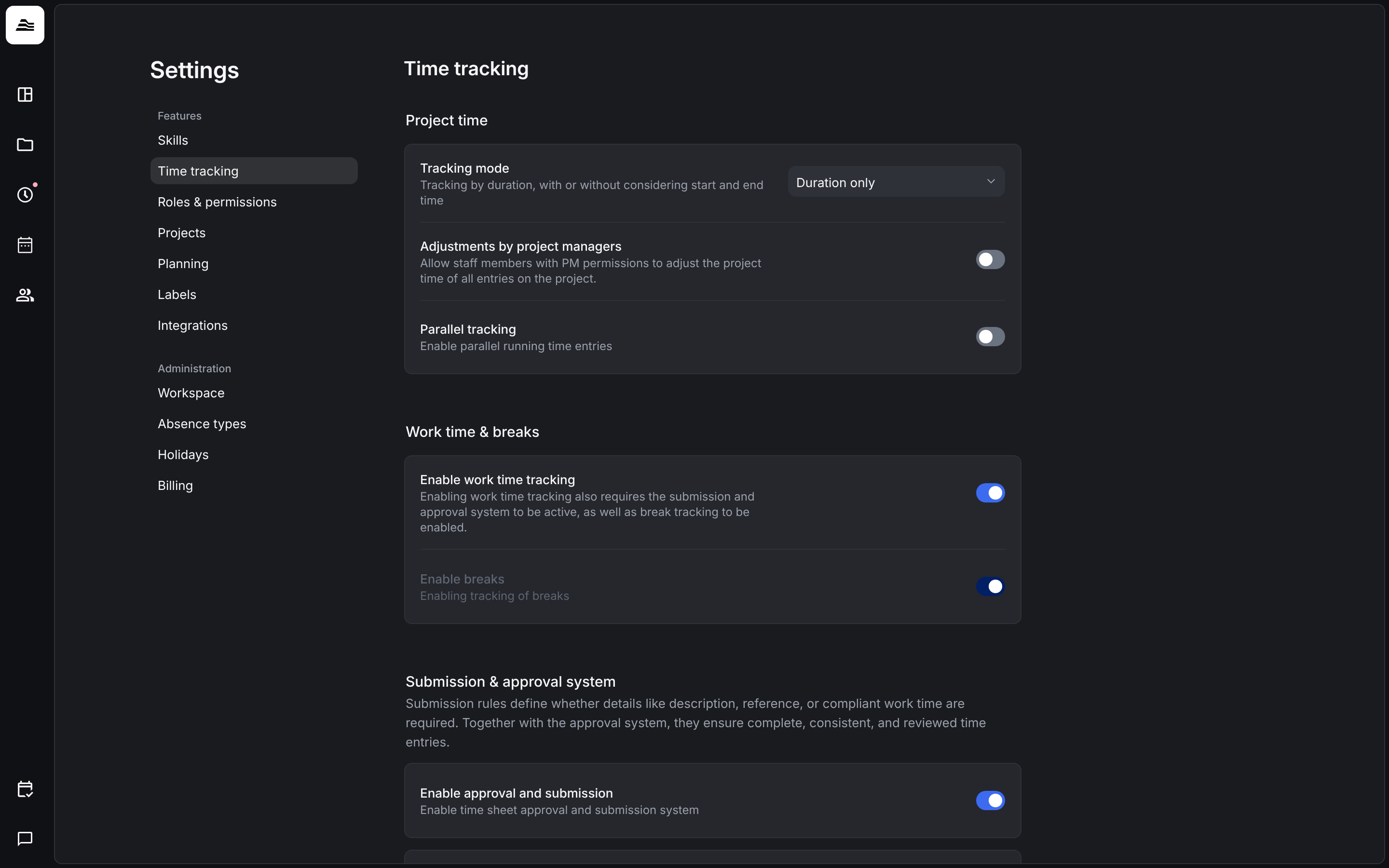
Under Settings → Time tracking, decide how your team tracks and submits time:
- Project time: tracking mode (by duration, with or without start and end time), adjustments by project managers and parallel tracking.
- Work time & breaks: turn on work time tracking and breaks. Work time tracking requires the submission and approval system and break tracking.
- Submission & approval system: turn on submission and approval, and set what happens when a description or reference is missing. Work time compliance checks break rules on submission (Germany only).
- Scoring system: turn on the tracking score and set the grace period and weightings.
7. Clients, projects and tasks
Under Settings → Projects, create the tasks your team tracks time on, plus expense types and custom fields for projects. Then create your clients and projects under Clients & projects with New.
Tip: Want to bring existing clients, projects or staff members into Aerion? Our support imports them for you. Contact us through the in-app chat or at [email protected].
8. Optional: labels and skills
- Labels help you organize and filter staff members, projects, clients, tasks and expenses. Manage them under
Settings → Labels. - Skills connect project demand with the people on your team. Turn them on under
Settings → Skillswith Enable skill engine.
9. Integrations
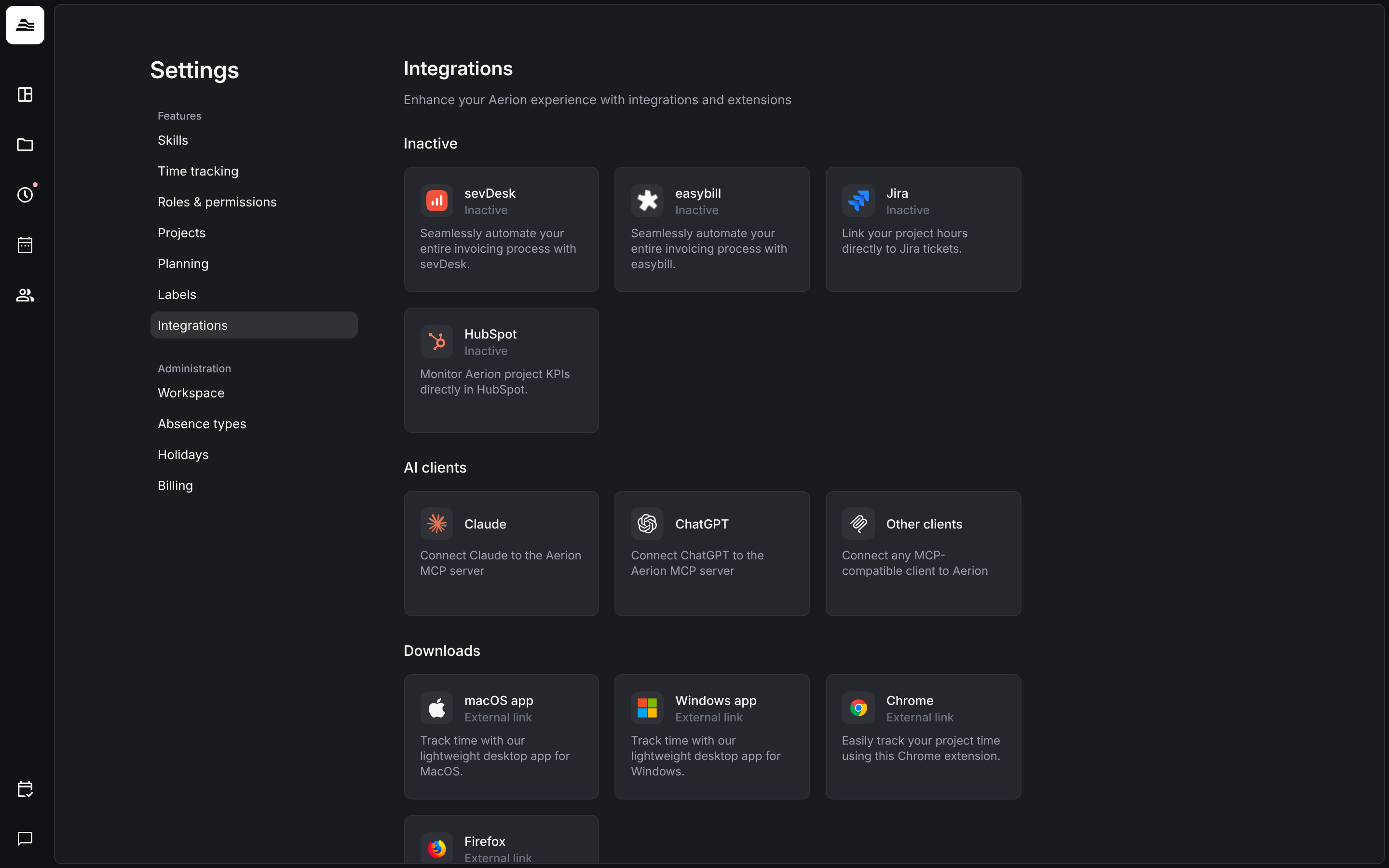
Under Settings → Integrations, connect the tools your team already uses:
- Invoicing: sevDesk and easybill
- Tickets: Jira
- CRM: HubSpot
- AI clients: Claude, ChatGPT and any other MCP-compatible client
- Downloads: desktop apps for macOS and Windows, browser extensions for Chrome and Firefox
Further ticket systems, for example GitHub, GitLab, Asana, monday.com, Azure DevOps, ClickUp, Linear or YouTrack, are connected as reference services under Settings → Projects.
Other CRM systems, for example Salesforce, Pipedrive or Dynamics 365, are connected through the API or MCP with the help of our support. HR systems are also connected by our support. Contact us through the in-app chat or at [email protected].
Related
- Aerion at a glance: what Aerion is and its main areas.
- Super projects and sub projects: group several projects of a client.