
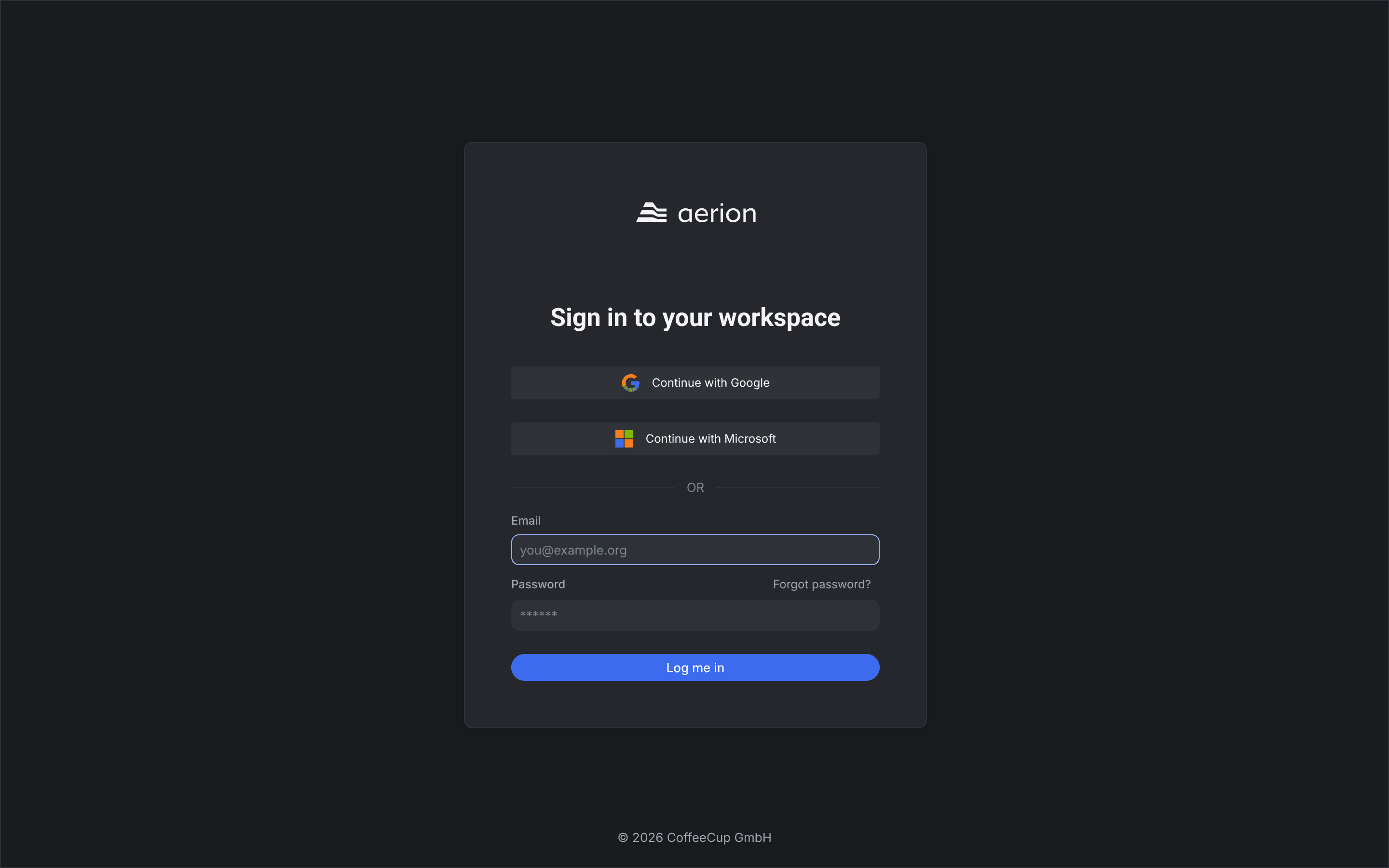
You sign in to Aerion at your workspace address, for example yourcompany.aerion.app/login. Which sign in options you see depends on what your admin has turned on for you.
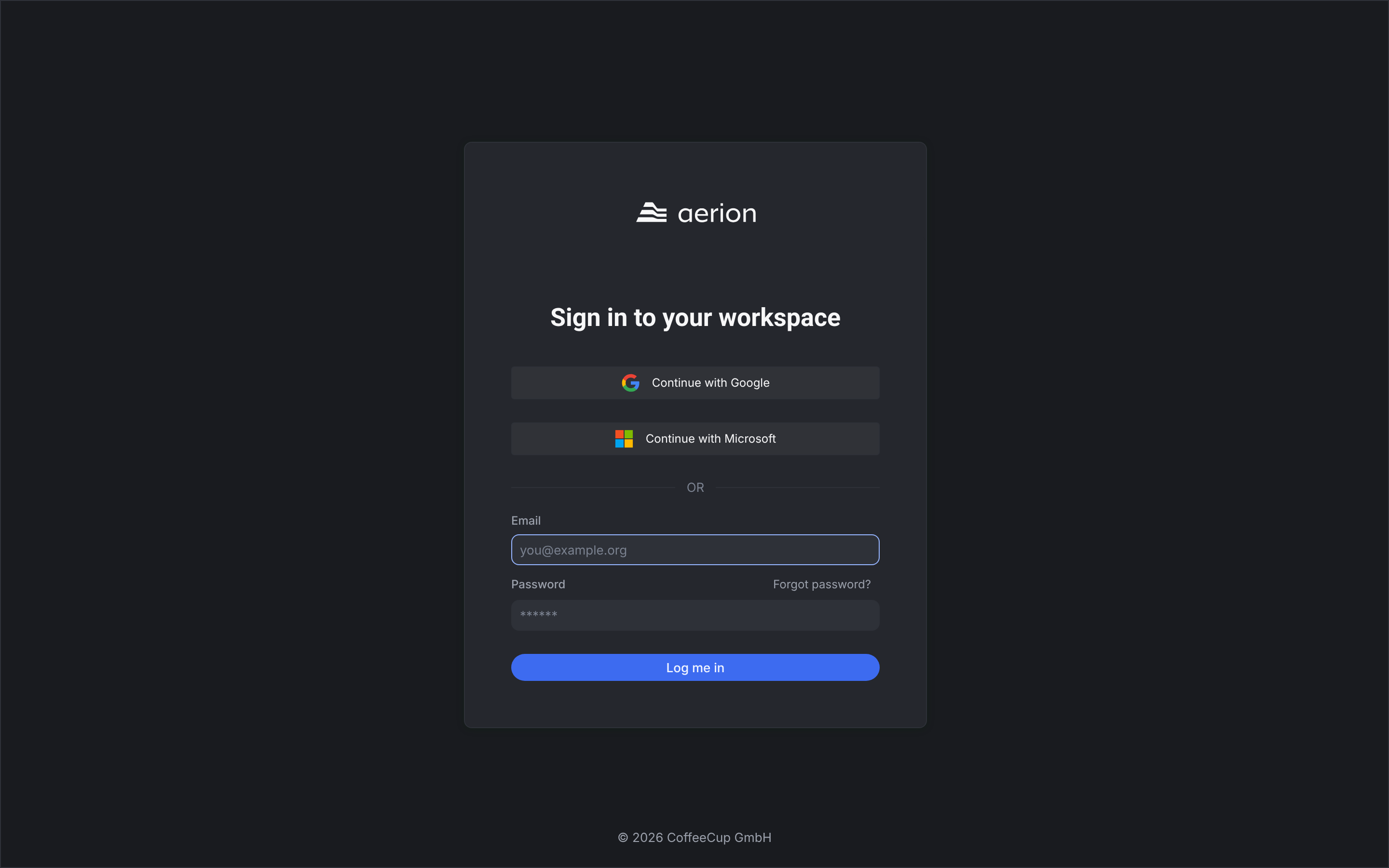
Sign in
- Email and password: Enter your email and password and click Log me in.
- Google or Microsoft: Click Continue with Google or Continue with Microsoft and sign in with your company account.
On your first sign in, open the link in your invitation email. There you either set a password or sign in directly with SSO.
Forgot your password
Click Forgot password?, enter your email and click Send instructions. You get an email with a link to set a new password.
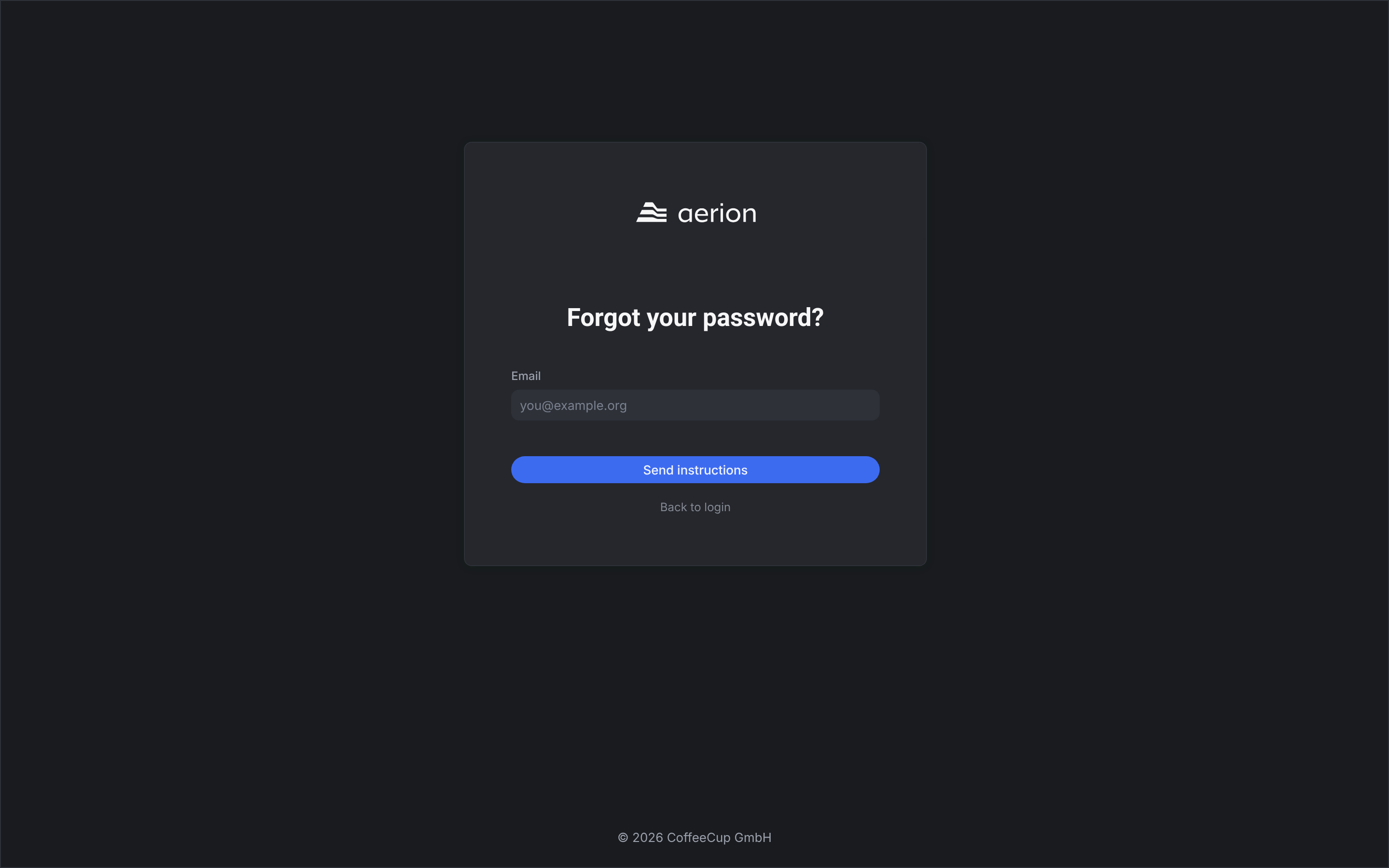
Your admin can also reset your password and send you a link.
For admins: choose the login methods
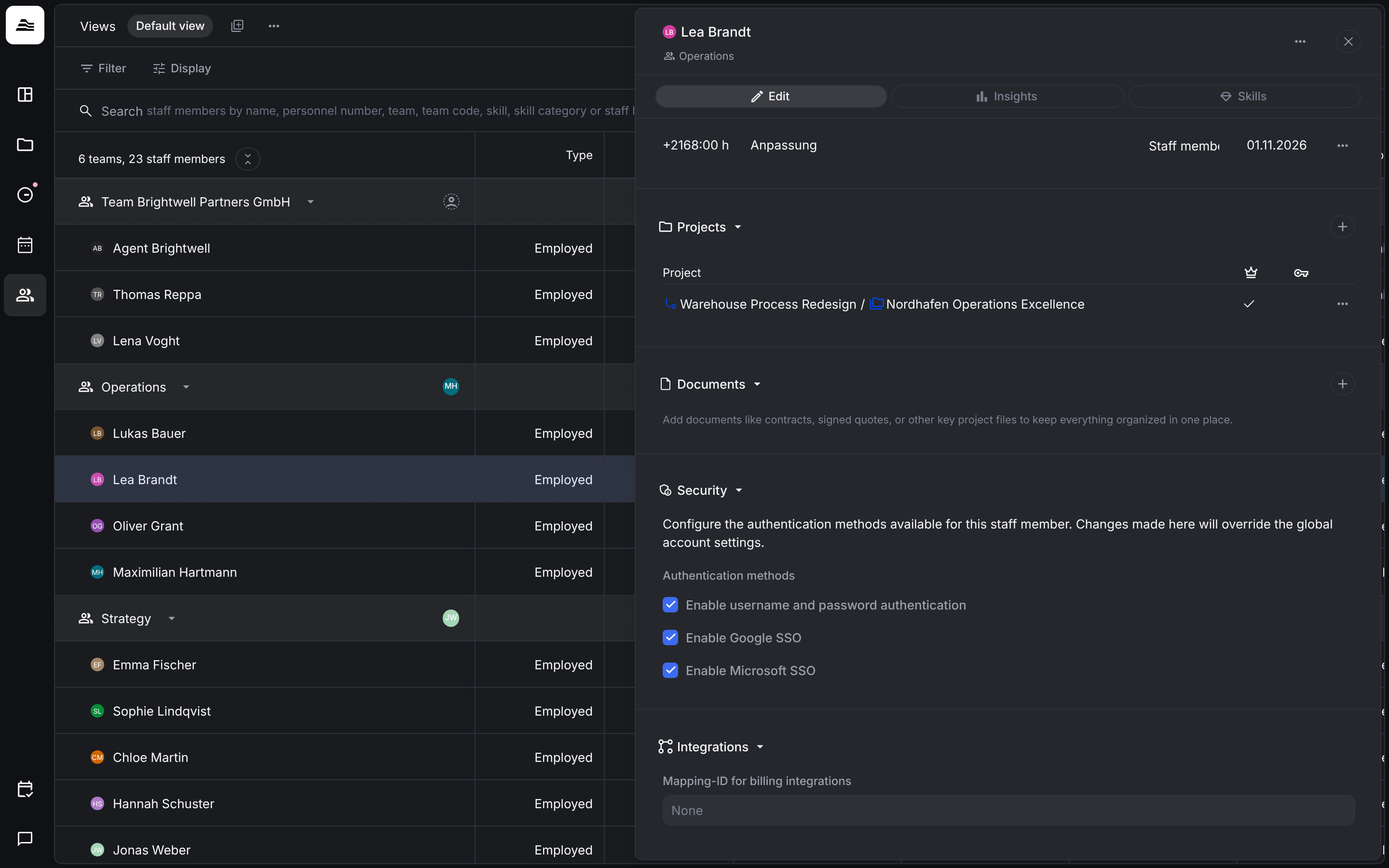
Under Settings → Workspace → Login methods you decide how your whole team signs in: Enable username and password authentication, Enable Google SSO and Enable Microsoft SSO.
For a single staff member, open them under Team and scroll to Security. The Authentication methods you set there override the account settings.
Related
- Set up Aerion for your team: the setup checklist for admins.
- First steps for staff: your first days in Aerion.