

Once a day is complete, you submit it. Your project manager or team lead then reviews and approves your entries.
Submit a day
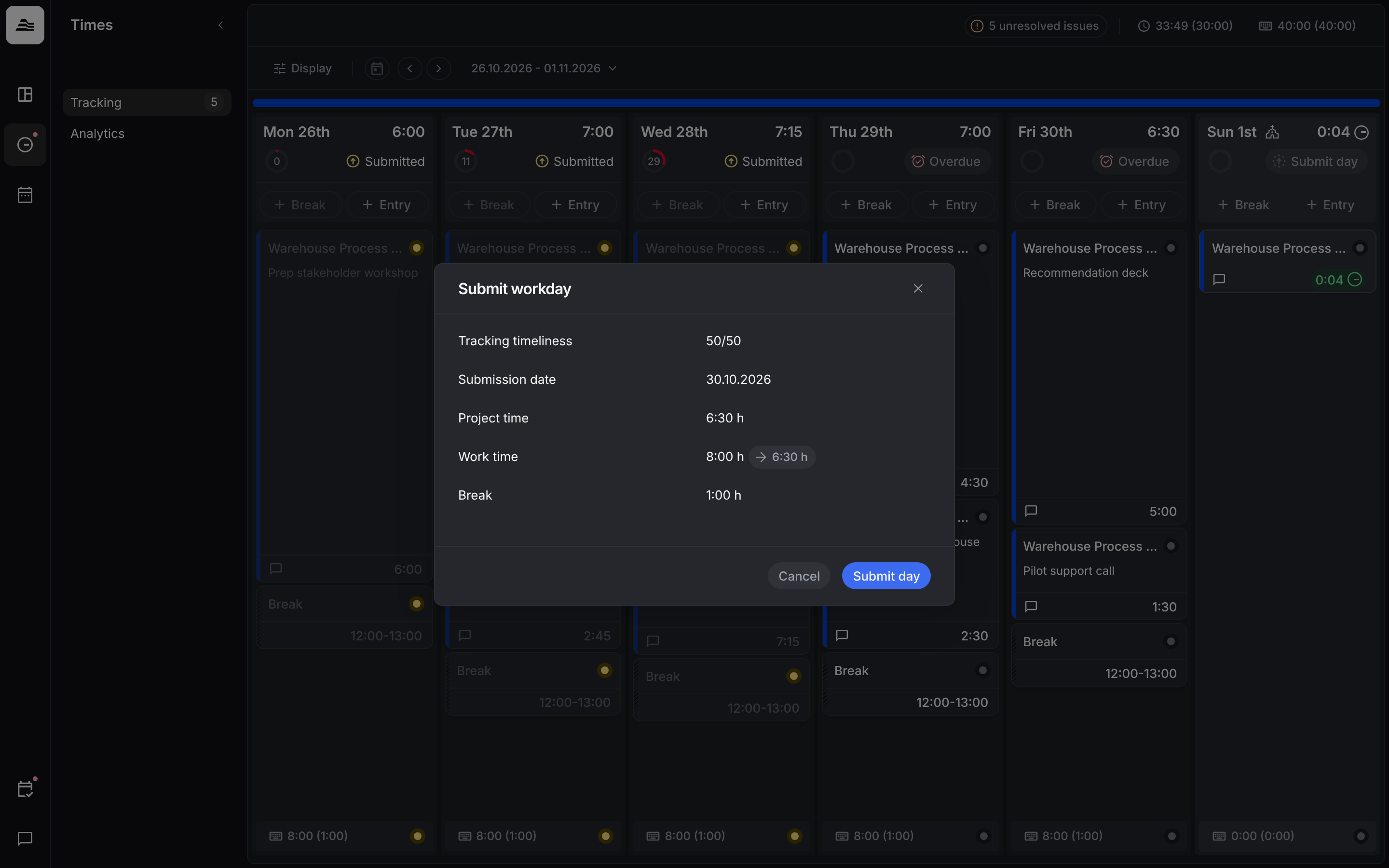
- Click Submit day at the top of the day column. Days in the future can't be submitted yet.
- Submit workday shows your tracking timeliness, the submission date, your project time, your work time and your breaks.
- Confirm with Submit day.
The day then shows Submitted.
Overdue days
Your admin sets a grace period for submitting. If it has passed, the button shows Overdue instead. You can still submit the day, but late submission lowers your tracking score.
Unresolved issues at the top of the page counts your overdue and rejected time entries.
Rejected entries
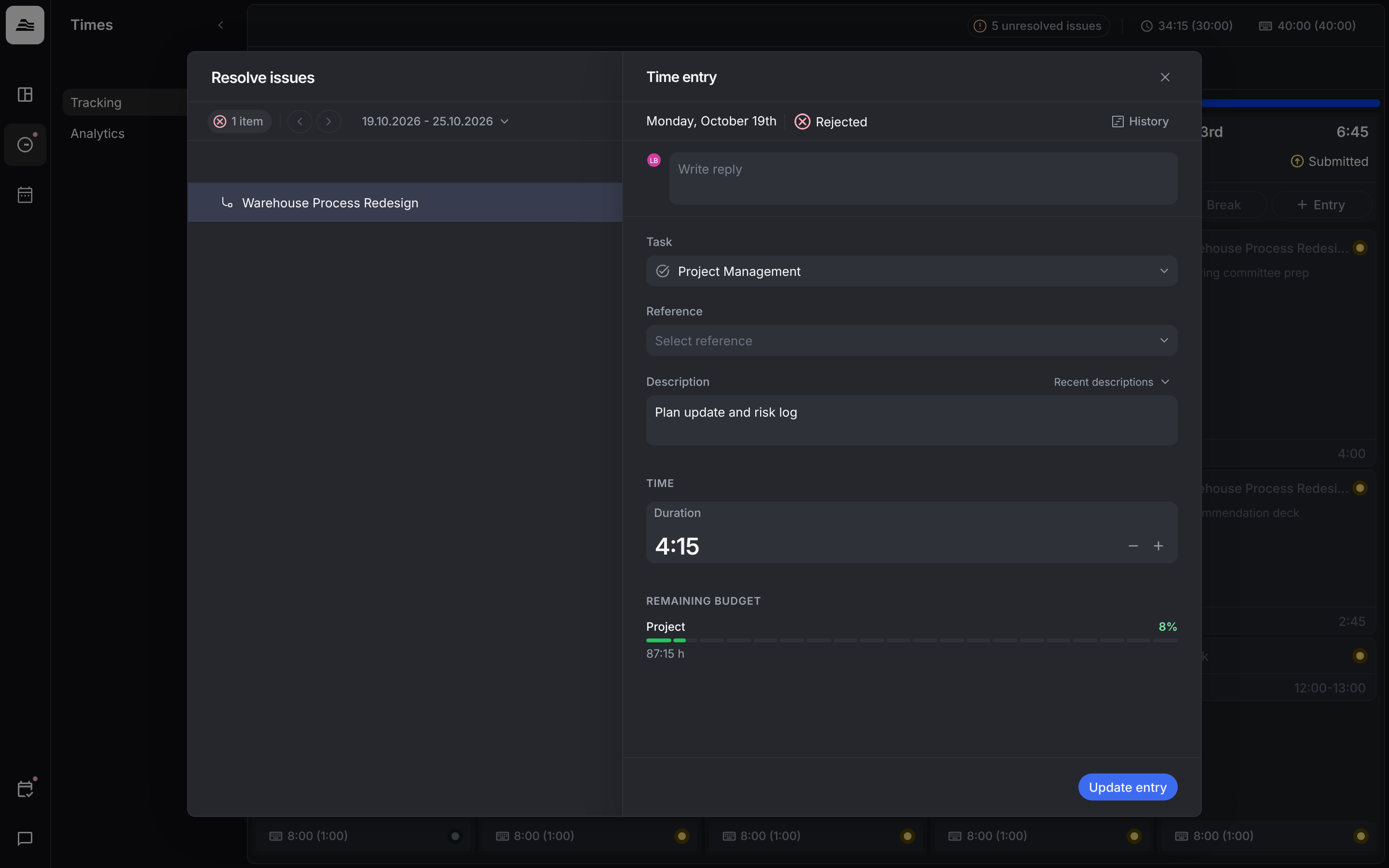
If an entry is rejected, its day shows Resolve issues. Click it or the entry to see all rejected entries of the week.
Reply to the question in Write reply, correct the entry if needed and click Update entry.
Locked entries
Submitted entries are locked. To change one, ask a project manager to unlock it.
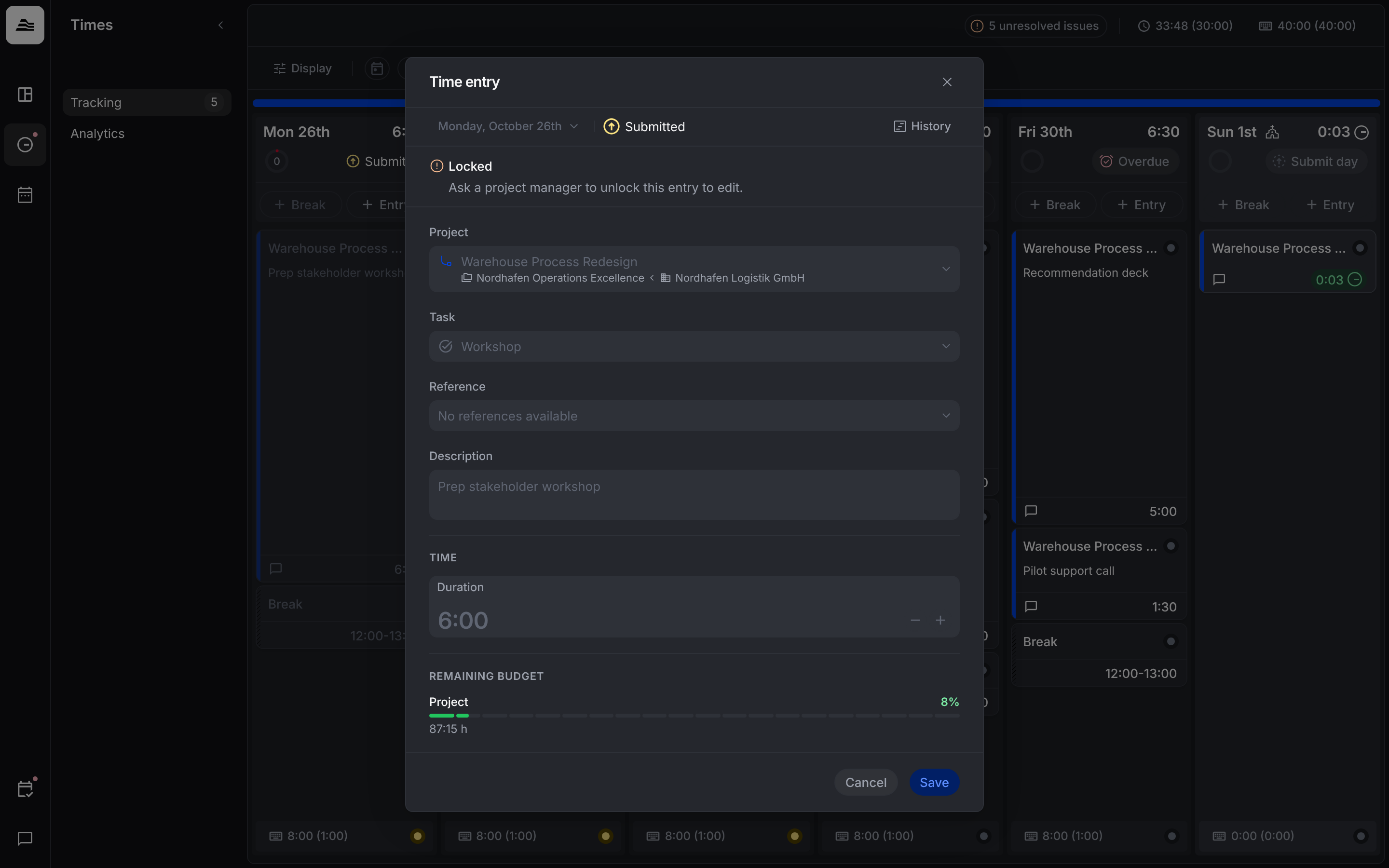
Your admin can also lock past days automatically, for example after 10 business days. After that, staff members without project management permissions can no longer create or edit entries for those days. Rejected entries are not affected.
Related
- Track time: track project time.
- Tracking score: how timeliness and quality are scored.