
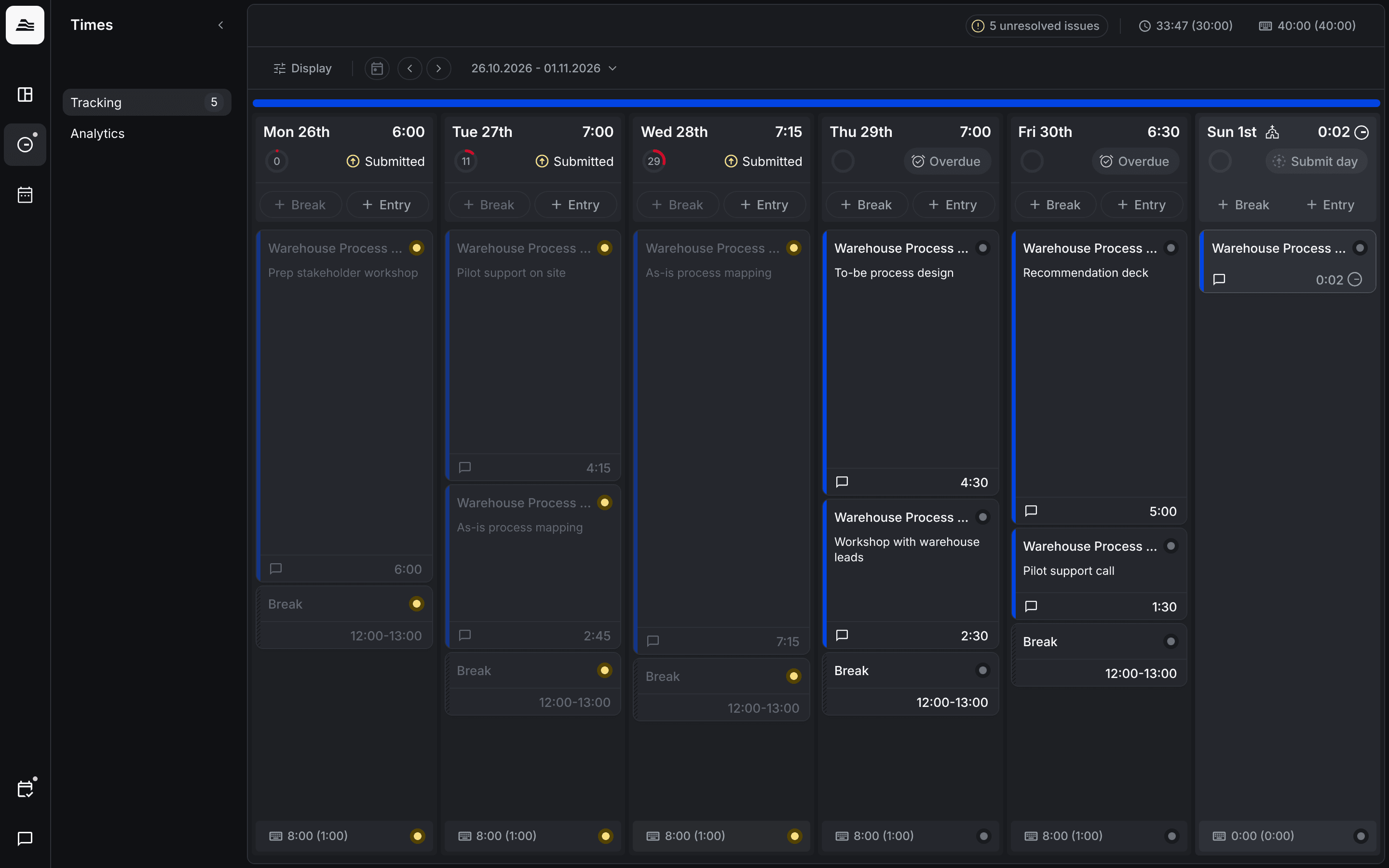
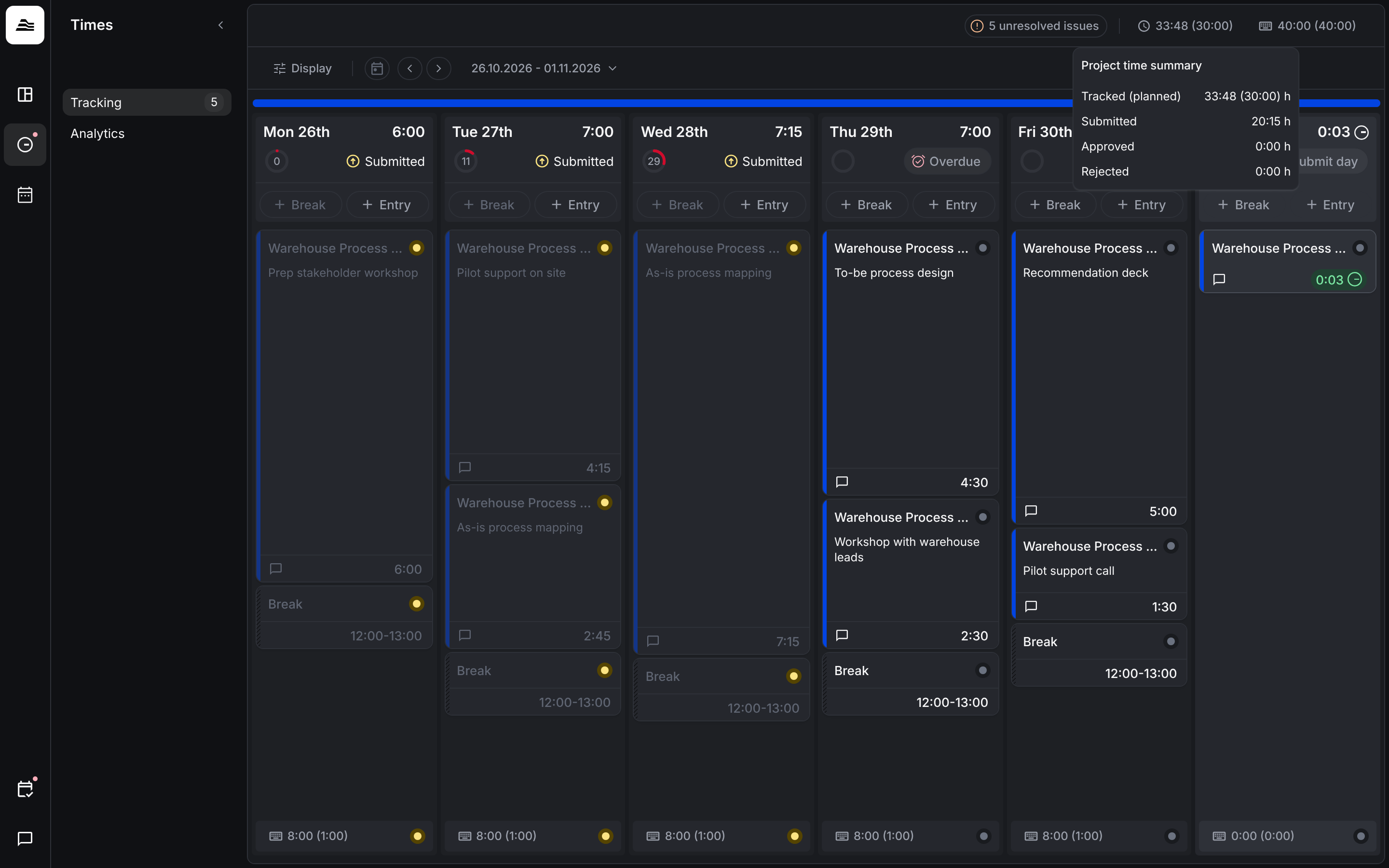
You track project time under Times → Tracking. You see your week with one column per day. Use the arrows or the calendar to switch weeks.
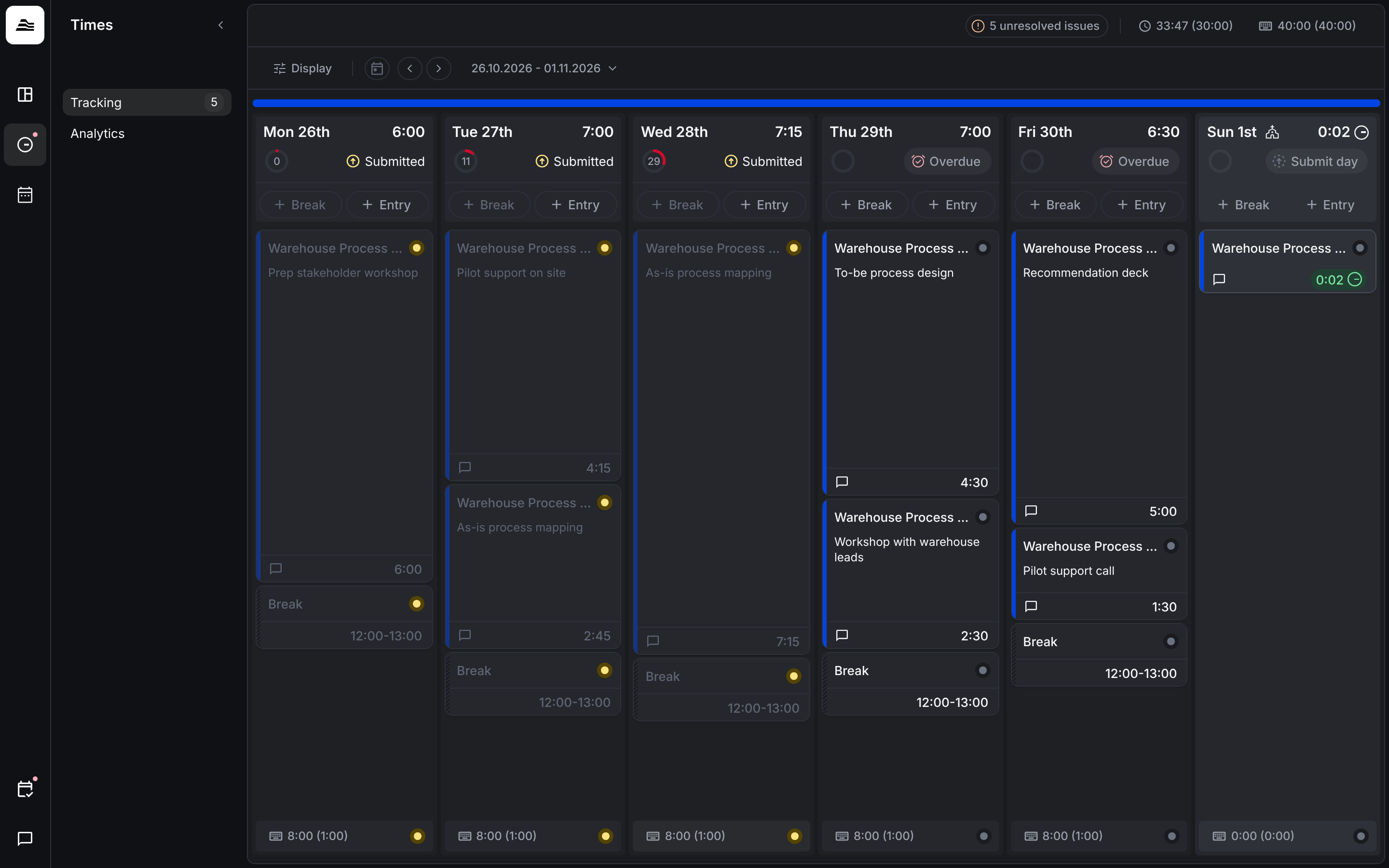
Create a time entry
- Click Entry in the column of the day.
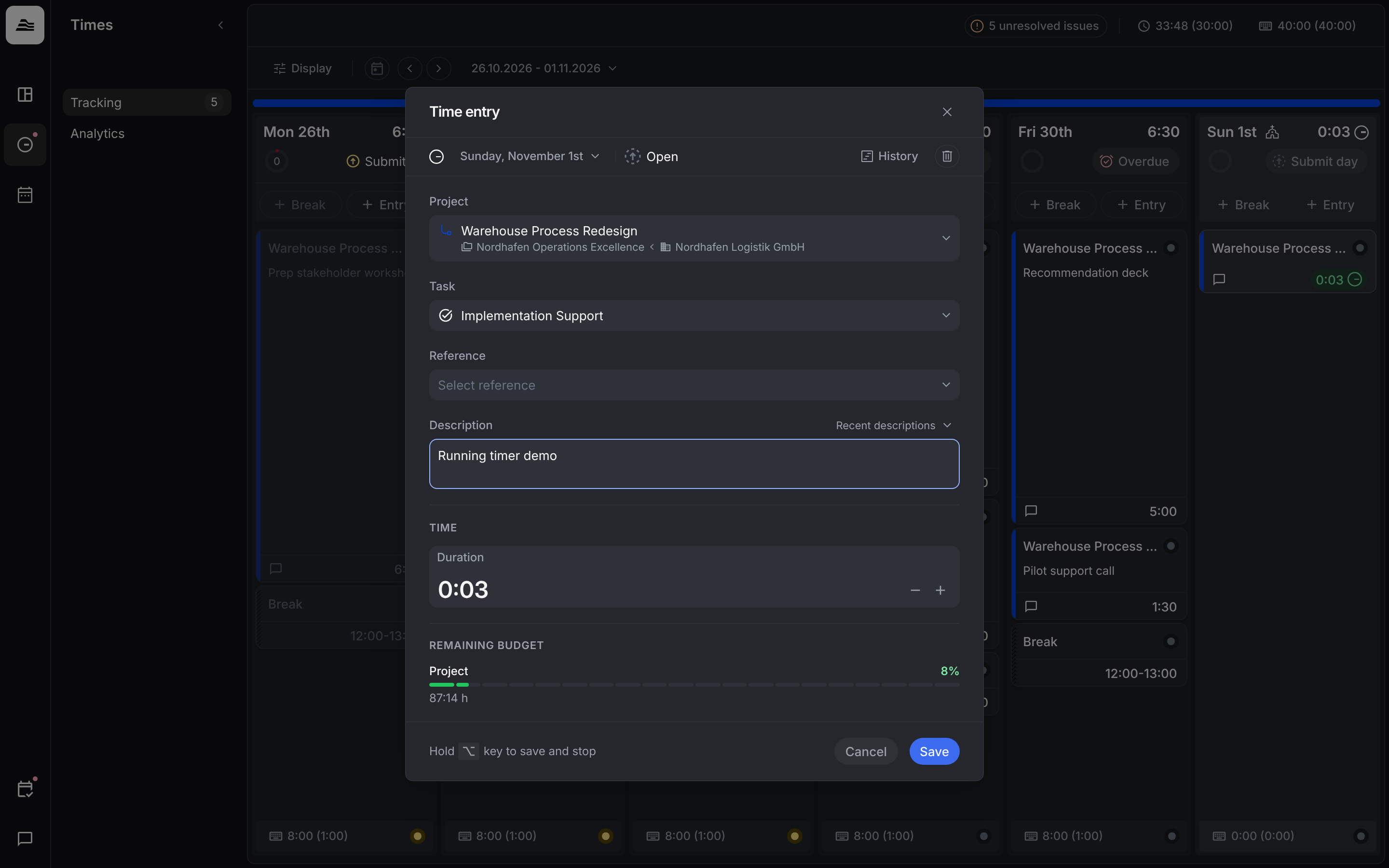
- Choose Project and Task.
- Add a Reference, for example a Jira ticket, and a Description if needed. Recent descriptions lets you reuse what you wrote before.
- Enter the time. Remaining budget shows how much of the project budget is left.
- Click Save.
To change an entry, click it in the week view. The bin icon deletes the entry.
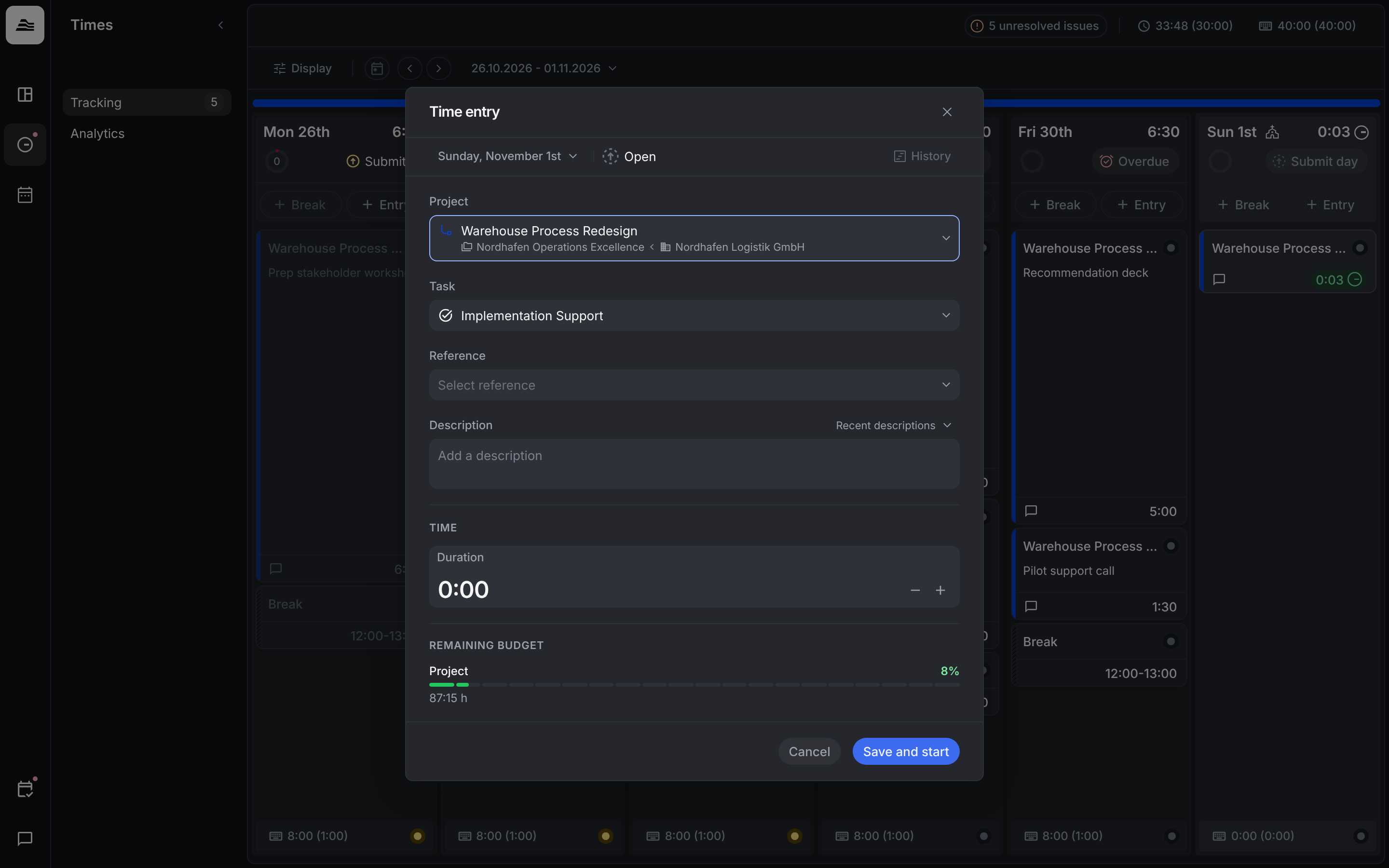
History of an entry
Click History in the time entry to see who created the entry and every change made to it since, for example to the day, duration, description, task or project.
Your project time totals
At the top of the page you see your project time for the week, with the planned hours in brackets. Hover over it to open the Project time summary with tracked (planned), submitted, approved and rejected hours.
Duration or start and end time
Your admin decides how your team tracks time:
- Duration only: you enter the Duration.
- With start and end time: you enter Start and End, Aerion calculates the Duration. With the arrow icon between the fields you switch between entering the end and the duration. On a past day you can save once an end is set.
Use the timer
On the current day, a new entry has the button Save and start. The timer runs right away and the entry shows the running time in green.
To stop it, open the entry, hold the Option key (Alt on Windows) and click Save and stop.
If your team tracks by duration, you can continue a stopped entry on the same day: open it, hold the Option key and click Save and start. If your team tracks start and end time, a stopped entry can't be continued. Create a new entry instead.
Related
- Work time and breaks: track work time and breaks.
- Submit time: submit your workday.
- Tracking references: link entries to tickets.