

If your team tracks work time, you record when your workday starts and ends and when you take breaks, in addition to your project time.
Work time tracking is turned on by your admin under
Settings → Time tracking→ Work time & breaks.
Your work time
Aerion creates a work time entry for every workday, starting on the day your account was created. It uses your default start, end and breaks from your preferences.
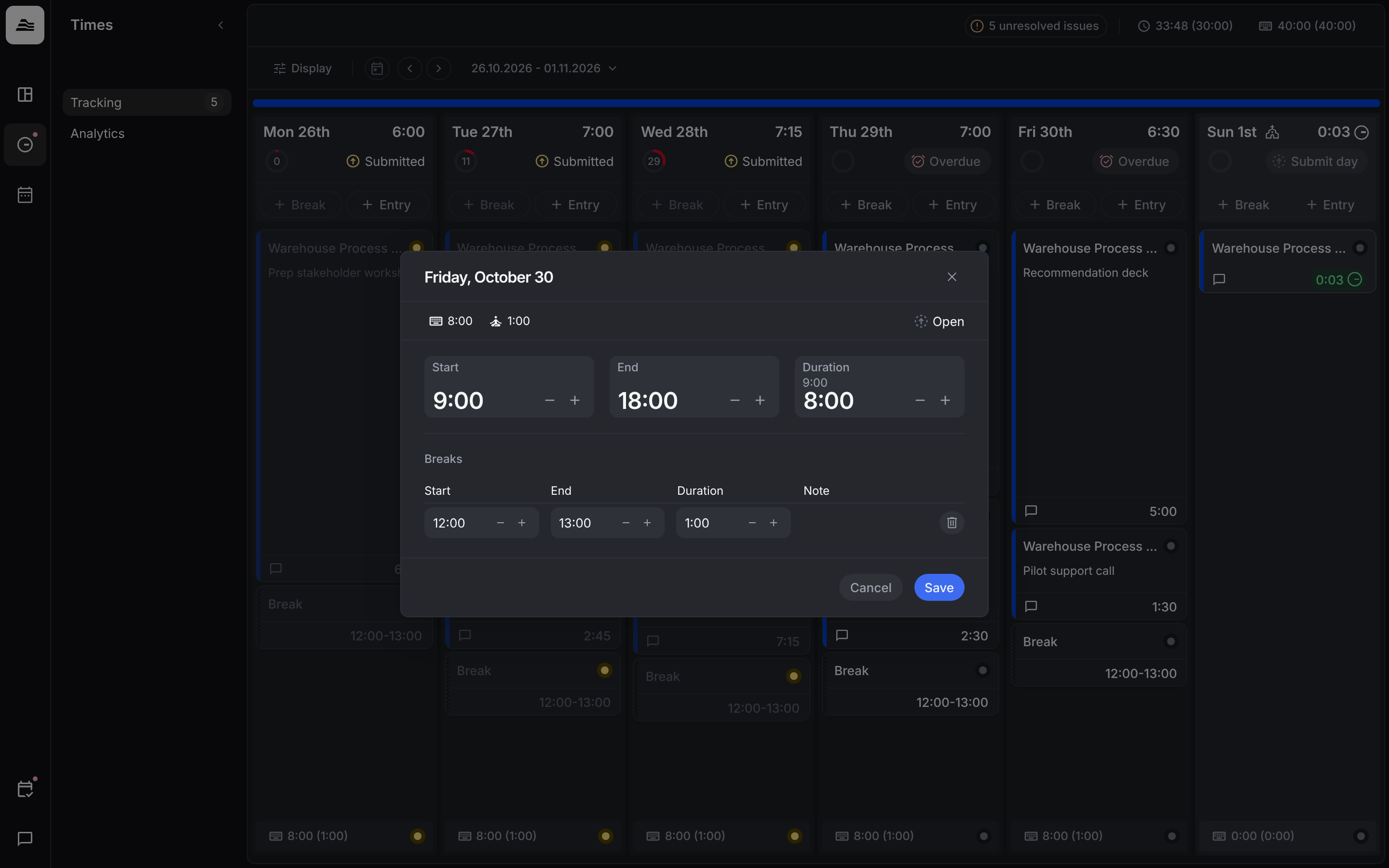
The bar at the bottom of a day column shows your work time, with breaks in brackets, for example 8:00 (1:00). Click it to adjust Start, End and Duration. Under Breaks you change, add or delete breaks of that day. Click Save.
Add a break
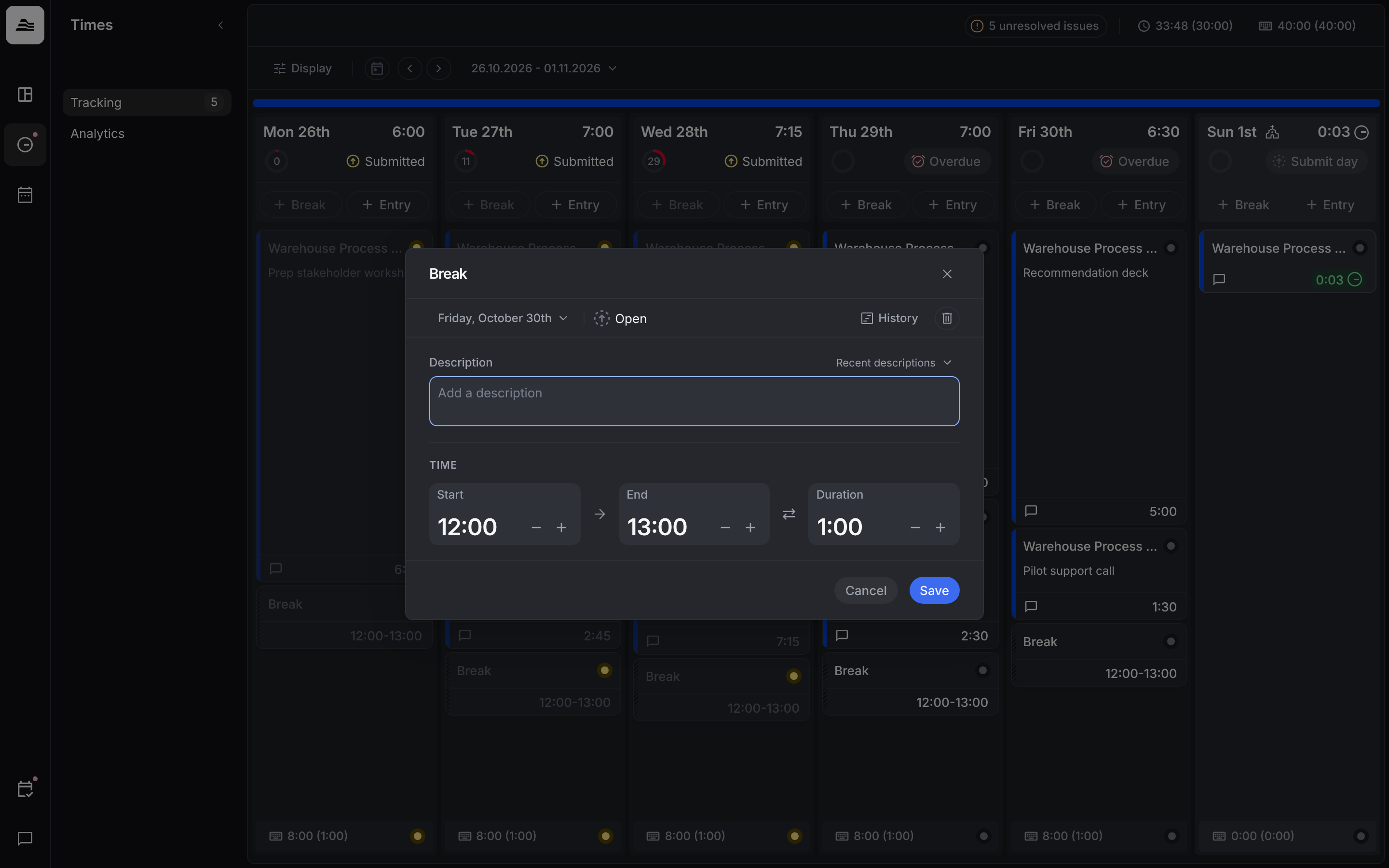
Click Break in the column of the day. Enter Start, End or Duration and a description if needed, then click Save.
Your totals
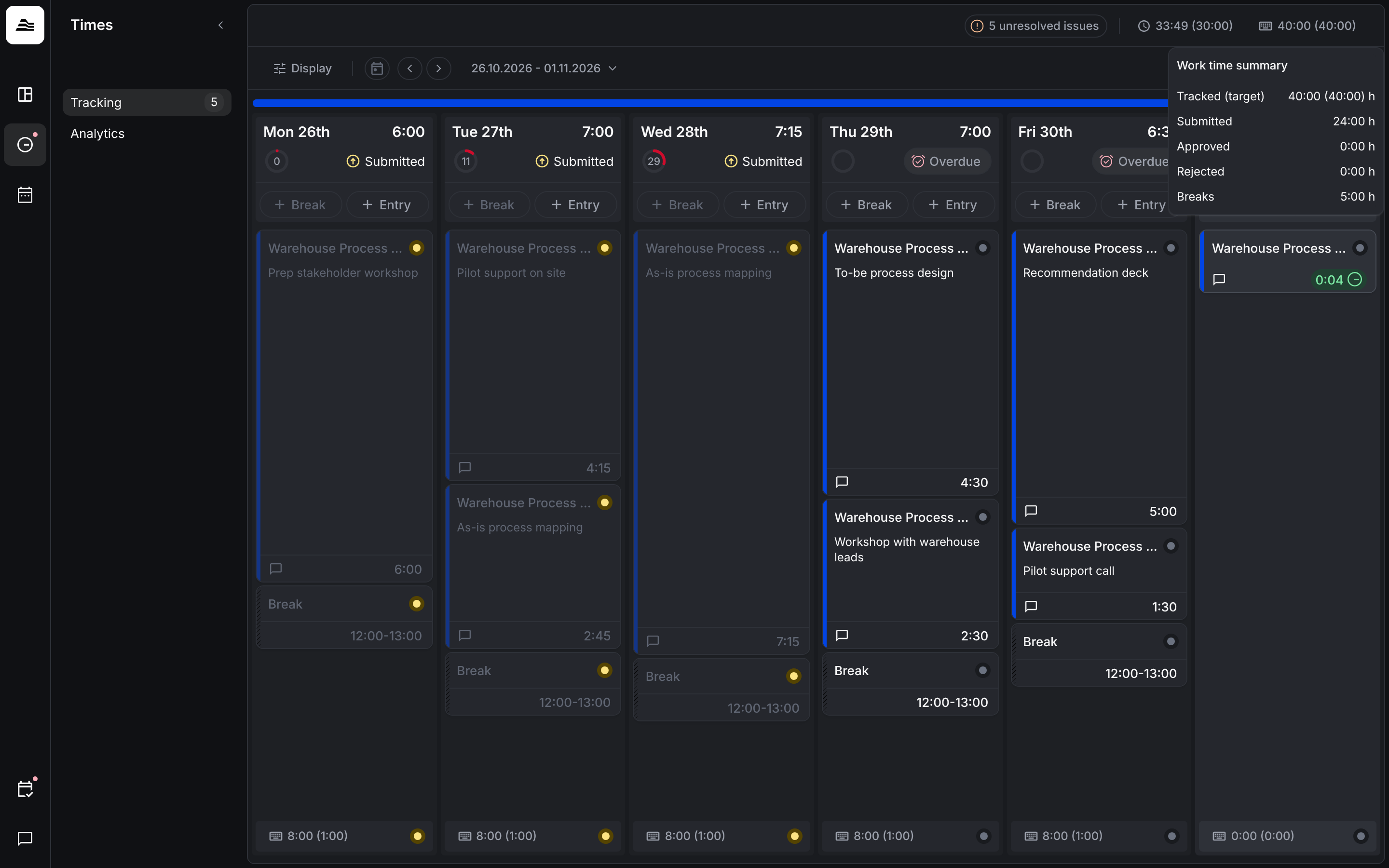
At the top of the page you see your totals for the week. Hover over them for details:
- Project time summary: tracked (planned), submitted, approved and rejected hours.
- Work time summary: tracked (target), submitted, approved and rejected hours and your breaks.
Related
- Track time: track project time.
- Submit time: submit your workday.