
Aerion changelog
Aerion 2.0: Plan by skills, a fresh design and Dark Mode
web
Aerion 2.0 is here. Picture this: a new project kicks off in March and you need someone with Kubernetes experience who actually has time. That used to mean comparing spreadsheets, asking around and hoping. Now you search the planner by skill and availability and see right away who fits. On top of that you get a completely new design, Dark Mode and plenty of everyday improvements.
Your data, permissions and integrations (Jira, Personio, HubSpot, sevDesk, SSO) stay as they are.
What changes for you
You plan faster, because you find people by skills and availability.
You keep the overview, because KPIs sit right in the planner and the Project Board.
You stay in flow, because you can edit projects, people and teams from anywhere.
You work the way you like: with saved views and in Dark Mode.
How to use the new planner
Open the planner from the navigation.
Type a skill into the search, for example
Kubernetes, and pick a level if you like.The list shows who has the skill and how much capacity is free.
Drag the person onto the project, or adjust existing plans right on the timeline.
Save your filters as a view, so you get them back with one click next time.
More about the project planner and staffing projects
Planner 2.0: the right person for every project
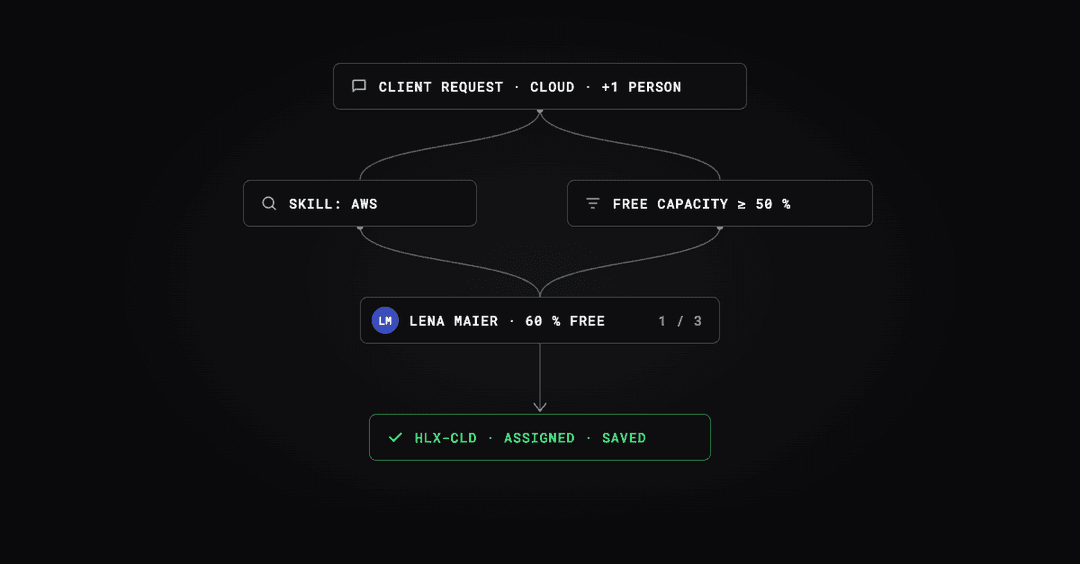
Use case: A client asks at short notice for extra hands on a cloud project. You search for the skill, filter for free capacity and drag the person onto the project.
Impact: Less back and forth, better staffing, fewer surprises in utilization. KPIs such as utilization and planning accuracy are right there in the planner. The new timeline spans months and years, and every project has its own planning view that you can open from anywhere. Staffing a single project is even quicker: search straight from the search bar with a live result count, and assignments save as you make them.
Skill management: know what your team can do
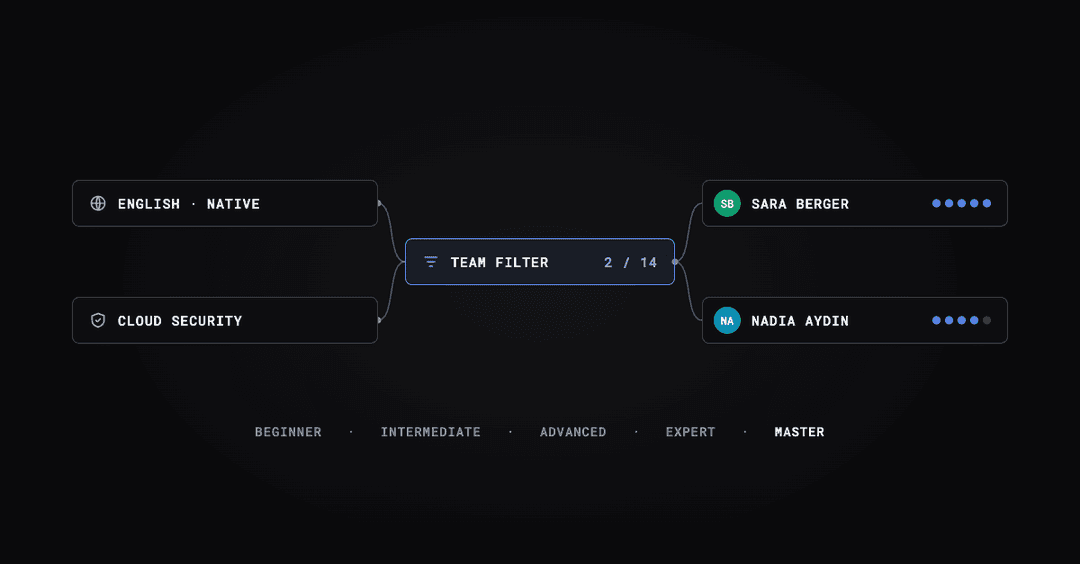
Use case: You want to know who on the team speaks native level English and holds a cloud security certificate.
Impact: You maintain skills, languages and certificates in one central place, grouped by category and rated on five levels from Beginner to Master. Skill sets bundle the skills of a role so you can assign them in one step. Every change to a skill is documented with a comment, so development stays traceable. Skill filters also work in team filtering, and skill matching in the planner is now more forgiving.
How to get started: As an admin you find everything under Settings > Skills. Learn more in the skills overview and in managing skills, categories and levels.
Deal status and sales KPIs
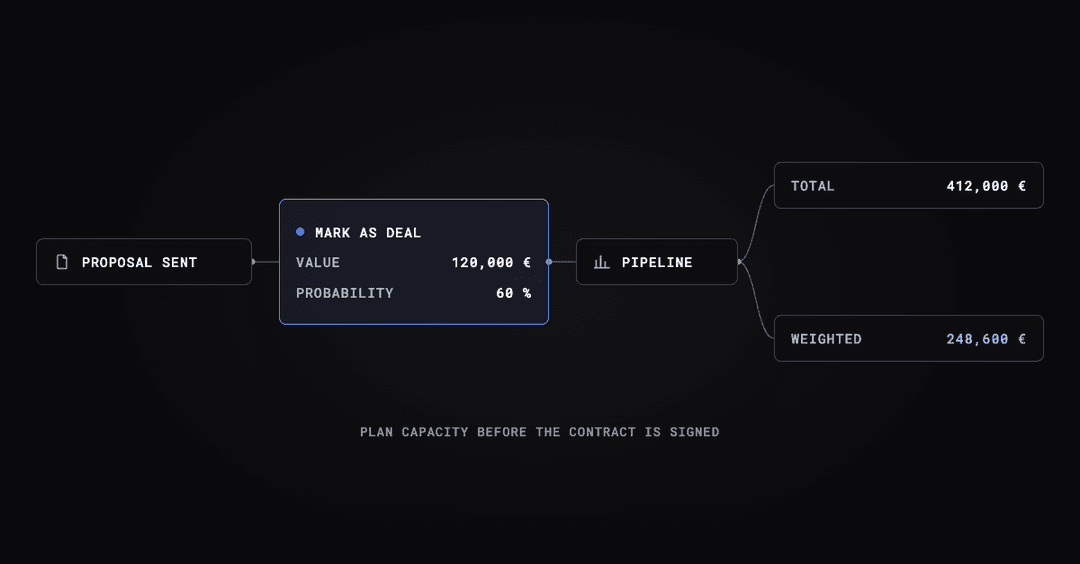
Use case: A proposal is out but not decided yet. You mark the project as a deal and enter its value and probability.
Impact: You see your pipeline right in the Project Board: total value and weighted value, calculated from your deals. That lets you plan capacity before the contract is signed.
How to get started: Open a project and enter the amount and probability in the Deal section. Details are in Edit a project.
New Project Board
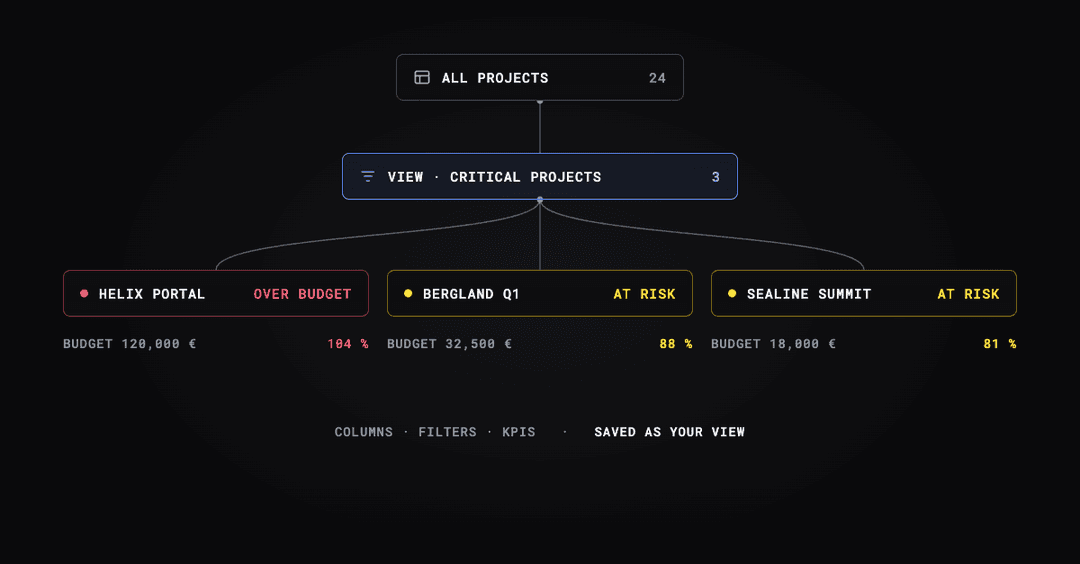
Use case: On Monday morning you want to know within a minute which projects are critical.
Impact: Status and health sit right in the row, KPIs on top at a glance. You save your columns, filters and KPIs as your own view, for example for the sales pipeline or critical projects, and you can reorder your saved views. On fixed-price projects you can now cap effort at the budget, so profitability and effort are not overstated when a project runs over. Read more in Clients and projects.
Dark Mode
Aerion now comes in dark, across the whole interface, with improved contrast in panels, tabs and Approval. You set it under Settings > Personal > Preferences in the Interface theme field: Light, Dark or matching your system.
Edit without changing pages
Projects, clients, people and teams now open as a detail panel right where you are. You can plan a project from the Project Board or edit a person from the dashboard without losing your context. The panel header makes it easy to switch between related records, and you can move a staff member to a different team straight from the staff panel.
Connect Claude, ChatGPT and other AI tools to Aerion
Aerion now has an MCP server. It lets you ask questions about your Aerion data or create entries straight from Claude, ChatGPT or other clients. The same permissions apply as in Aerion. The Claude connector is linked from the Integrations page, and setup is described in the MCP server guide.
Improvements
Time tracking and approval have been redesigned. Approval has clearer actions and status icons, and project days are now Open or Closed instead of Unlocked or Locked.
The issue counter in Tracking is now a day by day list of overdue or rejected time entries.
The time entry, break and validation modals have a clearer layout and a new budget progress bar.
Every search dropdown has a new design with recently used items that are shared across the app.
The Planner shows budget and profitability figures in project panels, offers row visibility controls and week separator lines, and is faster on large boards.
When several absences fall on the same day, the Planner and Dashboard show the most relevant one.
You can remove a staff member from a project directly in the Planner and restore them with a new assignment.
Team management shows the team structure more clearly, including the team lead. The Team Board now supports saved views and CSV export.
Invoices and planned invoices can be marked as internal, and invoices get an effective date.
Overtime and project cost calculations are more accurate, and analytics feeds and exports are faster.
You get a warning as you type when a client, project or team code is already in use.
A "Latest changes" indicator in the navigation points to new releases.
Settings have been restructured so you find options faster, and charts and reports have been revised.
Page transitions and load times feel noticeably faster, and all interface elements have a consistent new look.
Fixes
Fixed wrong dates when adding several single-day planner assignments.
Fixed the split handle missing on planner assignments that start before the visible timeline.
Fixed capacity and utilization in the Planner so that archived and completed projects and archived users with planned hours are counted.
Fixed moving or resizing a planning assignment sometimes opening the edit dialog mid-drag.
Fixed the Project Board loading blank right after sign-in for users with limited project management access.
Fixed a freeze that could occur when login sessions were refreshed.
Fixed menu options in more options dropdowns reloading the app.
Fixed the missing absence request count in the navigation for accounts without a native HR integration.
Fixed sub-projects not always picking up color changes from their parent.