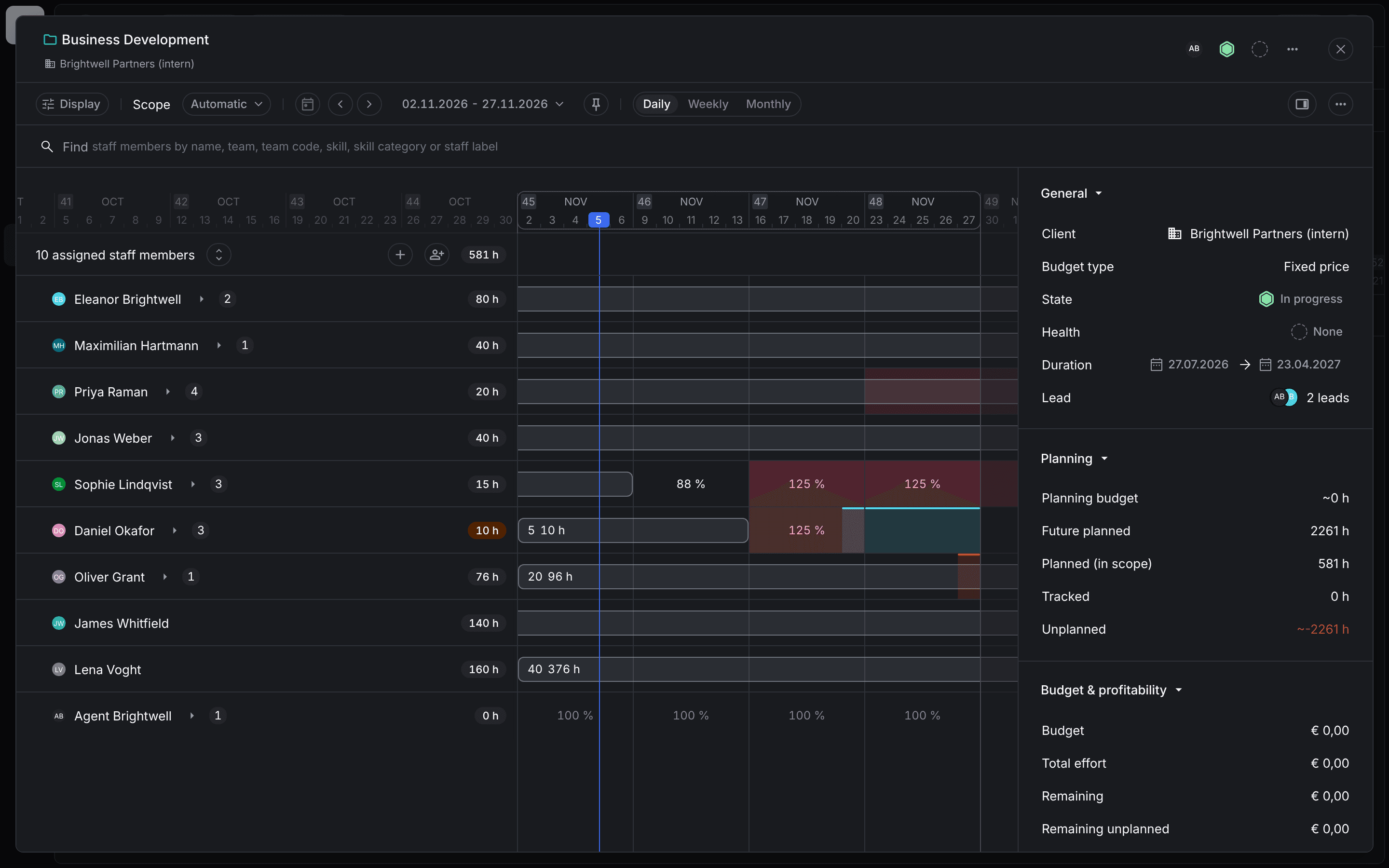
You plan a single project in its planning window. It shows every staff member planned on the project, their planned hours and their availability in each period, so you see right away who still has capacity.
Required rights: a role with Team and project management
Open the planning window
In the project planner, hover over a project and click Plan. The window carries the name of the project and its client. Next to it you see lead, status and health and the … menu of the project.
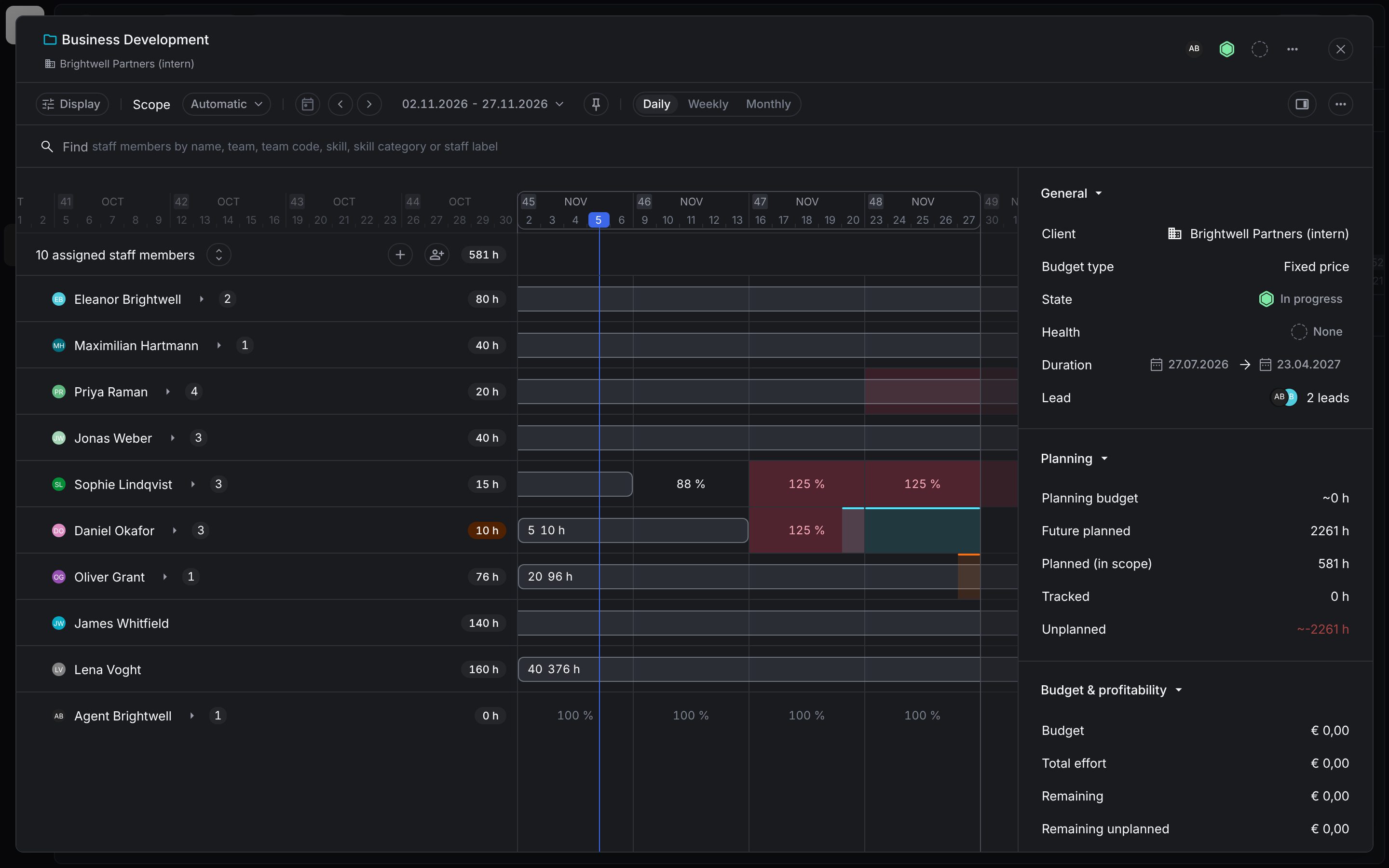
The toolbar works like in the planner: Display, Scope and date range, and Daily, Weekly or Monthly. The button on the right shows or hides the project details with General, Planning, Budget & profitability, Future planned and Milestones, see Project planner.
Staff on the project
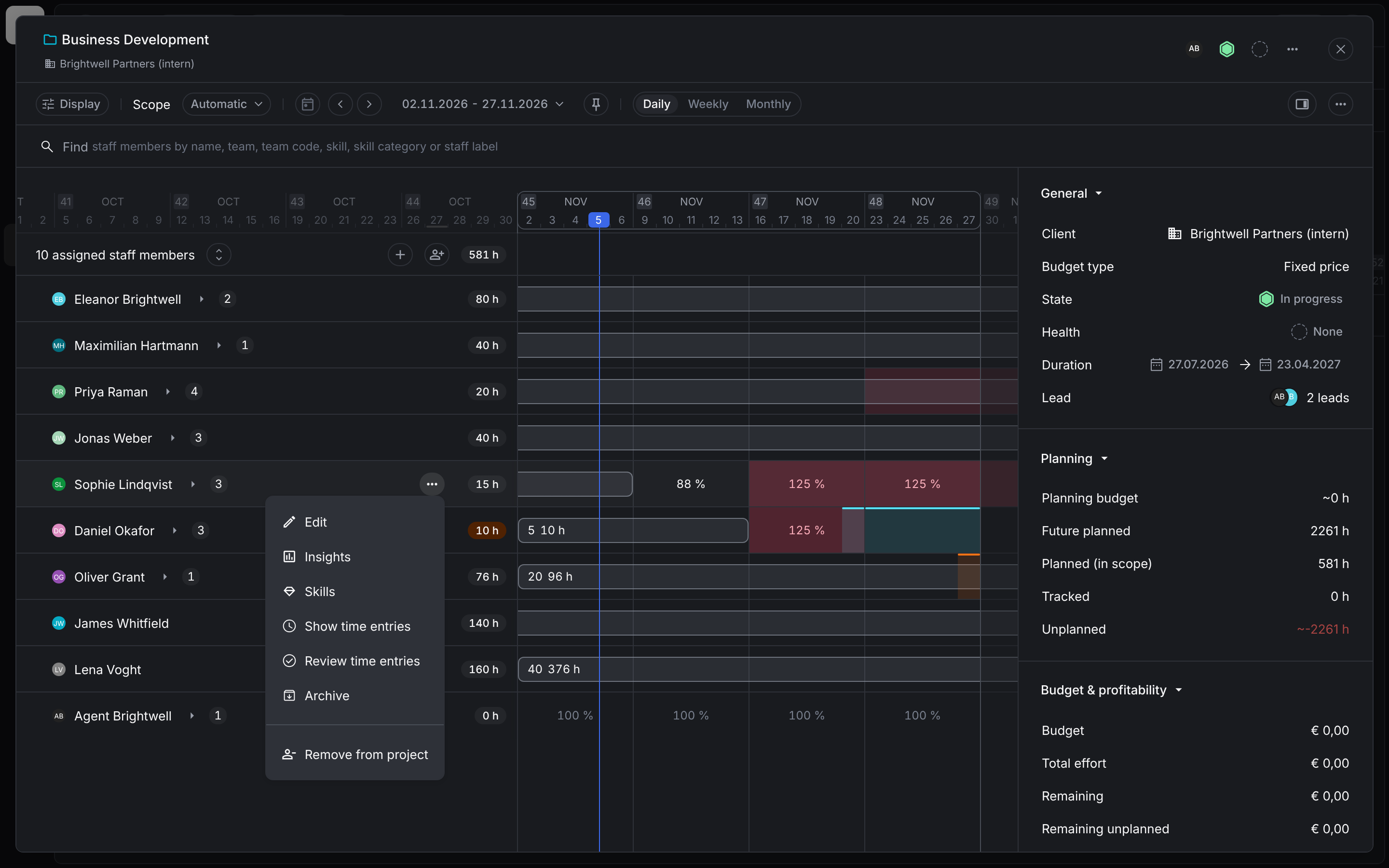
The list shows the assigned staff members with their planned hours in the planning scope. Each bar is a planning assignment, for example 20 96 h for 20 hours per week and 96 hours in total. The cells next to the bars show the availability of the staff member in that period, including their other projects. Red cells mean the staff member is over planned.
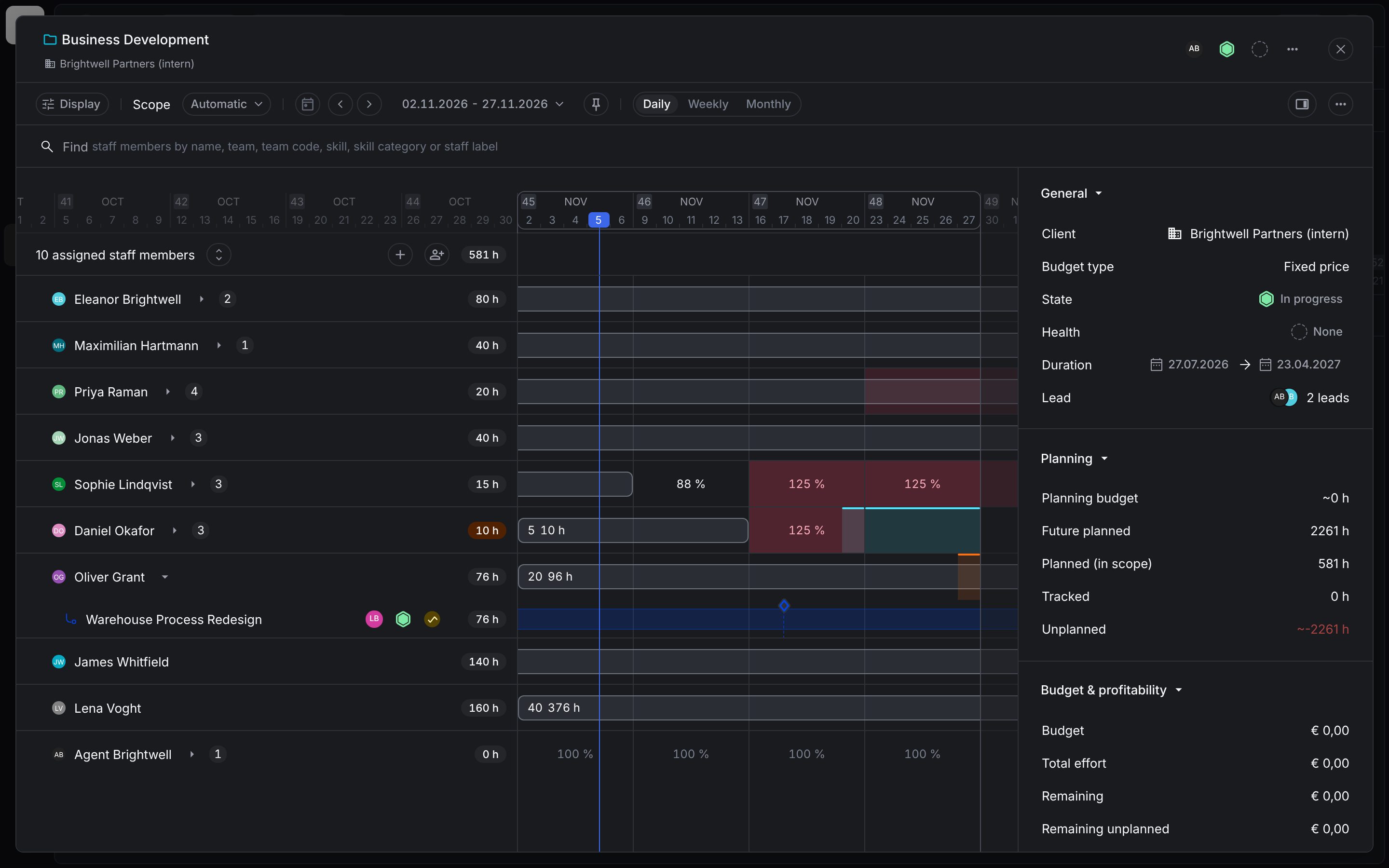
Expand a staff member to see the other projects they are planned on.
Use the … menu of a staff member to open their profile (Edit, Insights, Skills), show or review their time entries, or Remove from project.
Add staff members
Click the icon with the person and the plus sign next to the number of assigned staff members and choose a staff member. Recently used shows the staff you picked last. Then plan the staff member in their row by dragging across the period or clicking on a period, as in Plan staff on projects.
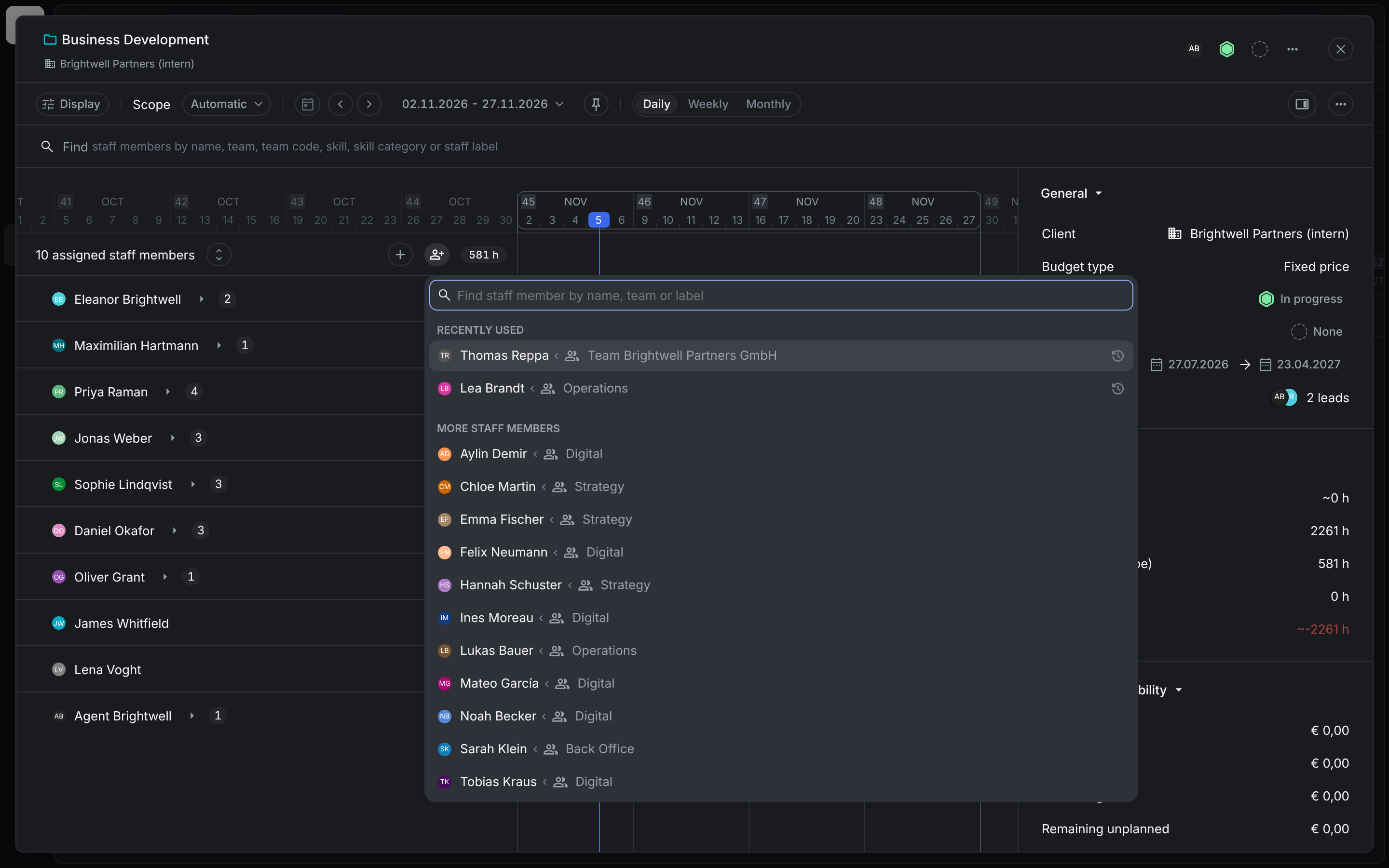
To change an assignment, drag it or its ends, or click on it to open Edit project planning.
Find suitable staff
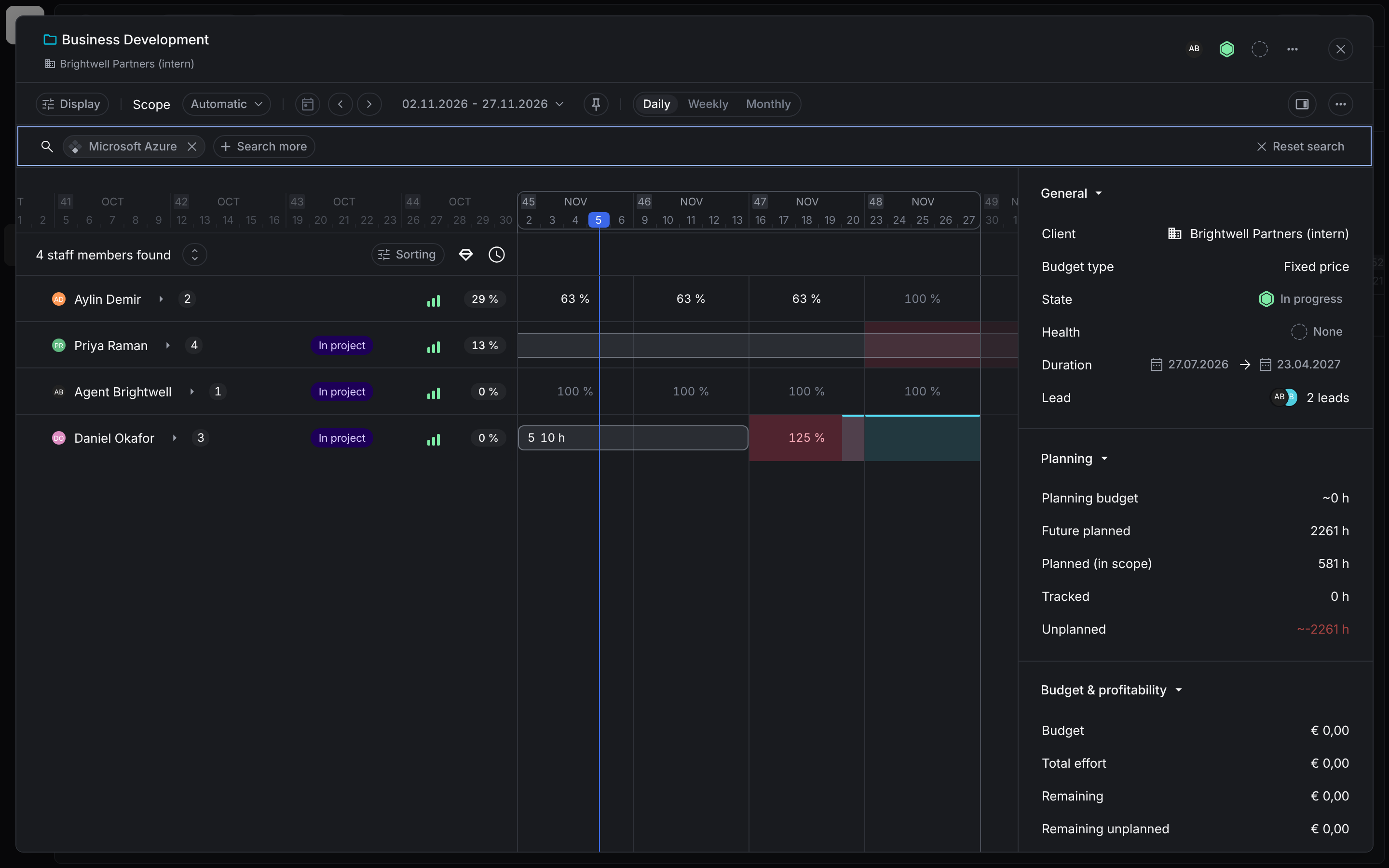
Search for staff members by name, team, team code, skill, skill category or staff label. When you search for a skill, Aerion lists the staff members found with their skill match and their availability. In project marks staff members who are already on the project. Search more adds criteria, Reset search clears them. Sorting works as in the utilization planner.
Display options
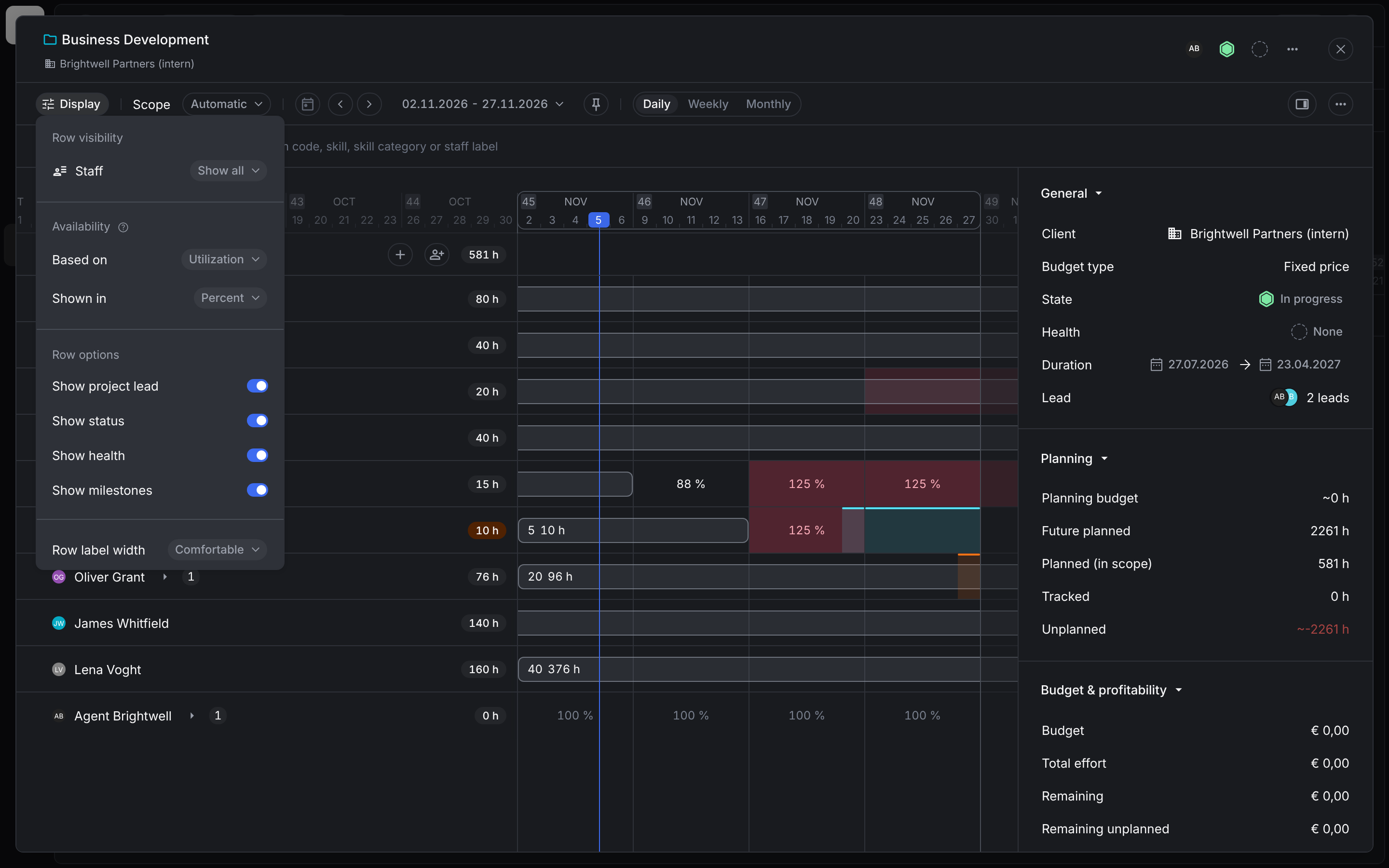
Under Display you choose which staff members are shown, whether availability is based on utilization or remaining capacity and shown in percent or hours, and row options such as project lead, status, health and milestones.