

Add new staff members in Team with New > Staff member. You can add several staff members at once.
Required rights: Admin or a role with Extended staff management
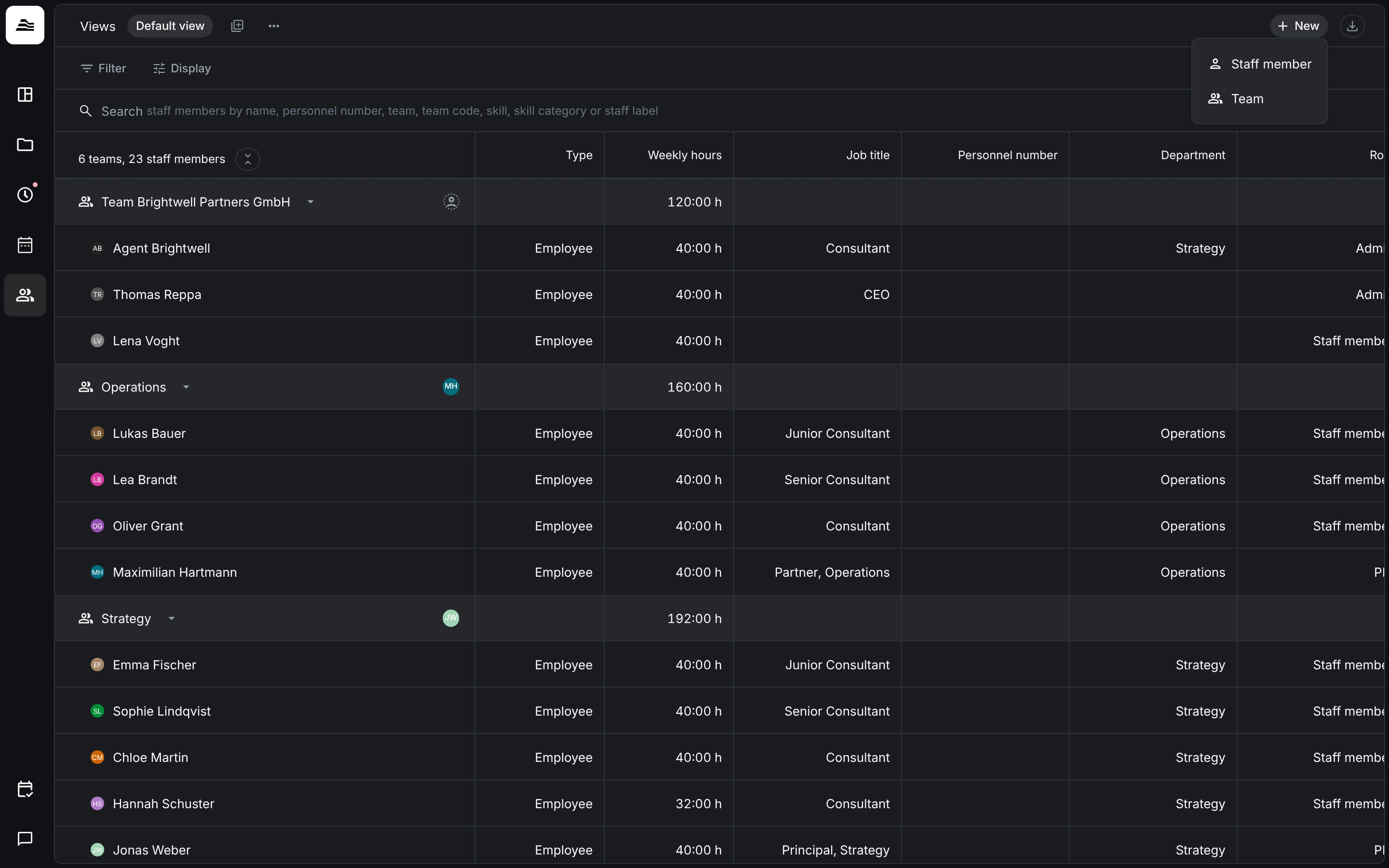
Fill in the details
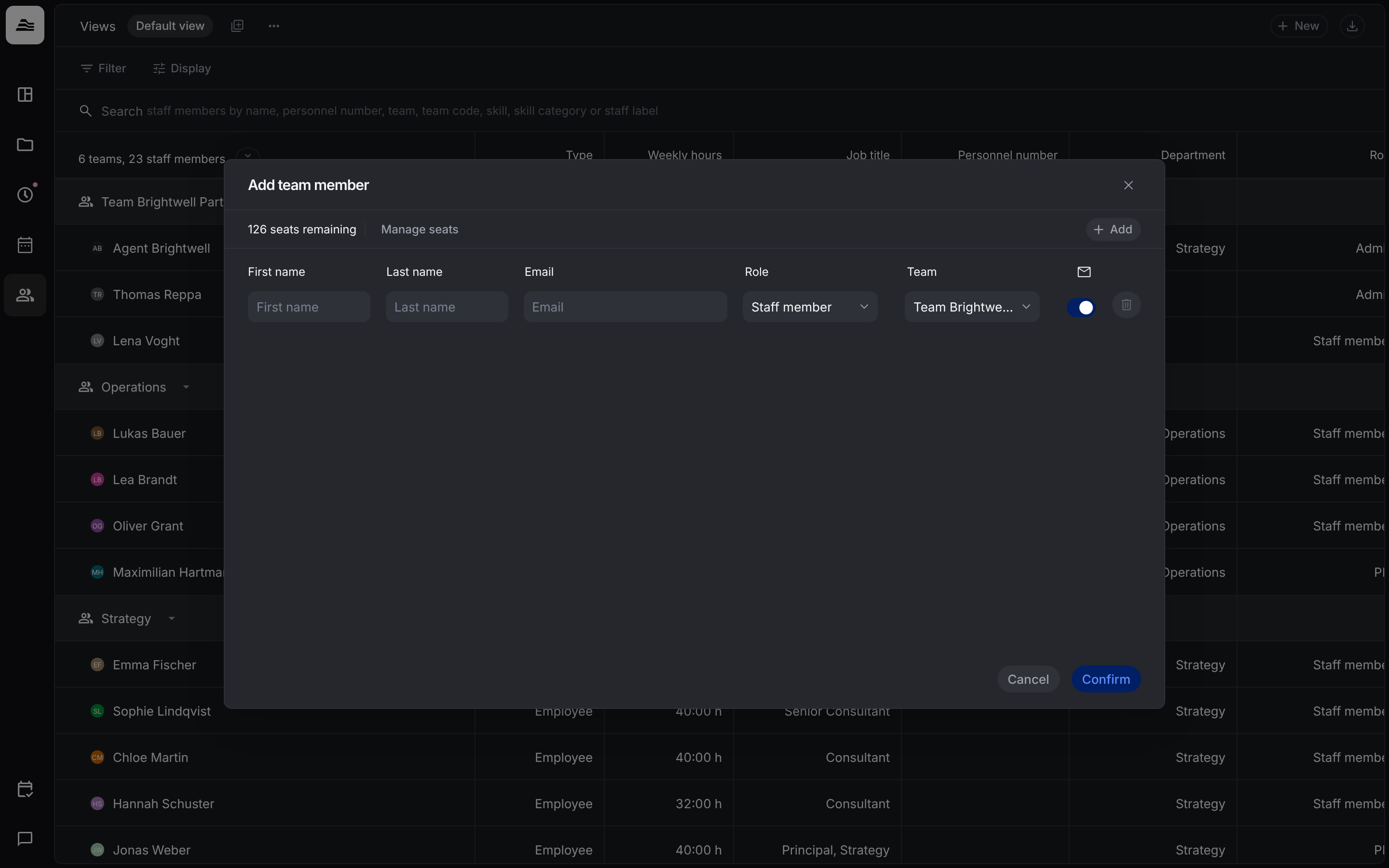
In Add staff member you enter per staff member:
- First name, Last name and Email
- Role: decides what the staff member may see and do. See Roles and permissions.
- Team: the team the staff member belongs to.
- The envelope switch: sends the invitation email right away.
With Add you get another row for the next staff member. Confirm creates all of them.
At the top you see how many seats are still free. Manage seats opens a dialog where you change the number of Seats of your subscription and confirm with Update.
Invitation
Sending the invitation is optional. Leave the switch off if you want to prepare the profile first, for example the employment records and permissions, and invite the staff member later via the … menu of the staff member. Once invited, the staff member sets a password or signs in with SSO. For SSO, the email address in Aerion must match the address stored in Microsoft or Google.
Next steps
After creating the staff member, open the profile and check: