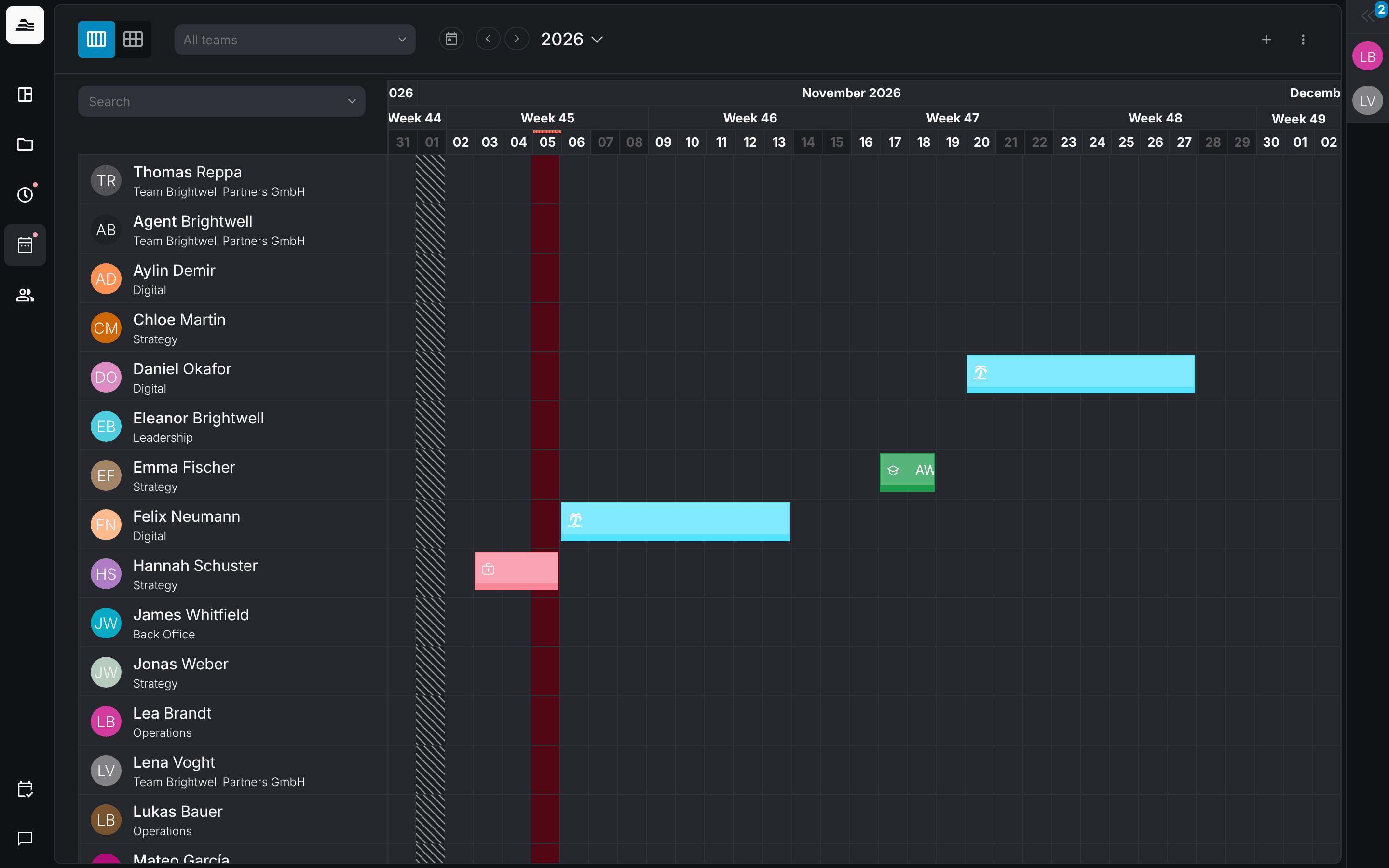
The absence planner shows all absences of your staff: vacation, sickness, training and other absence types. Staff request absences here, and approvers confirm or reject them.
Required rights: viewing needs Read access planner. Entering absences for others needs Limited staff management or the team permission Manage absences. Approving requests needs Approval of absence requests or Manage absences in the team.
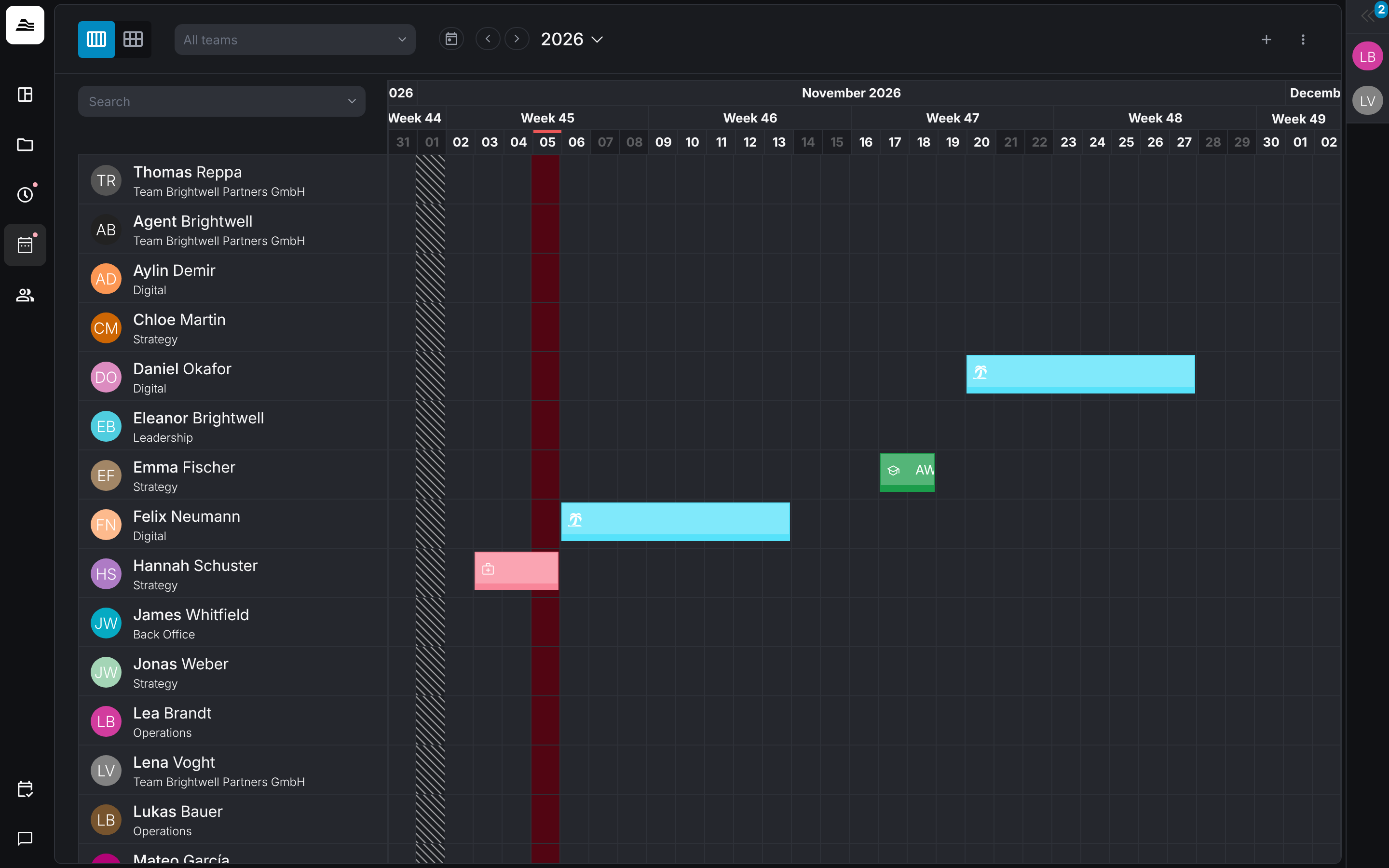
Timeline and calendar
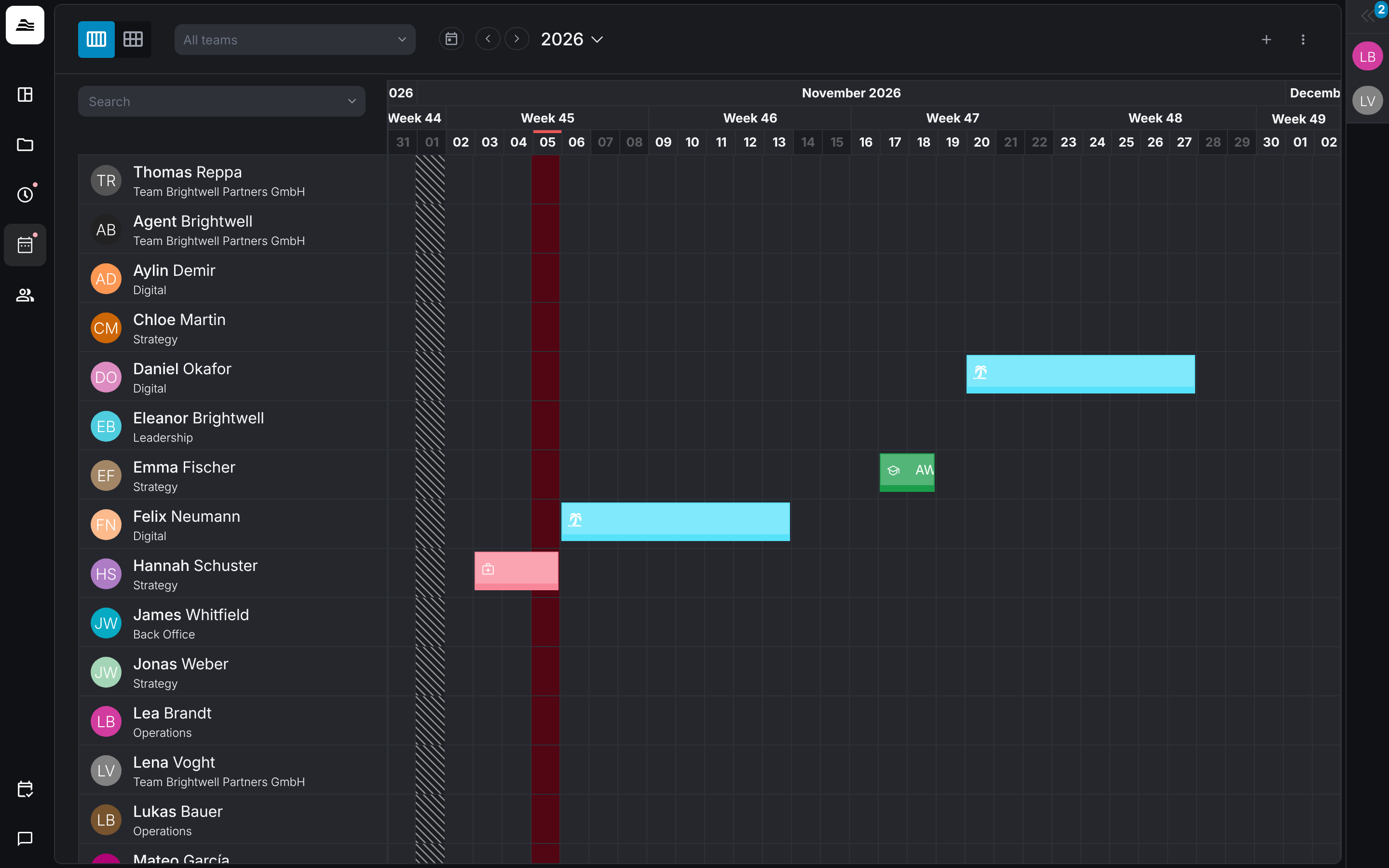
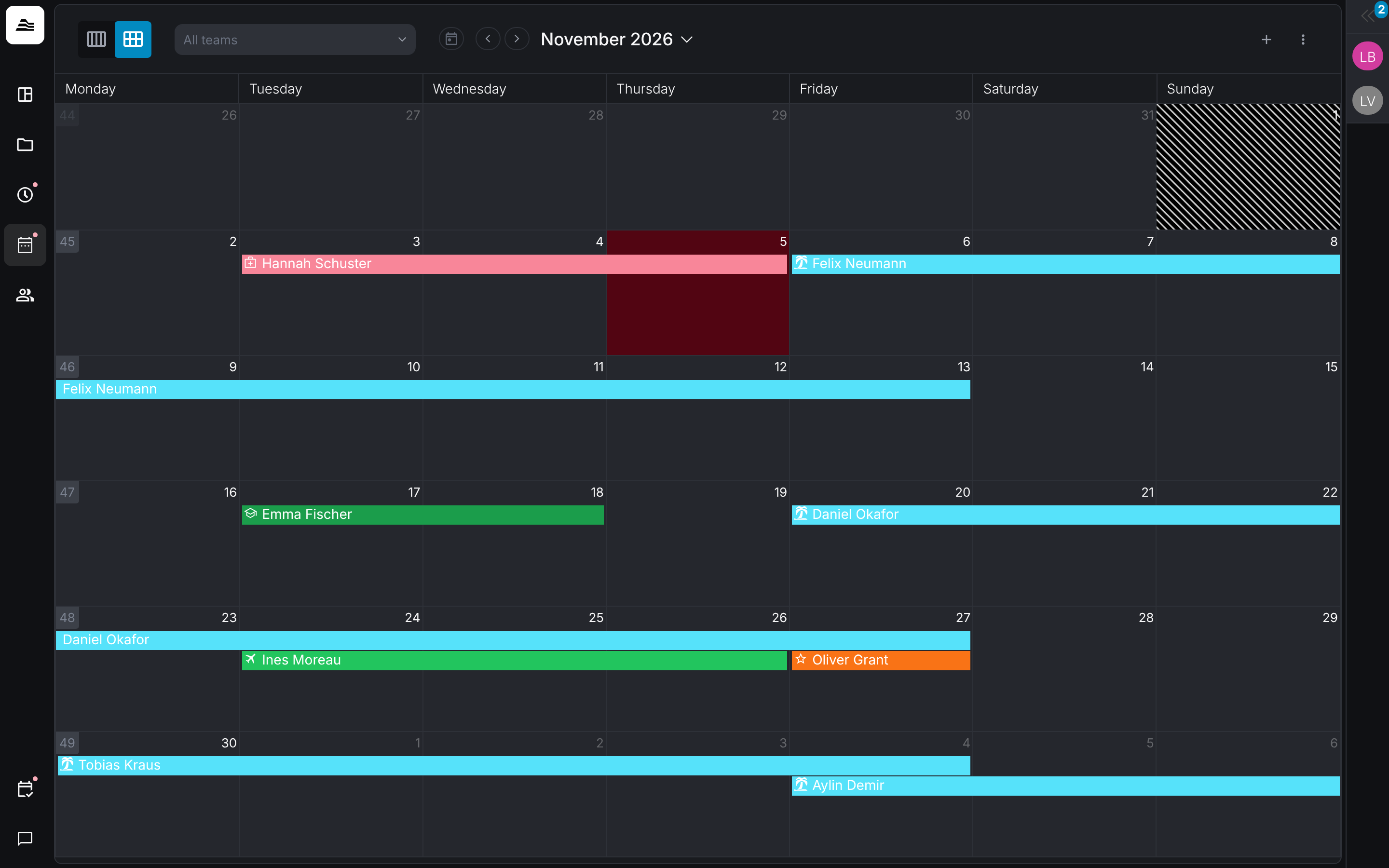
Switch between the timeline per staff member and the monthly calendar with the icons at the top left. Filter by team and search for staff members.
Enter an absence
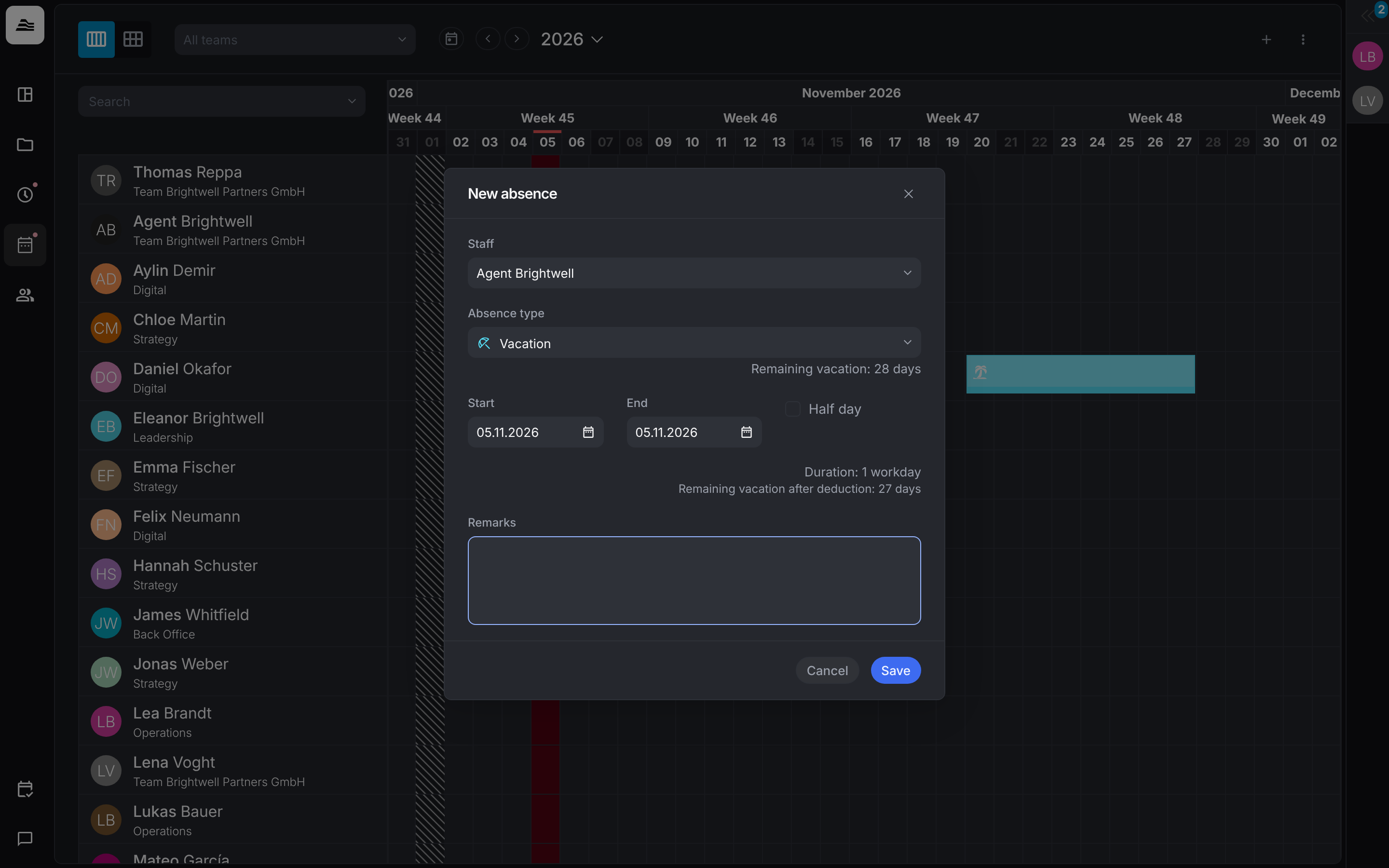
Click + > New absence. Choose the Staff member and the Absence type, set Start and End or Half day and add Remarks. Aerion shows the duration in work days and, for vacation, the remaining vacation days.
Request an absence
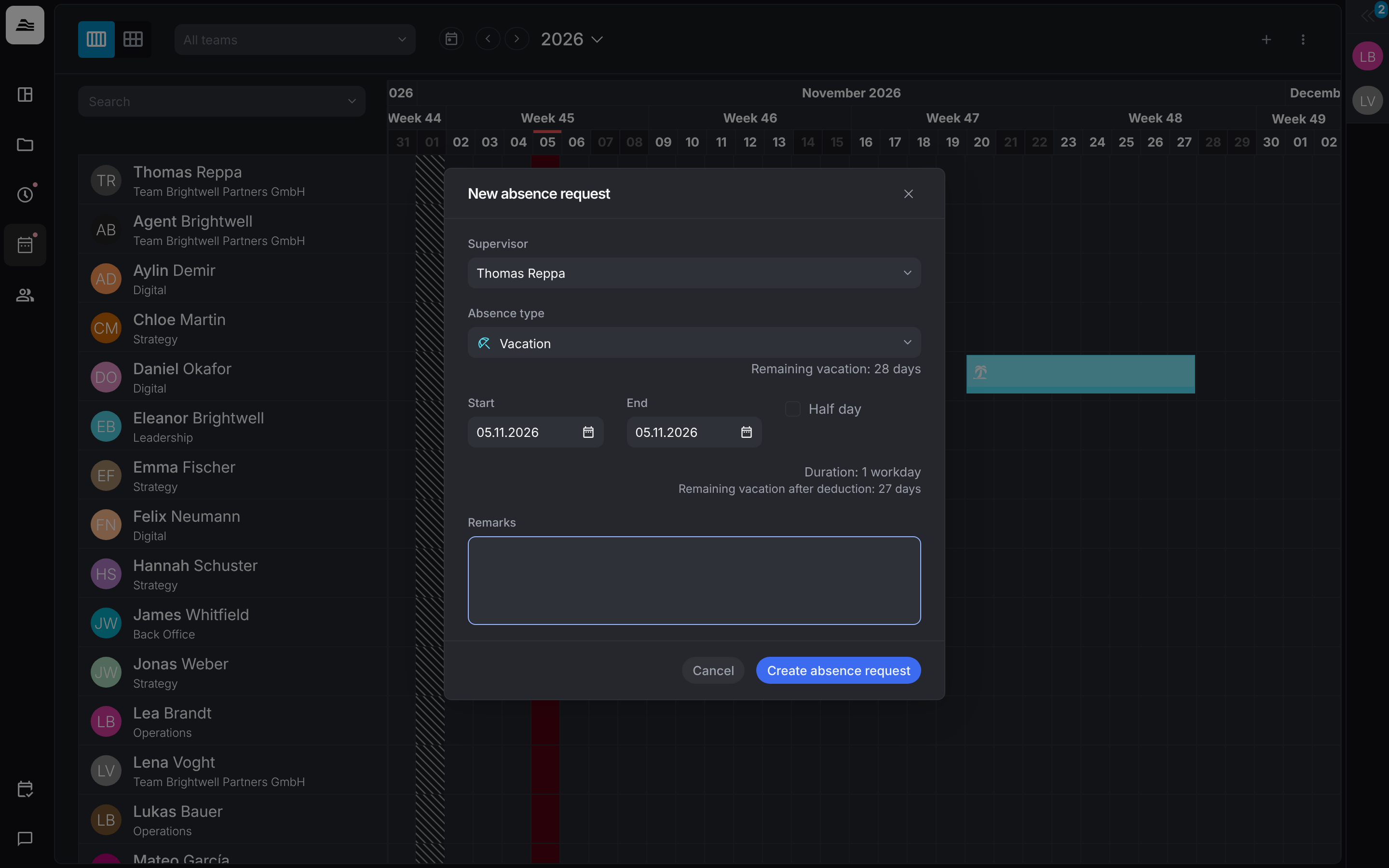
Staff members request absences with + > New absence request. They choose the Supervisor who approves it, the Absence type and the period and click Create absence request.
Approve requests
Staff with the right to approve absences of their team or other staff members see the requests in the panel on the right, sorted into Open, Approved and Rejected. Confirm or reject a request with the buttons next to it.
Export
Under the ⋮ menu:
- Calendar export: a link in iCalendar format that you subscribe to in your calendar app. New link makes the current link invalid and creates a new one.
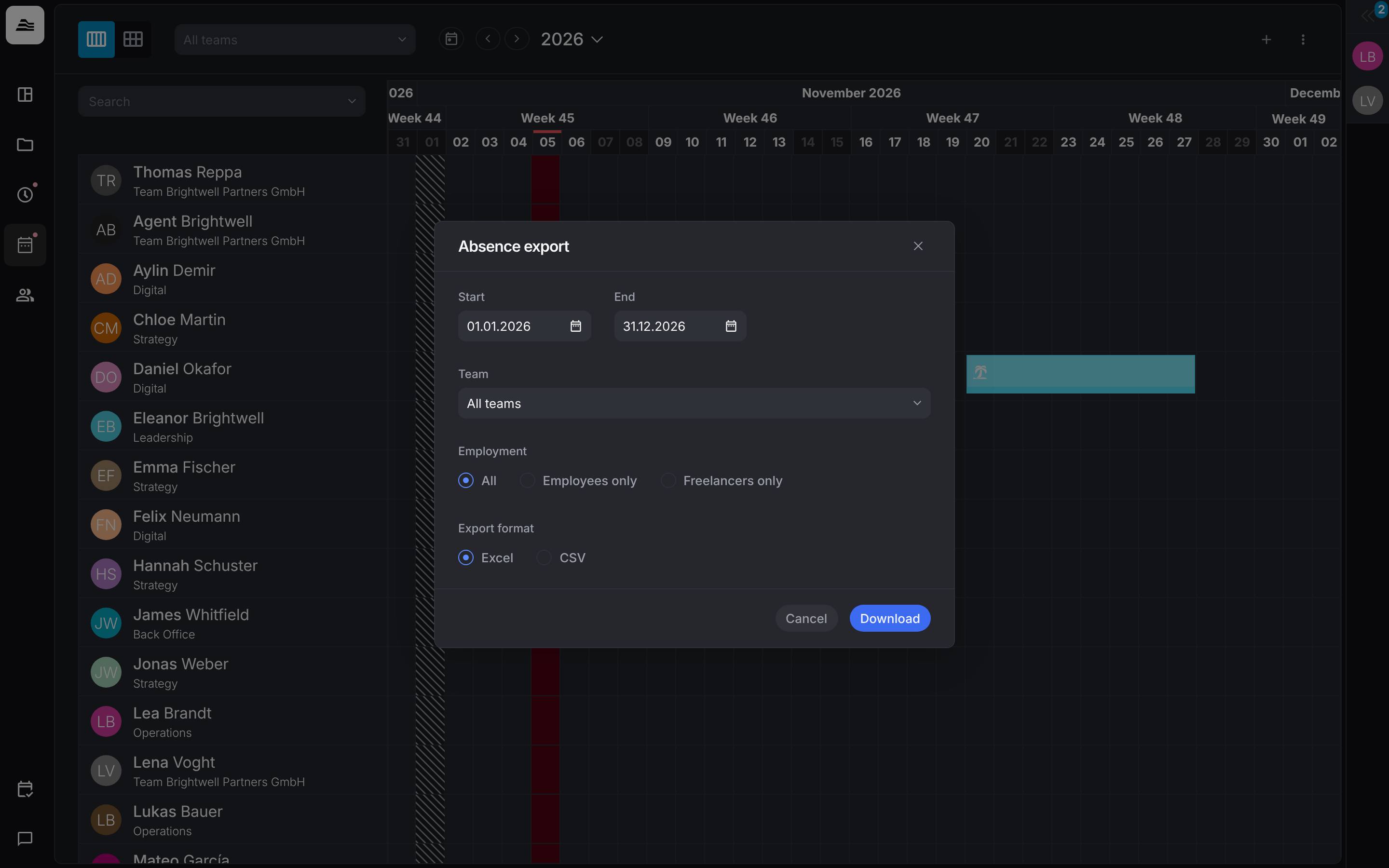
- Export absences: choose Start, End, Team and the Employment type (All, Employees only, Freelancers only) and download the absences as Excel or CSV.