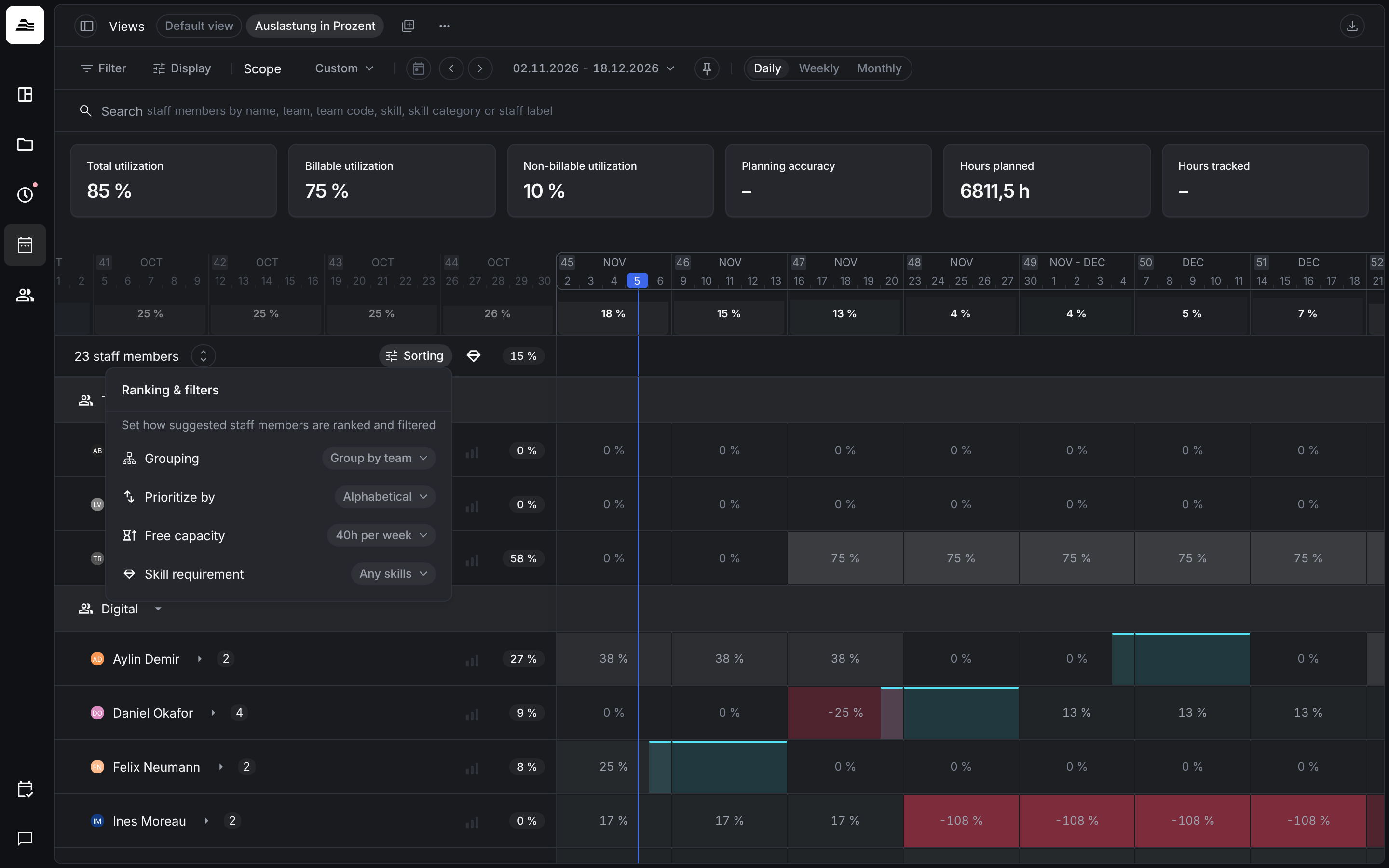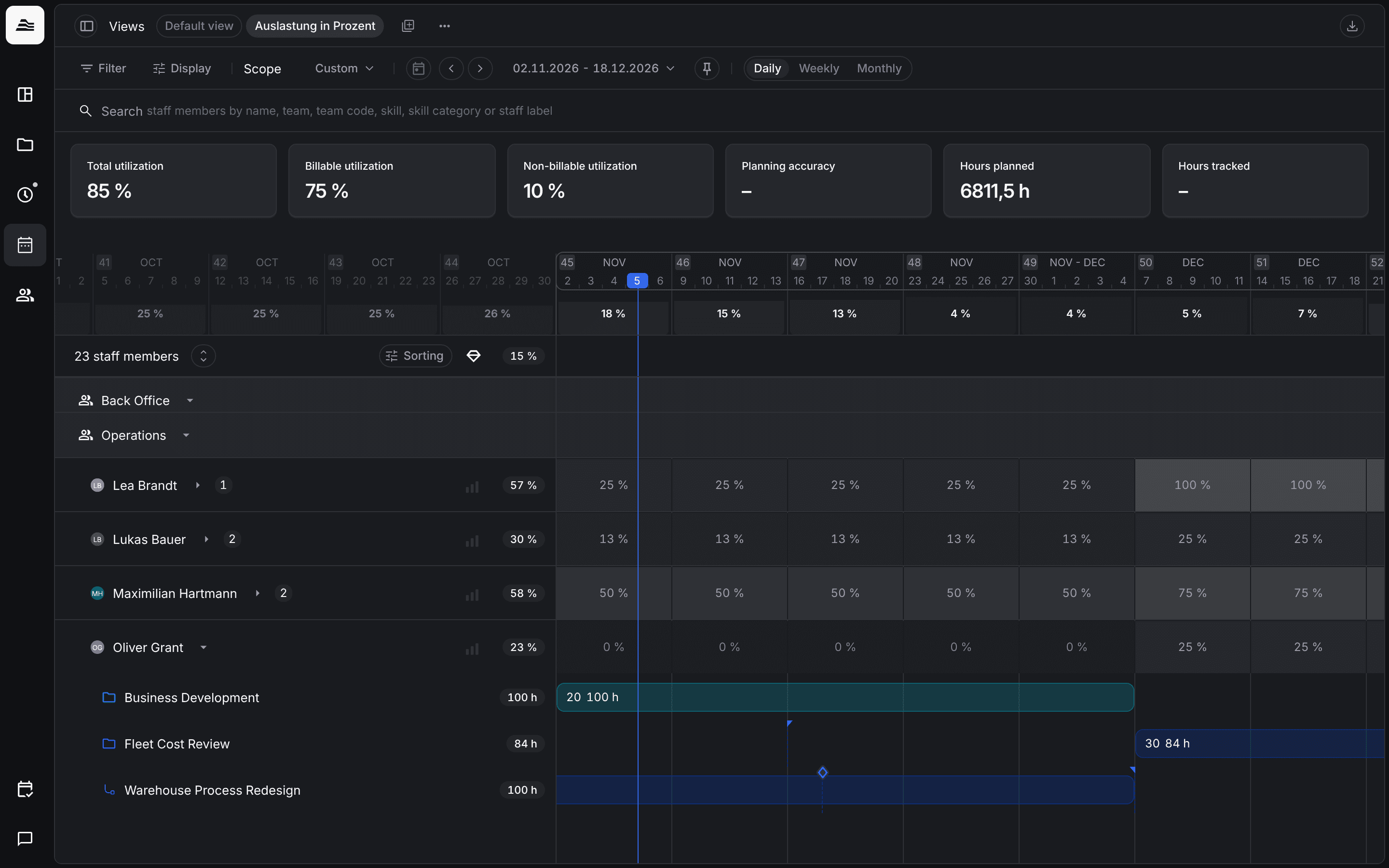
The utilization planner shows every staff member on a timeline: how much capacity they have, how much of it is planned and where they are over planned.
Required rights: a role with Read access planner
Rows and cells
Staff members are grouped by team. Next to each name you see the number of projects the staff member is planned on, and on the right the availability or utilization in the planning scope, depending on the display setting. Expand a staff member to see the projects with their planning assignments. A bar such as 30 84 h means 30 hours per week and 84 hours in total for that assignment.
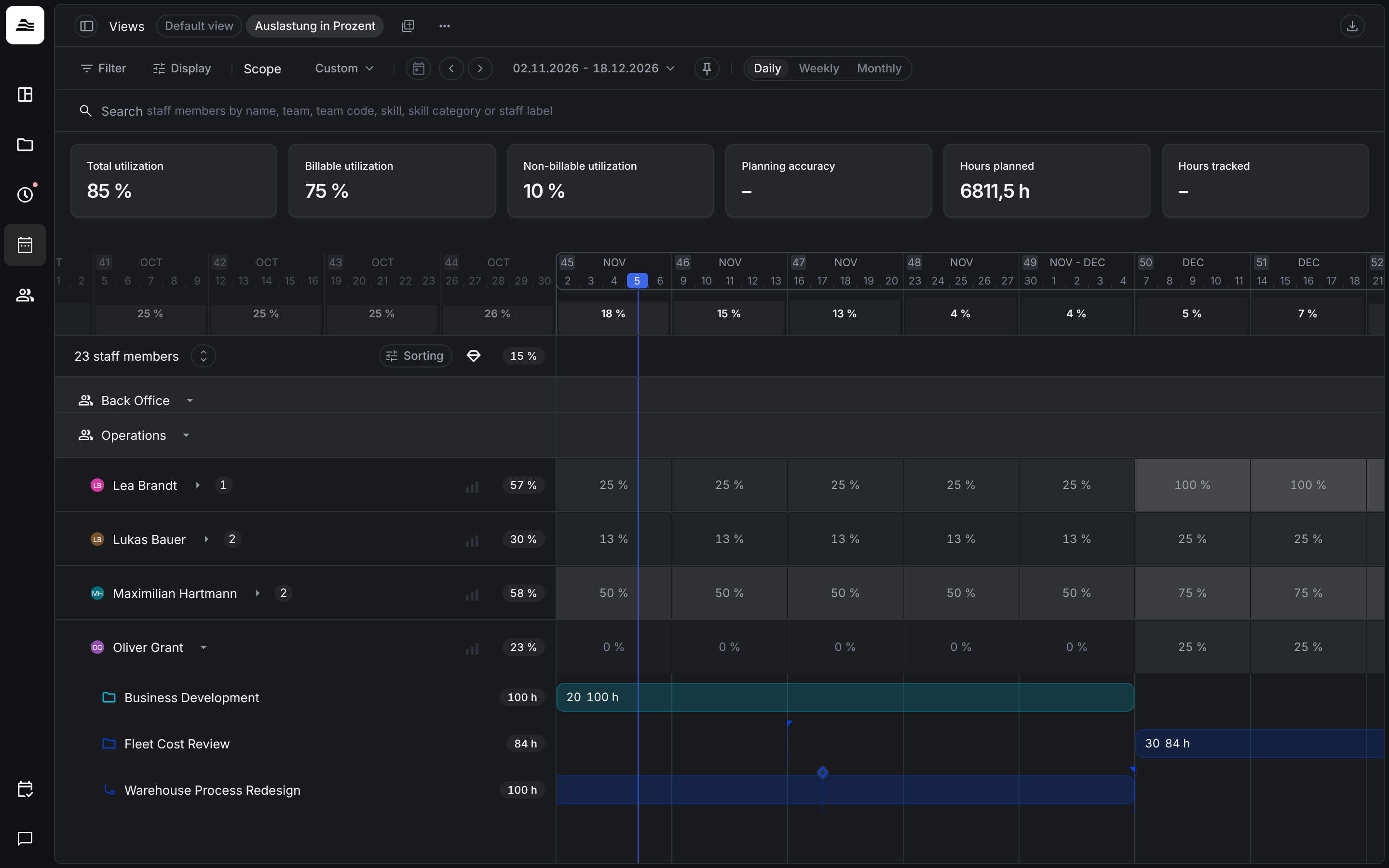
The cells show the value per day, week or month. Negative values mean that the staff member is over planned. Absences are shown in the cells as well. Hover over the row above the timeline to see the capacity per team and who is over planned in that period.
Display options
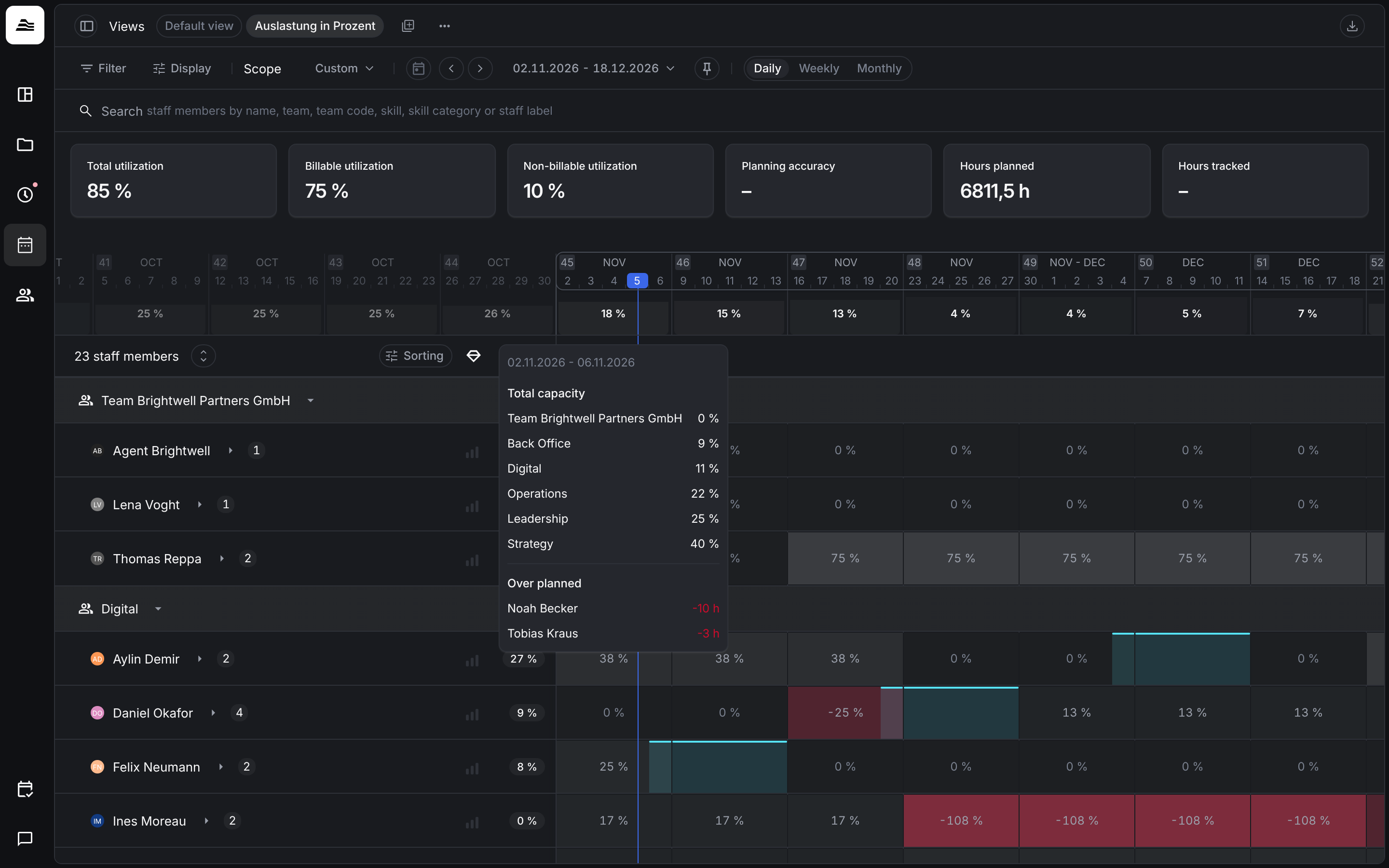
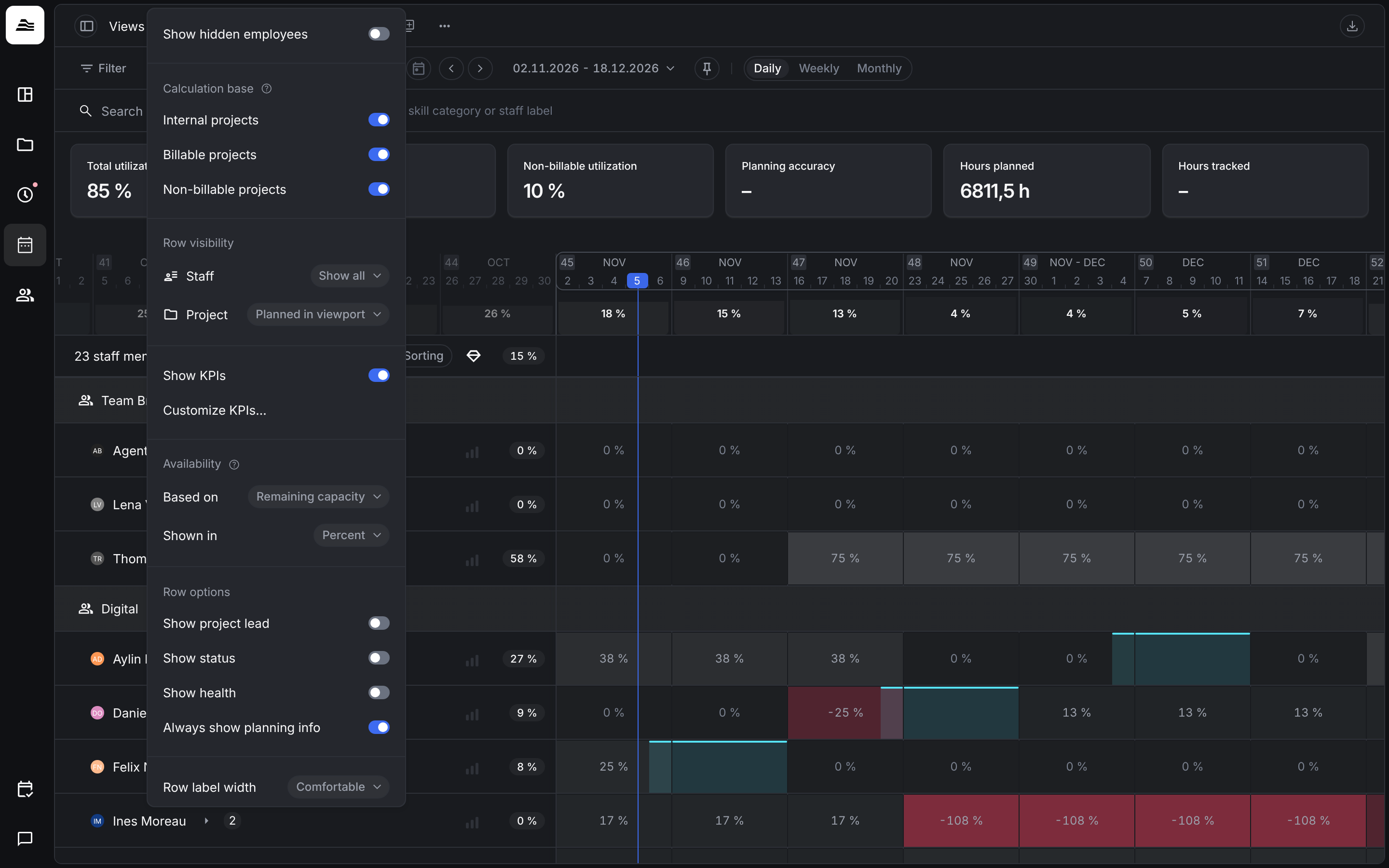
Under Display you set:
- Calculation base: which projects count toward utilization: Internal projects, Billable projects and Non-billable projects.
- Row visibility for staff: Show all, Show planned (only staff with planning assignments), Planned in viewport (planning in the visible range) or Planned in scope (planning in the planning scope).
- Row visibility for projects: All projects, Planned, Planned in viewport or Planned in scope.
- Availability: Based on Utilization or Remaining capacity, Shown in percent or hours.
- Row options such as project lead, status, health and Always show planning info.
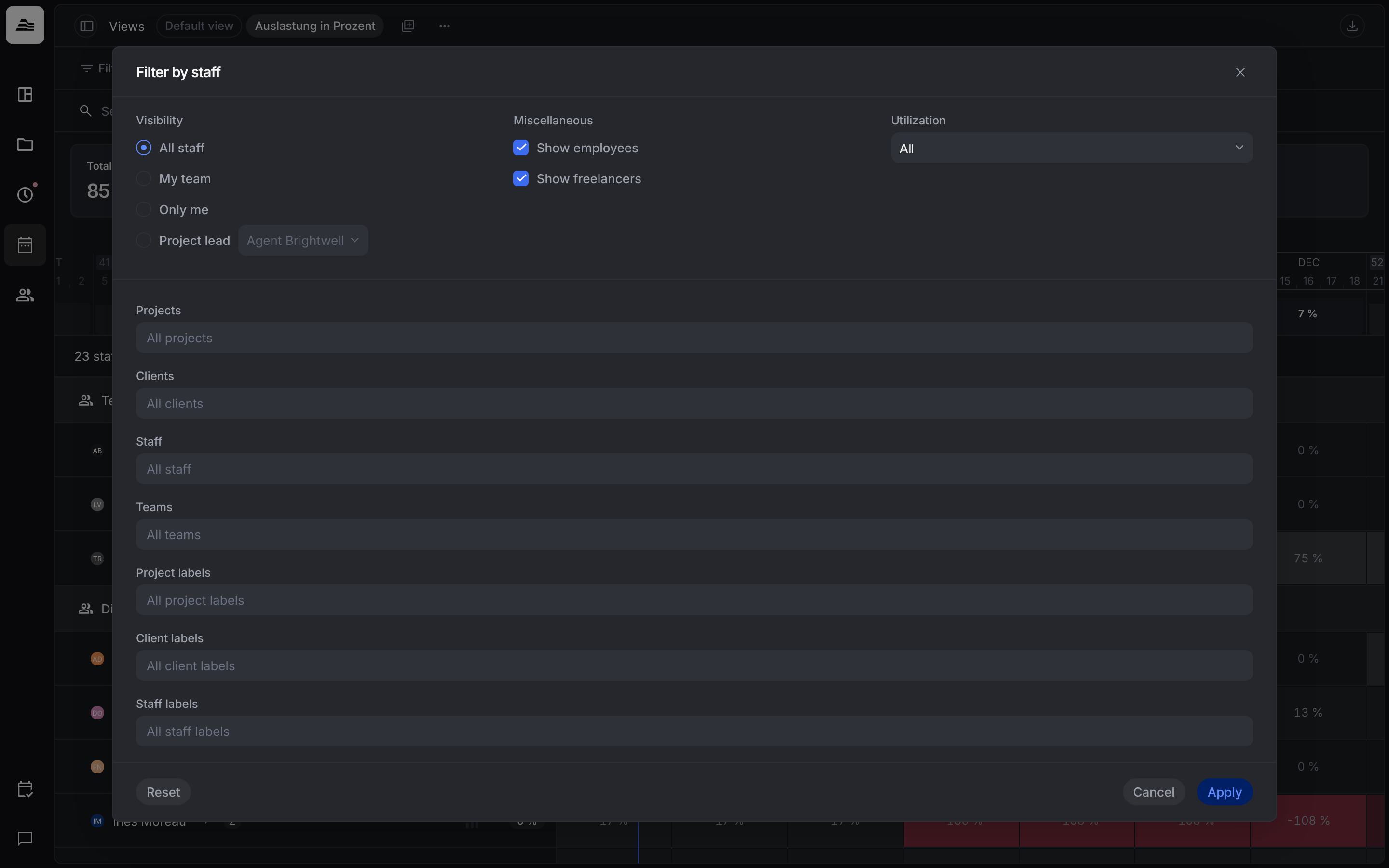
Filter
Filter by staff narrows the list by Visibility (All staff, My team, Only me, Project lead), employees and freelancers, the utilization (for example 50% or less), projects, clients, staff, teams and labels.
Sorting
Sorting decides how staff members are ranked:
- Grouping: Group by team shows staff below their team, Ungrouped shows a flat list.
- Prioritize by: Alphabetical, Free capacity or Skill match. Skill match needs an active search for one or more skills.
- Free capacity: filters and ranks staff by free capacity based on 40, 32, 24, 16 or 8 hours per week.
- Skill requirement: Any skill compares one matching skill, All skills compares all searched skills with the skills and levels of the staff member.