
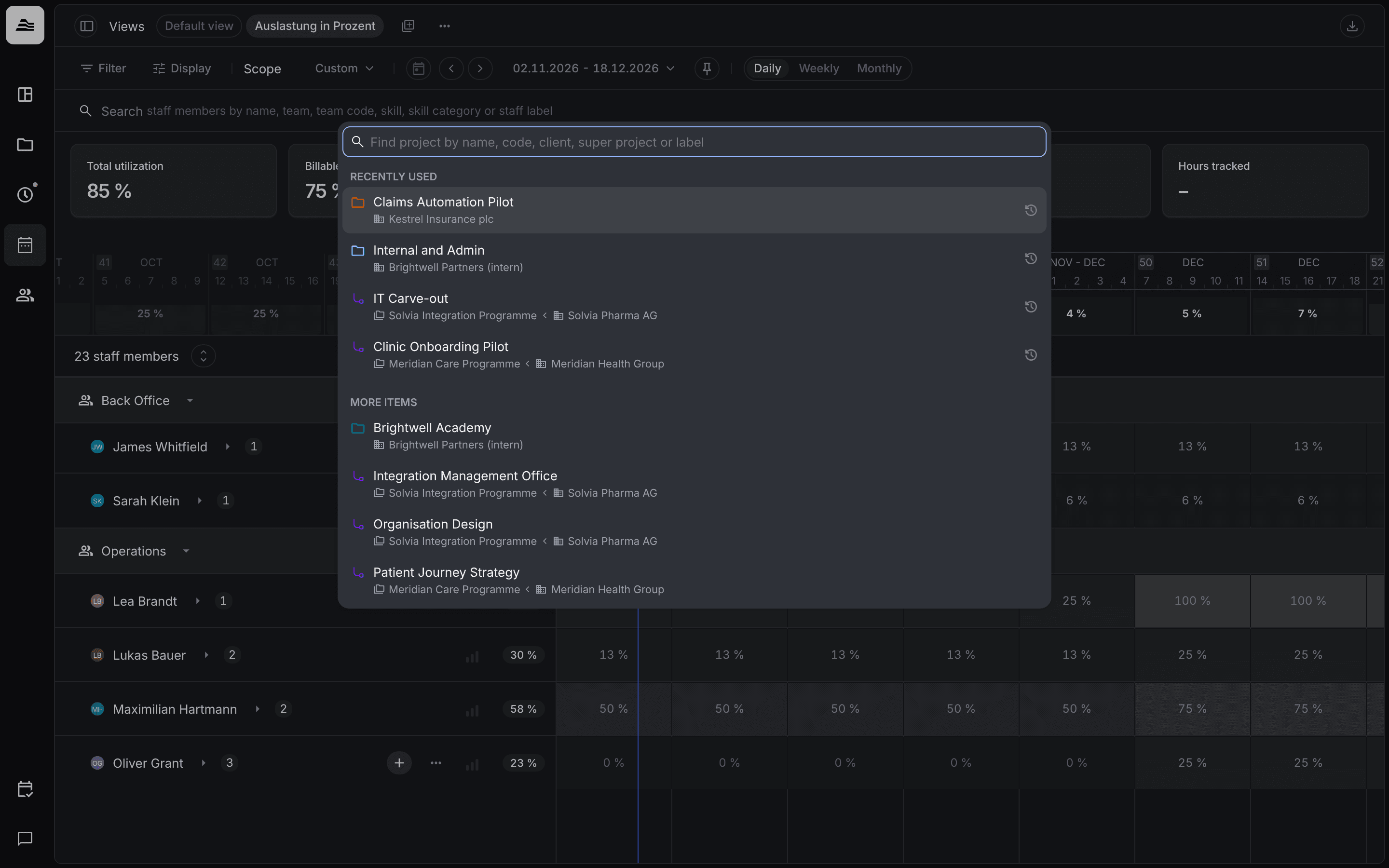
You plan a staff member on a project with a planning assignment: a period and the hours the staff member works on the project.
Required rights: a role with Team and project management. It allows assigning staff to projects you manage.
Add a planning assignment
- In the utilization planner, hover over the staff member and click +.
- Choose the project. It appears as a row below the staff member.
- In the project row, drag across the period, or click on a period.
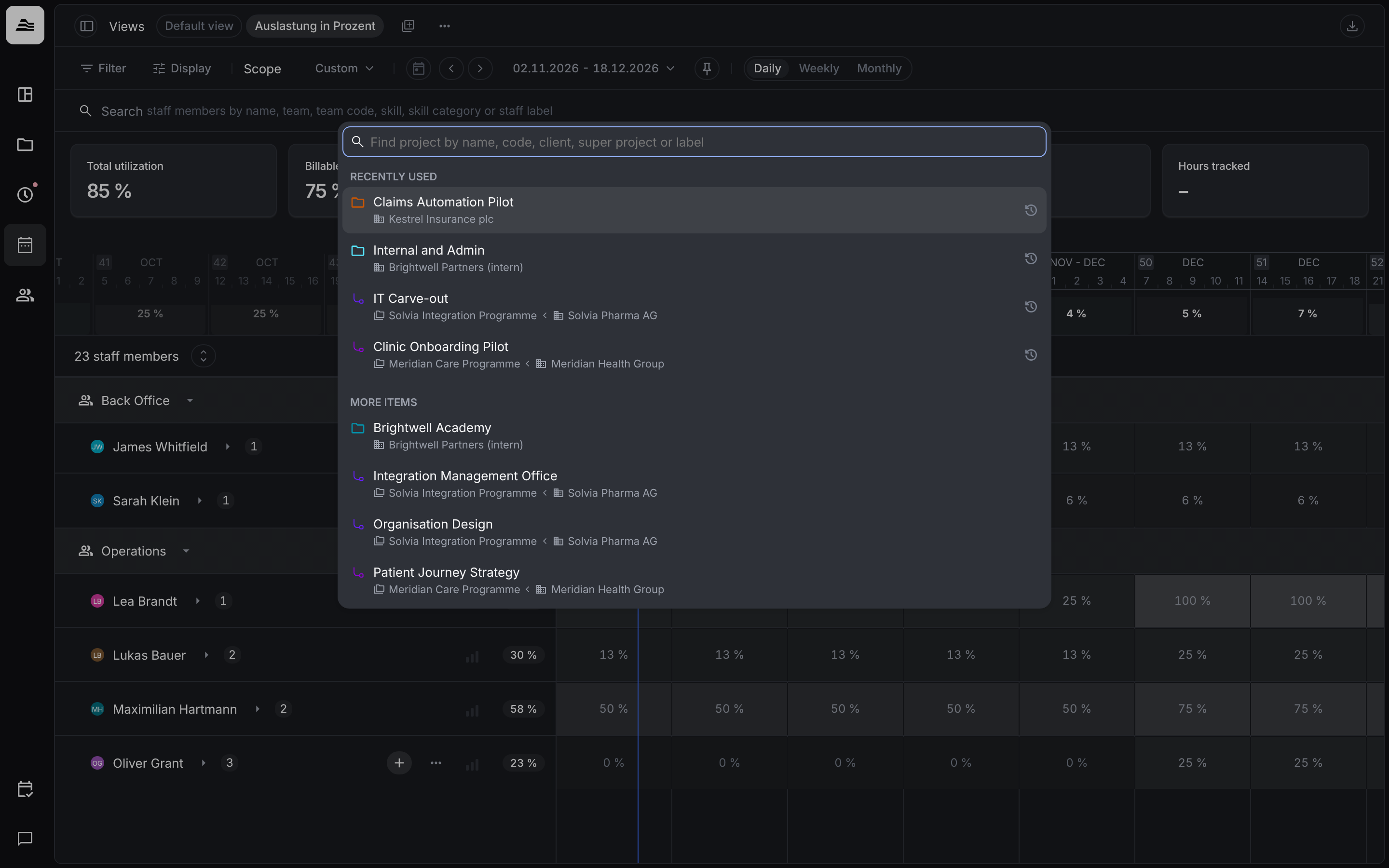
You can also plan from the project side, see Plan a project.
Change a planning assignment
- Drag and drop: move the assignment to the left or right, or drag its ends to shorten or extend it.
- Assignment modal: click on the assignment to open Edit project planning.
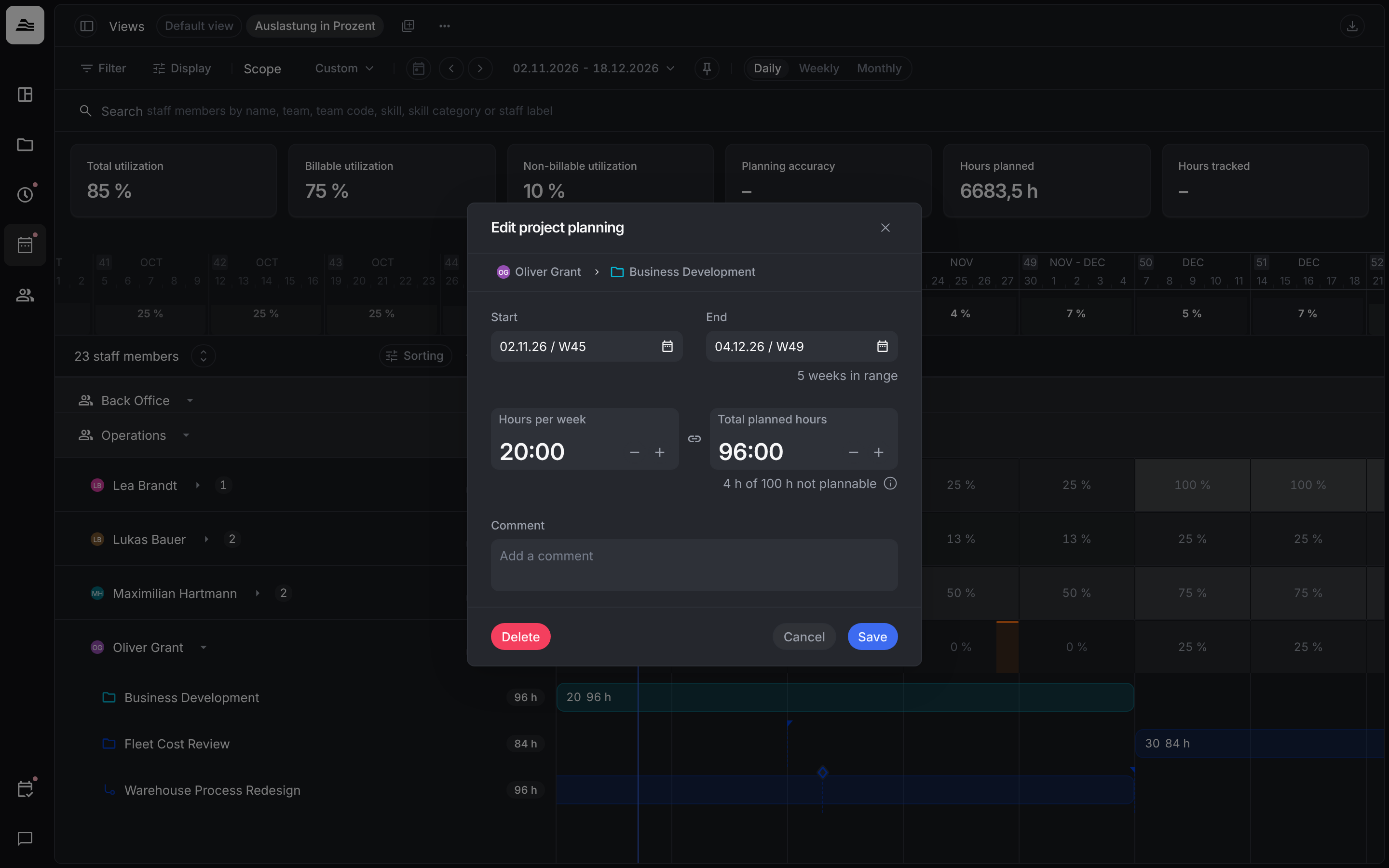
In Edit project planning you set:
- Start and End.
- Hours per week (or per day) and Total planned hours. Both are linked: change one and Aerion calculates the other.
- Comment.
Below the hours Aerion shows how many hours of the period are not plannable, for example because of public holidays, absences or shorter work days. Delete removes the assignment.
Whether you plan per day or per week depends on Planning units in Settings > Planning (daily or Weekly). The setting applies to all projects and staff members. Switching units does not change any data.
Split a planning assignment
To split an assignment in two, click on a separator line inside the assignment: the line between two days when you plan per day, the line between two weeks when you plan per week. The cursor changes when you are on the right spot. Aerion asks whether to split the assignment on that date. Hold the Alt key to edit the new assignment right away.