
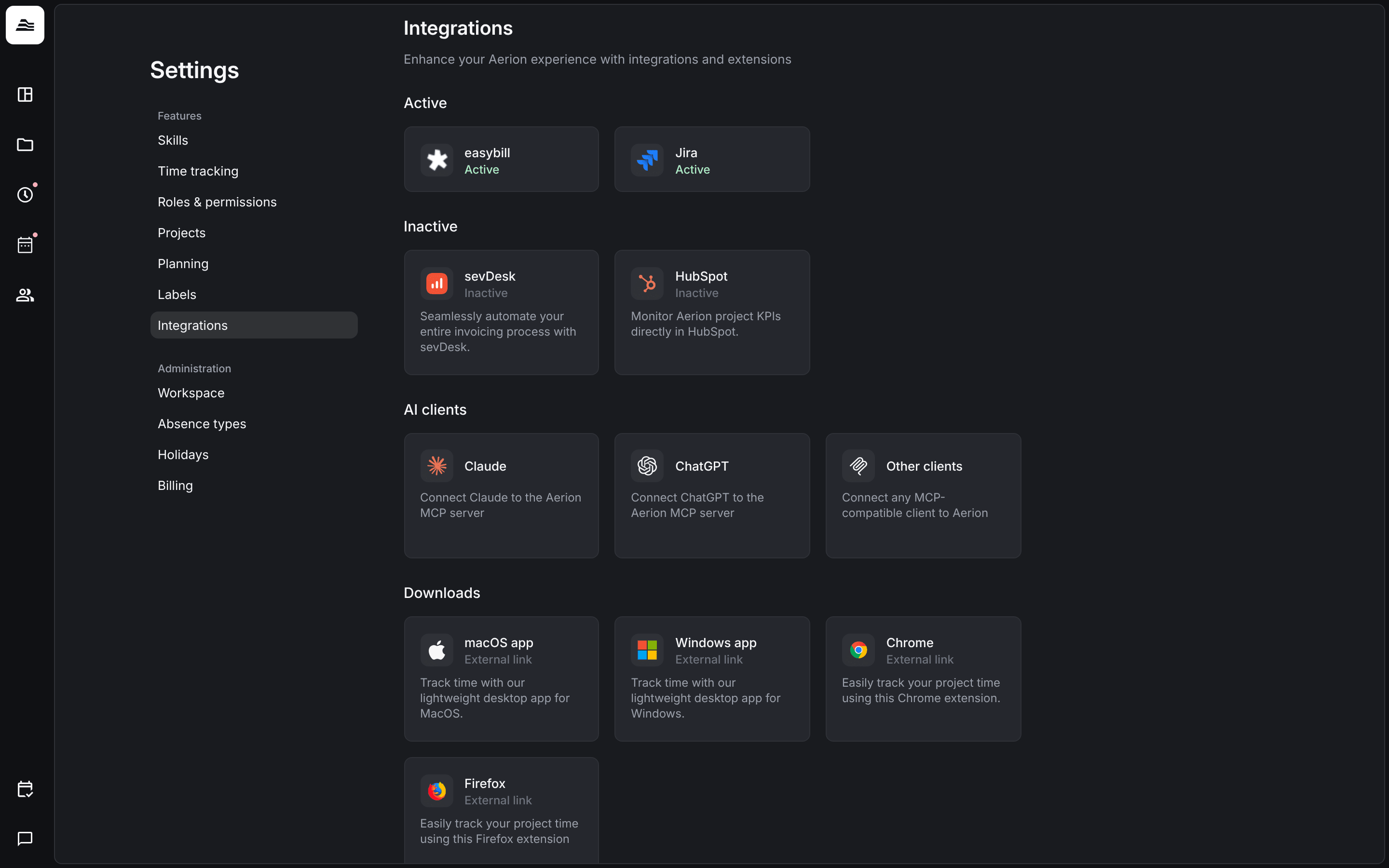
Aerion has an MCP server. Connect Claude, ChatGPT or another MCP client to it, and you can look up, create and update your projects, time entries, staffing and approvals right from a conversation. The client only gets the access your own permissions allow.
Required rights: none. Every staff member can connect an AI client.
Open Settings → Integrations and choose a client under AI clients.
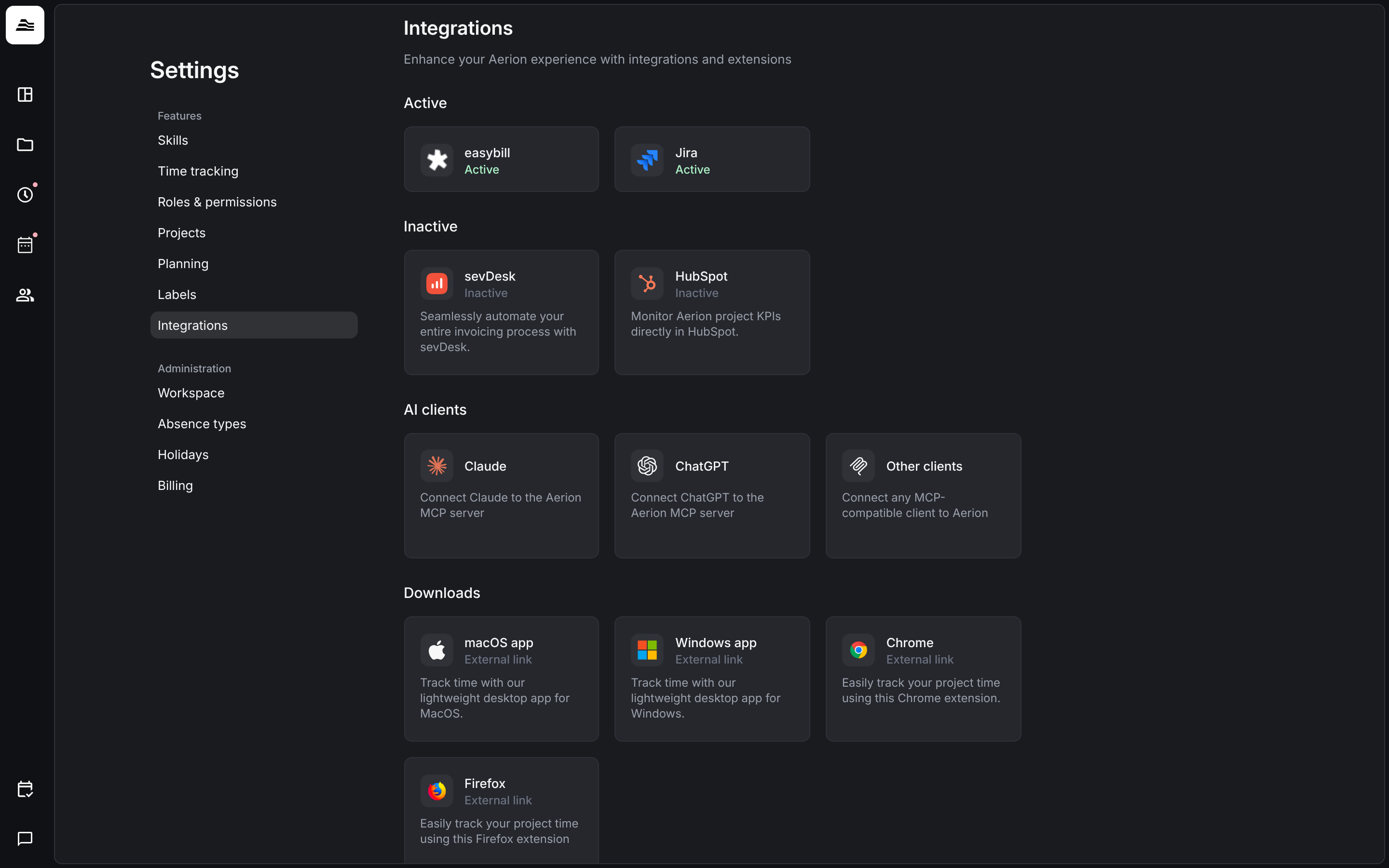
Claude
Connect Aerion from the Claude connector directory or on the connectors page in the Claude settings.
ChatGPT
Connect Aerion in the ChatGPT connector settings. You can then add Aerion as a source in a chat or in deep research.
Other clients
Any MCP compatible client, for example Gemini or Cursor, connects with the server URL of Aerion. Add it in the MCP or connector settings of your client and sign in with your Aerion account.
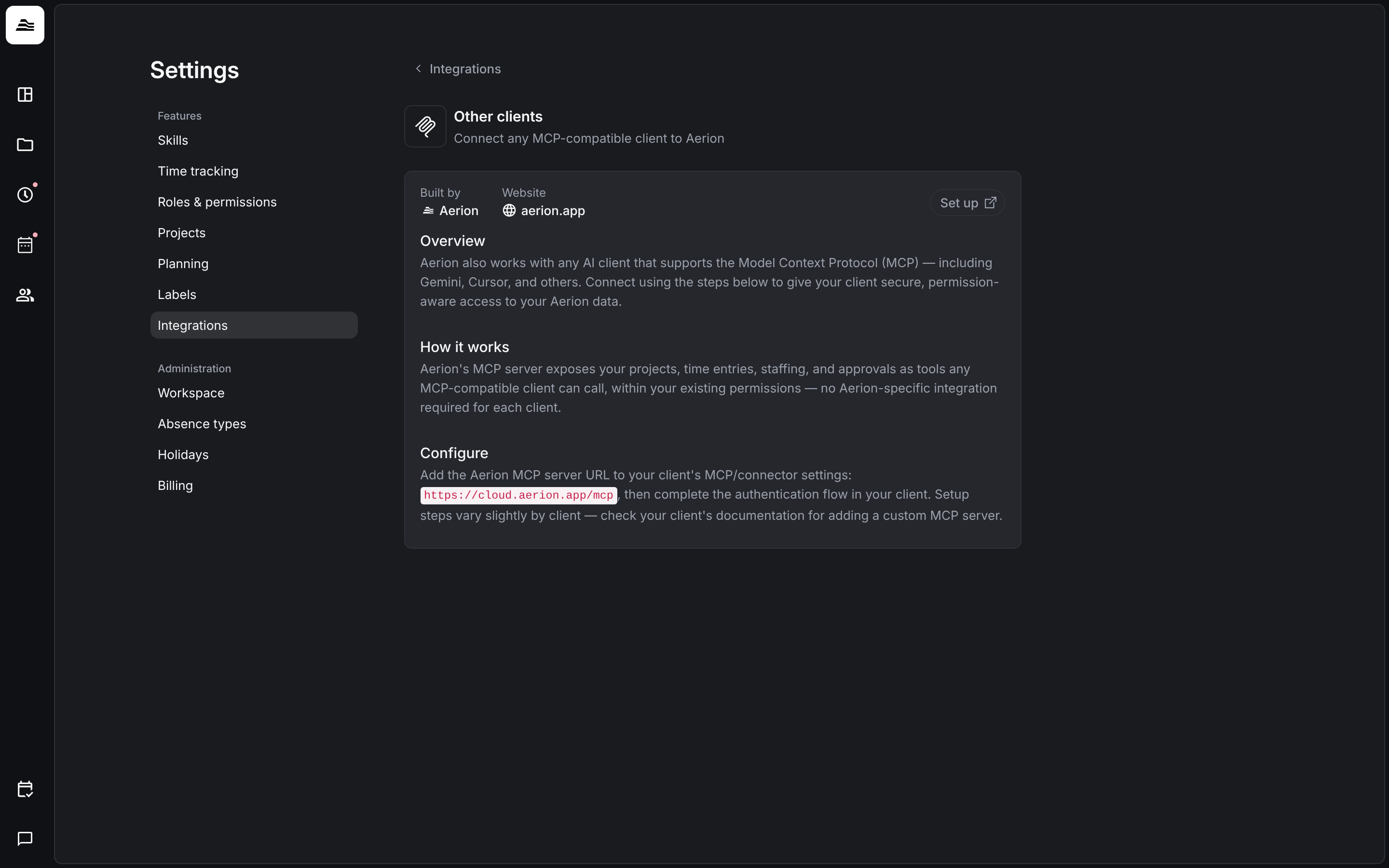
The server URL, the setup for Claude Code and all details are in the MCP server guide.
Related
- Integrations overview: all integrations at a glance.
- Roles and permissions: what a staff member may see and change.