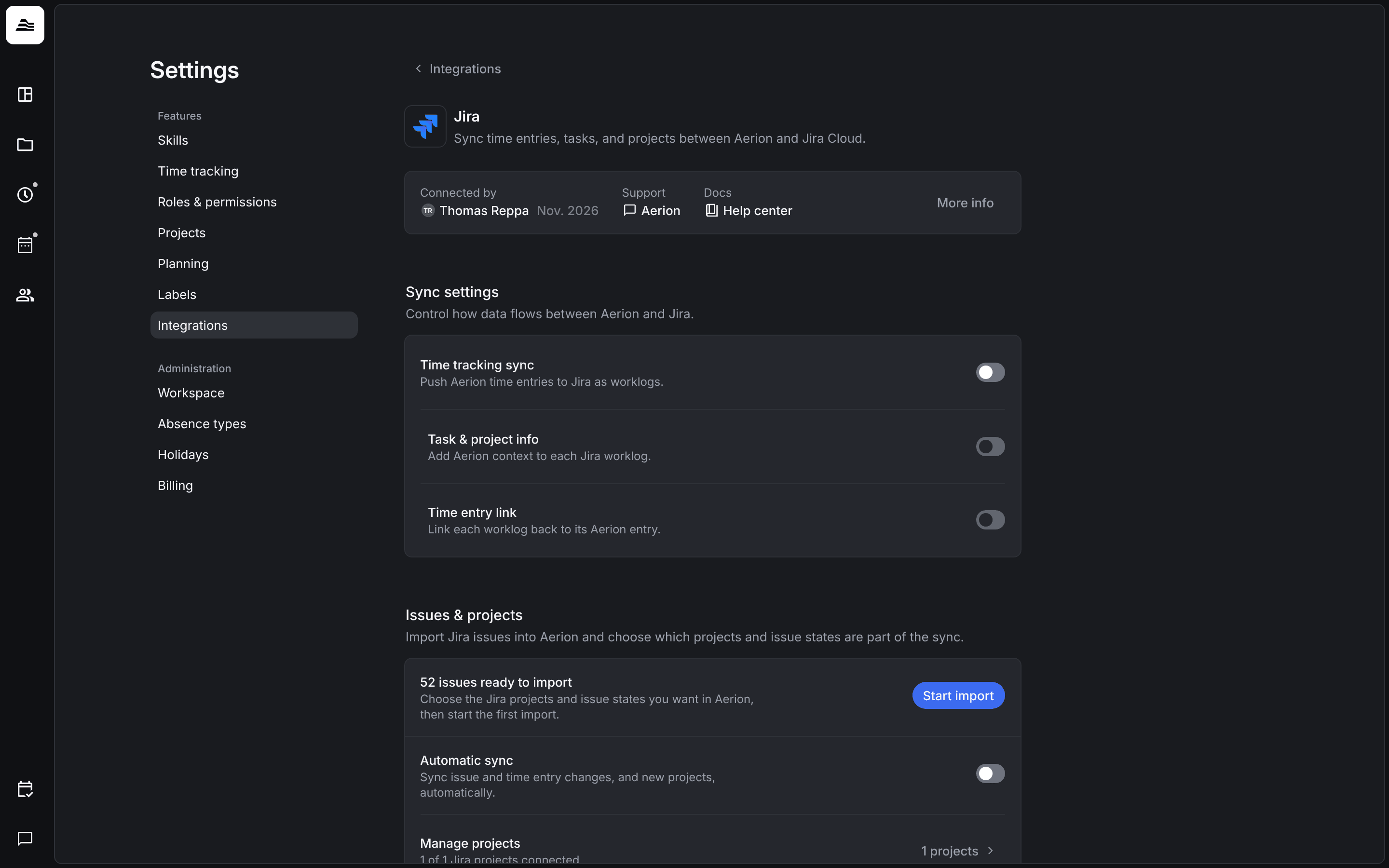
With the Jira Cloud integration, Jira issues are imported into Aerion and linked to your projects. Staff members track time on these issues, and their time entries go back to Jira as worklogs.
Required rights: Admin in Aerion and admin access in Jira
Connect Jira
- Install the Aerion app in your Jira Cloud instance and sign in with your Aerion account.
- Open
Settings → Integrations→ Jira in Aerion. Jira now shows as Active.
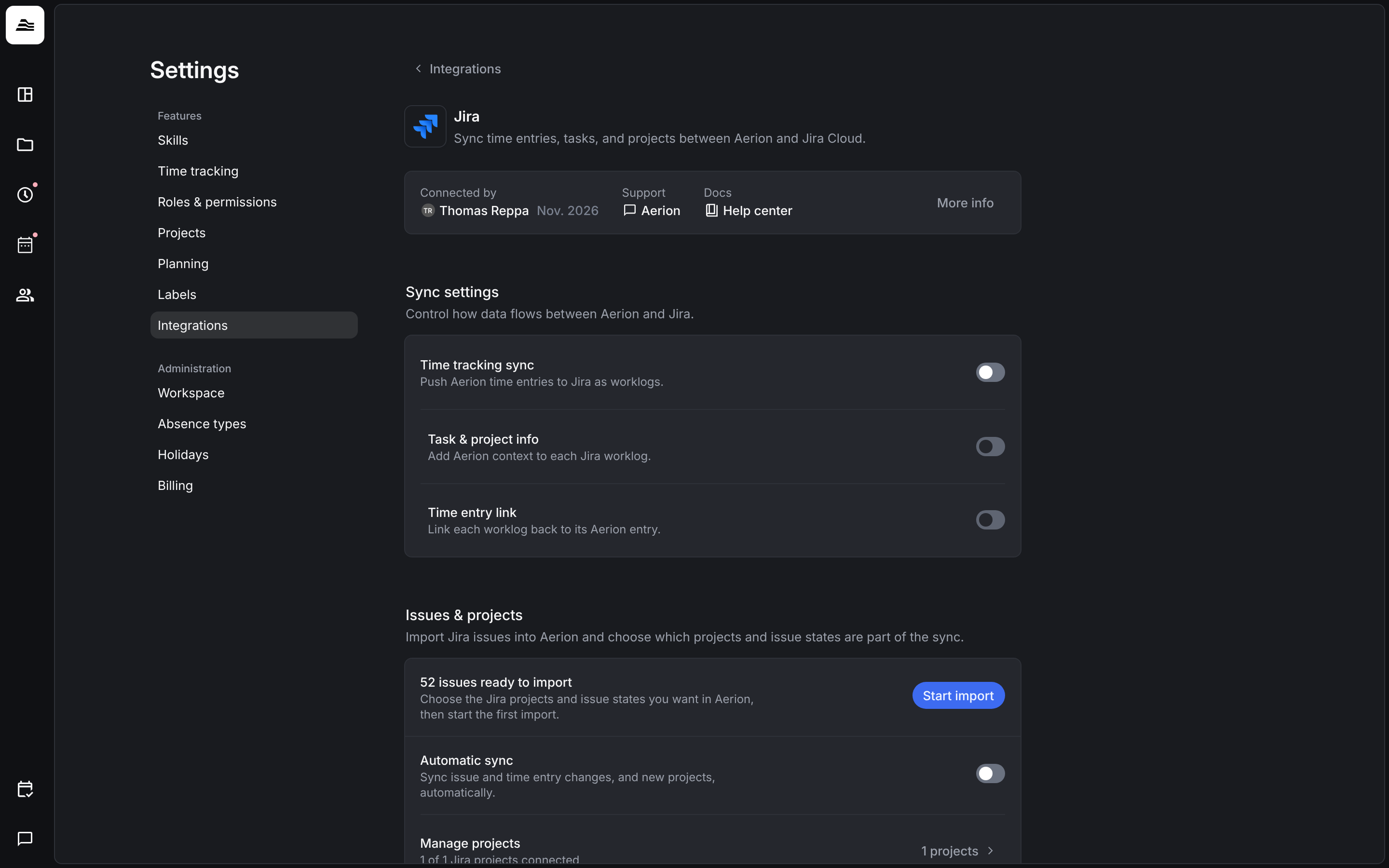
Sync settings
- Time tracking sync: time entries on Jira issues are pushed to Jira as worklogs.
- Task & project info: each worklog also gets the Aerion task and project.
- Time entry link: each worklog links back to its time entry in Aerion.
Import issues
Under Issues & projects you choose which Jira data comes into Aerion.
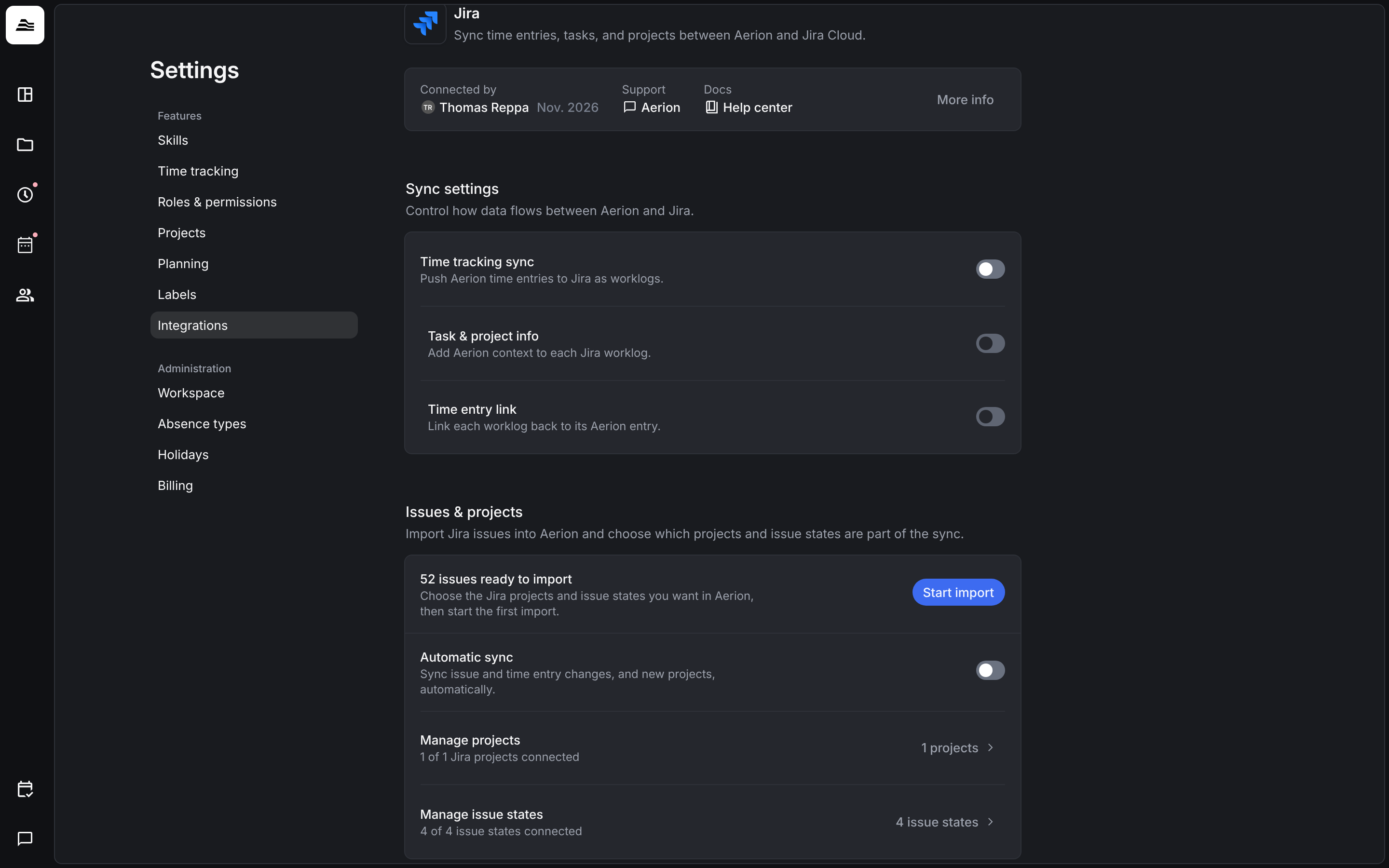
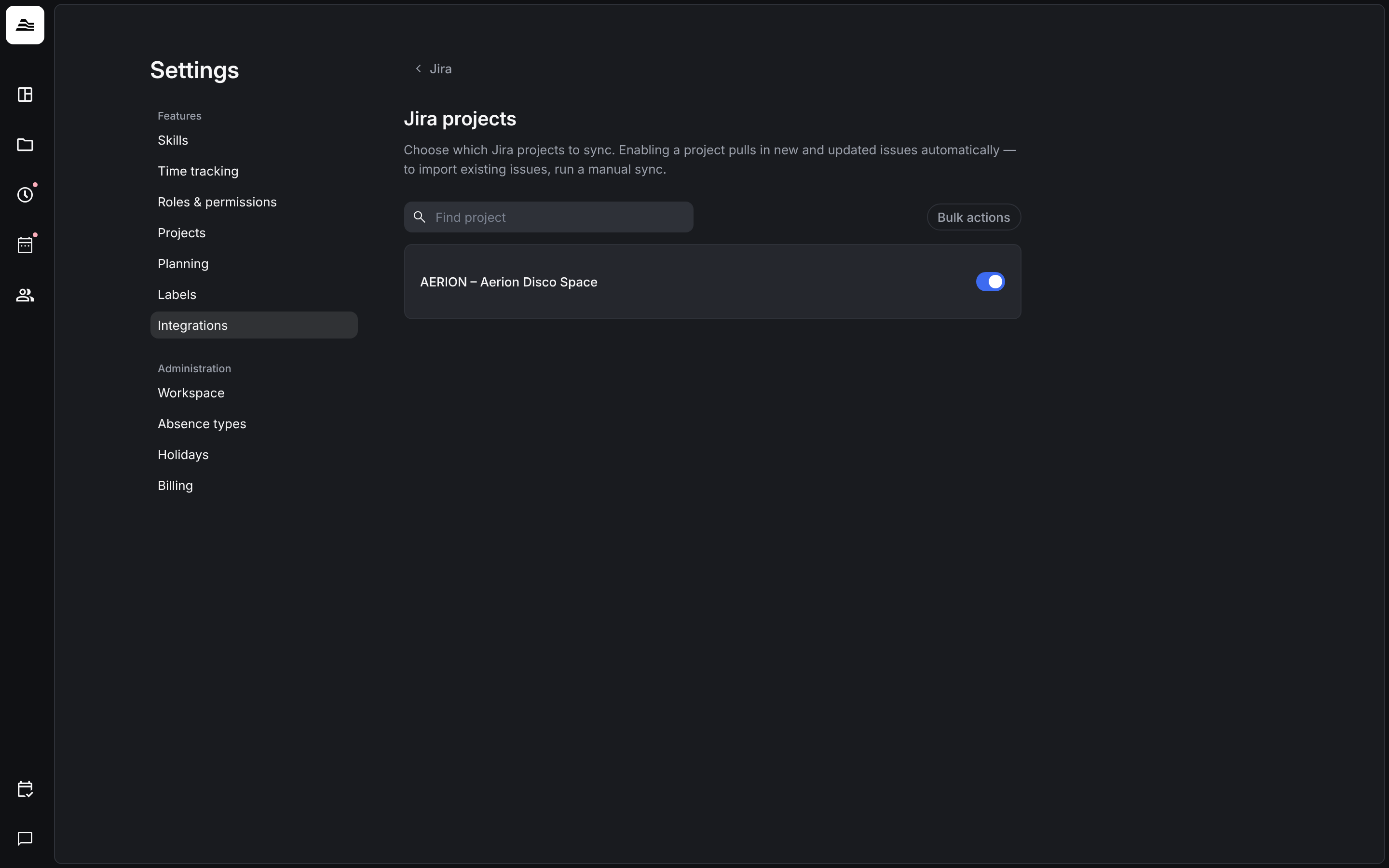
- Manage projects: turn on the Jira projects you want to sync. New and updated issues of these projects are then imported automatically; existing issues are imported with a manual sync.
- Manage issue states: turn on the issue states you want to sync, for example To Do or In Progress. Only issues in these states are imported.
- Start import: imports all matching issues. You can import again at any time to refresh them.
- Automatic sync: issue and time entry changes and new projects are synced automatically.
Link Jira to your projects
In the Aerion project under Reference systems you assign a Jira project, or Jira issues with a certain label, to the Aerion project. Staff members then find these issues as references in their time entries.
Related
- Tracking references: link time entries to Jira issues.
- Integrations overview: all integrations at a glance.